Ga door naar hoofdinhoud
Word lid van de reparatiegemeenschap - Account aanmaken

Model: C11CD10201 Print/Copy/Scan/Fax Auto Document Feeder Will print on both sides of page Wifi / Inkjet

Problem downgrading the firmware of an Epson WF-7840

Good morning everyone,

I've had the bad idea to upgrade the firmware of our Epson WF-7840 (version CD17M6 now).

Now, our non epson cartridges are not recognised anymore.

I've search the web about how to downgrade the firmware. I found the procedure, found how to put the printer in "recovery mode" and, on the Epson website, I found the "Recovery Mode Firmware version CB08LC" for the Epson WF-7840.

But it doesn't work...

First problem, the model of the printer does not appear in the "Epson firmware updater" but it sees that a printer is connected.

Second problem, and it is where it stops, when I launch the Update, it fails with a message on the printer's screen "Data file not found".

I tried with my mac (macbook pro 16" m1 max) and with an older macbook pro from 2009 with the same result. I tried with another USB cable and still no luck.

What am I doing wrong?

Beantwoord! Bekijk het antwoord Dit probleem heb ik ook

Is dit een goede vraag?

Score 8
5 opmerkingen

Can someone give visual like pics or something because i have the old file but i get confused when you get to the trick your update part lol... i dont know how to switch them or what it entails.

door

HOW DO I DOWNGRADE epson wf 7310 printer FIRMWARE?? having a problem with the chipset

door

I am wondering if there is an update to this to get around what appears to be a block by Epson to switch out the newer version files with the previous version. It lets me copy / paste into the new Firmware Updater0 folder, but when I try and run the new firmware update, I go through the motions and "proceed with the firmware update", but receive "failed to send firmware update file to the printer".

The printer is on, in recovery mode, (I have tried with cartridges loaded and not loaded), and connected via USB.

It will complete the update if I do not try and swap out the files so it leads me to believe Epson got smart to this hack and somehow blocked it?

door

Cynthia Smallwood-Jacques, if you have a Mac and have not solve your problem. Look for my post back in Nov. 25, 2025 on this thread and hope it helps.

door

Thank you, Amante. Unfortunately, I have a Windows machine, but I appreciate your reply!

door

Voeg een opmerking toe

19 Antwoorden

Gekozen oplossing

Hi folks,

I have a WF-7840

I really don’t have time to explain this, but I am so discouraged by how badly tech people explain things, I bit the bullet and put together a more comprehensive step by step.

I thought I would help all those other non-tech people out there by posting clear and a layman friendly explanation in proper English. I will give a short version first, then a bit of a longwinded version later which might help some people understand what’s going on, and what each file is for, and hopefully feel more comfortable with the process.  In the end, after you’re done, you’ll realize it’s quite simple and the next time you do it (god forbid), you’ll find it rather easy.

I will also explain some of the file naming discrepancies that are quite confusingly described in other posts. Or rather, I will indicate the proper file names or download locations

I hope I didn’t make any typos below. But if I did, please point them out and I will correct if I have time. Also, looks like the Word formatting got messed up a bit. Sorry about that. No time to figure out formatting.

Edit [March 2025]: If these instructions don’t get you to the finish line, please refer to Router Downer’s post below for a modification that may be required due to some possible recent updates on Epson’s end. I believe his post is Jan 23rd, 2025. Also, RouterDowner suggests using my long description for a more reliable repair.


So, here goes.


“Short” version (see after screenshots for longer version with more explanation):

1.      Download the old Epson recovery files. These are simply the recovery software for an older version of the firmware. Here are the links:

a.      https://ftp.epson.com/drivers/FW_CD08M4....

b.      https://ftp.epson.com/drivers/FW_CD08M4....

2.      Next, Download the current recovery utility tool from Epson’s current WF-7840 support site. This will have a longer name than the files in step 1 above (i.e., FWCH67TL_CD08M4.exe).

a.      https://epson.com/Support/Printers/All-I...

3.      So, now you have the files you need. Next step is to get the old firmware files unpacked from the files downloaded in 1:

a.      Run the old utility downloaded in step 1a (“FW_CD08M4.exe”).  What this does is start the recovery process. Normally you would have your printer in recovery mode during this step (described later), but it’s not necessary right now since you’re just trying to get the old recovery software (which won’t work anymore) to unpack the older firmware into your “temp” folder so you can copy it for later use.

b.      Navigate to C:\Users\”your name here”\AppData\Local\Temp (ensure hidden and system files are visible)

c.      You should now be in:

                                                              i.      C:\Users\”your name here”\AppData\Local\Temp

                                                             ii.      DON’T go into the Epson folder.

                                                           iii.      When you ran the old Recovery utility in step 3a above, a folder called “Firmware Updater()” appeared in the “Temp” folder. Inside it will be the old firmware files. Copy these anywhere you want. This file is called “FWCH67TL.rcx”.

                                                           iv.      Cancel the Recovery update utility. The “Firmware Updater()” folder will disappear. But you got the file you need.

4.      Now you have the old Firmware files saved.

5.      Next you have to attach your printer to a USB printer cable (port located next to the power cable on the back of the printer).

6.      Next you need to put your printer into recovery mode by pressing and holding the following buttons simultaneously:

a.      4,7, job/status, power button

b.      The printer screen will go black, then shortly after some white text indicating it’s in recovery mode will appear.

7.      Next run the software you downloaded in step 2 (current Epson recovery firmware named “FWCH67TL_CD30N1.exe”).  Note, this won’t work if your printer isn’t in recovery mode.

8.      So this does the exact same thing as the old recovery utility software from step 3. It unpacks the firmware into the “Firmware Updater()” folder in the “Temp” folder.  But this time you want to deploy firmware onto your printer. But not yet. First:

9.      You need to replace the new firmware files just unpacked (also called FWCH67TL.rcx) with the old firmware unpacked and saved in step 3.c.iii.. So, replace the firmware that was just unpacked.  You want to replace this newer firmware that was just unpacked into “Firmware Updater()” with the old firmware you saved in step 3.c.iii above (note: keep the newer Recovery Utility software open/running on your computer while doing this or the folder “Firmware Updater()” will disappear).

10.  Once you have replaced these files in the newly created “Firmware Updater() folder, you can finish the last installation steps in the software. It’s pretty user friendly. Just follow the remaining prompts from where you left off before pausing to replace the firmware files with old files.

a.      Don’t select the Network connection type to the printer however. Tick the box next to the USB connection type only.

11.  The newer Epson recovery utility software was essentially tricked into deploying the older firmware you copied into the “Firmware Updater()” folder onto the printer.

12.  The software will then say something similar to “wait for the printer to power itself down”. You’re lucky if the printer actually powers itself down. I clicked “finish” in the software. The software closed, but it looked like my printer was still deploying the firmware onto it’s internal “chip(s)”. The power button was flashing intermittently (but also sometimes solid), and the white text message on the screen wasn’t definitive.  So I walked away for an hour and let it do it’s thing.

13.  When I returned, almost half the lights on my printer were blinking, including error, printer, and many other. Lit up like a Christmas tree.  Quite alarming, but nothing to worry about. Still some non-definitive text on the screen (but new stuff from before). Holding the power button did nothing.

14.  Easy fix.

a.      Unplug.

b.      Plug back in.

c.      Power up by pressing power button.

15.  Printer accepts previously rejected printer cartridges. Everything working properly.

Okay, not that short. Longer version with more explanation below screenshots.


____________________________________________________________________________________________________________________________________

Screenshots supposed to be here. Will try and get then entered properly, but may appear at bottom, or not at all if there's not option for easily posting screenshots.

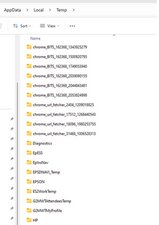
Screenshot 1: Firmware Updater() folder does not show up until you run the recovery utilities.

Block Image

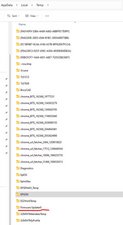
Screenshot 2: When you run the recovery utilities, the folder underlined in red will show up.

Block Image

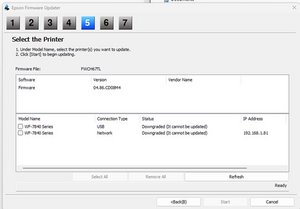
Screenshot 3: Epson recovery utility. In this case, the printer is not in recovery mode, and the installed firmware is newer than the “newest” recovery firmware, so the status column shows error messages about “It cannot be updated”. When the printer is in recovery mode, these messages won’t appear, so nothing to worry about.

Block Image

____________________________________________________________________________________________________________________________________


Long version (see above screenshots for a shorter, more concise version with less explanation):

1.      Download the old Epson recovery files (first link “a” below). This is simply the recovery software for an older version of the firmware. Here are the links:

a.      https://ftp.epson.com/drivers/FW_CD08M4....

b.      https://ftp.epson.com/drivers/FW_CD08M4....

2.      Download the current recovery utility tool from epson’s current WF-7840 support site. This will have a longer name than the files in step 1 above (i.e., FWCH67TL_CD08M4.exe).

a.      https://epson.com/Support/Printers/All-I...

b.      You will find this official, current recovery utility at the following link (but not immediately at the home page the link brings you to). You also need to navigate to:

                                                              i.       “downloads”,

                                                             ii.      Choose your operating system (if not automatically detected by Epson),

                                                           iii.      Then go to the firmware category, and download the recovery utility.

3.      So, now you have the files you need. Next step is to get the old firmware files unpacked from the files downloaded in 1:

a.      Run the old utility downloaded in step 1a (“FW_CD08M4.exe”).  What this does is start the recovery process. Normally you would have your printer in recovery mode during this step (described later), but it’s not necessary right now since you’re just trying to get the old recovery software (which won’t work anymore) to unpack the older firmware into your “temp” folder so you can copy it for later use. Why people just don’t post these older firmware files is beyond me. Maybe it’s a legal issue.

b.      So where is this mysterious temp folder where these firmware files are unpacked?. You can get to the temp folder following the manual way people describe elsewhere in this topic (basically just navigating to C:\Users\”your name here”\AppData\Local\Temp)

c.      You should now be in:

                                                              i.      C:\Users\”your name here”\AppData\Local\Temp

                                                             ii.      DON’T go into the Epson folder. Yes it lives here also in the “temp” folder, but I don’t know why people keep saying to go there. The Recovery Utility doesn’t use it to unpack the old firmware. It creates a new folder in “Temp” with no indication it is an Epson folder (see next step).

                                                           iii.      When you ran the old Recovery utility in step 3a above, a folder called “Firmware Updater()” appeared in the “Temp” folder. Inside it will be the old firmware files. Copy these anywhere you want. I saved them on my dropbox so I never have to go through steps 1a to 1d again if I ever have to do this downgrade over.

                                                           iv.      Cancel the Recovery update utility. The “Firmware Updater()” folder will disappear. But you got the files you need.

a.      If you can’t see the files or folders noted above, make sure hidden and system files are visible. Do a google search for this if you don’t know how. It varies by operating system

4.      Now you have the old Firmware files saved.

5.      Next you have to attach your printer to a USB printer cable (port located next to the power cable on the back of the printer). Epson recommends you unplug other USB devices which is silly. Just unplug other printers or other devices I may not be thinking of that could be damaged. I left my external hard drive plugged in without issue.

6.      Next you need to put your printer into recovery mode by pressing and holding the following buttons simultaneously:

a.      4,7, job/status, power button

b.      The printer screen will go black, then shortly after some white text indicating it’s in recovery mode will appear.

7.      Next run the software you downloaded in step 2 (current Epson recovery firmware named “FWCH67TL_CD30N1.exe”).  Note, this won’t work if your printer isn’t in recovery mode since the “recovery” firmware is likely older than the firmware currently in your printer.  You will just see a window on your computer stating the firmware can’t be “downgraded” if you’re not in recovery mode on the printer.  It will only run properly if you’re in recovery mode on the printer.  It’s possible that Epson may rename this software in newer versions. But as long as you downloaded it from the link in step 2a, or just navigated to Epson’s support page using google, you should be fine.

8.      So this does the exact same thing as the old recovery utility software from step 3. It unpacks the firmware into the same  “Firmware Updater()” folder in the “Temp” folder.  But this time you want to deploy firmware onto your printer. But not yet.

9.      You need to replace the new firmware with the old firmware. So, replace the firmware that was just unpacked using the recovery utility.  You want to replace this newer firmware that was just unpacked into “Firmware Updater()” with the old firmware you saved in step 3.c.iii above (remember, keep the newer Recovery Utility open on your computer while doing this or the folder “Firmware Updater()” will disappear).

10.  Once you have replaced these files in the newly created “Firmware Updater() folder, you can finish the last installation steps in the software. It’s pretty user friendly. Just follow the remaining prompts from where you left off before pausing to replace the firmware files with old files.

a.      Don’t select the Network connection type to the printer however. Tick the box next to the USB connection type (see screenshot below)…except you wont see the “Downgraded(it cannot be updated) message that’s in the screenshot if your printer is in recovery mode).

11.  The newer Epson recovery utility software was essentially tricked into deploying the older firmware you copied into the “Firmware Updater()” folder.

12.  The software will then say something similar to “wait for the printer to power itself down”. You’re lucky if the printer actually powers itself down. I clicked “finish” in the software. The software closed, but it looked like my printer was still deploying the firmware onto it’s internal “chip(s)”. The power button was flashing intermittently (but also sometimes solid), and the white text message on the screen wasn’t definitive.  So I walked away for an hour and let it do it’s thing.

13.  When I returned, almost half the lights on my printer were blinking, including error, printer, and many other. Lit up like a Christmas tree.  Quite alarming, but nothing to worry about. Still some non-definitive text on the screen (but new stuff from before). Holding the power button did nothing.

14.  Easy fix.

a.      Unplug.

b.      Plug back in.

c.      Power up by pressing power button.

15.  Printer accepts previously rejected printer cartridges. Everything working properly.

Was dit antwoord nuttig?

Score 17

29 opmerkingen:

Thank you! 🙏 Gives me hope to try again. I got as far as being able to downgrade- but it'll only accept Epson cartridges. I want to use refillable third-party ones with one-time use chips.

door

Im glad you feel you have hope again. Yes, very discouraging. I noticed you are using Mac. Im not sure my instructions are good for Mac since I used PC. If for some reason you can’t get it to succeed with Mac, I am betting you could find a friend with a PC and successfully connect it to the printer to downgrade the firmware. For reference, I was on windows 11. I would be very surprised if firmware was operating system specific since it would have to work out of the box for both mac and pc.

Edit: sorry, I was confusing you with the OP. But for anyone using Mac, the above may still be helpful if the instructions don’t apply to the Mac Operating System.

door

WHEN I TELL YOU THAT I AM SO GRATEFUL FOR THIS POST @DaveYVR. OMG I AM GOING TO TRY THIS WHEN MY BRAIN SLOWS DOWN AS I AM SO TIRED TRYING TO GET BOTH ME 7820 AND MY 7840 WORKING AGAIN.

door

This worked perfectly for me, thank you so much for explaining this step-by-step!

Tips: When starting recovery mode, mine did not say recovery mode, it was just a black screen with some white type.

My printer also did not restart on its own, I unplugged it once it said the update was complete.

My printer also offered me a firmware update as soon as it powered back on. Obviously, make sure you decline! Also on your computer, you can update settings to NEVER for checking updates to prevent an accidental upgrade. Here is a link if you need that step by step. (https://www.compandsave.com/epson-printe...)

door

You are amazing. Thank you so Much.

Where putting into recovery mode, make sure to turn off first, then hit 4,7, Job/status and Power ON.

At end, just let the machine work after update is done. Give it 30 minutes, it will power off, then everything works great.

door

24 commentaren meer tonen

Voeg een opmerking toe

In order to fix the problem you need to reinstall FWCH67TL_CD08M4 .This can be done tricking the updater swapping the file during the update .

Go to the temp directory on the C:\Users\Your-Username\AppData\Local\Temp, you should find a Epson directory run the FWCH67TL_CD08M4.exe, now on the temp directory above you will find a directory called Firmware Updater() copy the file FWCH67TL in a safe place (this is the firmware you want).

Close the updater now run FWCH67TL_CD17M6.exe you will find in the Temp directory a new Firmware Updater() directory swap the file FWCH67T to the file you have previously saved continue the update overriding the firmware on the printer.

This should work for any other updated firmware.

Was dit antwoord nuttig?

Score 8

36 opmerkingen:

Where to find the old firmware files?

door

@Paul Muir These don't appear to be the files listed in the thread above

door

Is the FWFWCH67TL the same for the WF7820?

door

AWESOME. Thank you so much. I have the WF-7840 . I couldnt get it to work at first but ended up opening the the older firmware to install and just copied both the folder that were created in the temp loaction (WZSE1.TMP and Fimware Updater1). then went to install the new update and just pasted both those copied folders into the new folder and replaced the files in the destination. Thanks so much

door

31 commentaren meer tonen

Voeg een opmerking toe

Hey all,

Does anyone actually have a copy of the Epson Recovery Mode Firmware tool that isn't the "latest", such as "FWCH67TL_CD08M4.exe"? I'm looking to recover my WF-7820 that was auto-updated today (1/23/2025).

The CD29OB update from 1/3/2023 was applied and of course Epson doesn't seem to archive previous versions (or maybe they do and I couldn't exercise the proper URL path) of the recovery mode firmware at all (not a real shock if their objective is to eliminate prior firmware that is compatible with 3rd party ink).

It seems the Epson Recovery Mode Firmware CD29OB may have been patched to eliminate prior firmware "side loading", so having access to the prior tool versions would be required for self-repair, etc. If you have a different experience, feel free to respond as it's unclear from the current comments if recent recovery comments were from the 1/3/2025 CD29OB update or something just prior.

If you have a proper link, or can provide the tool that'd be great. In theory if they're signed properly for Windows, it shouldn't be an issue versus providing a blind executable without it being signed. Maybe throwing this stuff on a Github repo with up-to-date instructions would be a good solution if iFixit doesn't have something similar.

Thanks!

---

UPDATE 1/26/2025:

Ok,

So if you're dealing with CD29OB drivers and trying to rollback, here's what you do (just follow DaveYVRs instructions, but here are the files you need):

This will allow you to downgrade with the recovery tool, as the CD29OB one patched out the ability to supplant the driver file in some way.

DaveYVRs instructions are good enough to get you through it, just remember to connect the printer via USB, power up the printer, use the "Power, 4, 7, Job Status" and you'll see the recovery mode initiate on the printer screen, copy the FWCH67TL.rcx file into the proper place when the recovery tool is running (but you haven't started the update), start the update (you'll see it copy everything and you can "finish" the process when prompted), set a timer for 15 minutes and eventually your printer will go into Xmas tree mode (flashing lights), just power it off and use as you normally would (for me that would be setup on the Ethernet connection) -- I didn't have to remove any ink cartridges after rebooting it, everything just worked normally.

Epson seems to archive some of the drivers in https://ftp.epson.com/drivers/FILENAME_H... URL path, but some of the older stuff mentioned in this thread are definitely not available in that URL path. I would suggest keeping versions of the drivers and an older version of the recovery firmware tool around in a github repo, or wherever -- really makes this whole thing much easier than relying on Epson to do something consumer-friendly.

Was dit antwoord nuttig?

Score 7

8 opmerkingen:

IT WORKED!!! IT WORKED!!!

Dude… I was at my wits end with this LOL and I refuse to buy more ink when I have 4 brand new black that it suddenly wouldn’t recognize. I just bought the printer a month ago I thought I was taking crazy pills. Learned my lesson— never update the firmware, but I’m glad I have the downgrade saved in case it happens again.. seriously thank you guys for figuring it out ❤️

door

Thanks Router Downer for the follow up. Much appreciated. Gave you a thumbs up. I will edit mine when I have time to make reference to your post here so people can further troubleshoot if my instructions dont get them to the finish line.

door

Thanks for the update I did what you did and was able edit the installer dmg file with the older update firmware file so I could just double click downgrader.dmg after putting printer into recovery and it worked like you said. Here's a link if anyone wants to use the downgrader dmg i made: https://github.com/TylerSharpe11/Epson-p...

door

Every attempt I personally have made as of 07/27/2025 has failed, is there by chance something that I am doing incorrectly? I just purchased new ink a week ago and am beyond frustrated with this thing!

door

@routerdowner Will this work for a WF-4830? I think I might need different files, right?

door

3 commentaren meer tonen

Voeg een opmerking toe

I was able to run the https://ftp.epson.com/drivers/FW_CD08M4.... after I started my WF-7840 in recovery mode connected with a USB cable.

Recovery Mode = power off printer then hold the 4,7, job status and power button. I did not unplug the printer until it would not restart itself from the recovery mode. After the unplug and restart, I had to remove the ink cartridges and reinsert them. After that it worked!

Was dit antwoord nuttig?

Score 4

4 opmerkingen:

Does the printer need to be turn on or off?

door

This was great. I never found out where the files were located running the updeater, but it did not matter. I saved the files from Epson web site on my computer in a "Printer" folder. Opened the .exe Recover file and got the message could not update, so i went to next step and put the printer in recovery mode using the keys mentioned in step 6a. Once it went into recovery mode and the Updater was ran, the printer screen showed 3 files it updated. I did not know where they came from, but powered off the printer and on again and all the cartridges were now recognized. working like normal.

door

I was on my last chance since the reddit information didn't work. this worked awesome. I was afraid it wasn't going to work and then wahlah, the printer turned off. i turned it back on without the ink inside, put the ink in after that and all errors were gone. thank you so very much!!!!! it was the new firmware that also caused my errors for those who are looking after they are trying to find a solution.

door

Hello,

I have an Epson printer wf7830dtwf that's displaying error code 031006.

I've replaced the f301, cable, and printhead, but the code persists.

Please What can I do? Thank you all.

door

Voeg een opmerking toe

WORKING SOLUTION — WF-7840 Firmware Downgrade for 3rd Party Ink (Updated April 2026)

This consolidates DaveYVR's original method, Router Downer's updated firmware files, and Sergio's critical pre-steps. I followed all three and can confirm this works as of April 2026.

IMPORTANT — Do these steps BEFORE anything else (thanks Sergio):

As of 2/7/2026, Epson's current recovery firmware is CD08P9 — do NOT use it. It blocks old RCX files. You must use FWCH67TL_CD30N1 as your recovery tool (link in Router Downer's post above).

Epson has also been adding roadblocks in newer updates. To clear them:

  1. Uninstall ALL Epson software from your PC — drivers, Epson Software Updater, scanner wizard, ink monitor, photo editor, everything. Also, I deleted the Epson folder in my C:\Users\[YourUsername]\AppData\Local\Temp
  2. Factory reset the printer from the LCD: Settings → General Settings → System Administration → Restore Default Settings → All Settings → Yes. This clears WiFi, app connections, and any saved settings.
  3. Restart your computer.

Step-by-Step:

1. Get the old firmware file (FWCH67TL.rcx)

  • Download the old recovery tool: FW_CD08M4.exe (link in DaveYVR's post above)
  • Run it — you don't need the printer connected yet, you're just using it to unpack the old firmware file
  • While it's running, navigate to: C:\Users\[YourUsername]\AppData\Local\Temp
  • Look for a folder called Firmware Updater() — open it and copy FWCH67TL.rcx somewhere safe (e.g., your Desktop)
  • Cancel the recovery tool — the Firmware Updater() folder will disappear, but you have the file you need
  • Also delete any remaining Epson folders in that Temp directory

2. Connect the printer via USB

  • Use a USB-B cable into the rear port of the printer (next to the power cable) — not the front USB port
  • Connect the other end to your PC

3. Put the printer into Program Update Mode (Recovery Mode)

  • Power the printer off
  • Press and hold 4, 7, Job Status, and Power simultaneously
  • Hold until the screen goes black, then shows white text indicating Program Update / Recovery Mode

4. Flash the old firmware

  • Run FWCH67TL_CD30N1.exe (from Router Downer's post — do NOT use CD29OB or CD08P9)
  • It will unpack files into a new Firmware Updater() folder in your Temp directory
  • Before proceeding, navigate back to that folder and replace the FWCH67TL.rcx that was just unpacked with the old one you saved in Step 1
  • Keep the recovery tool open while doing this — closing it will delete the folder
  • Back in the recovery tool, continue and select USB connection only (not network)
  • Follow the remaining prompts and let it run

5. Wait it out

  • The tool will say something like "waiting for printer to power down" — the printer may not fully shut off on its own
  • The power light may flash intermittently. Walk away for 15 minutes. Don't touch it.
  • Eventually the printer may go into "Christmas tree mode" — lots of lights blinking. This is normal.

6. Power cycle

  • If the printer won't respond to the power button: unplug it, then plug back in and press power
  • The printer should boot normally and your 3rd party cartridges will be recognized

7. Disable auto-updates immediately

  • Settings → General Settings → System Administration → Firmware Update → Firmware Update Notifications → Off
  • Consider also blocking the printer's internet access at your router level

If the CD30N1.exe fails to communicate with your printer, go back and make sure you completed all of Sergio's pre-steps — deleting Epson software, the Temp folder cleanup, factory resetting the printer, and restarting your PC. That was the fix for me.

Was dit antwoord nuttig?

Score 1

1 Opmerking:

Trying to do this on my WF-7840 and the status of printer is always unknown when in recovery mode. It auto updated to firmware to CD25Q5 and none of the above lets me get past the failed to send file to printer. Any help or newer files i should be using?

door

Voeg een opmerking toe

I had this exact problem. Couldn't figure it out for months. Then, suddenly, I tried one last time, but this time I used the firmware update for another similar model, the EC-C7000. The Firmware version is different. But in my disbelief it worked. I'm still in shock. The CD08M4 version firmware update didn't work for me no matter what I did. But for some reason this other CD17M6 did the trick. Epson is a tricky bastard. I urge you to try it. You can find the version I used on the Epson website here:

https://epson.ca/Support/Printers/All-In...

Just be sure to let the printer do it's thing. The lights will flicker randomly, and after about two minutes the printer will turn off on its own. Once that happens you can press the power button and viola....

Good luck and godspeed.

Was dit antwoord nuttig?

Score 0

11 opmerkingen:

So it worked to install the firmware but do all the printer functions work as they should? And could you remind me how to get to the ROM menu? I'm gonna look for that but if you already have the answer... ;)

door

Ok, the firmware update worked but I still have the same problem : the ink cartridge is not recognised... I tried putting the "CD08M4" file instead of the "CD17M6" also and ended up having the same message : File not found...

door

I ended up buying the official inks and I hope to be able to go back to cheaper cartridge in the near future. One thing is for sure, I'll never update this F-ing firmware ever again...

&&^& YOU EPSON!!!

door

It worked for me with the "CD08M4" file. After the update it still showed not recognized. The missing last step for me was to refresh the cartridges. Take them out and reinsert them.

door

Where did you find the CD08M4 file? I do not see it on either laptop

door

6 commentaren meer tonen

Voeg een opmerking toe

Firmware CD08M4 Works, however Printer Cartridges Not Recognized is still the prevailing issue. I've attempted the Cart. Removal, Closed Lid for Cart. Reset, and Reinsertion 10 times now. Nothing has worked. Using aftermarket ink of course.

Was dit antwoord nuttig?

Score 0

1 Opmerking:

I was able to run the https://ftp.epson.com/drivers/FW_CD08M4.... after I started my WF-7840 in recovery mode connected with a USB cable.

Recovery Mode = power off printer then hold the 4,7, job status and power button. I did not unplug the printer until it would not restart itself from the recovery mode. After the unplug and restart, I had to remove the ink cartridges and reinsert them. After that it worked!

door

Voeg een opmerking toe

MAC:
Tired and obviously confused today, so I updated the firmware which I never do. To recover, I used the MAC dmg file from Paul Muir above. Saved it to a to new folder somewhere and extracted it (click on dmg file). Then I used Finder to go to Applications, Epson Software, Epson Firmware Updater. Created a "backup" folder and copied the old software to that. Copied the newly extracted dmg files from my backup folder (19_license.txt, Epson Firmware Updater.app and FWCH67TL.efu) to the WF-7840 Series folder.

Then put the printer into recovery mode. Turn off printer. Hold 4, 7 and Job Status button on right side of printer, then hold power button until you get a screen. It came up with a black screen similar to DOS. I then ran the updater using the files I had placed in the WF-7840 Series folder (navigate to folder and click to run on Epson Firmware Updater.app. Follow app steps. It took some time and you need to not turn off the printer. The power button will blink occasionally while waiting. Wait until it turns off by itself. Took about 10 minutes for me. Then I just powered it on, got the unsupported cartridge error. Opened the top and removed and reseated my third party cartridges and that worked for me.

I only wrote this because I could not find a MAC specific solution. I am on Sonoma 14.2.1 and had to read a lot of articles and posts to piece this together for MAC.

But large thanks to Paul for including a MAC file.

Was dit antwoord nuttig?

Score 0
Voeg een opmerking toe

Heehaw, it worked, now just if we can get updates to do the same for our smartphones to end this ridiculous inflation.

FYI. If you need the old recovery software for your version OS, all you do is copy the link from 1a from above and replace it with the file name you get from epson, the drive files are all stored in the same directory as: https://ftp.epson.com/drivers/FW_CD08M4....

Replace the last part of this directory file with your OS file name and you will get your recovery updater for your OS. Then complete the rest of steps.

Was dit antwoord nuttig?

Score 0
Voeg een opmerking toe

I couldn't get it to work until I realized it was still connected to the internet. Just make sure you don't have it hooked up to wifi or ethernet or anything. Also, USB port in front didn't work for whatever reason, had to use the usb port in the back. Don't exactly know why it took so long, but at least a good half-hour spent waiting.

Was dit antwoord nuttig?

Score 0
Voeg een opmerking toe

Do NOT UPDATE ANY EPSON HARDWARE FOR YOUR PRINTER. It will disable any ability to use printer cartridge not from Epson.

]

Was dit antwoord nuttig?

Score 0

2 opmerkingen:

If you had read it correctly it is an off brand and sorry to tell you mine works just fine

door

Has you tried to downgrade their WF-7840 from the most recent Firmware Version CD29OB Jan/03/2025? If so what firmware did they downgrade to CD30N1?

door

Voeg een opmerking toe

Yes, I just recently did it with the instructions above. When I clicked on the link for the previous version it was not the same as listed, but I went with it because I assumed that is what my printer used. So I believe whatever is in your temp files is your last version, but I had to use these instructions to downgrade so I might not be the most reliable advise. Good Luck! It is worth it. My printer worked immediately with the previous ink cartridges.

Was dit antwoord nuttig?

Score 0

3 opmerkingen:

I was unable to downgrade to the old version from CD29OB. After switching the files in the “Firmware Updater()” the software in the computer would fail and the green loading bar would be stuck on 33%. If I didn’t switch the files it would work updating to the most current.

door

This was my experience as well.

door

I have tried this method and the Router Downer update but still nothing looks like epson Caught on to this thread and blocked all existing methods, im forced to buy the original ink hope this comment gets a reply for a work around.

If you are an epson employee reading this, I hope you get sued you greedy B@$tard

update for the same day late at night lol

okay so u cant use the new firmware they have on their website you absolutely have to use FWCH67TL_CD30N1 as the firmware that install the FWCH67TL.rcx file. make sure your FWCH67TL.rcx file has a last modified date of 4/5/2022.

what they have been doin is implementing road blocks on some of there newer updates to work around these you need to delete all epson software on your computer: the photo editor, scanner wizard, ink monitor, EVERYTHING, reset your computer afterwards

next make sure you factory reset your printer on the lcd screen, this way its no longer hocked up to your wi-fi or your cell phone

after all that follow DaveYVR's instructions & boom

door

Voeg een opmerking toe

Use the response from DaveYVR, which is marked as the Most Helpful Answer.

Then, follow the instructions from this section:

Long version (see above screenshots for a shorter, more concise version with less explanation):

I just did this two days ago and it worked flawlessly. As he stated, use an USB cable [ you cannot run the firmware "downgrade" over the network as the software obtains the firmware version from the printer and will not allow a "downgrade" whereas the USB connection does not return the firmware version as you are putting the printer into a service/maintenance mode (and I'll assume they did this to allow techs to "downgrade") ] to connect your printer to your computer and after you apply the older firmware, walk away for at least 15 mins or longer, untill your printer is flashing like a Christmas tree (yes, it actually does this): that is when the firmware has been applied.

Good luck.

Was dit antwoord nuttig?

Score 0

6 opmerkingen:

I'll give it a shot and update the thread. I appreciate the response.

door

I just get 'Failed to send firmware to the printer' errors after starting the recovery firmware tool (FWCH67TL_CD29OB.exe), copying in the file from the old firmware (ran FW_CD08M4.exe - which supplies FWCH67TL.rcx), then starting the update process.

The printer in the recovery firmware tool said 'USB' for connection and then the rest was blank (no model number).

Any ideas?

door

Ditto. I'm having the exact samae issue "Router Downer" is having. Is there anyway we can obtain a copy of the "FWCH67TL_CD30N1.exe", since it appears the "FWCH67TL_CD29OB.exe" doesn't work? Maybe share a Gdrive or dropbox?

door

oops! I missed the link for the "FWCH67TL_CD30N1.exe" above. Got it! and it worked like a charm! If you have a buymeacoffee account, I'll give you a big tip! You saved my printer, and saved me from spending $20 in

Tannerite unnecessarily.

door

Previously it wasn't working but the latest update from "DaveYVR" works like a charm, thank you so much! I was able to downgraded my WF-7840.

door

1 commentaar meer tonen

Voeg een opmerking toe

I was able edit the legit epson firmware installer dmg file with the older update firmware file so I could just double click downgrader.dmg after putting printer into recovery and it worked perfectly. Here's a link if anyone wants to use the downgrader dmg i made: https://github.com/TylerSharpe11/Epson-p...

Was dit antwoord nuttig?

Score 0
Voeg een opmerking toe

https://www.youtube.com/watch?v=6pG-Pr-U...

Actualización (12/22/25)

https://www.youtube.com/watch?v=6pG-Pr-U...

Was dit antwoord nuttig?

Score 0
Voeg een opmerking toe

For Mac OS 15.0 user - short and simple.

1. Download https://ftp.epson.com/drivers/FW_CD08M4.... Assuming that you have Epson software in your Mac then no need to install      https://epson.com/Support/Printers/All-I...

2. Hook up printer to USB and restart printer pressing 4,7, job/status, power button.

3. Go setting/printers & scanner and add WF-7840 USB connect. Make sure this is done as well on the printer (if it's turned off) before you restart.

4. Loaded FW_CD08M4.dmg on your desktop (if doesn't, go to setting/privacy&security go down to Security and Allow application from App Store & Known Dev. and it should prompt it to open)

5. Install firmware and follow instruction. when finish the printer power button will blink until the all printer lights blinks and it will also say finish firmware update on the screen.

6. Unplug and turn on the power. If you have the 3rd party cartridge installed, it will not recognized it from the start. So remove and reinstall, it will do its thing.

7. Turn off all auto update on both app and printer.

8. Buy more 3rd party ink (cheers everyone and thanks @DaveYVR)

Was dit antwoord nuttig?

Score 0
Voeg een opmerking toe

Ive replied to a couple posts with the fix but I figured I would make a post my self and help some people out since this was a 3 day process for me

for any epson employee reading this, your mom is a hoe!!!!

ok so currently on Epsons website there recovery firmware is CD08P9 as of 2/7/2026

do not us this because it will not let you load old RCX files you have to use FWCH67TL_CD30N1 as the firmware with your old RCX file

to get said RCX file DaveYVRs original post will work

and for the install firmware FWCH67TL_CD30N1. you can get that from Router Downers post

BEFORE YOU PUT YOUR PRINTER INTO RECOVERY MODE!!!!

what they have been doing is implementing road blocks on some of there newer updates to work around these you need to delete all epson software on your computer: the photo editor, scanner wizard, ink monitor, EVERYTHING, reset your computer afterwards

next make sure you factory reset your printer on the lcd screen, this way its no longer hocked up to your wi-fi or your cell phone, this is important it has to be factory reset so not settings are left saved internally

after all that follow DaveYVR's instructions & boom!! it wont stop at 33% no more and do the full update\downgrade!!!!!!!!

Was dit antwoord nuttig?

Score 0

1 Opmerking:

I updated my firmware (to my deep chagrin) this week, and have not been able to get this fix to work. I've gone through it a few times and it still won't recognize my non-Epson cartridges. I bought new Epson cartridges and will go that direction for now, and hope a new fix is found soon! Appreciate all the work everyone has put into this.

door

Voeg een opmerking toe

The "Data file not found" message usually indicates that the firmware package isn't compatible with the printer in its current state or that the recovery firmware doesn't match your exact regional model. Also, if the printer isn't listed correctly in the Epson Firmware Updater, it may not be communicating properly in Recovery Mode.

A few things to try:

  • Use a Windows PC if possible, as Epson's firmware tools are often more reliable on Windows than macOS.
  • Make sure you're using the recovery firmware specifically intended for your exact WF-7840 model and region.
  • Connect the printer directly to the computer via USB (avoid hubs or adapters).
  • Temporarily disable any printer drivers so only the recovery device is detected.

Unfortunately, Epson has made firmware downgrades much more difficult on newer models, and some recent firmware versions cannot be rolled back at all. If none of the above works, you may need to contact Epson Support to confirm whether downgrading from CD17M6 is still supported. It would also help to know the printer's full model number and region (e.g., North America, Europe, etc.), as that determines which recovery firmware is compatible.

Was dit antwoord nuttig?

Score 0
Voeg een opmerking toe

solution only with jig https://youtube.com/shorts/dkkDwx77rXE?s... 🔹 jig for Epson models:

WF-C5890

WF-C5310, PX-S887

WF-C5390

WF-C5810, PX-M887F

WF-7830, 7835, 7838

WF-7820, 7825, 7840, 7845, 7848

EC-C7000, PX-M6010F, PX-M6011F

WF-3820, 3823, 3824, 3825

WF-4820, 4823, 4824, 4825

WF-4830, 4833, 4834, 4835, WF-C4810

XP-2200, 2205, XP-2250

XP-3200, 3205, XP-3250

XP-4200, 4205, XP-4250

Was dit antwoord nuttig?

Score 0
Voeg een opmerking toe

Voeg je antwoord toe

Arnaud Bour zal eeuwig dankbaar zijn.
Weergavestatistieken:

Afgelopen 24 uren: 11

Afgelopen 7 dagen: 170

Afgelopen 30 dagen: 807

Altijd: 32,706