Ga door naar hoofdinhoud
Word lid van de reparatiegemeenschap - Account aanmaken

DualSense Controller v2 Joystick Replacement

Wat je nodig hebt

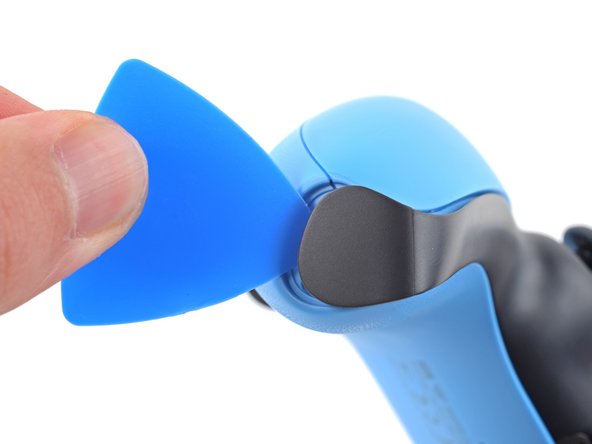
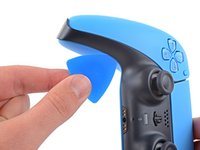
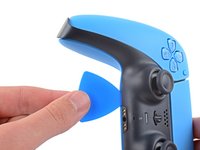
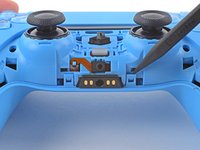
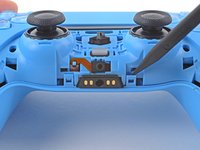
  1. DualSense Controller v2 Joystick Replacement, Unclip the right end of the middle trim: stap 1, afbeelding 1 van 2 DualSense Controller v2 Joystick Replacement, Unclip the right end of the middle trim: stap 1, afbeelding 2 van 2
    • Disconnect and power down the controller before you begin.

    • Insert an opening pick underneath the middle trim at the bottom-right corner of the controller to release the clips securing it to the case.

    Vraag FixBot
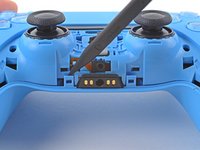
  2. DualSense Controller v2 Joystick Replacement, Unclip the lower-right edge of the middle trim: stap 2, afbeelding 1 van 3 DualSense Controller v2 Joystick Replacement, Unclip the lower-right edge of the middle trim: stap 2, afbeelding 2 van 3 DualSense Controller v2 Joystick Replacement, Unclip the lower-right edge of the middle trim: stap 2, afbeelding 3 van 3
    • Slide the opening pick along the lower-right edge of the middle trim to release the clips securing it to the case.

    Vraag FixBot
  3. DualSense Controller v2 Joystick Replacement, Unclip the left end of the middle trim: stap 3, afbeelding 1 van 2 DualSense Controller v2 Joystick Replacement, Unclip the left end of the middle trim: stap 3, afbeelding 2 van 2
    • Insert an opening pick underneath the middle trim at the bottom-left corner of the controller to release the clips securing it to the case.

    Vraag FixBot
  4. DualSense Controller v2 Joystick Replacement, Unclip the lower-left edge of the middle trim: stap 4, afbeelding 1 van 3 DualSense Controller v2 Joystick Replacement, Unclip the lower-left edge of the middle trim: stap 4, afbeelding 2 van 3 DualSense Controller v2 Joystick Replacement, Unclip the lower-left edge of the middle trim: stap 4, afbeelding 3 van 3
    • Slide the opening pick along the lower-left edge of the middle trim to release the clips securing it to the case.

    Vraag FixBot
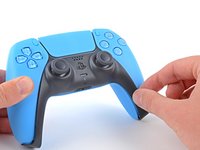
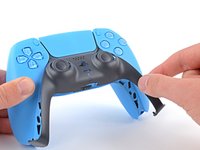
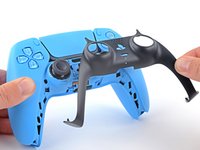
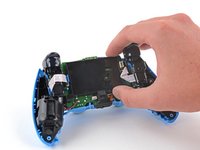
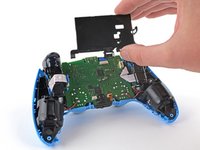
  5. DualSense Controller v2 Joystick Replacement, Remove the middle trim: stap 5, afbeelding 1 van 3 DualSense Controller v2 Joystick Replacement, Remove the middle trim: stap 5, afbeelding 2 van 3 DualSense Controller v2 Joystick Replacement, Remove the middle trim: stap 5, afbeelding 3 van 3
    • Use your fingers to lift up the bottom edge of the middle trim to release the remaining clips.

    • Lift the middle trim over the joysticks to remove it.

    • During reassembly, position the middle trim into place and press along all edges to engage the clips securing it to the controller.

    Vraag FixBot
  6. DualSense Controller v2 Joystick Replacement, Remove the L1 button: stap 6, afbeelding 1 van 3 DualSense Controller v2 Joystick Replacement, Remove the L1 button: stap 6, afbeelding 2 van 3 DualSense Controller v2 Joystick Replacement, Remove the L1 button: stap 6, afbeelding 3 van 3
    • Insert the flat end of a spudger into the gap above the L1 button.

    • Cover the button with your thumb to prevent it from ejecting across the room.

    • Pry the spudger upward to remove the L1 button.

    Vraag FixBot
  7. DualSense Controller v2 Joystick Replacement, Remove the R1 button: stap 7, afbeelding 1 van 3 DualSense Controller v2 Joystick Replacement, Remove the R1 button: stap 7, afbeelding 2 van 3 DualSense Controller v2 Joystick Replacement, Remove the R1 button: stap 7, afbeelding 3 van 3
    • Insert the flat end of a spudger into the gap above the R1 button.

    • Cover the button with your thumb to prevent it from ejecting across the room.

    • Pry the spudger upward to remove the R1 button.

    Vraag FixBot
  8. DualSense Controller v2 Joystick Replacement, Remove the case screws: stap 8, afbeelding 1 van 1
    • Use a Phillips screwdriver to remove the two 6.5 mm screws securing the bottom corners of the lower case.

    Vraag FixBot
  9. DualSense Controller v2 Joystick Replacement: stap 9, afbeelding 1 van 1
    • Use a Phillips screwdriver to remove the two 6.5 mm screws behind the L1 and R1 buttons.

    Vraag FixBot
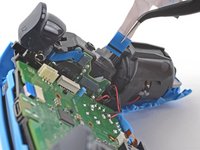
  10. DualSense Controller v2 Joystick Replacement, Unclip the rear case: stap 10, afbeelding 1 van 3 DualSense Controller v2 Joystick Replacement, Unclip the rear case: stap 10, afbeelding 2 van 3 DualSense Controller v2 Joystick Replacement, Unclip the rear case: stap 10, afbeelding 3 van 3
    • Use the pointed edge of a spudger to unclip the two clips on either side of the headset jack.

    Vraag FixBot
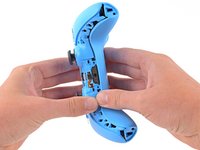
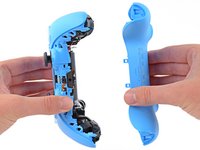
  11. DualSense Controller v2 Joystick Replacement, Remove the rear case: stap 11, afbeelding 1 van 2 DualSense Controller v2 Joystick Replacement, Remove the rear case: stap 11, afbeelding 2 van 2
    • Use your hands to carefully pull the rear case off of the controller.

    • During reassembly, make sure the red and black vibration motor wires are not pinched between the front and rear case.

    Vraag FixBot
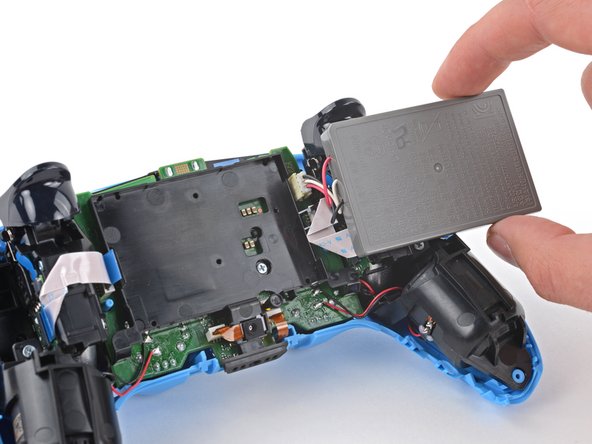
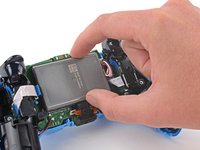
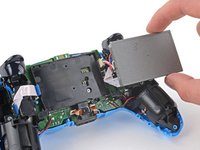
  12. DualSense Controller v2 Joystick Replacement, Reposition the battery: stap 12, afbeelding 1 van 2 DualSense Controller v2 Joystick Replacement, Reposition the battery: stap 12, afbeelding 2 van 2
    • Lift the battery out of its bracket and reposition it to the right for better access to the battery connector.

    • Don't strain the battery cables.

    Vraag FixBot
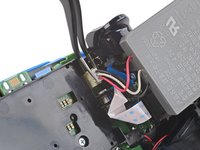
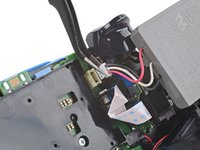
  13. DualSense Controller v2 Joystick Replacement, Disconnect the battery: stap 13, afbeelding 1 van 2 DualSense Controller v2 Joystick Replacement, Disconnect the battery: stap 13, afbeelding 2 van 2
    Gereedschap gebruikt in deze stap:
    Tweezers
    $4.99
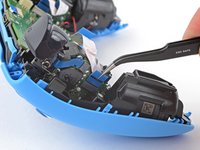
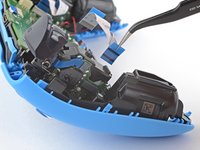
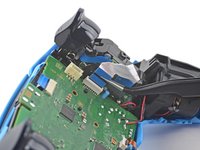
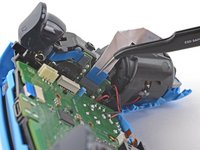
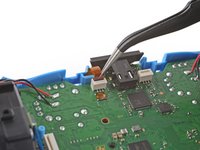
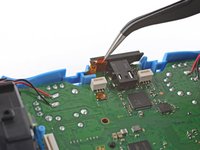
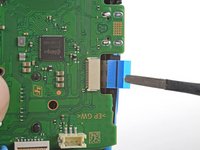
    • Use a pair of tweezers or your fingers to disconnect the battery from the motherboard.

    • Don't pull on the wires to disconnect the battery.

    Vraag FixBot
  14. DualSense Controller v2 Joystick Replacement, Remove the battery: stap 14, afbeelding 1 van 1
    • Remove the battery.

    Vraag FixBot
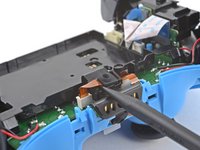
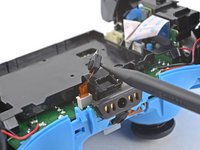
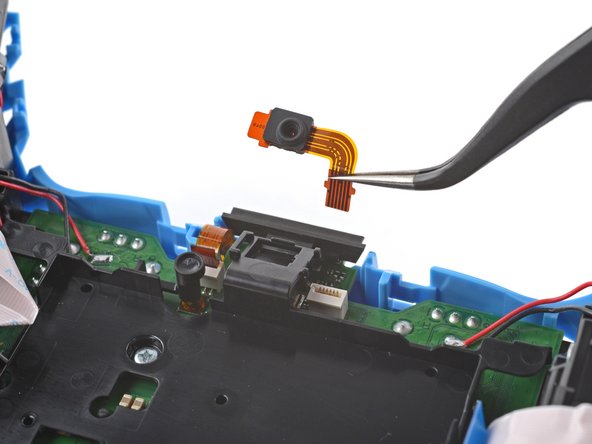
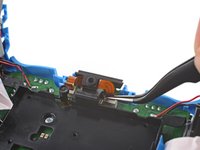
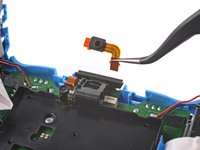
  15. DualSense Controller v2 Joystick Replacement, Remove the lower microphone: stap 15, afbeelding 1 van 2 DualSense Controller v2 Joystick Replacement, Remove the lower microphone: stap 15, afbeelding 2 van 2
    • Use the pointed end of a spudger to remove the lower microphone from its bracket next to the battery.

    • During reassembly, make sure the end of the microphone's ribbon cable is slotted into the bracket.

    Vraag FixBot
  16. DualSense Controller v2 Joystick Replacement: stap 16, afbeelding 1 van 2 DualSense Controller v2 Joystick Replacement: stap 16, afbeelding 2 van 2
    Gereedschap gebruikt in deze stap:
    Tweezers
    $4.99
    • Grab the lower microphone ribbon cable pull tab with your fingers or a pair of tweezers and disconnect it from the motherboard.

    Vraag FixBot
  17. DualSense Controller v2 Joystick Replacement, Remove the battery bracket: stap 17, afbeelding 1 van 1
    • Use a Phillips screwdriver to remove the 6.5 mm screw securing the battery bracket.

    Vraag FixBot
  18. DualSense Controller v2 Joystick Replacement: stap 18, afbeelding 1 van 2 DualSense Controller v2 Joystick Replacement: stap 18, afbeelding 2 van 2
    • Lift the battery bracket off of the motherboard.

    Vraag FixBot
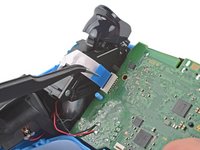
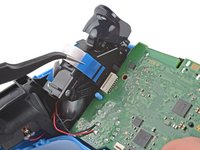
  19. DualSense Controller v2 Joystick Replacement, Disconnect the right trigger assembly: stap 19, afbeelding 1 van 2 DualSense Controller v2 Joystick Replacement, Disconnect the right trigger assembly: stap 19, afbeelding 2 van 2
    • Grip the right trigger assembly cable with a pair of tweezers or your fingers and disconnect it from the motherboard.

    • Use the pull tab to disconnect the cable. Don't pull on the cable itself.

    • Don't completely remove the ribbon cable yet.

    Vraag FixBot
  20. DualSense Controller v2 Joystick Replacement: stap 20, afbeelding 1 van 2 DualSense Controller v2 Joystick Replacement: stap 20, afbeelding 2 van 2
    • Grip the right trigger assembly cable with a pair of tweezers or your fingers, and disconnect it from the trigger assembly.

    • Use the pull tab to disconnect the cable. Don't pull on the cable itself.

    • Depending on the controller's model, the ribbon cable may block the motherboard from coming loose. If so, remove the cable from the trigger assembly.

    Vraag FixBot
  21. DualSense Controller v2 Joystick Replacement, Disconnect the left trigger assembly: stap 21, afbeelding 1 van 2 DualSense Controller v2 Joystick Replacement, Disconnect the left trigger assembly: stap 21, afbeelding 2 van 2
    • Grip the left trigger assembly cable with a pair of tweezers or your fingers to disconnect it from the motherboard.

    • Use the pull tab to disconnect the cable. Don't pull on the cable itself.

    • Don't completely remove the ribbon cable yet.

    Vraag FixBot
  22. DualSense Controller v2 Joystick Replacement: stap 22, afbeelding 1 van 2 DualSense Controller v2 Joystick Replacement: stap 22, afbeelding 2 van 2
    • Grip the left trigger assembly cable with a pair of tweezers or your fingers to disconnect it from the trigger assembly.

    • Use the pull tab to disconnect the cable. Don't pull on the cable itself.

    • Depending on the controller's model, the ribbon cable may block the motherboard from coming loose. If so, remove the cable from the trigger assembly.

    Vraag FixBot
  23. DualSense Controller v2 Joystick Replacement, Disconnect the upper microphone: stap 23, afbeelding 1 van 2 DualSense Controller v2 Joystick Replacement, Disconnect the upper microphone: stap 23, afbeelding 2 van 2
    • Use a pair of tweezers or your fingers to disconnect the upper microphone from the motherboard.

    • Use the pull tab to disconnect the cable. Don't pull on the cable itself.

    • If you're not replacing this microphone, don't remove it from the frame.

    Vraag FixBot
  24. DualSense Controller v2 Joystick Replacement, Disconnect the touchpad: stap 24, afbeelding 1 van 2 DualSense Controller v2 Joystick Replacement, Disconnect the touchpad: stap 24, afbeelding 2 van 2
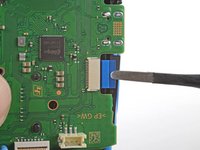
    • Use a pair of tweezers or your fingers to disconnect the touchpad cable from the motherboard.

    • Use the pull tab to disconnect the cable. Don't pull on the cable itself.

    Vraag FixBot
  25. DualSense Controller v2 Joystick Replacement, Lift out the motherboard: stap 25, afbeelding 1 van 3 DualSense Controller v2 Joystick Replacement, Lift out the motherboard: stap 25, afbeelding 2 van 3 DualSense Controller v2 Joystick Replacement, Lift out the motherboard: stap 25, afbeelding 3 van 3
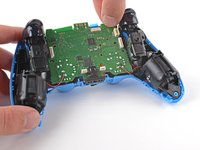
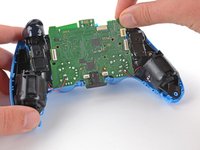
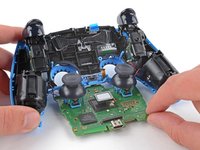
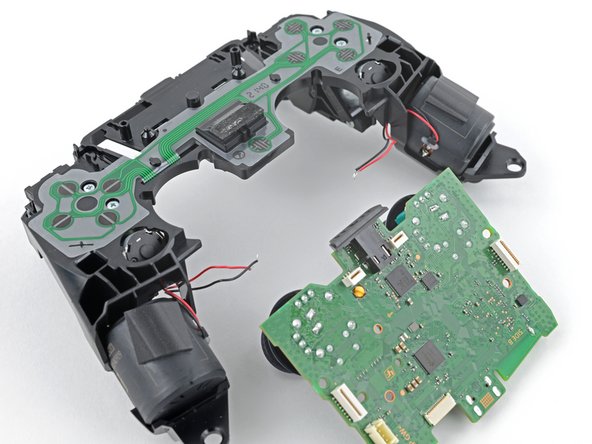
    • Carefully guide the joysticks through the front case and lift the motherboard out.

    • Don't strain the four soldered wires tethering the motherboard to the vibration motors.

    Vraag FixBot
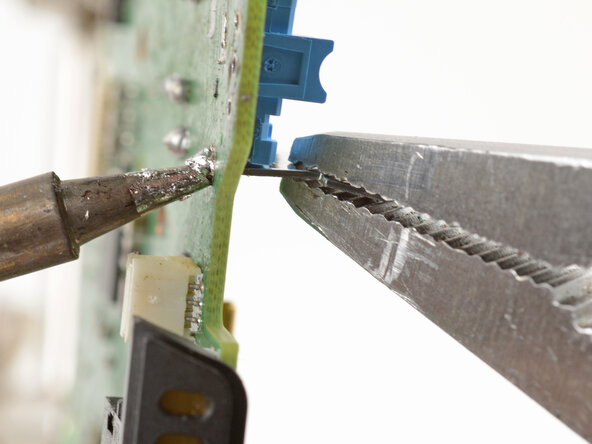
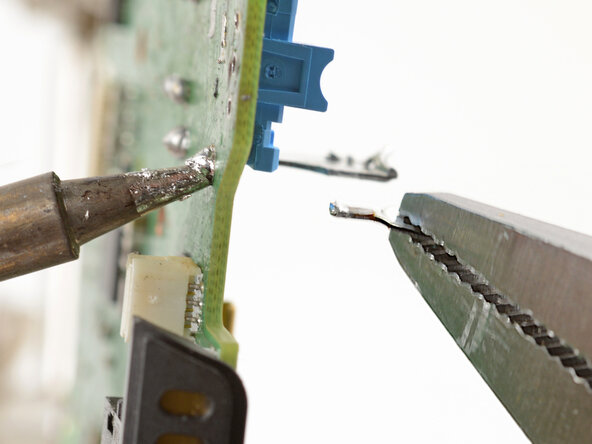
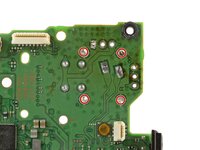
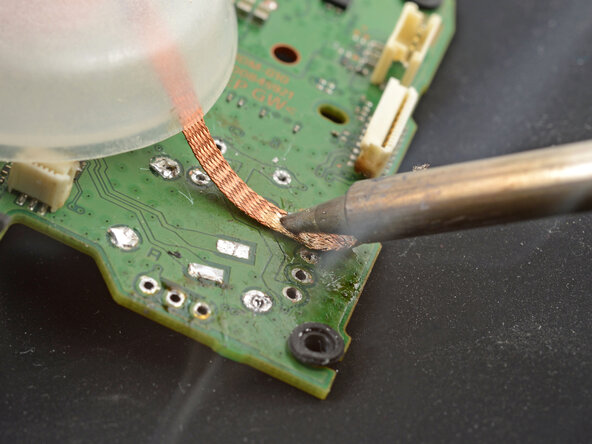
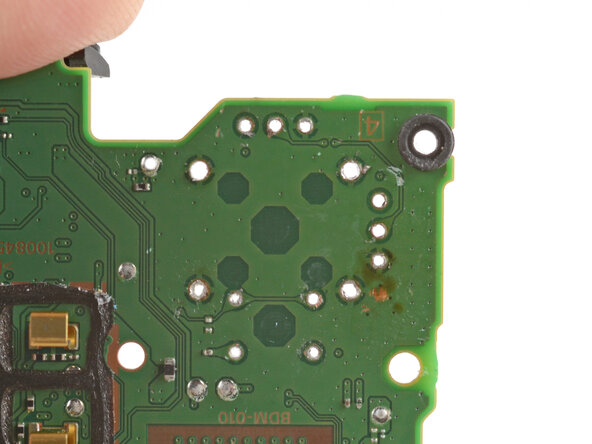
  26. DualSense Controller v2 Joystick Replacement, Desolder the vibration motor wires: stap 26, afbeelding 1 van 3 DualSense Controller v2 Joystick Replacement, Desolder the vibration motor wires: stap 26, afbeelding 2 van 3 DualSense Controller v2 Joystick Replacement, Desolder the vibration motor wires: stap 26, afbeelding 3 van 3
    Gereedschap gebruikt in deze stap:
    FixHub Smart Soldering Iron
    $79.95
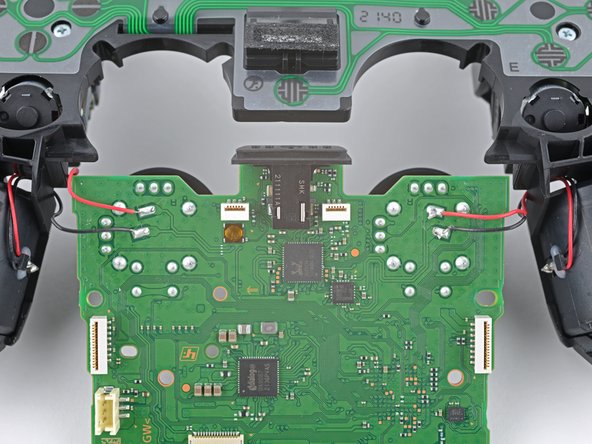
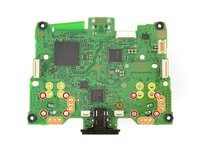
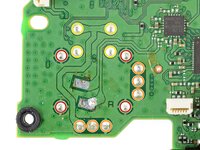
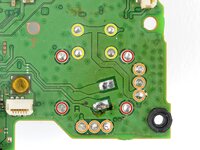
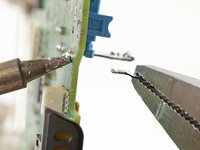
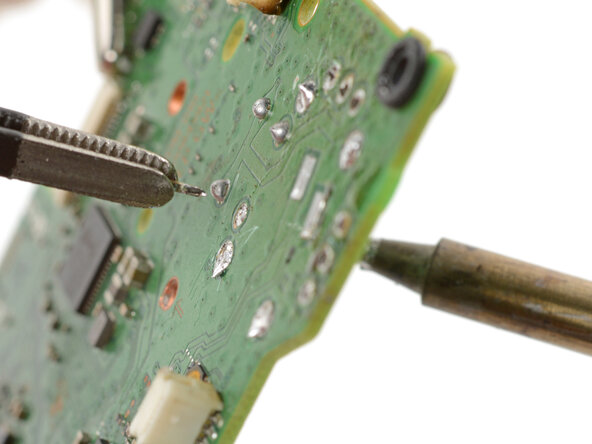
    • Flip the motherboard and midframe over to access the red and black vibration motor wires.

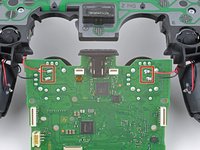
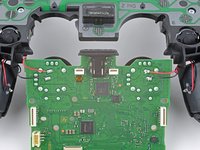
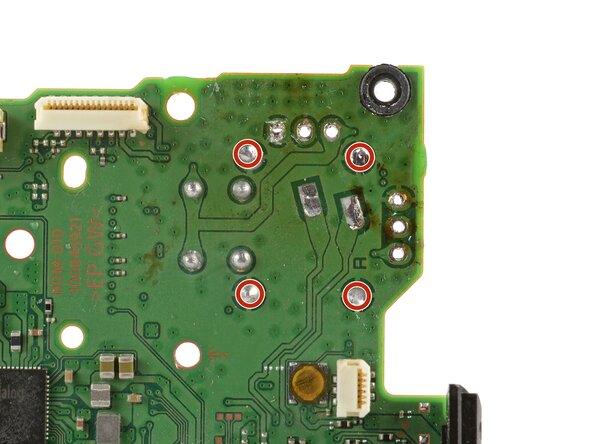
    • Use a soldering iron to disconnect the vibration motor wires from the motherboard.

    • To learn how to solder, or to get some helpful tips and tricks, check out our soldering guide.

    • During reassembly, refer to this photo to ensure the wires are soldered back to their correct positions.

    Vraag FixBot
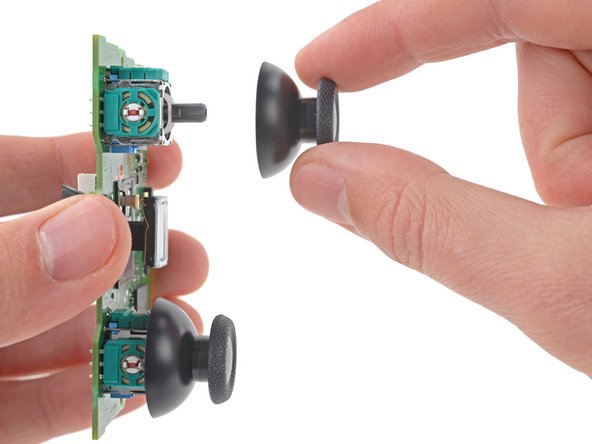
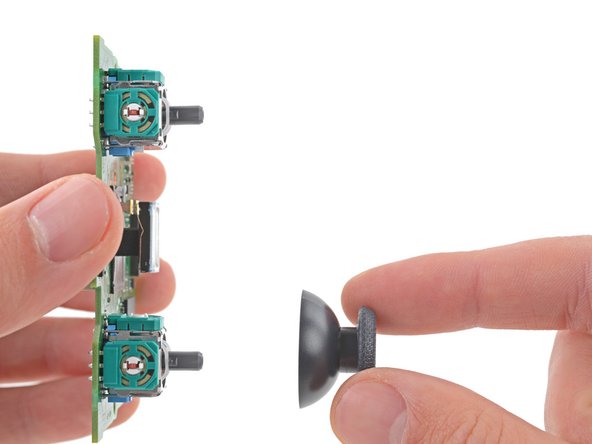
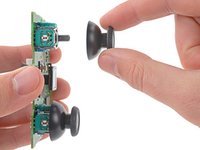
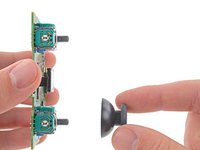
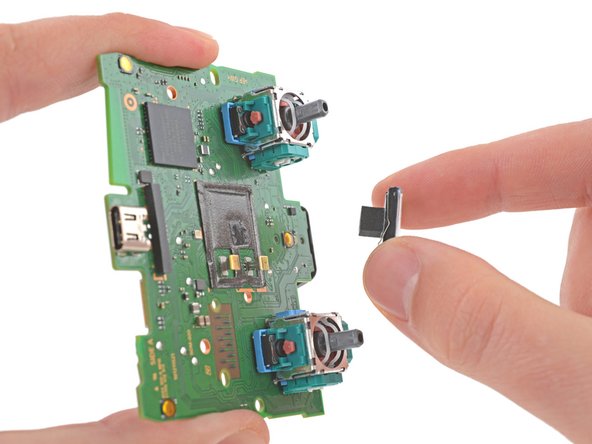
  27. DualSense Controller v2 Joystick Replacement, Remove the joystick covers: stap 27, afbeelding 1 van 3 DualSense Controller v2 Joystick Replacement, Remove the joystick covers: stap 27, afbeelding 2 van 3 DualSense Controller v2 Joystick Replacement, Remove the joystick covers: stap 27, afbeelding 3 van 3
    • Use your fingers to remove the left and right joystick covers from the motherboard.

    Vraag FixBot
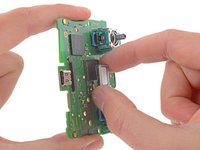
  28. DualSense Controller v2 Joystick Replacement, Remove the speaker: stap 28, afbeelding 1 van 2 DualSense Controller v2 Joystick Replacement, Remove the speaker: stap 28, afbeelding 2 van 2
    • Use your fingers to remove the speaker and foam pad from the motherboard.

    • Only the motherboard remains.

    • During reassembly, make sure the gold contacts on the speaker are aligned with the gold contacts on the motherboard.

    Vraag FixBot
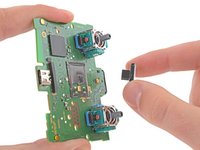
  29. DualSense Controller v2 Joystick Replacement, Solder joint overview: stap 29, afbeelding 1 van 3 DualSense Controller v2 Joystick Replacement, Solder joint overview: stap 29, afbeelding 2 van 3 DualSense Controller v2 Joystick Replacement, Solder joint overview: stap 29, afbeelding 3 van 3
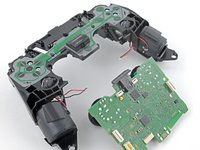
    • Your DualSense motherboard may look slightly different than the images in this guide, but you can still follow the procedure to replace it.

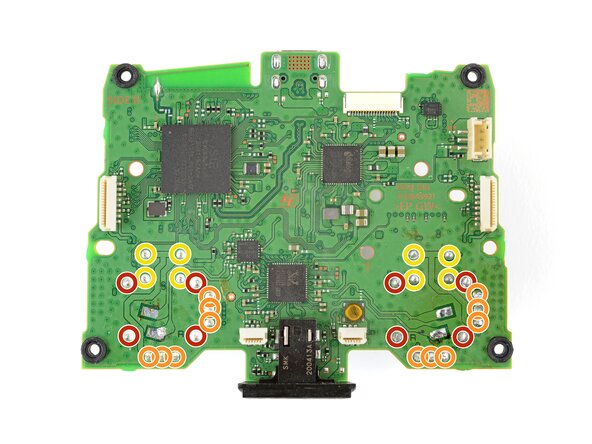
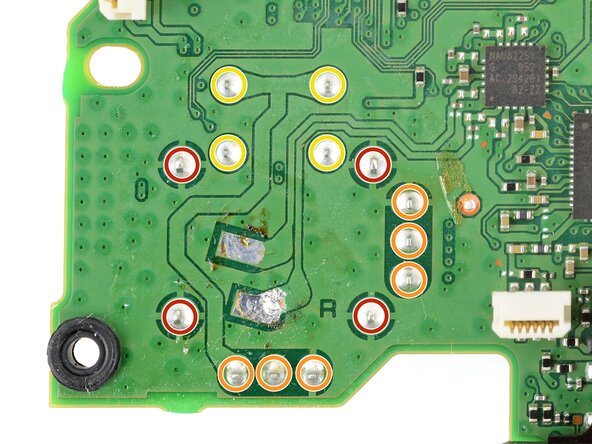
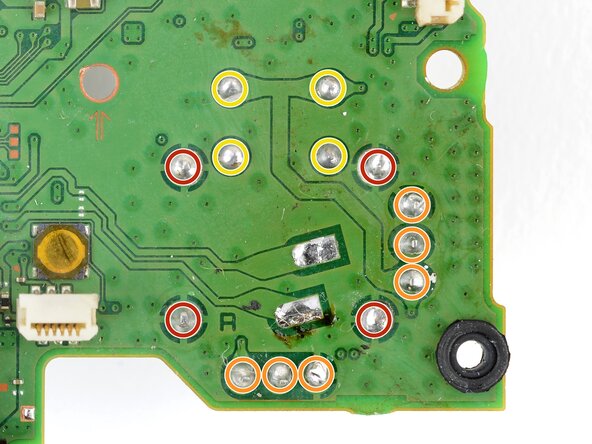
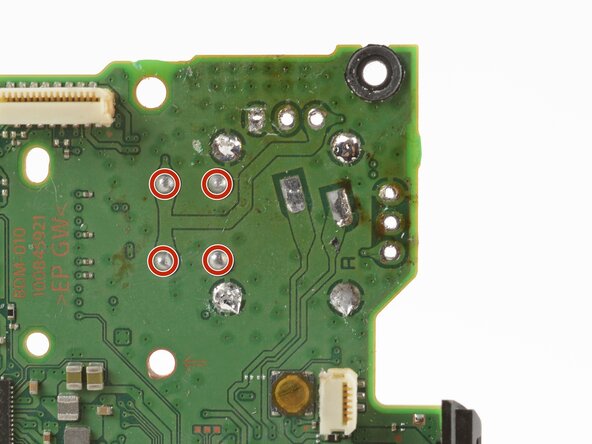
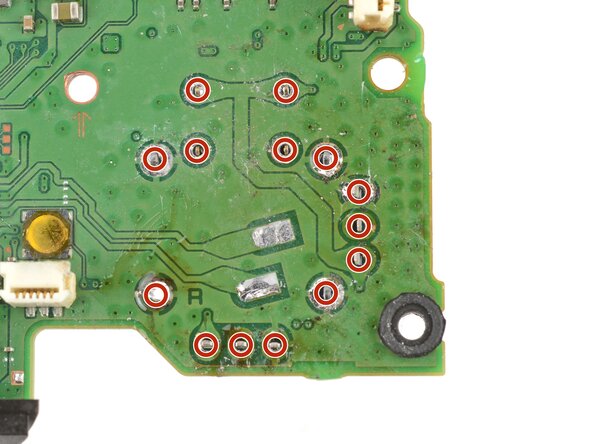
    • Each joystick module is secured with 14 solder joints:

    • Four anchor joints

    • Six joints connecting the two potentiometers

    • Four joystick push-button joints

    • The remaining steps will show how to replace the left joystick (with the controller facing you). You can follow the same procedure to replace the right joystick.

    Vraag FixBot
  30. DualSense Controller v2 Joystick Replacement, Prepare the potentiometers: stap 30, afbeelding 1 van 3 DualSense Controller v2 Joystick Replacement, Prepare the potentiometers: stap 30, afbeelding 2 van 3 DualSense Controller v2 Joystick Replacement, Prepare the potentiometers: stap 30, afbeelding 3 van 3
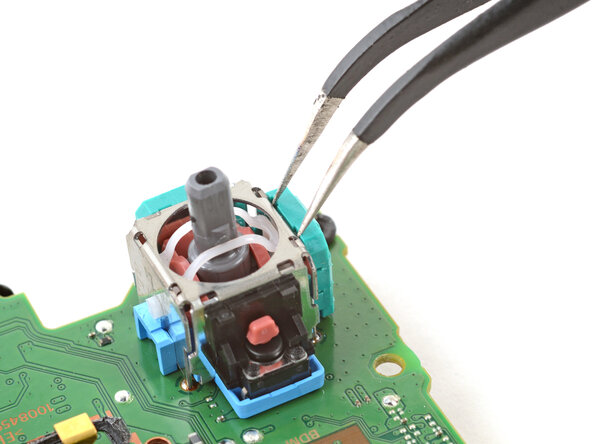
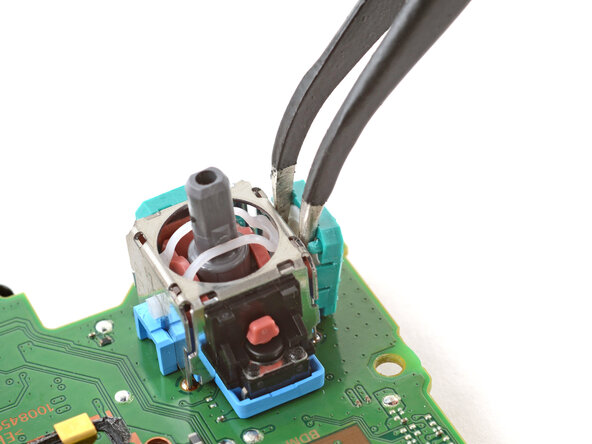
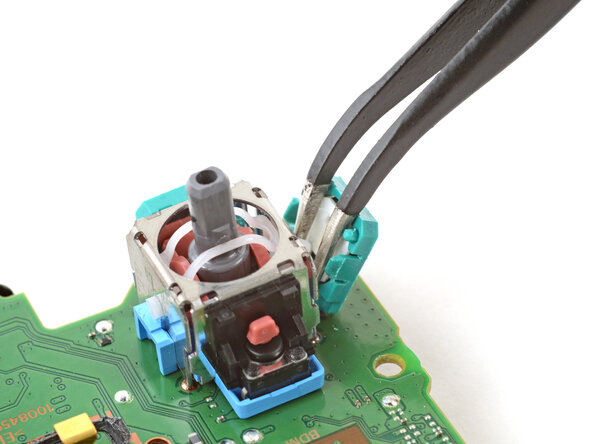
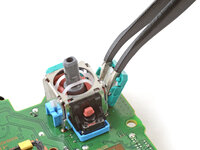
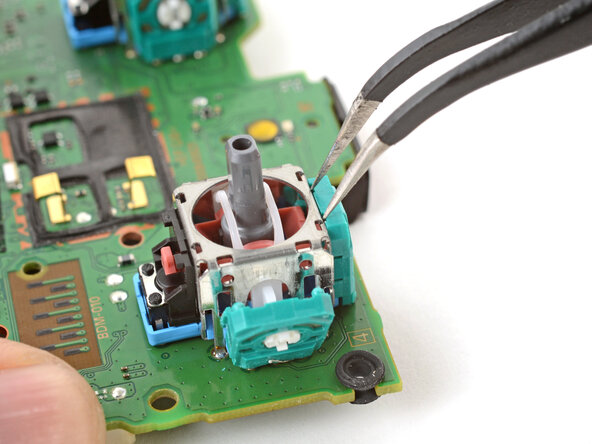
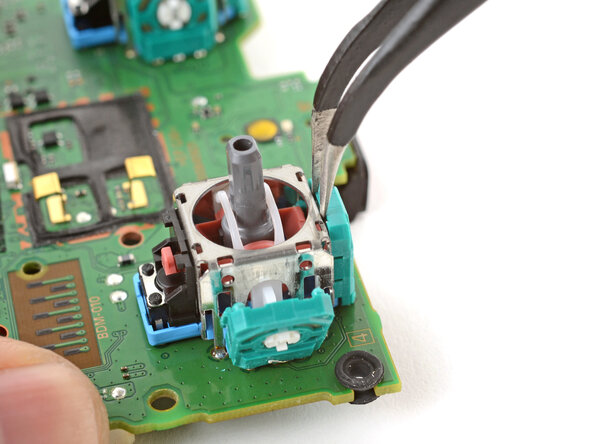
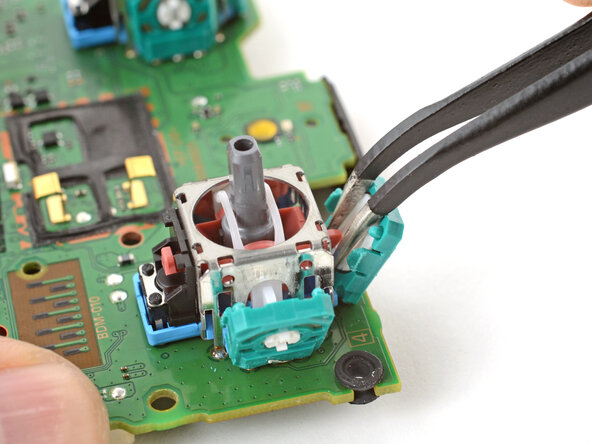
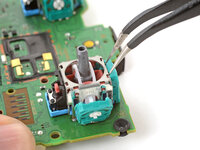
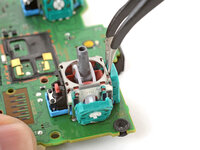
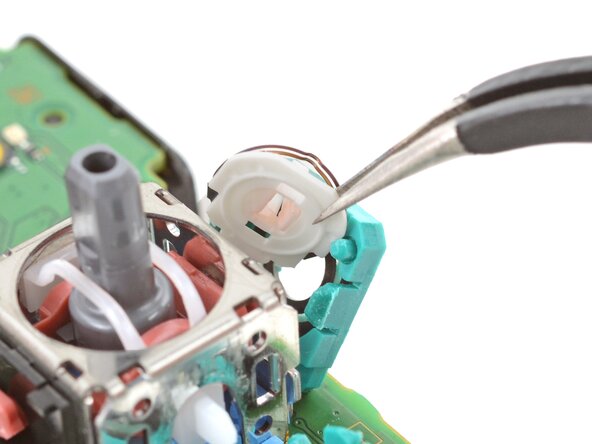
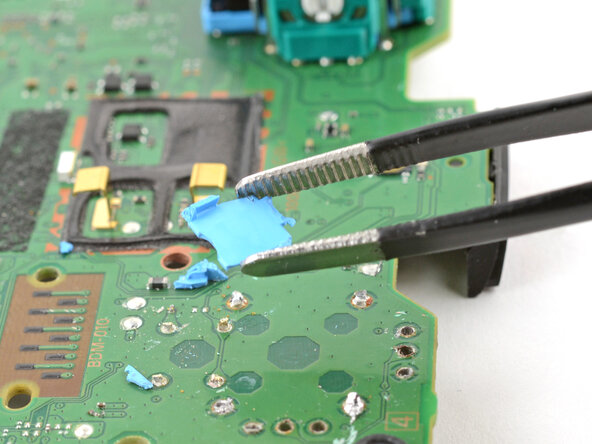
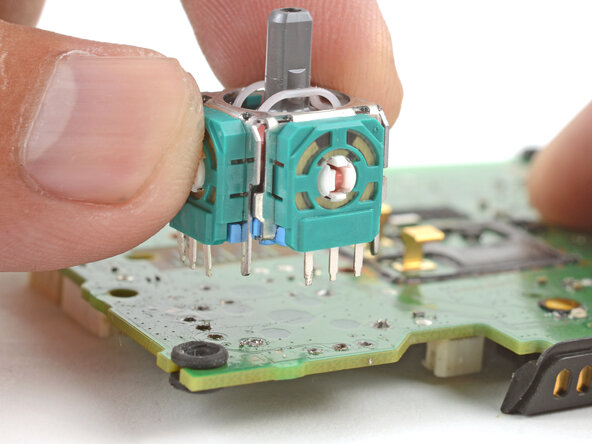
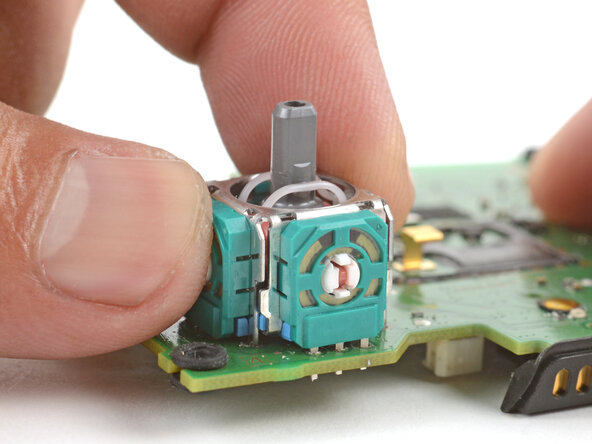
    • Each joystick module has two potentiometers—they're the colored square blocks along two sides of the joystick.

    • Insert the tips of a pair of angled tweezers between the top edge of a potentiometer and the joystick frame.

    • Pivot the tweezers down to bend the top edge of the potentiometer away from the joystick frame.

    Vraag FixBot
  31. DualSense Controller v2 Joystick Replacement: stap 31, afbeelding 1 van 3 DualSense Controller v2 Joystick Replacement: stap 31, afbeelding 2 van 3 DualSense Controller v2 Joystick Replacement: stap 31, afbeelding 3 van 3
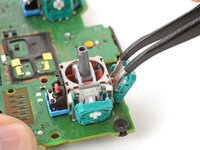
    • Repeat the procedure on the second potentiometer.

    Vraag FixBot
  32. DualSense Controller v2 Joystick Replacement: stap 32, afbeelding 1 van 2 DualSense Controller v2 Joystick Replacement: stap 32, afbeelding 2 van 2
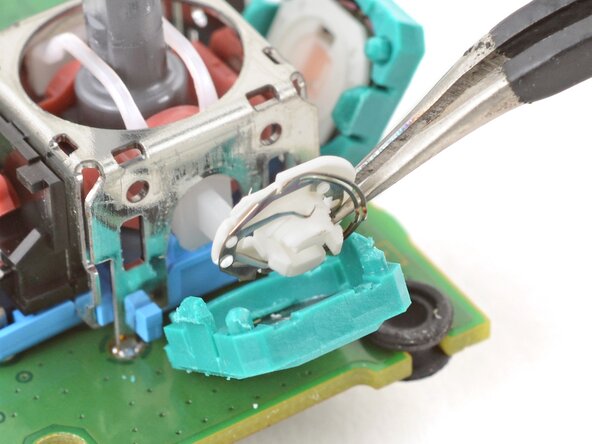
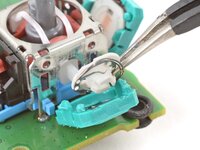
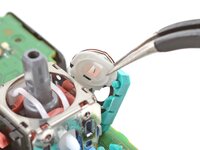
    • Use tweezers to remove the wiper mechanisms out of both potentiometers.

    Vraag FixBot
  33. DualSense Controller v2 Joystick Replacement, Secure the motherboard: stap 33, afbeelding 1 van 1
    Gereedschap gebruikt in deze stap:
    Helping Hands
    $9.99
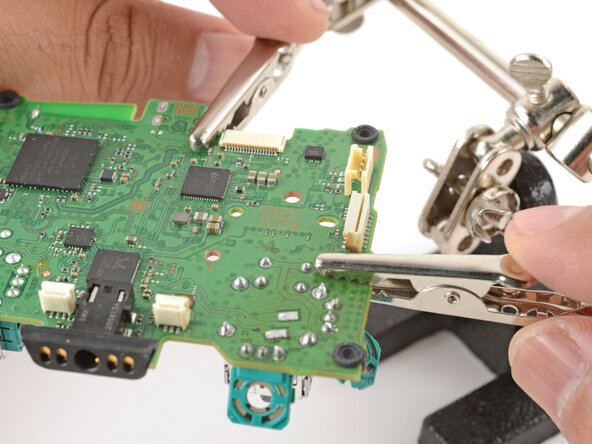
    • Secure the motherboard with helping hands or a similar tool so that the potentiometer solder joints face up.

    • Attach clips to the clear areas on the board to prevent damaging the surface-mounted components.

    Vraag FixBot
  34. DualSense Controller v2 Joystick Replacement, Desolder the potentiometers: stap 34, afbeelding 1 van 1
    Gereedschap gebruikt in deze stap:
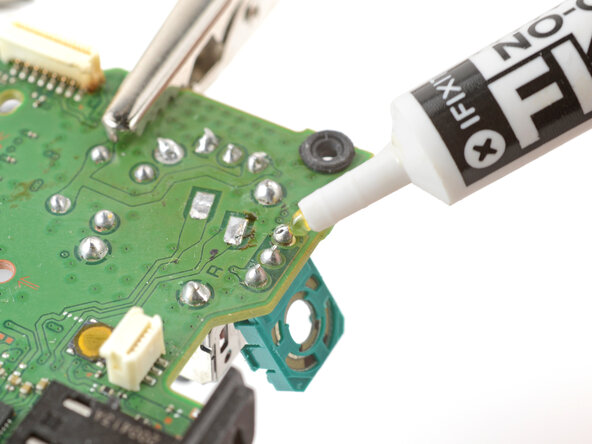
    No-Clean Flux
    $4.95
    • Apply flux to the three solder joints securing one of the potentiometers.

    • Flux improves the flow of molten solder, which makes it easier to work with. If you're having trouble with goopy or sticky solder, apply more flux.

    Vraag FixBot
  35. DualSense Controller v2 Joystick Replacement: stap 35, afbeelding 1 van 1
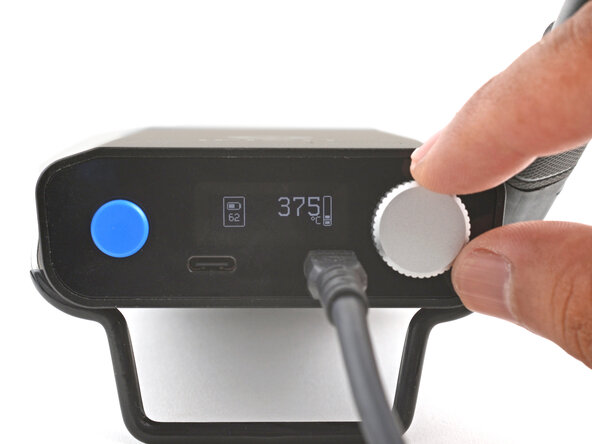
    • Set the soldering iron to 375–400 °C (~700–750 °F).

    • The DualSense controller has lead-free solder, which requires a higher working temperature than leaded solder.

    Vraag FixBot
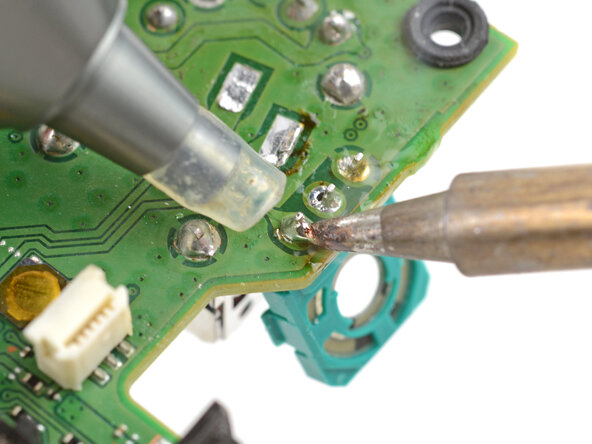
    • For full instructions on how to desolder through-hole solder joints, follow this guide.

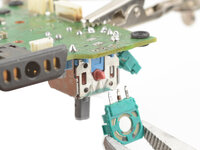
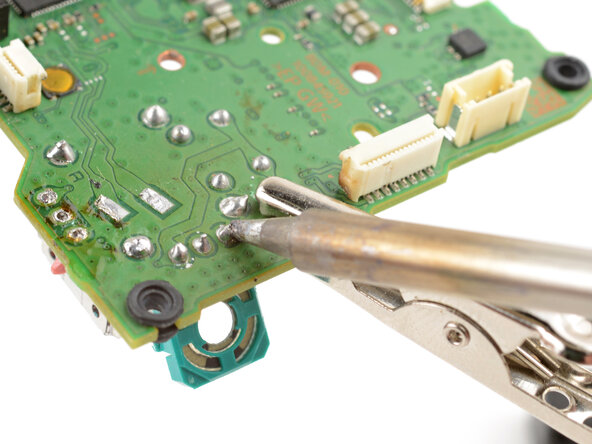
    • Press the soldering iron tip against a potentiometer joint to heat it.

    • Don't heat the joint longer than 15 seconds at a time, or you risk damaging the solder pad.

    • If you're having trouble melting the solder joint, apply some leaded solder onto the soldering iron tip and try again. The leaded solder helps with heat transfer while lowering the melting temperature of the existing lead-free solder joint.

    • Once the joint's molten, use a desoldering pump to suck away the solder.

    • Repeat the heating and sucking procedure a few times on the same joint to remove as much solder as possible. Be sure not to heat the joint longer than 15 seconds at a time.

    Vraag FixBot
  36. DualSense Controller v2 Joystick Replacement: stap 37, afbeelding 1 van 1
    • Repeat the procedure on the remaining two potentiometer joints.

    Vraag FixBot
  37. DualSense Controller v2 Joystick Replacement: stap 38, afbeelding 1 van 1
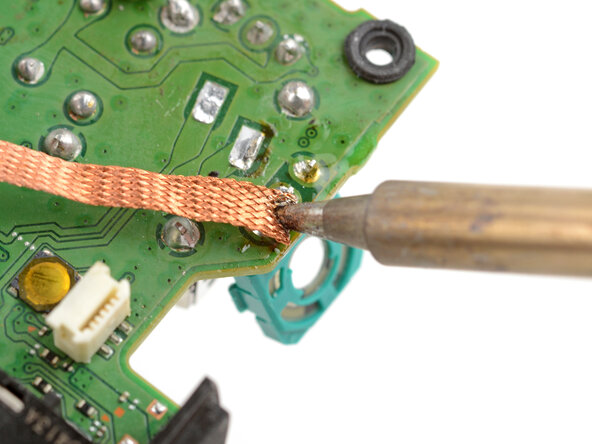
    • This step shows how to remove residual solder with a solder wick. If the potentiometer feels loose, skip this step.

    • Apply flux to the solder joint.

    • Lay a piece of clean solder wick over the solder joint.

    • Press the tip of the soldering iron over the wick so that the residual solder melts and transfers into the wick.

    • Repeat the process with the remaining two solder joints.

    Vraag FixBot
  38. DualSense Controller v2 Joystick Replacement: stap 39, afbeelding 1 van 3 DualSense Controller v2 Joystick Replacement: stap 39, afbeelding 2 van 3 DualSense Controller v2 Joystick Replacement: stap 39, afbeelding 3 van 3
    • Use tweezers or pliers to gently pull the potentiometer away from the board.

    • If the potentiometer feels stuck, repeat the previous three steps to try to remove the residual solder holding the potentiometer in place.

    • You can also try heating each joint as you wiggle the potentiometer out of the board. This is best accomplished with help from a friend.

    Vraag FixBot
  39. DualSense Controller v2 Joystick Replacement: stap 40, afbeelding 1 van 3 DualSense Controller v2 Joystick Replacement: stap 40, afbeelding 2 van 3 DualSense Controller v2 Joystick Replacement: stap 40, afbeelding 3 van 3
    • Repeat the desoldering procedure to desolder and remove the second potentiometer.

    Vraag FixBot
  40. DualSense Controller v2 Joystick Replacement, Cut apart the joystick frame: stap 41, afbeelding 1 van 3 DualSense Controller v2 Joystick Replacement, Cut apart the joystick frame: stap 41, afbeelding 2 van 3 DualSense Controller v2 Joystick Replacement, Cut apart the joystick frame: stap 41, afbeelding 3 van 3
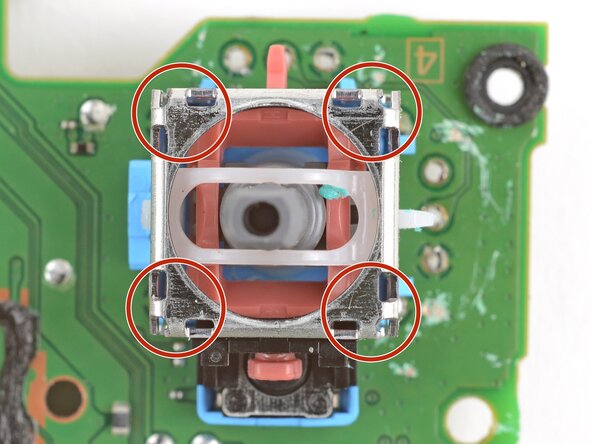
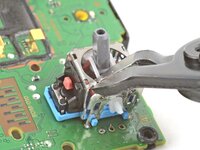
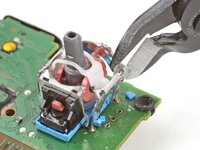
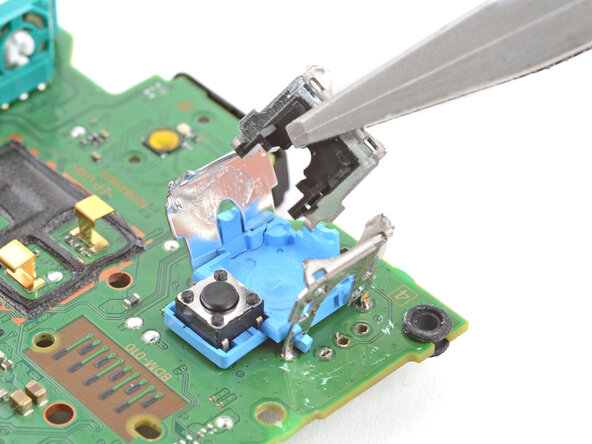
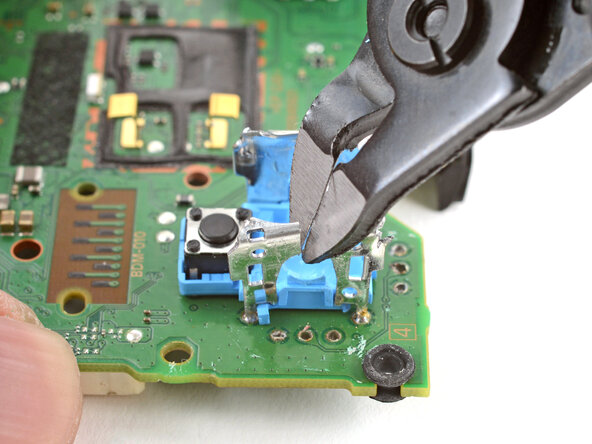
    • The next few steps show how to break apart and desolder the joystick frame.

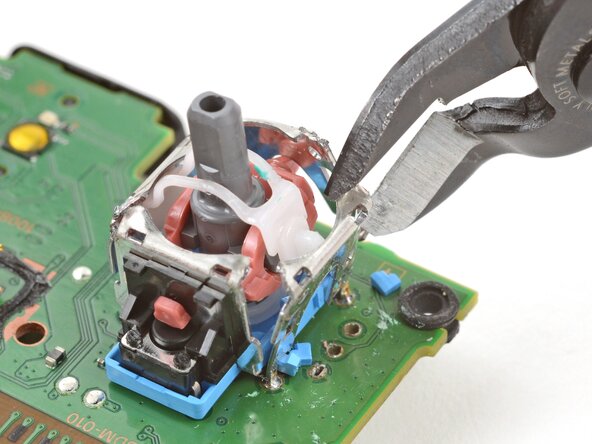
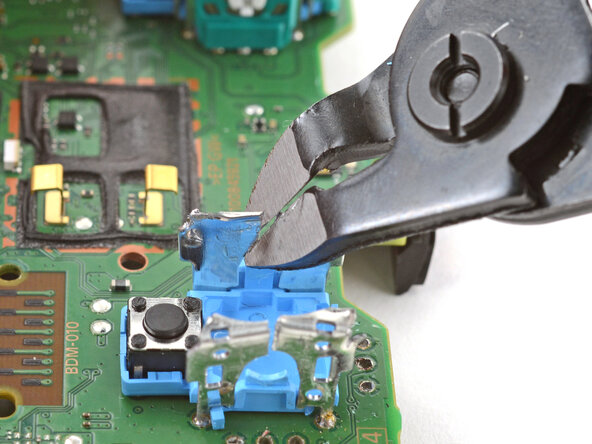
    • Use flush cutters to cut the top corners of the joystick frame.

    • Be very careful not to cut yourself on the sharp edges. Bend any sharp edges down with pliers.

    Vraag FixBot
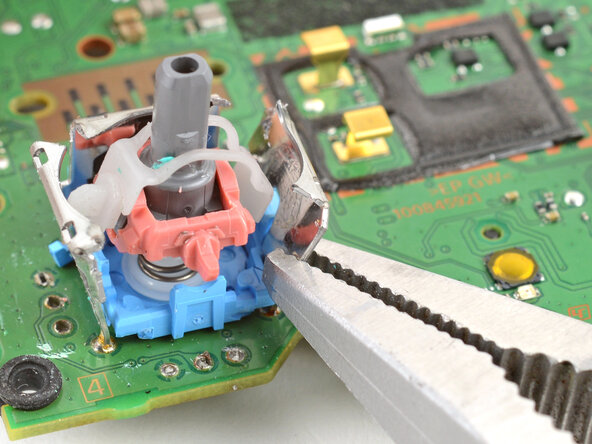
  41. DualSense Controller v2 Joystick Replacement: stap 42, afbeelding 1 van 1
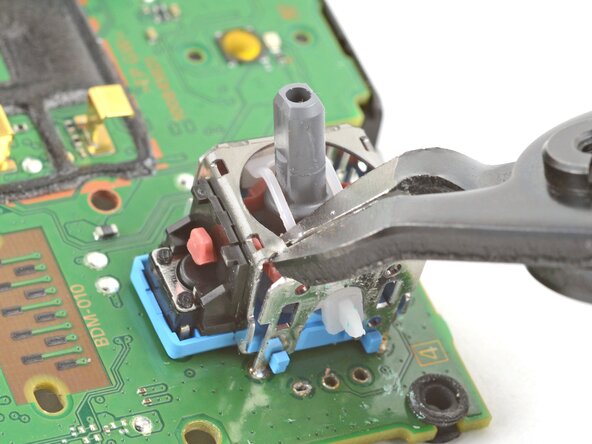
    • Use pliers to bend the metal frame outwards from the module.

    Vraag FixBot
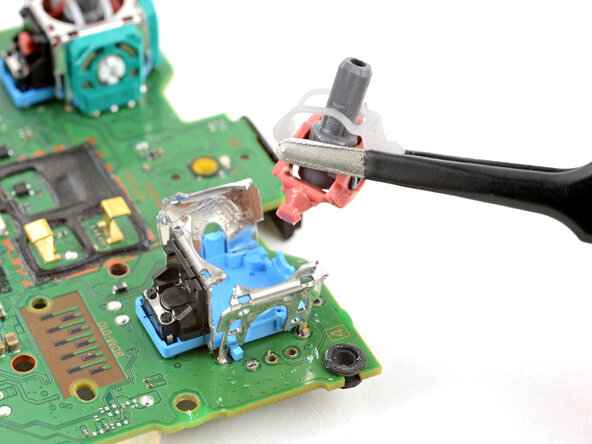
  42. DualSense Controller v2 Joystick Replacement: stap 43, afbeelding 1 van 2 DualSense Controller v2 Joystick Replacement: stap 43, afbeelding 2 van 2
    • Remove the plastic components from the center of the joystick module.

    • Remove any loose pieces from the joystick module.

    Vraag FixBot
  43. DualSense Controller v2 Joystick Replacement: stap 44, afbeelding 1 van 2 DualSense Controller v2 Joystick Replacement: stap 44, afbeelding 2 van 2
    • Use flush cutters to cut apart the top sections of the remaining frame walls, separating each wall into two pieces.

    Vraag FixBot
  44. DualSense Controller v2 Joystick Replacement, Desolder the cut pins: stap 45, afbeelding 1 van 3 DualSense Controller v2 Joystick Replacement, Desolder the cut pins: stap 45, afbeelding 2 van 3 DualSense Controller v2 Joystick Replacement, Desolder the cut pins: stap 45, afbeelding 3 van 3
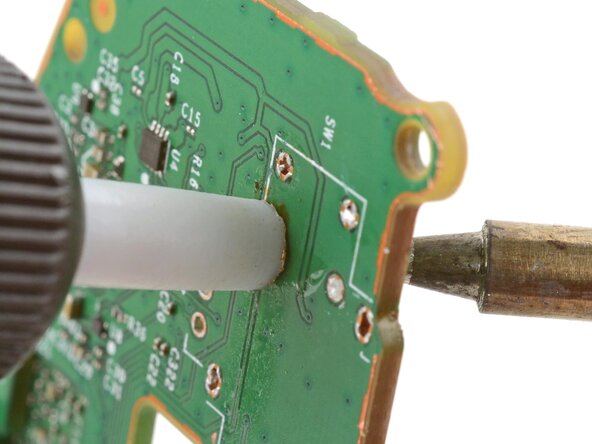
    • Secure the motherboard so that the solder joints face upward.

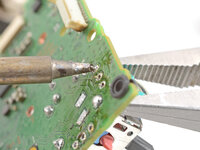
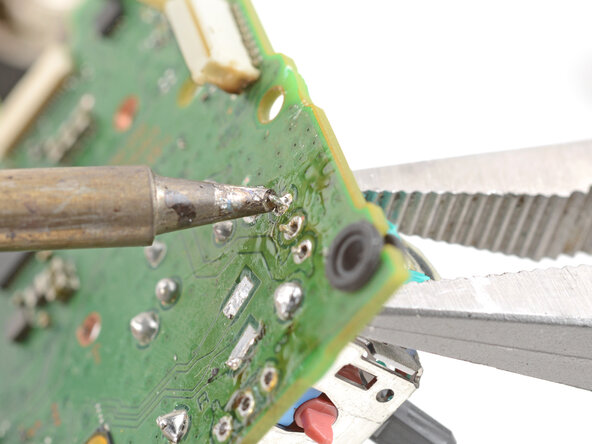
    • Use the soldering iron to heat a solder joint securing one of the frame anchors.

    • Once the solder is molten, use pliers to grab and pull the frame anchor out of its through-hole.

    • If you're having trouble melting the solder joint, apply some leaded solder onto the soldering iron tip and try again.

    • Repeat the procedure to remove all four anchor joints.

    Vraag FixBot
  45. DualSense Controller v2 Joystick Replacement, Remove the push-button: stap 46, afbeelding 1 van 3 DualSense Controller v2 Joystick Replacement, Remove the push-button: stap 46, afbeelding 2 van 3 DualSense Controller v2 Joystick Replacement, Remove the push-button: stap 46, afbeelding 3 van 3
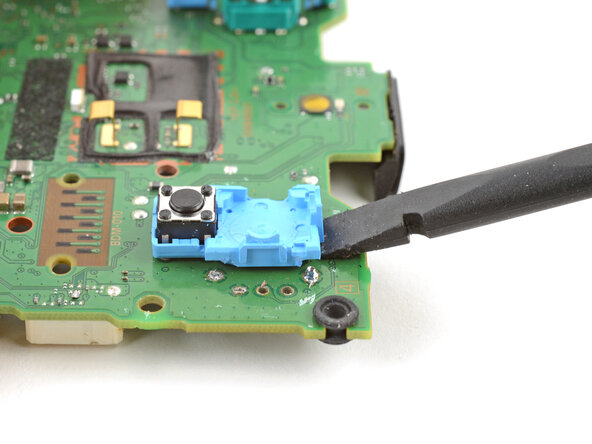
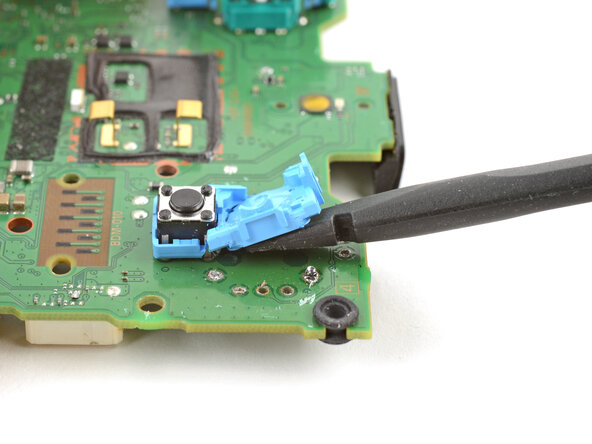
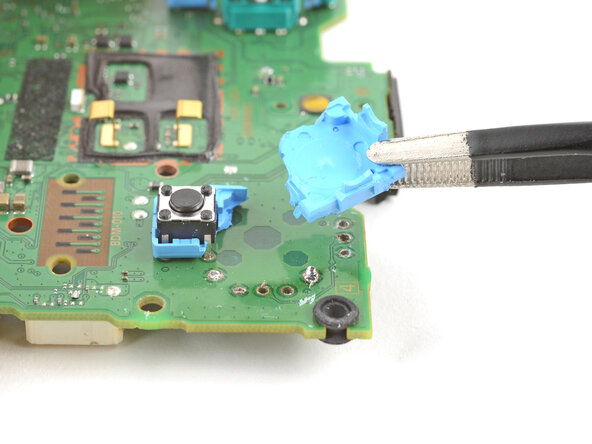
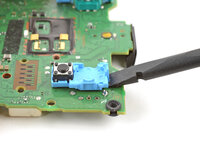
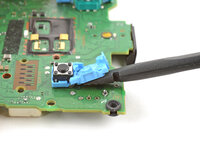
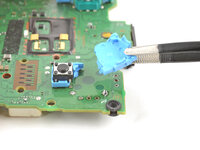
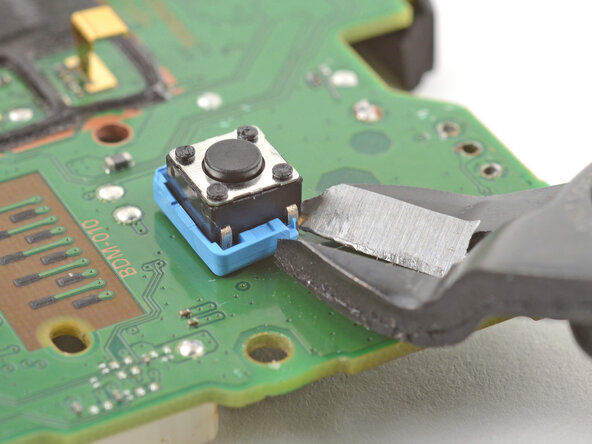
    • Slide the flat end of a spudger under the joystick module's plastic base.

    • Slowly pry up the base to bend and break it away from the motherboard.

    • Remove the plastic base.

    Vraag FixBot
  46. DualSense Controller v2 Joystick Replacement: stap 47, afbeelding 1 van 2 DualSense Controller v2 Joystick Replacement: stap 47, afbeelding 2 van 2
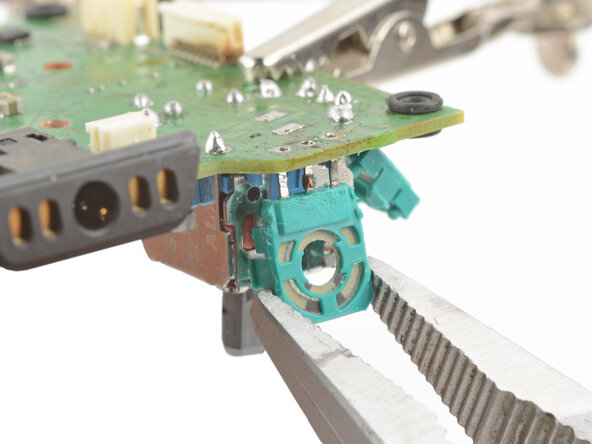
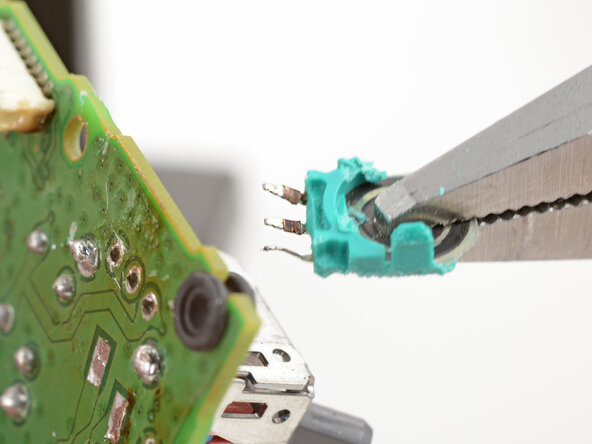
    • Use flush cutters and pliers to break and remove the plastic base remnants from the push-button.

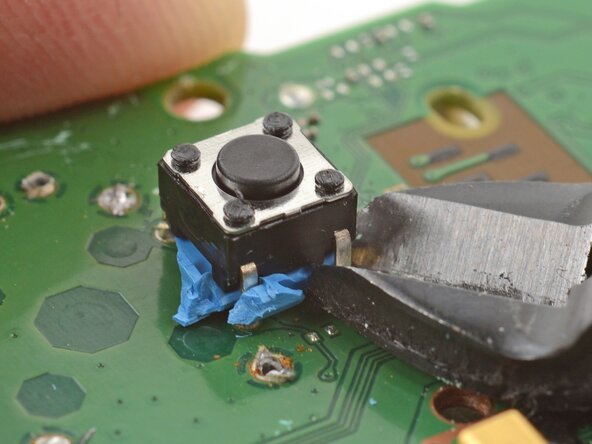
    • Use flush cutters to cut the four push-button pins securing it to the motherboard.

    Vraag FixBot
  47. DualSense Controller v2 Joystick Replacement: stap 48, afbeelding 1 van 2 DualSense Controller v2 Joystick Replacement: stap 48, afbeelding 2 van 2
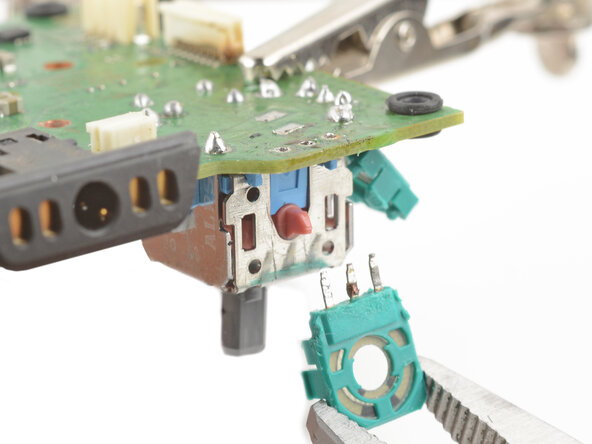
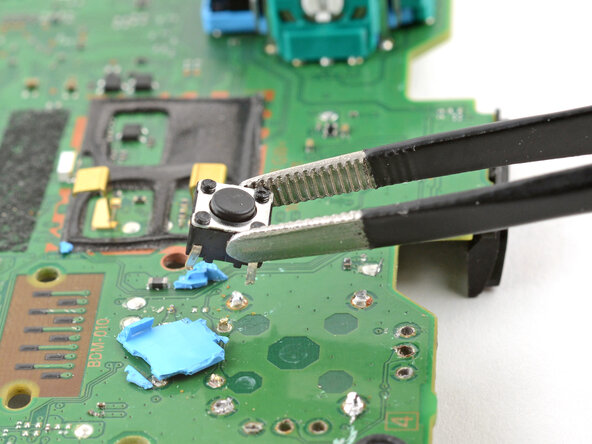
    • Remove the push-button.

    • Remove any plastic base remnants.

    Vraag FixBot
  48. DualSense Controller v2 Joystick Replacement: stap 49, afbeelding 1 van 2 DualSense Controller v2 Joystick Replacement: stap 49, afbeelding 2 van 2
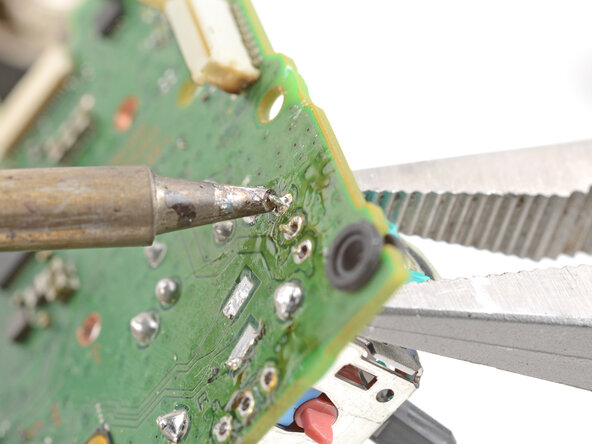
    • Use the soldering iron to heat a solder joint securing one of the push-button pins.

    • Once the solder is molten, use tweezers to grab the pin and pull it out of its through-hole.

    • Repeat the procedure to remove all four push-button pins.

    Vraag FixBot
  49. DualSense Controller v2 Joystick Replacement, Clean up the through-holes: stap 50, afbeelding 1 van 2 DualSense Controller v2 Joystick Replacement, Clean up the through-holes: stap 50, afbeelding 2 van 2
    • Secure the motherboard so you can access both sides of it.

    • Use the soldering iron to heat one side of a through-hole.

    • Use a desoldering pump on the opposite side of the through-hole to suck up any remaining solder.

    • Don't heat the through-hole continuously for longer than 15 seconds at a time to avoid damaging the pad.

    • If needed, use solder wick to remove any residual solder.

    • Repeat this for all through-holes and both sides of the motherboard.

    Vraag FixBot
  50. DualSense Controller v2 Joystick Replacement: stap 51, afbeelding 1 van 1
    • Visually inspect each through-hole and make sure they're not blocked by residual solder. If some holes look blocked, repeat the previous step to clear the blockage.

    Vraag FixBot
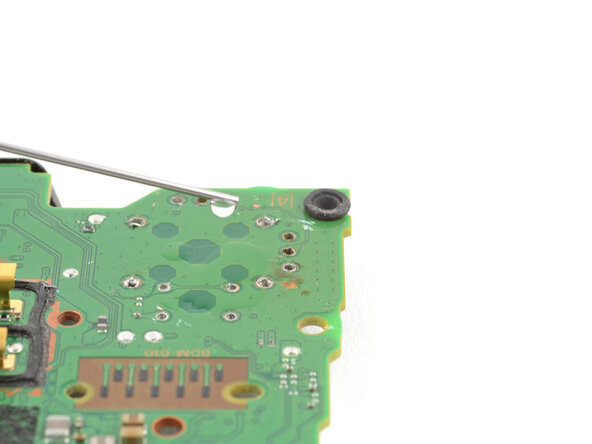
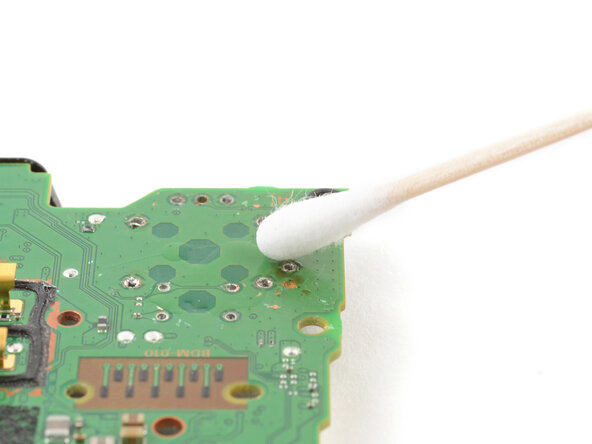
  51. DualSense Controller v2 Joystick Replacement, Clean the surface of the motherboard: stap 52, afbeelding 1 van 2 DualSense Controller v2 Joystick Replacement, Clean the surface of the motherboard: stap 52, afbeelding 2 van 2
    • Apply a few drops of high concentration (>90%) isopropyl alcohol to the top side of the motherboard, where the new joystick module will sit.

    • Use a cotton swab or a soft brush and cloth to wipe away the flux residue.

    Vraag FixBot
  52. DualSense Controller v2 Joystick Replacement, Solder the replacement joystick: stap 53, afbeelding 1 van 2 DualSense Controller v2 Joystick Replacement, Solder the replacement joystick: stap 53, afbeelding 2 van 2
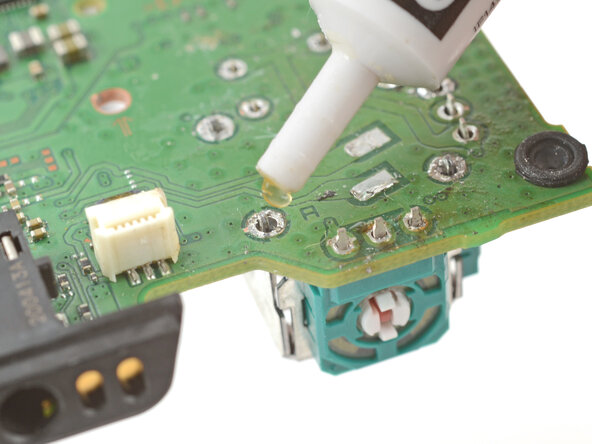
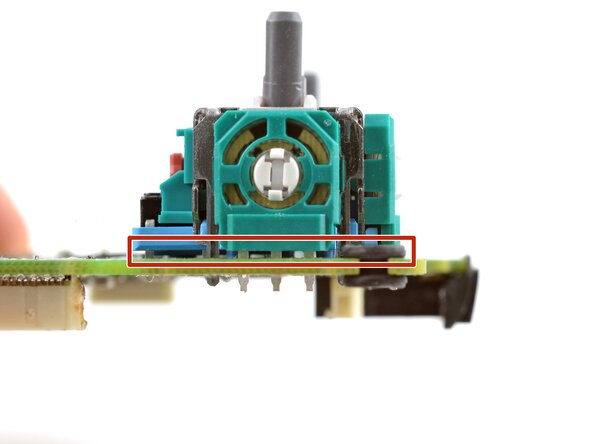
    • Place the replacement joystick module onto the motherboard so that all the pins thread through the through-holes.

    • Gently press the joystick onto the board so that the joystick sits flush with the board surface.

    Vraag FixBot
  53. DualSense Controller v2 Joystick Replacement: stap 54, afbeelding 1 van 1
    • Flip the motherboard over and secure it so that you can solder the joystick module pins.

    • Apply flux to one of the frame anchors to prep it for soldering.

    Vraag FixBot
    • For full instructions on how to solder through-hole solder joints, follow this guide.

    • Solder one of the frame anchors to the motherboard.

    Vraag FixBot
  54. DualSense Controller v2 Joystick Replacement: stap 56, afbeelding 1 van 1
    • Check that the joystick module is still sitting flush on top of the motherboard (as shown). If it isn't, reheat the soldered pin and reposition the module.

    Vraag FixBot
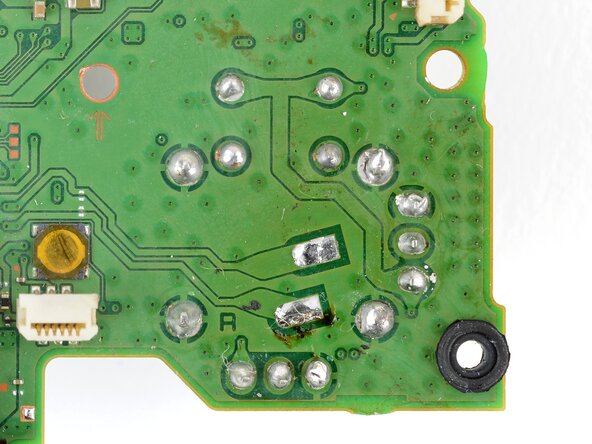
  55. DualSense Controller v2 Joystick Replacement: stap 57, afbeelding 1 van 1
    • Solder the remaining joystick module pins (14 total) to the motherboard. Apply flux as you solder to help create good bonds.

    Vraag FixBot
  56. DualSense Controller v2 Joystick Replacement, Clean and inspect your work: stap 58, afbeelding 1 van 2 DualSense Controller v2 Joystick Replacement, Clean and inspect your work: stap 58, afbeelding 2 van 2
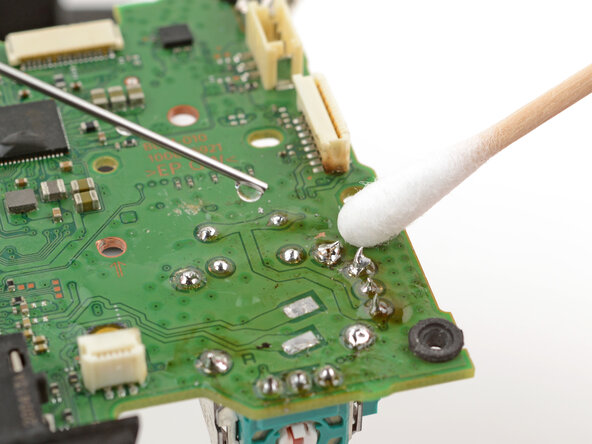
    • Apply a few drops of high concentration (>90%) isopropyl alcohol to the motherboard wherever you can see flux residue.

    • Use a cotton swab or a soft brush and cloth to wipe away the flux residue.

    • Visually inspect your work:

    • Make sure each solder joint looks well-formed.

    • Make sure no solder joints are shorting each other.

    Vraag FixBot
Conclusie

Congratulations! You've replaced the controller's joystick and, in the process, leveled up your soldering skills.

To reassemble the controller, go to this step and follow the instructions in reverse order.

You'll need to run the calibration tool to calibrate the new joystick.

Take your e-waste to an R2 or e-Stewards certified recycler.

Repair didn’t go as planned? Try some basic troubleshooting, or ask our Answers community for help.

15 andere personen hebben deze handleiding voltooid.

Arthur Shi

Lid sinds: 01/03/18

336.147 Reputatie

848 handleidingen geschreven

2Gids Commentaar

Is there a calibration element post install of the new modules?

iDoctor Cell Phone Repair - Antwoord Deel

Great instructions, very easy to follow. (Although I wouldn't recommend that this be anyone's first soldering project; desoldering any through-hole part with a bunch of pins like those joysticks is a pain.)

Also a big thank you Sony for making such a well-designed controller that's reasonably easy to disassemble and re-assemble. (No adhesive! Not a million different types of screws to keep track of!)

Timothy Buchheim - Antwoord Deel

Voeg opmerking toe

Weergavestatistieken:

Afgelopen 24 uren: 67

Afgelopen 7 dagen: 496

Afgelopen 30 dagen: 2,170

Altijd: 23,678