Ga door naar hoofdinhoud
Word lid van de reparatiegemeenschap - Account aanmaken

iPad Pro 13" Screen Replacement

Wat je nodig hebt

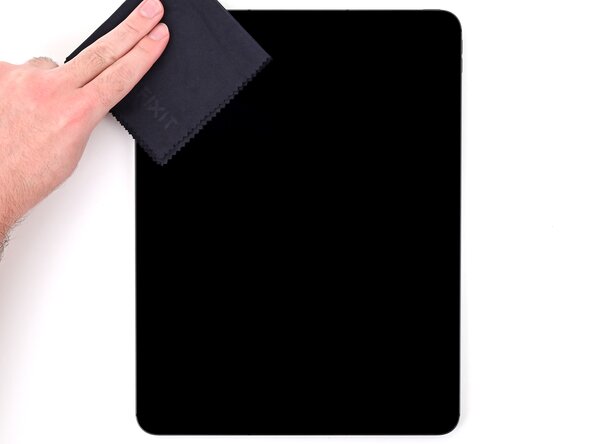
  1. iPad Pro 13" Screen Replacement, Prepare the iPad for disassembly: stap 1, afbeelding 1 van 3 iPad Pro 13" Screen Replacement, Prepare the iPad for disassembly: stap 1, afbeelding 2 van 3 iPad Pro 13" Screen Replacement, Prepare the iPad for disassembly: stap 1, afbeelding 3 van 3
    • For your safety, fully discharge the battery before disassembling the device. This reduces the risk of fire if the battery is accidentally damaged during the repair.

    • Disconnect all cables and accessories from the iPad.

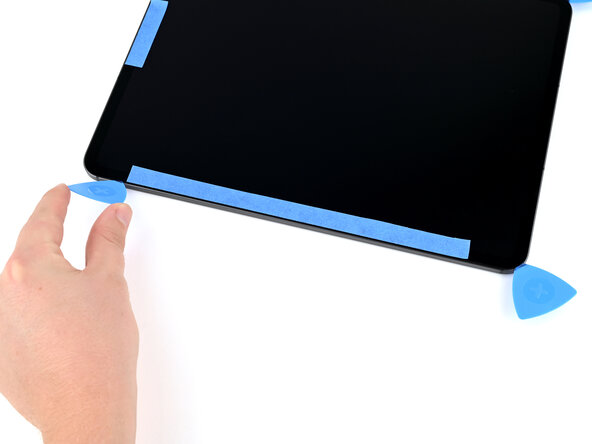
    • Place masking tape over the following areas of the display:

    • The TrueDepth camera near the middle of the top edge

    • The ambient light sensor near the middle of the left edge

    • The bottom edge, where there are delicate ribbon cables under edge of the display

    • Note that directions in this guide are given for the iPad in landscape orientation. The USB-C port is on the right edge of the iPad.

    • If your screen is badly cracked, cover it with a layer of packing tape to help the suction cup stick and prevent shards of glass from coming off.

  2. iPad Pro 13" Screen Replacement, Mark your opening picks: stap 2, afbeelding 1 van 1
    • While removing the display, don't insert picks more than 3.5 mm.

    • Mark your opening picks at 3.5 mm.

  3. iPad Pro 13" Screen Replacement, Heat the top-right corner: stap 3, afbeelding 1 van 1
    • Apply a heated iOpener to the top-right corner of the screen for two minutes to soften the adhesive.

    • You can also use a hair dryer or heat gun to soften the adhesive, but be careful not to overheat the iPad as the screen and battery can be damaged by heat.

    • Use this same procedure for all future steps where heat is needed to soften adhesive, unless otherwise noted.

  4. iPad Pro 13" Screen Replacement, Anti-Clamp instructions: stap 4, afbeelding 1 van 3 iPad Pro 13" Screen Replacement, Anti-Clamp instructions: stap 4, afbeelding 2 van 3 iPad Pro 13" Screen Replacement, Anti-Clamp instructions: stap 4, afbeelding 3 van 3
    • The next three steps show how to use the Anti-Clamp. For complete Anti-Clamp instructions, including how to work with a broken screen, check out this guide.

    • If you don't have an Anti-Clamp, read these steps for important tips, then follow the alternate method using a suction handle, which comes after these steps.

    • Unlock the Anti-Clamp by pulling the blue handle backwards, away from the suction cups.

    • Place something under the bottom-left corner of the iPad to hold it level, then place the Anti-Clamp on your work surface and insert the top-right corner of the iPad between the Anti-Clamp's suction cups.

    • Hold the bottom of the Anti-Clamp and press down on the top arm to engage the suction cups.

    • Make sure the top and bottom suction cups are aligned, and remain aligned for this entire procedure.

  5. iPad Pro 13" Screen Replacement: stap 5, afbeelding 1 van 2 iPad Pro 13" Screen Replacement: stap 5, afbeelding 2 van 2
    • Pull the blue handle forward, towards the suction cups, to engage the twist mechanism.

    • Turn the blue handle clockwise one full rotation or until the suction cups start to stretch.

    • If a suction cup pops off, reapply it. If needed, apply some suction tape for a grippier surface.

  6. iPad Pro 13" Screen Replacement: stap 6, afbeelding 1 van 3 iPad Pro 13" Screen Replacement: stap 6, afbeelding 2 van 3 iPad Pro 13" Screen Replacement: stap 6, afbeelding 3 van 3
    • Wait at least one minute for the Anti-Clamp to pull the screen up until there's a small gap between the screen and the frame.

    • Rely on heat and time to lift the screen. Don't try to force it open.

    • If the screen isn't lifting after two minutes:

    • Make sure there's tension on the suction cups. Crank the handle just until you feel resistance, but don't crank too much or the suction cups will release.

    • Apply more heat while the Anti-Clamp is engaged. You can thread a heated iOpener through the Anti-Clamp or use a hair dryer or heat gun.

    • If the screen is still not releasing, crank the handle a half-turn and wait another minute while applying more heat periodically, still being careful not to overheat the iPad. Repeat as needed.

    • Once the screen lifts, insert a marked opening pick into the gap, no more than 3.5 mm deep.

    • Slide the opening pick around the corner and leave it inserted.

  7. iPad Pro 13" Screen Replacement, Suction handle instructions: stap 7, afbeelding 1 van 3 iPad Pro 13" Screen Replacement, Suction handle instructions: stap 7, afbeelding 2 van 3 iPad Pro 13" Screen Replacement, Suction handle instructions: stap 7, afbeelding 3 van 3
    • If you don't have an Anti‑Clamp, use a single suction handle instead.

    • If the screen is badly cracked, make a handle out of very strong tape instead of a suction cup. If nothing else works, you can use strong glue to stick the suction cup to the broken screen.

    • Apply the suction handle near the top‑right corner with the open part of the handle facing away from the edge.

    • Hold the iPad down with one hand, away from the suction cup, and pull the suction handle up and towards the center of the iPad.

    • As soon as a small gap appears between the screen and the frame, insert a marked opening pick no more than 3.5 mm into the gap and release tension on the suction cup.

    • If you're having trouble lifting the screen, be patient and apply more heat while pulling on the suction handle.

    • Slide the pick gently around the corner and leave it inserted.

  8. iPad Pro 13" Screen Replacement, Heat the top edge: stap 8, afbeelding 1 van 1
    • Use an iOpener, hair dryer, or heat gun to soften the adhesive under the top edge of the screen.

    • This iPad cools very quickly. To get the screen off, work in sections of about 3 inches at a time. So, for this step, start with heating the right side of the top edge.

  9. iPad Pro 13" Screen Replacement, Slice the top edge adhesive: stap 9, afbeelding 1 van 3 iPad Pro 13" Screen Replacement, Slice the top edge adhesive: stap 9, afbeelding 2 van 3 iPad Pro 13" Screen Replacement, Slice the top edge adhesive: stap 9, afbeelding 3 van 3
    • Be patient while slicing the screen adhesive. If you suddenly feel more resistance or notice the screen starting to flex, stop and apply more heat. If you're using an iOpener, you can apply heat while you're sliding the pick.

    • Insert an additional marked opening pick beside the first pick, on the top edge of the iPad, no more than 3.5 mm.

    • Slice the adhesive by slowly sliding the opening pick under the screen towards the front camera, stopping before you get to the masking tape.

  10. iPad Pro 13" Screen Replacement: stap 10, afbeelding 1 van 3 iPad Pro 13" Screen Replacement: stap 10, afbeelding 2 van 3 iPad Pro 13" Screen Replacement: stap 10, afbeelding 3 van 3
    • Be careful not to damage the sensitive components, like the front camera and microphone, under the screen. Work slowly. If you feel resistance, stop, slide the pick back partially, apply more heat, and continue.

    • Lift the opening pick so it's at a sharp angle pointing into the iPad.

    • Slice the adhesive by sliding the pick under the taped section of the screen.

  11. iPad Pro 13" Screen Replacement: stap 11, afbeelding 1 van 2 iPad Pro 13" Screen Replacement: stap 11, afbeelding 2 van 2
    • Finish slicing the adhesive by sliding the opening pick to the top-left corner.

    • Leave the opening pick inserted.

  12. iPad Pro 13" Screen Replacement, Slice the right edge adhesive: stap 12, afbeelding 1 van 3 iPad Pro 13" Screen Replacement, Slice the right edge adhesive: stap 12, afbeelding 2 van 3 iPad Pro 13" Screen Replacement, Slice the right edge adhesive: stap 12, afbeelding 3 van 3
    • Heat the right edge of the iPad.

    • Insert an opening pick beside the first opening pick you inserted, on the right edge.

    • Working in small sections, slice the adhesive, applying more heat as needed.

  13. iPad Pro 13" Screen Replacement, Slice the bottom-right corner adhesive: stap 13, afbeelding 1 van 3 iPad Pro 13" Screen Replacement, Slice the bottom-right corner adhesive: stap 13, afbeelding 2 van 3 iPad Pro 13" Screen Replacement, Slice the bottom-right corner adhesive: stap 13, afbeelding 3 van 3
    • Heat the bottom-right corner of the iPad.

    • Carefully slide the opening pick from the previous step around the bottom-right corner.

    • Leave the pick inserted.

  14. iPad Pro 13" Screen Replacement, Slice the bottom edge adhesive: stap 14, afbeelding 1 van 3 iPad Pro 13" Screen Replacement, Slice the bottom edge adhesive: stap 14, afbeelding 2 van 3 iPad Pro 13" Screen Replacement, Slice the bottom edge adhesive: stap 14, afbeelding 3 van 3
    • Heat the bottom edge of the iPad, focusing on the right end.

    • Insert an opening pick beside the pick in the corner, on the bottom edge, no more than 3.5 mm deep.

    • Lift the pick so it enters the iPad at a sharp angle.

    • Carefully slide the pick under the screen across the bottom edge of the iPad.

    • Work slowly to avoid damaging the delicate ribbon cables under the screen in this section. If you feel any resistance, stop, slide your pick back partially, apply more heat, and try again.

  15. iPad Pro 13" Screen Replacement, Slice the bottom-left corner adhesive: stap 15, afbeelding 1 van 3 iPad Pro 13" Screen Replacement, Slice the bottom-left corner adhesive: stap 15, afbeelding 2 van 3 iPad Pro 13" Screen Replacement, Slice the bottom-left corner adhesive: stap 15, afbeelding 3 van 3
    • Heat the bottom-left corner of the iPad.

    • Carefully slide the opening pick around the bottom-left corner.

    • Leave the pick inserted.

  16. iPad Pro 13" Screen Replacement, Slice the left edge adhesive: stap 16, afbeelding 1 van 3 iPad Pro 13" Screen Replacement, Slice the left edge adhesive: stap 16, afbeelding 2 van 3 iPad Pro 13" Screen Replacement, Slice the left edge adhesive: stap 16, afbeelding 3 van 3
    • Heat the left edge of the iPad, focusing on the bottom end.

    • Insert an opening pick above the pick already inserted near the bottom-left corner.

    • Carefully slide the pick to the beginning of the masking tape.

  17. iPad Pro 13" Screen Replacement: stap 17, afbeelding 1 van 3 iPad Pro 13" Screen Replacement: stap 17, afbeelding 2 van 3 iPad Pro 13" Screen Replacement: stap 17, afbeelding 3 van 3
    • Lift the pick so it enters the iPad at a sharp angle.

    • Slide the opening pick to the top-left corner.

    • Work slowly to avoid damaging the ambient light sensor near the middle of the screen. If you feel resistance, stop, pull the pick back slightly, apply more heat, and try again.

    • Don't try to remove the iPad screen yet. You should be able to lift the iPad screen about a half–inch out of the frame all the way around the edge.

    • If the screen is still adhered anywhere, use heat and an opening pick to slice the adhesive. Use opening picks to keep the screen lifted while you work.

  18. iPad Pro 13" Screen Replacement, Reposition the screen: stap 18, afbeelding 1 van 3 iPad Pro 13" Screen Replacement, Reposition the screen: stap 18, afbeelding 2 van 3 iPad Pro 13" Screen Replacement, Reposition the screen: stap 18, afbeelding 3 van 3
    • Once the screen is completely free of the adhesive, lift it about a half-inch and rotate it slightly counterclockwise so the screw next to the front camera is visible.

  19. iPad Pro 13" Screen Replacement, Remove the microphone connector cover: stap 19, afbeelding 1 van 3 iPad Pro 13" Screen Replacement, Remove the microphone connector cover: stap 19, afbeelding 2 van 3 iPad Pro 13" Screen Replacement, Remove the microphone connector cover: stap 19, afbeelding 3 van 3
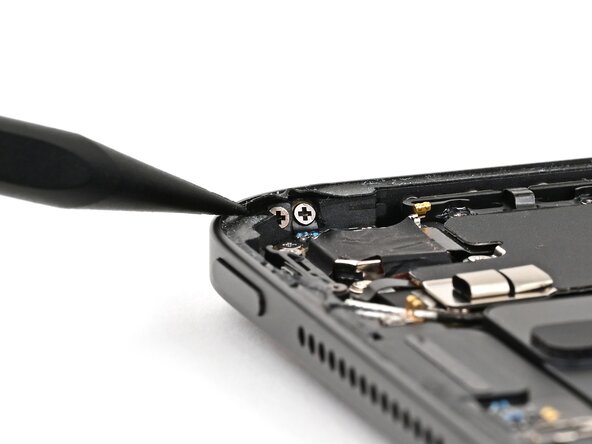
    • Use a JCIS or JIS 00 screwdriver to remove the 1.3 mm‑long screw securing the microphone connector cover.

    • Small iFixit Phillips bits are designed to work with JIS screws, so you can use an iFixit PH 00 driver. You can try Phillips drivers from other manufacturers, but you risk stripping the screw.

    • Use tweezers or your fingers to remove the microphone connector cover. Be careful not to damage the foam on the back.

  20. iPad Pro 13" Screen Replacement, Disconnect the microphone: stap 20, afbeelding 1 van 2 iPad Pro 13" Screen Replacement, Disconnect the microphone: stap 20, afbeelding 2 van 2
  21. iPad Pro 13" Screen Replacement, Open the iPad: stap 21, afbeelding 1 van 2 iPad Pro 13" Screen Replacement, Open the iPad: stap 21, afbeelding 2 van 2
    • Open the iPad like a book from the top edge.

    • Hold the screen above the iPad body and place a soft cloth on top of the iPad to protect both the screen and the iPad body.

    • Place the screen face-down on the cloth, being careful not to strain the cables still attached to the iPad body.

  22. iPad Pro 13" Screen Replacement, Remove the display connectors cover: stap 22, afbeelding 1 van 3 iPad Pro 13" Screen Replacement, Remove the display connectors cover: stap 22, afbeelding 2 van 3 iPad Pro 13" Screen Replacement, Remove the display connectors cover: stap 22, afbeelding 3 van 3
    • Place cloths over the batteries to protect them while you work.

    • Use a JCIS or JIS 00 screwdriver to remove the screws securing the display connectors cover:

    • Four 2.1 mm‑long screws towards the center of the iPad

    • Two 1.6 mm‑long screws near the edge of the iPad

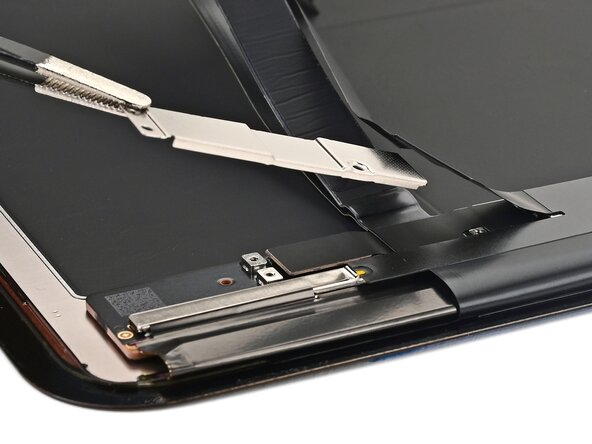
    • Use tweezers or your fingers to remove the display connectors cover.

  23. iPad Pro 13" Screen Replacement, Disconnect the screen: stap 23, afbeelding 1 van 3 iPad Pro 13" Screen Replacement, Disconnect the screen: stap 23, afbeelding 2 van 3 iPad Pro 13" Screen Replacement, Disconnect the screen: stap 23, afbeelding 3 van 3
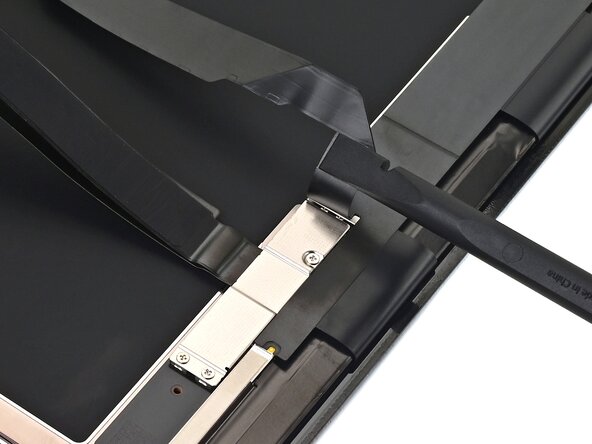
    • Use the tip of a spudger to pry up and disconnect the wide display cable press connector.

    • Then, use the tip of a spudger to pry up and disconnect the Multi‑Touch cable press connector.

  24. iPad Pro 13" Screen Replacement: stap 24, afbeelding 1 van 3 iPad Pro 13" Screen Replacement: stap 24, afbeelding 2 van 3 iPad Pro 13" Screen Replacement: stap 24, afbeelding 3 van 3
    • Use the tip of a spudger to pry up and disconnect both of the display power cable press connectors.

  25. iPad Pro 13" Screen Replacement, Remove the screen: stap 25, afbeelding 1 van 2 iPad Pro 13" Screen Replacement, Remove the screen: stap 25, afbeelding 2 van 2
    • Remove the screen.

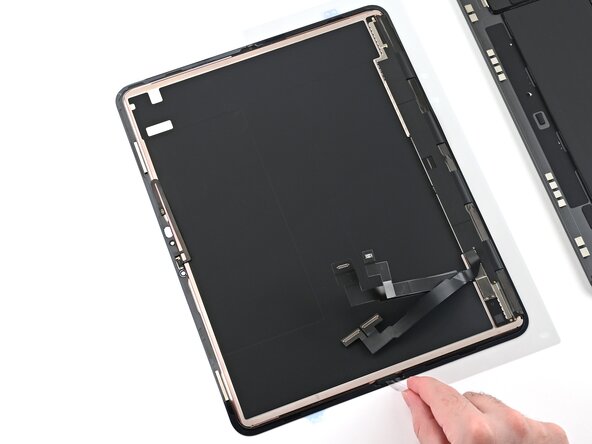
  26. iPad Pro 13" Screen Replacement, Screen components information: stap 26, afbeelding 1 van 1
    • The iPad screen has multiple small components mounted to the back of it:

    • The top sensor assembly

    • Two magnets along the top edge

    • Three display cables

    • If the replacement screen includes all of these components, skip to this step. Otherwise, only transfer the missing components.

  27. iPad Pro 13" Screen Replacement, Top sensor assembly information: stap 27, afbeelding 1 van 2 iPad Pro 13" Screen Replacement, Top sensor assembly information: stap 27, afbeelding 2 van 2
    • The top sensor assembly is composed of two sensors:

    • Microphone

    • Ambient light sensor

    • If your replacement screen comes with a top sensor assembly pre‑installed, skip to this step.

  28. iPad Pro 13" Screen Replacement, Heat the top sensor assembly: stap 28, afbeelding 1 van 1
  29. iPad Pro 13" Screen Replacement, Separate the ambient light sensor: stap 29, afbeelding 1 van 3 iPad Pro 13" Screen Replacement, Separate the ambient light sensor: stap 29, afbeelding 2 van 3 iPad Pro 13" Screen Replacement, Separate the ambient light sensor: stap 29, afbeelding 3 van 3
    • Slide an opening tool between the ambient light sensor and the screen.

    • Pry it up slowly to separate its adhesive. If it doesn't budge, apply more heat and try again.

  30. iPad Pro 13" Screen Replacement, Separate the microphone: stap 30, afbeelding 1 van 3 iPad Pro 13" Screen Replacement, Separate the microphone: stap 30, afbeelding 2 van 3 iPad Pro 13" Screen Replacement, Separate the microphone: stap 30, afbeelding 3 van 3
    • Use an opening tool to lift the microphone and separate the adhesive securing it to the screen.

    • Lift the entire top sensor assembly to separate it from the screen.

  31. iPad Pro 13" Screen Replacement, Magnet information: stap 31, afbeelding 1 van 2 iPad Pro 13" Screen Replacement, Magnet information: stap 31, afbeelding 2 van 2
    • The iPad screen has two magnets along the top edge. These are used for accessories like cases.

    • If the replacement screen comes with magnets pre‑installed, skip to this step.

    • Mark the magnets with a marker so you know which orientation to install them in on the replacement screen—they won't work if installed incorrectly.

  32. iPad Pro 13" Screen Replacement, Heat the magnet adhesive: stap 32, afbeelding 1 van 1
  33. iPad Pro 13" Screen Replacement, Remove the first magnet: stap 33, afbeelding 1 van 3 iPad Pro 13" Screen Replacement, Remove the first magnet: stap 33, afbeelding 2 van 3 iPad Pro 13" Screen Replacement, Remove the first magnet: stap 33, afbeelding 3 van 3
    • Insert the flat end of a spudger between the raised portion of the screen and the magnet.

    • Push the magnet towards the top edge of the screen using slow, steady force until it's free.

    • Set the first magnet to the side, ensuring it remains in the same orientation.

  34. iPad Pro 13" Screen Replacement, Heat the second magnet adhesive: stap 34, afbeelding 1 van 1
  35. iPad Pro 13" Screen Replacement, Remove the second magnet: stap 35, afbeelding 1 van 3 iPad Pro 13" Screen Replacement, Remove the second magnet: stap 35, afbeelding 2 van 3 iPad Pro 13" Screen Replacement, Remove the second magnet: stap 35, afbeelding 3 van 3
    • Repeat this process to remove the second magnet from the screen.

  36. iPad Pro 13" Screen Replacement, Screen cable information: stap 36, afbeelding 1 van 1
    • The screen contains three cables on the back: one for touch, one for display, and one for power (with two press connectors).

    • The touch and display cables are modular, and need to be transferred to the replacement screen in the following steps.

    • If your replacement screen has all three cables pre‑installed, skip to this step.

  37. iPad Pro 13" Screen Replacement, Remove the screen cable bracket: stap 37, afbeelding 1 van 2 iPad Pro 13" Screen Replacement, Remove the screen cable bracket: stap 37, afbeelding 2 van 2
    • Use your finger or a spudger to lift the screen's power cable off the screen cable cover.

    • Use a JCIS or JIS 00 screwdriver to remove the three 1.2 mm‑long screws screws securing the screen cable cover.

  38. iPad Pro 13" Screen Replacement: stap 38, afbeelding 1 van 3 iPad Pro 13" Screen Replacement: stap 38, afbeelding 2 van 3 iPad Pro 13" Screen Replacement: stap 38, afbeelding 3 van 3
    • Lift the screen cable bracket to a roughly 45‑degree angle and pull it off.

  39. iPad Pro 13" Screen Replacement, Disconnect the touch cable: stap 39, afbeelding 1 van 3 iPad Pro 13" Screen Replacement, Disconnect the touch cable: stap 39, afbeelding 2 van 3 iPad Pro 13" Screen Replacement, Disconnect the touch cable: stap 39, afbeelding 3 van 3
    • Fold the screen's power cable out of the way.

    • Use the point of a spudger to disconnect the screen's touch cable press connector.

  40. iPad Pro 13" Screen Replacement, Remove the touch cable: stap 40, afbeelding 1 van 2 iPad Pro 13" Screen Replacement, Remove the touch cable: stap 40, afbeelding 2 van 2
    • Use tweezers or your fingers to remove the touch cable.

  41. iPad Pro 13" Screen Replacement, Disconnect the display cable: stap 41, afbeelding 1 van 3 iPad Pro 13" Screen Replacement, Disconnect the display cable: stap 41, afbeelding 2 van 3 iPad Pro 13" Screen Replacement, Disconnect the display cable: stap 41, afbeelding 3 van 3
    • Use the point of a spudger to pry up and disconnect the display cable press connector.

    • Remove the display cable.

  42. iPad Pro 13" Screen Replacement, Transfer the display cable: stap 42, afbeelding 1 van 3 iPad Pro 13" Screen Replacement, Transfer the display cable: stap 42, afbeelding 2 van 3 iPad Pro 13" Screen Replacement, Transfer the display cable: stap 42, afbeelding 3 van 3
    • Align the display cable press connector over its socket on the replacement screen.

    • Use your finger or the flat end of a spudger to press the connector into place.

  43. iPad Pro 13" Screen Replacement, Transfer the touch cable: stap 43, afbeelding 1 van 3 iPad Pro 13" Screen Replacement, Transfer the touch cable: stap 43, afbeelding 2 van 3 iPad Pro 13" Screen Replacement, Transfer the touch cable: stap 43, afbeelding 3 van 3
    • Repeat this process to connect the touchscreen cable press connector.

  44. iPad Pro 13" Screen Replacement, Install the screen cable bracket: stap 44, afbeelding 1 van 3 iPad Pro 13" Screen Replacement, Install the screen cable bracket: stap 44, afbeelding 2 van 3 iPad Pro 13" Screen Replacement, Install the screen cable bracket: stap 44, afbeelding 3 van 3
    • Install the screen bracket at a roughly 45‑degree angle and set it onto the cables.

  45. iPad Pro 13" Screen Replacement: stap 45, afbeelding 1 van 1
    • Use a JCIS or JIS 00 screwdriver to install the three 1.2 mm‑long screws screws securing the screen cable cover.

  46. iPad Pro 13" Screen Replacement: stap 46, afbeelding 1 van 2 iPad Pro 13" Screen Replacement: stap 46, afbeelding 2 van 2
    • Fold the power cable down so it sits on top of the screen cable cover.

  47. iPad Pro 13" Screen Replacement, Install magnet adhesive: stap 47, afbeelding 1 van 3 iPad Pro 13" Screen Replacement, Install magnet adhesive: stap 47, afbeelding 2 van 3 iPad Pro 13" Screen Replacement, Install magnet adhesive: stap 47, afbeelding 3 van 3
    Gereedschap gebruikt in deze stap:
    Tesa 61395 Tape
    $2.99
    • Install 2 mm‑wide strips of thin, double‑sided tape to the underside of both magnets.

    • Leave the adhesive backing in place for now.

  48. iPad Pro 13" Screen Replacement, Install the first magnet: stap 48, afbeelding 1 van 2 iPad Pro 13" Screen Replacement, Install the first magnet: stap 48, afbeelding 2 van 2
    • Use a marker to mark 23 mm from the left edge and 2 mm from the top edge of the screen.

  49. iPad Pro 13" Screen Replacement: stap 49, afbeelding 1 van 3 iPad Pro 13" Screen Replacement: stap 49, afbeelding 2 van 3 iPad Pro 13" Screen Replacement: stap 49, afbeelding 3 van 3
    • Remove the adhesive backing from the first magnet.

    • Align the first magnet with the marks you made in the last step, and set it into place.

    • Press on the magnet with your finger to help the adhesive bond.

  50. iPad Pro 13" Screen Replacement, Install the second magnet: stap 50, afbeelding 1 van 2 iPad Pro 13" Screen Replacement, Install the second magnet: stap 50, afbeelding 2 van 2
    • Repeat this process to install the second magnet 46 mm from the right edge and 2 mm from the top edge of the screen.

  51. iPad Pro 13" Screen Replacement, Adhere the magnets: stap 51, afbeelding 1 van 2 iPad Pro 13" Screen Replacement, Adhere the magnets: stap 51, afbeelding 2 van 2
    • Heat an iOpener and set it on top of both magnets for two minutes. This will help the adhesive bond.

    • You can also use a hair dryer or heat gun to lightly heat each magnet to help the adhesive bond.

  52. iPad Pro 13" Screen Replacement, Prepare the front sensor assembly: stap 52, afbeelding 1 van 1
    Gereedschap gebruikt in deze stap:
    Tesa 61395 Tape
    $2.99
    • Use tweezers to reposition any adhesive that may have covered the ambient light sensor (white circle) or microphone (black mesh). The adhesive should go around the sensors, not cover them.

    • If the adhesive was damaged or stayed with the old screen, replace it with a 1 mm wide strip of thin, double-sided tape along the sensor's bottom border.

  53. iPad Pro 13" Screen Replacement, Install the front sensor assembly: stap 53, afbeelding 1 van 3 iPad Pro 13" Screen Replacement, Install the front sensor assembly: stap 53, afbeelding 2 van 3 iPad Pro 13" Screen Replacement, Install the front sensor assembly: stap 53, afbeelding 3 van 3
    • If you applied fresh adhesive, or if your part came with new adhesive, remove the liners now.

    • Align the microphone and ambient light sensor with their cutouts in the screen.

    • Press the microphone and ambient light sensor down for 10 seconds each to give the adhesive time to bond.

  54. iPad Pro 13" Screen Replacement, Clean frame adhesive: stap 54, afbeelding 1 van 3 iPad Pro 13" Screen Replacement, Clean frame adhesive: stap 54, afbeelding 2 van 3 iPad Pro 13" Screen Replacement, Clean frame adhesive: stap 54, afbeelding 3 van 3
    • Don't touch the ambient light sensor near the middle of the left edge or TrueDepth camera near the middle of the top edge while cleaning the frame.

    • Use the tip of a spudger to lift a section of adhesive. Look for an edge or overhang where you can get underneath the adhesive strip.

  55. iPad Pro 13" Screen Replacement: stap 55, afbeelding 1 van 2 iPad Pro 13" Screen Replacement: stap 55, afbeelding 2 van 2
    • Use tweezers or your fingers to lift and remove the old screen adhesive. Apply a little heat to make the removal easier.

  56. iPad Pro 13" Screen Replacement: stap 56, afbeelding 1 van 3 iPad Pro 13" Screen Replacement: stap 56, afbeelding 2 van 3 iPad Pro 13" Screen Replacement: stap 56, afbeelding 3 van 3
    Gereedschap gebruikt in deze stap:
    Adhesive Cleanup Kit (Set of 12)
    $7.99
    • Apply a bit of isopropyl alcohol to a cotton swab or lint-free cloth and clean the frame until it's free of adhesive residue.

    • Alternatively, use our adhesive cleanup kit.

  57. iPad Pro 13" Screen Replacement, Clean screen adhesive: stap 57, afbeelding 1 van 3 iPad Pro 13" Screen Replacement, Clean screen adhesive: stap 57, afbeelding 2 van 3 iPad Pro 13" Screen Replacement, Clean screen adhesive: stap 57, afbeelding 3 van 3
    • Skip this step if you're installing a new screen.

    • Repeat this process to clean the adhesive off the screen bezel.

    • Don't scrape with a metal tool, or you will scratch the display assembly's black paint.

    • Only apply solvents (like isopropyl alcohol) to the black bezel. Don't let any get under the front sensor assembly or display itself. Solvents will also dissolve the foam gaskets, especially around the front camera cutouts.

  58. iPad Pro 13" Screen Replacement, Align new adhesive: stap 58, afbeelding 1 van 2 iPad Pro 13" Screen Replacement, Align new adhesive: stap 58, afbeelding 2 van 2
    • If your replacement screen comes with adhesive pre‑installed, skip the next twelve steps.

    • Be careful not to crease or stretch the adhesive during installation. It can't be used if damaged.

    • Align the adhesive with the frame of the iPad. It's easiest to align them above the USB‑C port.

  59. iPad Pro 13" Screen Replacement, Flip the adhesive over: stap 59, afbeelding 1 van 2 iPad Pro 13" Screen Replacement, Flip the adhesive over: stap 59, afbeelding 2 van 2
    • Flip the adhesive over so it's aligned with the back of the screen.

  60. iPad Pro 13" Screen Replacement, Set the adhesive aside: stap 60, afbeelding 1 van 2 iPad Pro 13" Screen Replacement, Set the adhesive aside: stap 60, afbeelding 2 van 2
    • Lift the adhesive off the back of the screen and set it to the side. Keep it in the same orientation as the screen.

  61. iPad Pro 13" Screen Replacement: stap 61, afbeelding 1 van 2 iPad Pro 13" Screen Replacement: stap 61, afbeelding 2 van 2
    • Don't remove any of the plastic adhesive liners yet—they keep the adhesive in shape.

    • Use scissors to cut the adhesive vertically in half. Be careful not to crease or pull the adhesive itself.

  62. iPad Pro 13" Screen Replacement, Left adhesive: stap 62, afbeelding 1 van 3 iPad Pro 13" Screen Replacement, Left adhesive: stap 62, afbeelding 2 van 3 iPad Pro 13" Screen Replacement, Left adhesive: stap 62, afbeelding 3 van 3
    • The adhesive is encased in four layers of plastic—three on top and one on the bottom.

    • Peel and remove the topmost plastic cling layer from the left adhesive strip.

  63. iPad Pro 13" Screen Replacement: stap 63, afbeelding 1 van 3 iPad Pro 13" Screen Replacement: stap 63, afbeelding 2 van 3 iPad Pro 13" Screen Replacement: stap 63, afbeelding 3 van 3
    • Flip the left adhesive over.

    • Peel the clear liner with the blue line off the back of the left adhesive. The adhesive is now exposed.

  64. iPad Pro 13" Screen Replacement, Install the left adhesive: stap 64, afbeelding 1 van 3 iPad Pro 13" Screen Replacement, Install the left adhesive: stap 64, afbeelding 2 van 3 iPad Pro 13" Screen Replacement, Install the left adhesive: stap 64, afbeelding 3 van 3
    • Work slowly when installing the adhesive—once it sticks, it can't be repositioned.

    • Flip the left adhesive and align it to the left edge of the display assembly.

    • Set the left adhesive in place aligned with the left edge of the screen.

    • Press the top and bottom sections of the left adhesive onto the back of the screen.

  65. iPad Pro 13" Screen Replacement: stap 65, afbeelding 1 van 3 iPad Pro 13" Screen Replacement: stap 65, afbeelding 2 van 3 iPad Pro 13" Screen Replacement: stap 65, afbeelding 3 van 3
    • Remove the clear liner on the left adhesive. Leave the final blue liner in place.

  66. iPad Pro 13" Screen Replacement, Prepare the right adhesive: stap 66, afbeelding 1 van 3 iPad Pro 13" Screen Replacement, Prepare the right adhesive: stap 66, afbeelding 2 van 3 iPad Pro 13" Screen Replacement, Prepare the right adhesive: stap 66, afbeelding 3 van 3
    • Repeat the preparation process with the right adhesive strip.

    • Peel and remove the topmost (clear) cling layer from the strip.

    • Peel and remove the bottom liner layer (clear with a blue line) from the strip.

  67. iPad Pro 13" Screen Replacement: stap 67, afbeelding 1 van 2 iPad Pro 13" Screen Replacement: stap 67, afbeelding 2 van 2
    • Flip the right adhesive and peel off the clear liner with a blue line.

  68. iPad Pro 13" Screen Replacement, Install the right adhesive: stap 68, afbeelding 1 van 3 iPad Pro 13" Screen Replacement, Install the right adhesive: stap 68, afbeelding 2 van 3 iPad Pro 13" Screen Replacement, Install the right adhesive: stap 68, afbeelding 3 van 3
    • Flip the right adhesive and set it in place, aligned with the right edge of the screen.

    • Press the top and bottom sections of the right adhesive onto the back of the screen.

  69. iPad Pro 13" Screen Replacement, Remove the clear liner: stap 69, afbeelding 1 van 2 iPad Pro 13" Screen Replacement, Remove the clear liner: stap 69, afbeelding 2 van 2
    • Remove the clear liner off the right adhesive. Leave the final blue liner in place.

  70. iPad Pro 13" Screen Replacement, Press the adhesive: stap 70, afbeelding 1 van 3 iPad Pro 13" Screen Replacement, Press the adhesive: stap 70, afbeelding 2 van 3 iPad Pro 13" Screen Replacement, Press the adhesive: stap 70, afbeelding 3 van 3
    • Use the flat end of a spudger to gently press all the adhesive into place around the entire perimeter of the iPad. Be careful not to press on the delicate ribbon cables across the bottom of the screen.

  71. iPad Pro 13" Screen Replacement, Set the screen on the iPad: stap 71, afbeelding 1 van 2 iPad Pro 13" Screen Replacement, Set the screen on the iPad: stap 71, afbeelding 2 van 2
    • Place a clean cloth over the left battery cell in the iPad.

    • Set the screen on the iPad, so the screen cable connectors can reach their respective sockets in the iPad.

  72. iPad Pro 13" Screen Replacement, Connect the display power cables: stap 72, afbeelding 1 van 3 iPad Pro 13" Screen Replacement, Connect the display power cables: stap 72, afbeelding 2 van 3 iPad Pro 13" Screen Replacement, Connect the display power cables: stap 72, afbeelding 3 van 3
    • Align one of the display power cable press connectors over its socket on the logic board.

    • Press down with the flat end of a spudger or your fingertip—first on one of the short sides, then the other—until it clicks into place.

    • Don't try to force the connector into place. If you're having trouble, reposition it and try again.

    • Repeat this process to connect the second display power cable press connector.

  73. iPad Pro 13" Screen Replacement, Connect the display cables: stap 73, afbeelding 1 van 3 iPad Pro 13" Screen Replacement, Connect the display cables: stap 73, afbeelding 2 van 3 iPad Pro 13" Screen Replacement, Connect the display cables: stap 73, afbeelding 3 van 3
    • Repeat the same procedure to connect the two remaining display cables.

  74. iPad Pro 13" Screen Replacement, Install the display connectors cover: stap 74, afbeelding 1 van 2 iPad Pro 13" Screen Replacement, Install the display connectors cover: stap 74, afbeelding 2 van 2
    • Set the display connectors cover onto the logic board so it's aligned with its screw holes.

  75. iPad Pro 13" Screen Replacement, Install the display connectors cover screws: stap 75, afbeelding 1 van 1
    • Use a JCIS or JIS 00 screwdriver to install the six screws securing the display connectors cover:

    • Four 2.1 mm‑long screws towards the center of the iPad

    • Two 1.6 mm‑long screws near the edge of the iPad

  76. iPad Pro 13" Screen Replacement, Remove the final adhesive liners: stap 76, afbeelding 1 van 3 iPad Pro 13" Screen Replacement, Remove the final adhesive liners: stap 76, afbeelding 2 van 3 iPad Pro 13" Screen Replacement, Remove the final adhesive liners: stap 76, afbeelding 3 van 3
    • Use tweezers or your fingers to remove the final, blue liners off the iPad screen adhesive.

  77. iPad Pro 13" Screen Replacement: stap 77, afbeelding 1 van 1
    • Verify all the adhesive liners are removed. The adhesive is now exposed.

  78. iPad Pro 13" Screen Replacement, Remove the cloth: stap 78, afbeelding 1 van 3 iPad Pro 13" Screen Replacement, Remove the cloth: stap 78, afbeelding 2 van 3 iPad Pro 13" Screen Replacement, Remove the cloth: stap 78, afbeelding 3 van 3
    • Without touching the adhesive, slightly lift the iPad screen and remove the cloth between it and the iPad.

  79. iPad Pro 13" Screen Replacement, Set the screen down at an angle: stap 79, afbeelding 1 van 3 iPad Pro 13" Screen Replacement, Set the screen down at an angle: stap 79, afbeelding 2 van 3 iPad Pro 13" Screen Replacement, Set the screen down at an angle: stap 79, afbeelding 3 van 3
    • Don't align the iPad screen with the frame yet—the front sensor assembly still needs to be connected.

    • Flip the iPad screen over and set it down at a slight angle on top of the iPad frame.

  80. iPad Pro 13" Screen Replacement, Connect the front sensor assembly: stap 80, afbeelding 1 van 2 iPad Pro 13" Screen Replacement, Connect the front sensor assembly: stap 80, afbeelding 2 van 2
    • Be careful not to strain the microphone cable while connecting it. If it doesn't reach, lower the screen until it does.

    • Hover the top of the screen over the microphone connector's socket on the board.

    • Use the flat end of a spudger or your finger to connect the microphone press connector to its socket on the board (located next to the front camera assembly).

  81. iPad Pro 13" Screen Replacement, Install the microphone connector cover: stap 81, afbeelding 1 van 3 iPad Pro 13" Screen Replacement, Install the microphone connector cover: stap 81, afbeelding 2 van 3 iPad Pro 13" Screen Replacement, Install the microphone connector cover: stap 81, afbeelding 3 van 3
    • Use tweezers to install the microphone connector cover into its slot beneath the front camera assembly bracket.

    • Set the cover down so it's aligned with its screw hole.

    • The cover may try to stick to the magnets next to it. Keep it in place for the next step.

  82. iPad Pro 13" Screen Replacement: stap 82, afbeelding 1 van 1
    • Use a JCIS or JIS 00 screwdriver to install the 1.3 mm‑long screw securing the microphone connector cover.

  83. iPad Pro 13" Screen Replacement, Install the screen: stap 83, afbeelding 1 van 3 iPad Pro 13" Screen Replacement, Install the screen: stap 83, afbeelding 2 van 3 iPad Pro 13" Screen Replacement, Install the screen: stap 83, afbeelding 3 van 3
    • Carefully align the bottom edge of the screen with the bottom edge of the iPad.

    • Position the screen so it sits into the lip on the edge of the iPad.

    • Before closing up the display, check to make sure that no cables are trapped beneath the screen. If they are, lift the top edge slightly (without straining the microphone cable), reposition the screen, and try again.

  84. iPad Pro 13" Screen Replacement: stap 84, afbeelding 1 van 2 iPad Pro 13" Screen Replacement: stap 84, afbeelding 2 van 2
    • Lower the screen into place, ensuring the screen's bottom edge stays flush with the bottom edge of the iPad.

  85. iPad Pro 13" Screen Replacement: stap 85, afbeelding 1 van 3 iPad Pro 13" Screen Replacement: stap 85, afbeelding 2 van 3 iPad Pro 13" Screen Replacement: stap 85, afbeelding 3 van 3
    • Press down across the bottom edge, then across the entire perimeter of the screen so it sits flush.

  86. iPad Pro 13" Screen Replacement, Heat the screen: stap 86, afbeelding 1 van 2 iPad Pro 13" Screen Replacement, Heat the screen: stap 86, afbeelding 2 van 2
    • To help the adhesive bond, apply heat to all four edges of the screen using an iOpener, hair dryer, or heat gun until it's hot to the touch.

  87. iPad Pro 13" Screen Replacement, Press the screen adhesive: stap 87, afbeelding 1 van 2 iPad Pro 13" Screen Replacement, Press the screen adhesive: stap 87, afbeelding 2 van 2
    • In order for the adhesive to bond correctly, you'll need to apply even pressure around the perimeter of the iPad. You can compensate for the camera bump by laying the iPad face-down and placing coins around its perimeter.

    • Alternatively, you can use screen vise clamps around the perimeter of your device to set the new adhesive.

    • Place the iPad screen-side-down on a soft, flat surface.

    • Apply tape to the back to protect its finish.

  88. iPad Pro 13" Screen Replacement: stap 88, afbeelding 1 van 3 iPad Pro 13" Screen Replacement: stap 88, afbeelding 2 van 3 iPad Pro 13" Screen Replacement: stap 88, afbeelding 3 van 3
    • Place evenly spaced layers of coins or similarly thick objects on the tape along the edges of the back glass.

    • Stack them to a consistent height taller than the camera bump.

  89. iPad Pro 13" Screen Replacement: stap 89, afbeelding 1 van 1
    • Stack multiple books or other heavy objects on your iPhone.

    • The coins may leave an impression on the bottom object, so don't use anything valuable.

    • Leave the objects in place for at least thirty minutes. The lighter the objects, the longer they should be left. Ideally, leave them stacked overnight.

Conclusie

Calibrate the replacement screen using Apple's Repair Assistant. Navigate to Settings General About Parts & Service History, tap Restart & Finish Repair, and follow the onscreen prompts.

Take your e-waste to an R2 or e-Stewards certified recycler.

Repair didn’t go as planned? Try some basic troubleshooting, or ask our iPad Pro 13" Answers Community for help.

Nick Schultz

Lid sinds: 03/24/24

44.288 Reputatie

254 handleidingen geschreven

0Gids Commentaar

Voeg opmerking toe

Weergavestatistieken:

Afgelopen 24 uren: 11

Afgelopen 7 dagen: 45

Afgelopen 30 dagen: 108

Altijd: 146