Ga door naar hoofdinhoud
Word lid van de reparatiegemeenschap - Account aanmaken

Microsoft Surface Pro 7+ Screen Replacement

Wat je nodig hebt

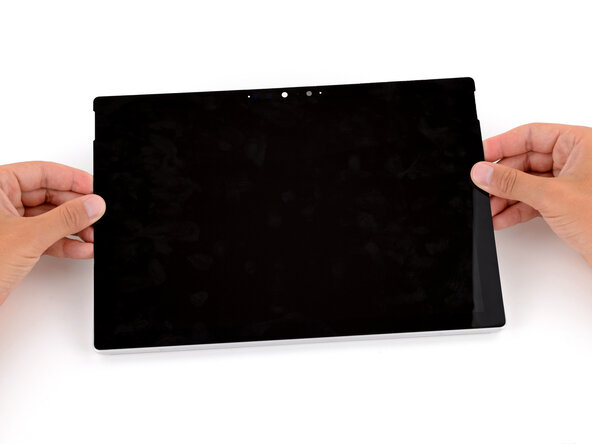
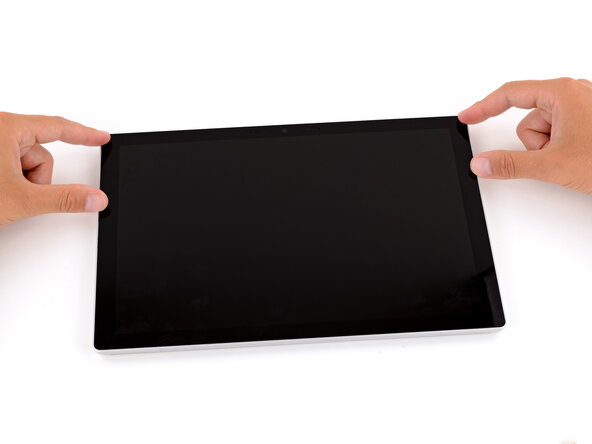
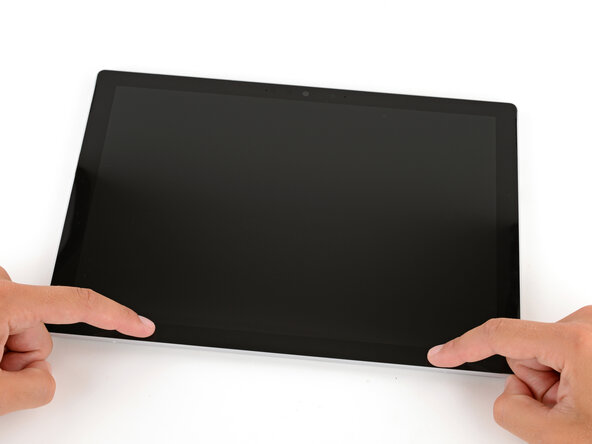
  1. Microsoft Surface Pro 7+ Screen Replacement, Before you begin: stap 1, afbeelding 1 van 3 Microsoft Surface Pro 7+ Screen Replacement, Before you begin: stap 1, afbeelding 2 van 3 Microsoft Surface Pro 7+ Screen Replacement, Before you begin: stap 1, afbeelding 3 van 3
    • Before starting this repair, allow your Surface Pro's battery to drain below 25%. A charged battery may catch fire if damaged.

    • Unplug all cables and fully shut down your tablet.

    • If you have a keyboard attached, remove it.

  2. Microsoft Surface Pro 7+ Screen Replacement, Open the kickstand: stap 2, afbeelding 1 van 2 Microsoft Surface Pro 7+ Screen Replacement, Open the kickstand: stap 2, afbeelding 2 van 2
    • Open the kickstand to about 90 degrees.

  3. Microsoft Surface Pro 7+ Screen Replacement, Remove the SSD door: stap 3, afbeelding 1 van 3 Microsoft Surface Pro 7+ Screen Replacement, Remove the SSD door: stap 3, afbeelding 2 van 3 Microsoft Surface Pro 7+ Screen Replacement, Remove the SSD door: stap 3, afbeelding 3 van 3
    • Firmly press a SIM eject tool into the small hole in the corner of the SSD door until it pops up.

    • Alternatively, you can also use a small, straightened paper clip.

    • Remove the SSD door.

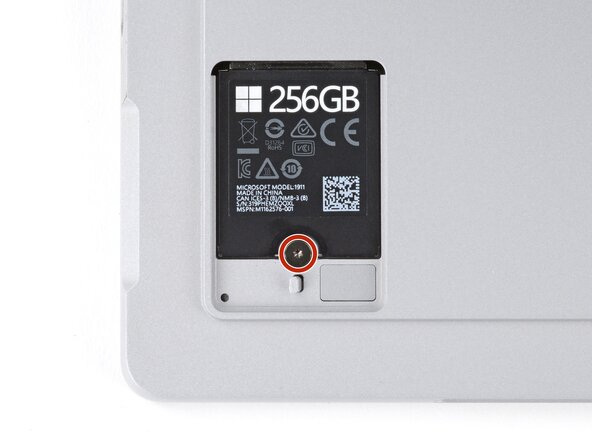
  4. Microsoft Surface Pro 7+ Screen Replacement, Remove the SSD screw: stap 4, afbeelding 1 van 2 Microsoft Surface Pro 7+ Screen Replacement, Remove the SSD screw: stap 4, afbeelding 2 van 2
    • Removing the SSD also functions as a battery disconnect and should be done before all major repairs.

    • Use a Torx Plus 3IP screwdriver to remove the 2.2 mm‑long screw securing the SSD.

  5. Microsoft Surface Pro 7+ Screen Replacement, Remove the SSD: stap 5, afbeelding 1 van 2 Microsoft Surface Pro 7+ Screen Replacement, Remove the SSD: stap 5, afbeelding 2 van 2
    • Don't pull up at a sharp angle, or you may damage the SSD and its socket.

    • Use your fingers to pull the SSD out of its socket at a shallow angle.

  6. Microsoft Surface Pro 7+ Screen Replacement, Reinstall the SSD door: stap 6, afbeelding 1 van 2 Microsoft Surface Pro 7+ Screen Replacement, Reinstall the SSD door: stap 6, afbeelding 2 van 2
    • Leave the SSD removed to keep the battery disconnected.

    • Slide the SSD door back into its recess and press down on the bottom edge until it clicks into place.

  7. Microsoft Surface Pro 7+ Screen Replacement, Close the kickstand: stap 7, afbeelding 1 van 3 Microsoft Surface Pro 7+ Screen Replacement, Close the kickstand: stap 7, afbeelding 2 van 3 Microsoft Surface Pro 7+ Screen Replacement, Close the kickstand: stap 7, afbeelding 3 van 3
    • Close the kickstand and flip your device over so the screen is facing up.

  8. Microsoft Surface Pro 7+ Screen Replacement, Heat the right edge: stap 8, afbeelding 1 van 1
    • Heating the screen helps soften the adhesive securing it, making it easier to open.

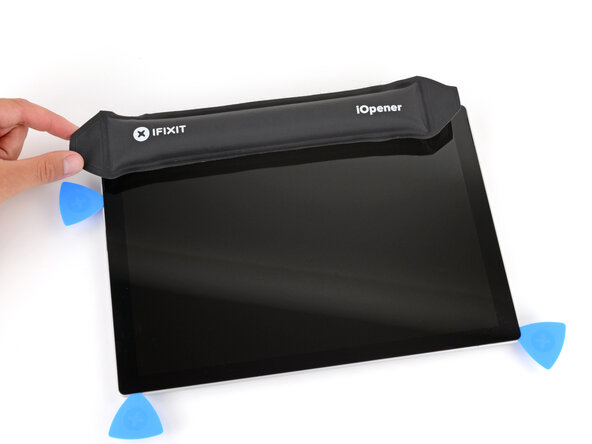
    • Heat an iOpener and lay it on the right edge of the screen for two minutes to soften the adhesive.

    • Alternatively, you can use a hair dryer or heat gun to soften the adhesive. For a more detailed look at best practices for using a hair dryer, check out this guide. For information on heat gun use, check out this guide.

  9. Microsoft Surface Pro 7+ Screen Replacement, Adhesive information: stap 9, afbeelding 1 van 3 Microsoft Surface Pro 7+ Screen Replacement, Adhesive information: stap 9, afbeelding 2 van 3 Microsoft Surface Pro 7+ Screen Replacement, Adhesive information: stap 9, afbeelding 3 van 3
    • Don't insert your pick more than 8 mm when separating the screen adhesive. Otherwise, you may damage your device's internals.

    • When separating the top edge adhesive, follow instructions carefully to avoid damaging the front camera.

    • To prevent inserting your pick too far, measure 8 mm from the tip and mark the opening pick with a permanent marker.

    • Alternatively, tape a coin to a pick 8 mm from the tip.

    • If you're having trouble separating the adhesive, use the third photo as a reference for the adhesive location.

  10. Microsoft Surface Pro 7+ Screen Replacement, Insert an opening pick: stap 10, afbeelding 1 van 3 Microsoft Surface Pro 7+ Screen Replacement, Insert an opening pick: stap 10, afbeelding 2 van 3 Microsoft Surface Pro 7+ Screen Replacement, Insert an opening pick: stap 10, afbeelding 3 van 3
    • Insert the tip of an opening pick under the screen near the bottom of the right speaker cutout.

    • Be careful not to damage the speaker mesh, or you'll need to replace it.

    • Slide your pick towards the bottom edge so the tip goes under the notch in the screen.

  11. Microsoft Surface Pro 7+ Screen Replacement, Separate the right edge adhesive: stap 11, afbeelding 1 van 3 Microsoft Surface Pro 7+ Screen Replacement, Separate the right edge adhesive: stap 11, afbeelding 2 van 3 Microsoft Surface Pro 7+ Screen Replacement, Separate the right edge adhesive: stap 11, afbeelding 3 van 3
    • Remember not to insert your pick more than 8 mm.

    • Slide the pick down the right edge to separate the adhesive securing it.

    • Leave the pick inserted under the bottom right corner to prevent the adhesive from re‑sealing.

  12. Microsoft Surface Pro 7+ Screen Replacement, Heat the bottom edge: stap 12, afbeelding 1 van 1
    • Heat the bottom edge of the screen with an iOpener, hair dryer, or heat gun.

  13. Microsoft Surface Pro 7+ Screen Replacement, Separate the bottom edge adhesive: stap 13, afbeelding 1 van 3 Microsoft Surface Pro 7+ Screen Replacement, Separate the bottom edge adhesive: stap 13, afbeelding 2 van 3 Microsoft Surface Pro 7+ Screen Replacement, Separate the bottom edge adhesive: stap 13, afbeelding 3 van 3
    • Remember not to insert your pick more than 8 mm.

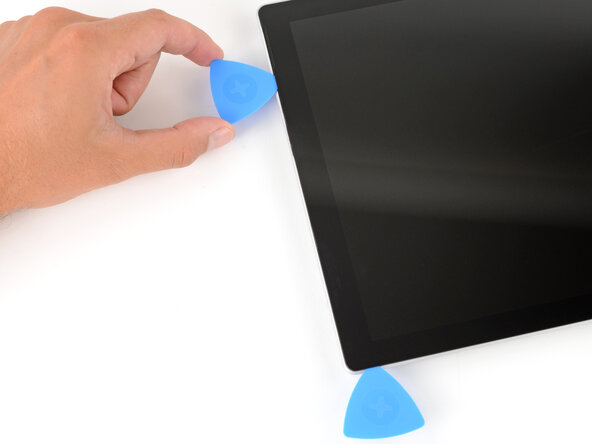
    • Insert a second pick under the bottom right corner of the screen and slide it along the bottom edge to separate the adhesive.

    • Leave the second pick inserted under the bottom left corner to prevent the adhesive from re‑sealing.

  14. Microsoft Surface Pro 7+ Screen Replacement, Heat the left edge: stap 14, afbeelding 1 van 1
    • Heat the left edge of the screen with an iOpener, hair dryer, or heat gun.

  15. Microsoft Surface Pro 7+ Screen Replacement, Separate the left edge adhesive: stap 15, afbeelding 1 van 2 Microsoft Surface Pro 7+ Screen Replacement, Separate the left edge adhesive: stap 15, afbeelding 2 van 2
    • Remember not to insert your pick more than 8 mm.

    • Insert a third pick under the bottom left corner of the screen and slide it up the left edge, stopping when you get to the bottom of the left speaker cutout.

    • Leave the pick inserted under the screen to prevent the adhesive from re-sealing.

  16. Microsoft Surface Pro 7+ Screen Replacement, Heat the top edge: stap 16, afbeelding 1 van 1
    • Heat the top edge of the screen with an iOpener, hair dryer, or heat gun.

  17. Microsoft Surface Pro 7+ Screen Replacement, Insert an opening pick: stap 17, afbeelding 1 van 3 Microsoft Surface Pro 7+ Screen Replacement, Insert an opening pick: stap 17, afbeelding 2 van 3 Microsoft Surface Pro 7+ Screen Replacement, Insert an opening pick: stap 17, afbeelding 3 van 3
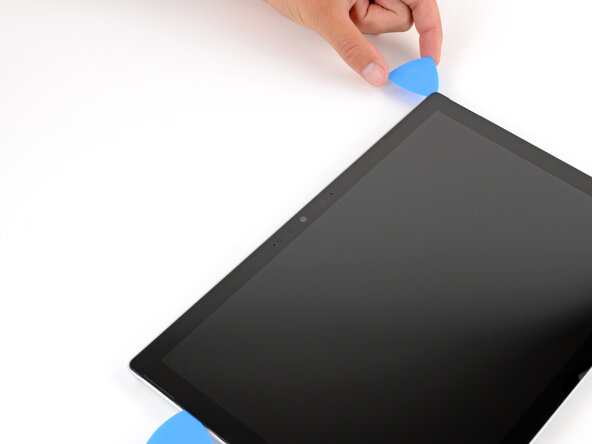
    • Insert a fourth pick under the screen near the top of the left speaker cutout.

    • Slide your pick towards the top edge so the tip goes under the notch in the screen.

  18. Microsoft Surface Pro 7+ Screen Replacement, Separate the top edge adhesive: stap 18, afbeelding 1 van 3 Microsoft Surface Pro 7+ Screen Replacement, Separate the top edge adhesive: stap 18, afbeelding 2 van 3 Microsoft Surface Pro 7+ Screen Replacement, Separate the top edge adhesive: stap 18, afbeelding 3 van 3
    • Don't slide the pick over the front facing camera. Remove the pick enough that it can slide past the camera without touching it.

    • Slide the pick along the top edge to separate the adhesive.

    • You'll likely need to slide the pick around the perimeter a second time to fully separate all the screen adhesive.

  19. Microsoft Surface Pro 7+ Screen Replacement, Flip the screen over: stap 19, afbeelding 1 van 3 Microsoft Surface Pro 7+ Screen Replacement, Flip the screen over: stap 19, afbeelding 2 van 3 Microsoft Surface Pro 7+ Screen Replacement, Flip the screen over: stap 19, afbeelding 3 van 3
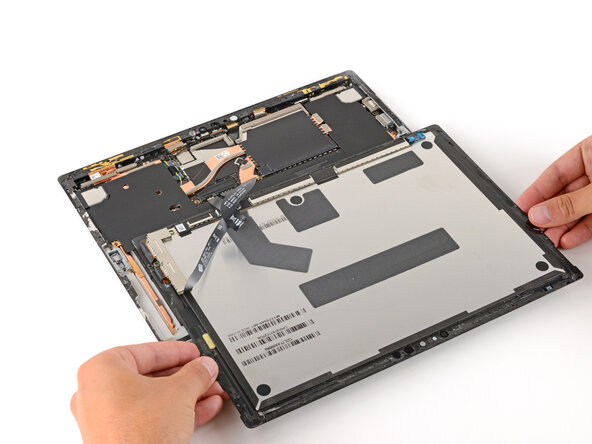
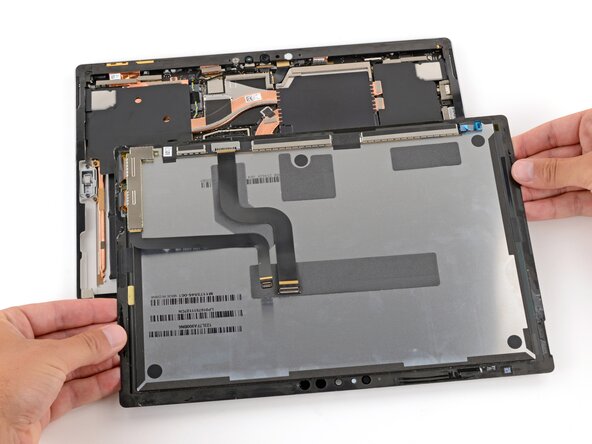
    • Once the screen is fully separated, slightly lift the top edge and flip the screen so it can lay flat.

    • Be careful not to strain the screen cables.

  20. Microsoft Surface Pro 7+ Screen Replacement, Remove the screen cable cover: stap 20, afbeelding 1 van 3 Microsoft Surface Pro 7+ Screen Replacement, Remove the screen cable cover: stap 20, afbeelding 2 van 3 Microsoft Surface Pro 7+ Screen Replacement, Remove the screen cable cover: stap 20, afbeelding 3 van 3
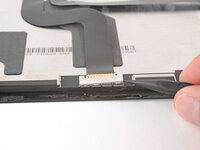
    • Use the flat end of a spudger to gently lift the edges of the metal screen cable cover to unclip it.

    • Be careful not to deform the cover too much, as you'll need to reinstall it during reassembly.

    • Remove the cable cover.

  21. Microsoft Surface Pro 7+ Screen Replacement, Disconnect the screen cables: stap 21, afbeelding 1 van 2 Microsoft Surface Pro 7+ Screen Replacement, Disconnect the screen cables: stap 21, afbeelding 2 van 2
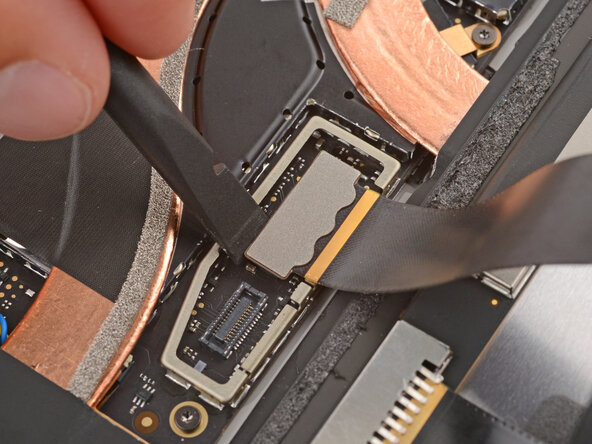
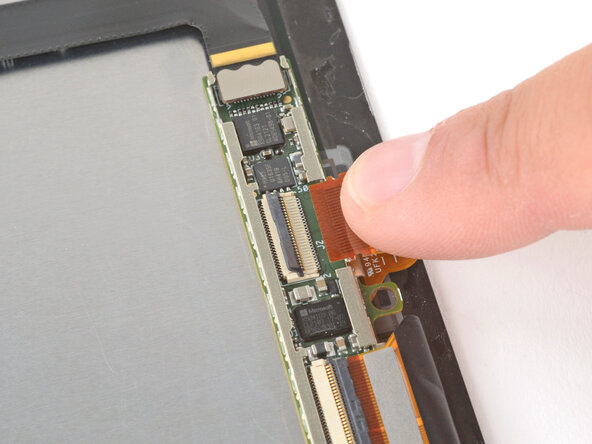
    • Use a spudger to pry up and disconnect the smaller screen cable press connector.

  22. Microsoft Surface Pro 7+ Screen Replacement: stap 22, afbeelding 1 van 3 Microsoft Surface Pro 7+ Screen Replacement: stap 22, afbeelding 2 van 3 Microsoft Surface Pro 7+ Screen Replacement: stap 22, afbeelding 3 van 3
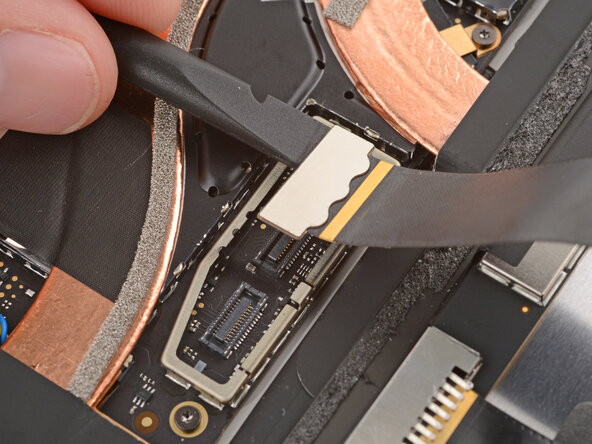
    • Use a spudger to pry up and disconnect the wide screen cable press connector, starting on one of the short sides and moving to the other.

  23. Microsoft Surface Pro 7+ Screen Replacement, Remove the screen: stap 23, afbeelding 1 van 1
    • Remove the screen.

  24. Microsoft Surface Pro 7+ Screen Replacement, Transfer screen parts: stap 24, afbeelding 1 van 3 Microsoft Surface Pro 7+ Screen Replacement, Transfer screen parts: stap 24, afbeelding 2 van 3 Microsoft Surface Pro 7+ Screen Replacement, Transfer screen parts: stap 24, afbeelding 3 van 3
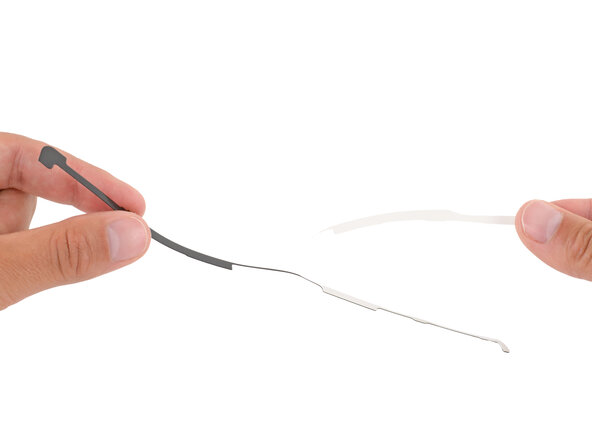
    • Compare your replacement screen to the original. You may need to transfer the following parts:

    • The skinny board located near the bottom right of the screen.

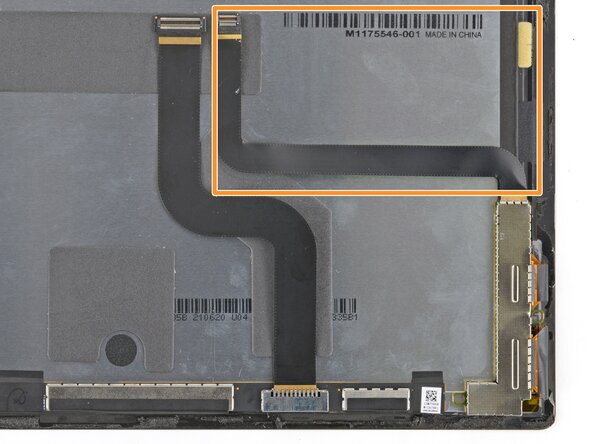
    • Two S shaped screen cables attached to the original screen.

    • If your replacement screen comes with these parts installed, you can skip down to the adhesive removal step.

  25. Microsoft Surface Pro 7+ Screen Replacement, Remove the screen cable cover: stap 25, afbeelding 1 van 3 Microsoft Surface Pro 7+ Screen Replacement, Remove the screen cable cover: stap 25, afbeelding 2 van 3 Microsoft Surface Pro 7+ Screen Replacement, Remove the screen cable cover: stap 25, afbeelding 3 van 3
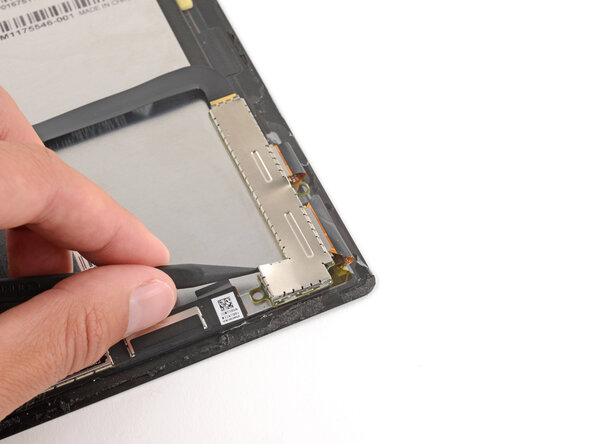
    • Use the point of a spudger to pry up and unclip the screen cable's metal cover.

    • Be careful not to deform the cover too much, as you'll need to reinstall it during reassembly.

    • Remove the cover.

  26. Microsoft Surface Pro 7+ Screen Replacement, Disconnect the screen cable: stap 26, afbeelding 1 van 3 Microsoft Surface Pro 7+ Screen Replacement, Disconnect the screen cable: stap 26, afbeelding 2 van 3 Microsoft Surface Pro 7+ Screen Replacement, Disconnect the screen cable: stap 26, afbeelding 3 van 3
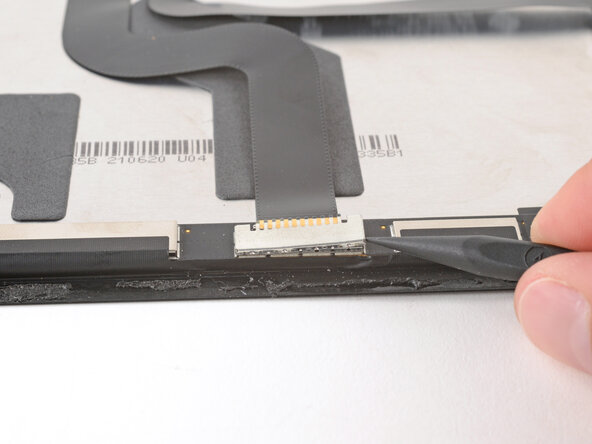
    • Use a spudger to pry up and disconnect the screen cable press connector, starting on one of the short sides and moving to the other.

  27. Microsoft Surface Pro 7+ Screen Replacement: stap 27, afbeelding 1 van 1
    • Remove the cable and set it aside—you'll install it on your new screen later.

  28. Microsoft Surface Pro 7+ Screen Replacement, Remove the board cover: stap 28, afbeelding 1 van 3 Microsoft Surface Pro 7+ Screen Replacement, Remove the board cover: stap 28, afbeelding 2 van 3 Microsoft Surface Pro 7+ Screen Replacement, Remove the board cover: stap 28, afbeelding 3 van 3
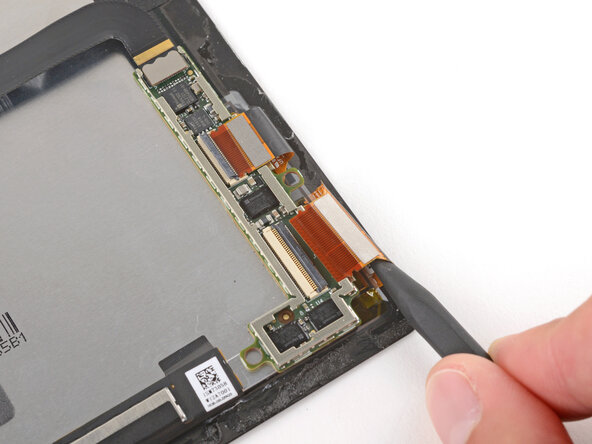
    • Use the point of a spudger to pry up and unclip the edges of the metal cover on the board (near the bottom right of the screen).

    • Be careful not to deform the cover too much, as you'll need to reinstall it during reassembly.

    • Remove the cover.

  29. Microsoft Surface Pro 7+ Screen Replacement, Disconnect the board: stap 29, afbeelding 1 van 3 Microsoft Surface Pro 7+ Screen Replacement, Disconnect the board: stap 29, afbeelding 2 van 3 Microsoft Surface Pro 7+ Screen Replacement, Disconnect the board: stap 29, afbeelding 3 van 3
    • Use the flat end of a spudger to lift the hinged, locking flaps on the board's two ZIF connectors.

  30. Microsoft Surface Pro 7+ Screen Replacement: stap 30, afbeelding 1 van 3 Microsoft Surface Pro 7+ Screen Replacement: stap 30, afbeelding 2 van 3 Microsoft Surface Pro 7+ Screen Replacement: stap 30, afbeelding 3 van 3
    • Use the point of a spudger to slide both cables completely out of their sockets.

    • You can leave the ribbon cable connected to the top edge of the board, since you're going to be transferring it.

  31. Microsoft Surface Pro 7+ Screen Replacement, Remove the board: stap 31, afbeelding 1 van 3 Microsoft Surface Pro 7+ Screen Replacement, Remove the board: stap 31, afbeelding 2 van 3 Microsoft Surface Pro 7+ Screen Replacement, Remove the board: stap 31, afbeelding 3 van 3
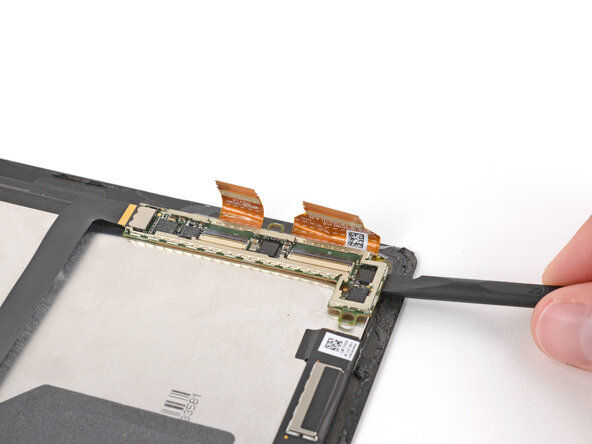
    • Mild adhesive secures the board to the screen.

    • Slide the flat end of a spudger under the board and lift to remove it.

  32. Microsoft Surface Pro 7+ Screen Replacement, Disassembly complete: stap 32, afbeelding 1 van 1
    • Congratulations on completing disassembly! The remaining steps will show how to reassemble your Surface Pro.

  33. Microsoft Surface Pro 7+ Screen Replacement, Install the screen board: stap 33, afbeelding 1 van 3 Microsoft Surface Pro 7+ Screen Replacement, Install the screen board: stap 33, afbeelding 2 van 3 Microsoft Surface Pro 7+ Screen Replacement, Install the screen board: stap 33, afbeelding 3 van 3
    Gereedschap gebruikt in deze stap:
    Tesa 61395 Tape
    $2.95
    • Before installing the screen board, make sure you know how it will be oriented. The cables need to line up with their sockets.

    • Gently press the board into place on the replacement screen.

    • The residual adhesive should be sticky enough to reuse. If the board isn't staying in place, use thin double-sided tape to secure it.

  34. Microsoft Surface Pro 7+ Screen Replacement, Connect the board cables: stap 34, afbeelding 1 van 3 Microsoft Surface Pro 7+ Screen Replacement, Connect the board cables: stap 34, afbeelding 2 van 3 Microsoft Surface Pro 7+ Screen Replacement, Connect the board cables: stap 34, afbeelding 3 van 3
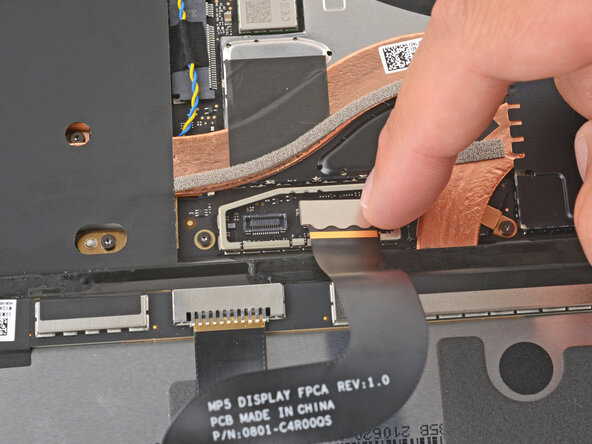
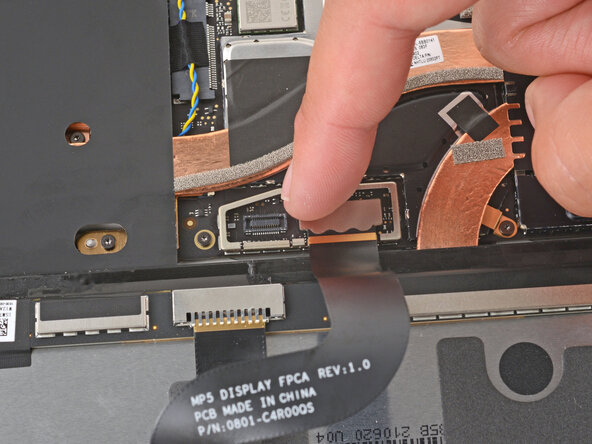
    • Use your finger to slide one of the screen board cables fully into its socket.

    • If the cable isn't sliding in, make sure the locking flap is flipped up.

    • Hold the cable in place, and flip the locking flap down to secure the cable.

  35. Microsoft Surface Pro 7+ Screen Replacement: stap 35, afbeelding 1 van 3 Microsoft Surface Pro 7+ Screen Replacement: stap 35, afbeelding 2 van 3 Microsoft Surface Pro 7+ Screen Replacement: stap 35, afbeelding 3 van 3
    • Repeat the process to reconnect the other cable to the screen board.

  36. Microsoft Surface Pro 7+ Screen Replacement: stap 36, afbeelding 1 van 3 Microsoft Surface Pro 7+ Screen Replacement: stap 36, afbeelding 2 van 3 Microsoft Surface Pro 7+ Screen Replacement: stap 36, afbeelding 3 van 3
    • Set the board's metal cover in place and press down around the perimeter to secure it.

  37. Microsoft Surface Pro 7+ Screen Replacement, Reconnect the cable: stap 37, afbeelding 1 van 1
    • Lay the screen cable in place so the bend lines up with the other screen cable.

    • If the cable is positioned the wrong way, you won't be able to reconnect the screen.

  38. Microsoft Surface Pro 7+ Screen Replacement: stap 38, afbeelding 1 van 3 Microsoft Surface Pro 7+ Screen Replacement: stap 38, afbeelding 2 van 3 Microsoft Surface Pro 7+ Screen Replacement: stap 38, afbeelding 3 van 3
    • Use your finger to press down and reconnect the screen cable press connector, starting on one side and moving to the other.

  39. Microsoft Surface Pro 7+ Screen Replacement, Install the cable cover: stap 39, afbeelding 1 van 2 Microsoft Surface Pro 7+ Screen Replacement, Install the cable cover: stap 39, afbeelding 2 van 2
    • Set the cable's metal cover in place and press down around the perimeter to secure it.

  40. Microsoft Surface Pro 7+ Screen Replacement, Remove the old screen adhesive: stap 40, afbeelding 1 van 3 Microsoft Surface Pro 7+ Screen Replacement, Remove the old screen adhesive: stap 40, afbeelding 2 van 3 Microsoft Surface Pro 7+ Screen Replacement, Remove the old screen adhesive: stap 40, afbeelding 3 van 3
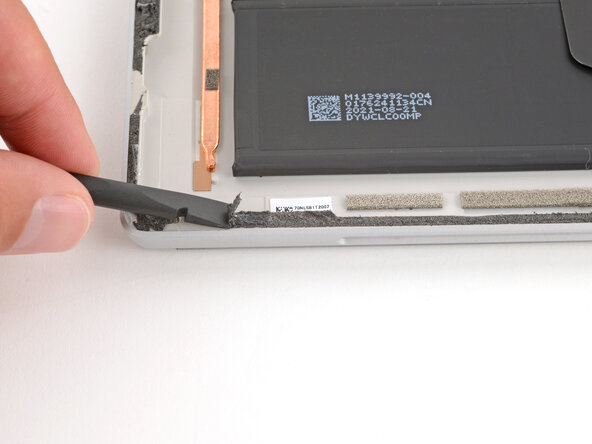
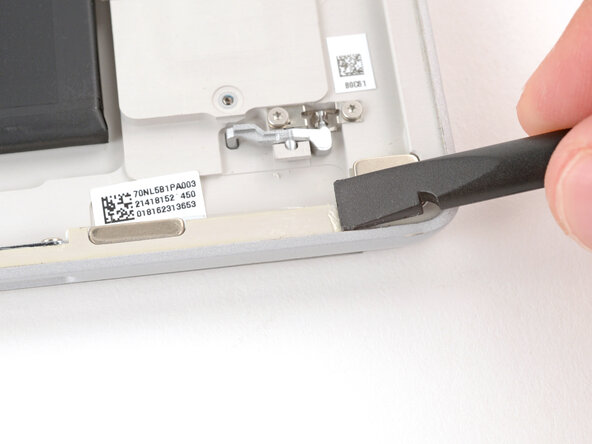
    • Use a spudger and your fingers (or tweezers) to scrape up and remove all the old screen adhesive from the perimeter of the frame.

    • If you're reusing your screen, repeat the process to remove any of the old screen adhesive from it.

    • To prevent damaging your screen, press gently with the spudger and make sure nothing is under the screen while you work.

  41. Microsoft Surface Pro 7+ Screen Replacement: stap 41, afbeelding 1 van 3 Microsoft Surface Pro 7+ Screen Replacement: stap 41, afbeelding 2 van 3 Microsoft Surface Pro 7+ Screen Replacement: stap 41, afbeelding 3 van 3
    • Take your time and be very thorough during the next two steps. A clean frame allows replacement adhesive to lay evenly, ensuring a better bond.

    • The old adhesive likely left behind a thin, clear film on the frame. Use a spudger and tweezers to peel any traces of the film from the frame.

    • If you're reusing your screen, repeat the process to remove any of the adhesive film left on the screen.

  42. Microsoft Surface Pro 7+ Screen Replacement, Clean the frame: stap 42, afbeelding 1 van 2 Microsoft Surface Pro 7+ Screen Replacement, Clean the frame: stap 42, afbeelding 2 van 2
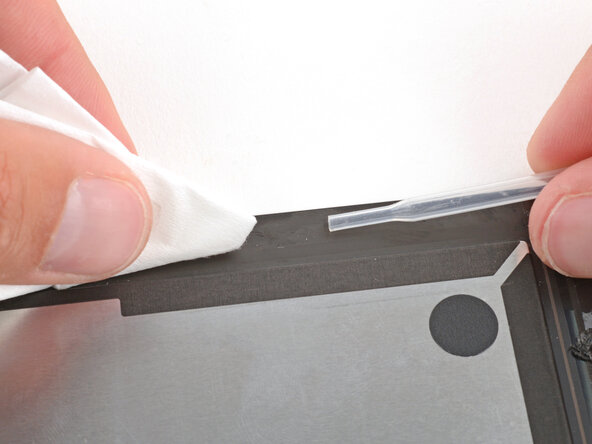
    • Use a lint‑free cloth (or coffee filter) and some high‑concentration (>90%) isopropyl alcohol to thoroughly clean the frame where you removed the old screen adhesive.

    • If you're reusing the screen, repeat the process to clean its perimeter.

  43. Microsoft Surface Pro 7+ Screen Replacement, Adhesive strips information: stap 43, afbeelding 1 van 1
    • Before applying any screen adhesives, find their proper orientation on the frame. Use cutouts and notches in the adhesive to match each strip to its spot on the perimeter.

    • The top strip has lots of circular cutouts for the cameras and sensors.

  44. Microsoft Surface Pro 7+ Screen Replacement, Apply the short edge adhesive strips: stap 44, afbeelding 1 van 3 Microsoft Surface Pro 7+ Screen Replacement, Apply the short edge adhesive strips: stap 44, afbeelding 2 van 3 Microsoft Surface Pro 7+ Screen Replacement, Apply the short edge adhesive strips: stap 44, afbeelding 3 van 3
    • Take your time when applying the adhesive strips. Once the adhesive sticks to the frame, it can't be repositioned—you'll need to start over with a new strip.

    • Apply the shorter strips (left and right) first, as it makes it much easier to properly align the top and bottom ones.

    • Remove the white, paperlike liner (not the clear one) from one of the shorter strips.

    • Line up the strip and use your finger to secure one end to the frame.

    • With one end secured, gently lay the strip onto the frame and use your finger to lightly press down as you go.

    • Don't remove the remaining clear liner on top of the strip yet.

  45. Microsoft Surface Pro 7+ Screen Replacement: stap 45, afbeelding 1 van 1
    • Use the same process to apply the other short strip.

  46. Microsoft Surface Pro 7+ Screen Replacement, Apply the long edge adhesive strips: stap 46, afbeelding 1 van 3 Microsoft Surface Pro 7+ Screen Replacement, Apply the long edge adhesive strips: stap 46, afbeelding 2 van 3 Microsoft Surface Pro 7+ Screen Replacement, Apply the long edge adhesive strips: stap 46, afbeelding 3 van 3
    • To apply the top strip, align the middle cutouts over the front camera and lay the strip down starting in the center and working out to both sides.

    • Use the same process to apply the bottom strip.

  47. Microsoft Surface Pro 7+ Screen Replacement: stap 47, afbeelding 1 van 3 Microsoft Surface Pro 7+ Screen Replacement: stap 47, afbeelding 2 van 3 Microsoft Surface Pro 7+ Screen Replacement: stap 47, afbeelding 3 van 3
    • Press down on the strips with the flat end of a spudger and slide it along the length of the strips to secure them to the frame.

    • To secure the strips further, you can press down firmly with your finger.

  48. Microsoft Surface Pro 7+ Screen Replacement: stap 48, afbeelding 1 van 1
    • Lay the screen display-side-down on the device so you can reconnect the two cables.

    • The screen should be oriented so when you flip it over, the top edge of the screen is lined up with the top edge of the frame.

  49. Microsoft Surface Pro 7+ Screen Replacement, Connect the screen: stap 49, afbeelding 1 van 3 Microsoft Surface Pro 7+ Screen Replacement, Connect the screen: stap 49, afbeelding 2 van 3 Microsoft Surface Pro 7+ Screen Replacement, Connect the screen: stap 49, afbeelding 3 van 3
    • Use your finger to press down and reconnect both of the screen cable press connectors.

    • For the larger connector, press first on one short side, then the other, until it clicks into place.

  50. Microsoft Surface Pro 7+ Screen Replacement: stap 50, afbeelding 1 van 3 Microsoft Surface Pro 7+ Screen Replacement: stap 50, afbeelding 2 van 3 Microsoft Surface Pro 7+ Screen Replacement: stap 50, afbeelding 3 van 3
    • Lay the screen cable cover into place and press down firmly around the entire perimeter to secure it.

  51. Microsoft Surface Pro 7+ Screen Replacement, Remove the adhesive liners: stap 51, afbeelding 1 van 3 Microsoft Surface Pro 7+ Screen Replacement, Remove the adhesive liners: stap 51, afbeelding 2 van 3 Microsoft Surface Pro 7+ Screen Replacement, Remove the adhesive liners: stap 51, afbeelding 3 van 3
    • Remove all the remaining adhesive liners, carefully holding the screen above your device as necessary.

  52. Microsoft Surface Pro 7+ Screen Replacement, Install the screen: stap 52, afbeelding 1 van 3 Microsoft Surface Pro 7+ Screen Replacement, Install the screen: stap 52, afbeelding 2 van 3 Microsoft Surface Pro 7+ Screen Replacement, Install the screen: stap 52, afbeelding 3 van 3
    • Flip the screen over and align the bottom edge, using the frame's lip to properly orient it.

  53. Microsoft Surface Pro 7+ Screen Replacement: stap 53, afbeelding 1 van 2 Microsoft Surface Pro 7+ Screen Replacement: stap 53, afbeelding 2 van 2
    • Once the bottom edge is properly aligned, lay the screen onto the frame.

  54. Microsoft Surface Pro 7+ Screen Replacement: stap 54, afbeelding 1 van 3 Microsoft Surface Pro 7+ Screen Replacement: stap 54, afbeelding 2 van 3 Microsoft Surface Pro 7+ Screen Replacement: stap 54, afbeelding 3 van 3
    • Use your fingers to press down on the entire perimeter of the screen to secure it in the frame.

    • Check the edges of the screen and make sure they're sitting flush in the frame—there should be no gaps.

  55. Microsoft Surface Pro 7+ Screen Replacement: stap 55, afbeelding 1 van 2 Microsoft Surface Pro 7+ Screen Replacement: stap 55, afbeelding 2 van 2
    Gereedschap gebruikt in deze stap:
    Surface Display Bonding Frame (M1178723-001)
    $29.99
    • Lay your Surface Pro screen down on a clean, flat surface.

    • If you're using a display bonding frame, lay the device down with the screen facing up.

    • Place 4–5 heavy books squarely on top of your device.

    • Leave the books in place for at least thirty minutes. The lighter the books, the longer they should be left. Ideally, leave them stacked overnight.

    • The pressure will help activate the adhesive, creating a stronger bond.

  56. Microsoft Surface Pro 7+ Screen Replacement, Reinstall the SSD: stap 56, afbeelding 1 van 3 Microsoft Surface Pro 7+ Screen Replacement, Reinstall the SSD: stap 56, afbeelding 2 van 3 Microsoft Surface Pro 7+ Screen Replacement, Reinstall the SSD: stap 56, afbeelding 3 van 3
    • Open the kickstand and remove the SSD door using a SIM eject tool.

    • Use your fingers to slide the SSD fully into its socket.

  57. Microsoft Surface Pro 7+ Screen Replacement: stap 57, afbeelding 1 van 2 Microsoft Surface Pro 7+ Screen Replacement: stap 57, afbeelding 2 van 2
    • Use a Torx Plus 3IP screwdriver to install the 2.2 mm‑long SSD screw.

  58. Microsoft Surface Pro 7+ Screen Replacement: stap 58, afbeelding 1 van 3 Microsoft Surface Pro 7+ Screen Replacement: stap 58, afbeelding 2 van 3 Microsoft Surface Pro 7+ Screen Replacement: stap 58, afbeelding 3 van 3
    • Slide the SSD door into place and use your finger to press down on the bottom edge until it clicks into place.

Conclusie

Take your e-waste to an R2 or e-Stewards certified recycler.

Repair didn’t go as planned? Try some basic troubleshooting, or ask our Answers community for help.

Spencer Day

Lid sinds: 09/14/22

187.384 Reputatie

1.187 handleidingen geschreven

0Gids Commentaar

Voeg opmerking toe

Weergavestatistieken:

Afgelopen 24 uren: 0

Afgelopen 7 dagen: 28

Afgelopen 30 dagen: 30

Altijd: 61