Ga door naar hoofdinhoud
Word lid van de reparatiegemeenschap - Account aanmaken

Google Pixel 10 Pro Fold Inner Screen Assembly Replacement

Wat je nodig hebt

  1. Google Pixel 10 Pro Fold Inner Screen Assembly Replacement, Prepare your phone for disassembly: stap 1, afbeelding 1 van 1
    • Let your phone's battery drain below 25% before starting this repair. A charged lithium‑ion battery may catch fire if damaged.

    • Unplug all cables from your phone and completely power it down.

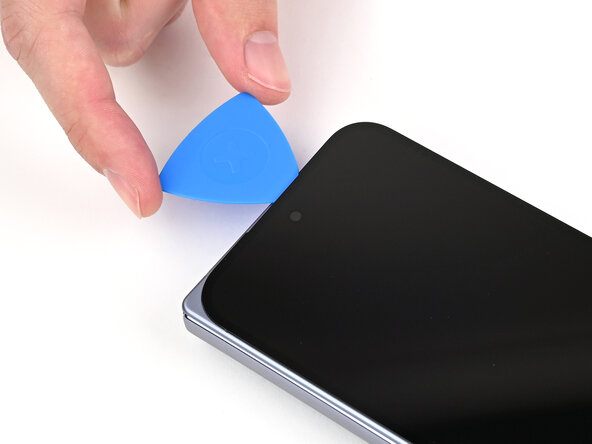
  2. Google Pixel 10 Pro Fold Inner Screen Assembly Replacement, Insert an opening pick: stap 2, afbeelding 1 van 3 Google Pixel 10 Pro Fold Inner Screen Assembly Replacement, Insert an opening pick: stap 2, afbeelding 2 van 3 Google Pixel 10 Pro Fold Inner Screen Assembly Replacement, Insert an opening pick: stap 2, afbeelding 3 van 3
    • Apply a suction cup to the back cover, as close to the center of the bottom edge as possible.

    • While securing the phone with one hand, pull up on the suction cup with strong, steady force to create a gap between the back cover and the frame.

    • Insert an opening pick into the gap.

    • If your back cover is badly cracked, covering it with a layer of clear packing tape may allow the suction cup to adhere. Alternatively, very strong tape may be used instead of the suction cup. If all else fails, you can superglue the suction cup to the broken back cover.

  3. Google Pixel 10 Pro Fold Inner Screen Assembly Replacement, Separate the back cover adhesive: stap 3, afbeelding 1 van 3 Google Pixel 10 Pro Fold Inner Screen Assembly Replacement, Separate the back cover adhesive: stap 3, afbeelding 2 van 3 Google Pixel 10 Pro Fold Inner Screen Assembly Replacement, Separate the back cover adhesive: stap 3, afbeelding 3 van 3
    • The adhesive along the right edge of the back cover is thicker than the rest. You'll need to insert your opening pick at a minimum of 4 mm to separate the adhesive.

    • Remove the suction handle from the back cover.

    • Slide the opening pick around the bottom right corner and up the right edge of the back cover to separate the adhesive.

  4. Google Pixel 10 Pro Fold Inner Screen Assembly Replacement: stap 4, afbeelding 1 van 3 Google Pixel 10 Pro Fold Inner Screen Assembly Replacement: stap 4, afbeelding 2 van 3 Google Pixel 10 Pro Fold Inner Screen Assembly Replacement: stap 4, afbeelding 3 van 3
    • During the next two steps, don't insert your opening pick deeper than 3 mm to prevent damaging the metal springs around the frame.

    • Optionally, you can measure and mark your opening pick at 3 mm to help you visualize the length.

    • Continue sliding the pick around the top right corner and across the top edge of the back cover.

  5. Google Pixel 10 Pro Fold Inner Screen Assembly Replacement: stap 5, afbeelding 1 van 3 Google Pixel 10 Pro Fold Inner Screen Assembly Replacement: stap 5, afbeelding 2 van 3 Google Pixel 10 Pro Fold Inner Screen Assembly Replacement: stap 5, afbeelding 3 van 3
    • Slide your pick down the left edge and around the bottom left corner to separate the remaining adhesive.

  6. Google Pixel 10 Pro Fold Inner Screen Assembly Replacement: stap 6, afbeelding 1 van 3 Google Pixel 10 Pro Fold Inner Screen Assembly Replacement: stap 6, afbeelding 2 van 3 Google Pixel 10 Pro Fold Inner Screen Assembly Replacement: stap 6, afbeelding 3 van 3
    • Don't fully remove the back cover yet, as it's still connected to the phone by a cable.

    • At this point, the back cover should be free from the frame. If there's still resistance around the edges, use an opening pick to separate any remaining adhesive.

    • Lift the right edge of the back cover and swing it over the left edge of the phone.

    • Prop up the back cover with your suction handle or a clean, sturdy object, making sure that the cable isn't strained.

  7. Google Pixel 10 Pro Fold Inner Screen Assembly Replacement, Remove the top bracket screws: stap 7, afbeelding 1 van 2 Google Pixel 10 Pro Fold Inner Screen Assembly Replacement, Remove the top bracket screws: stap 7, afbeelding 2 van 2
    Gereedschap gebruikt in deze stap:
    FixMat
    $36.95
    • Throughout this repair, keep track of each screw and make sure it goes back exactly where it came from.

    • While the Pixel 10 Pro Fold uses Torx Plus screws, standard Torx bits also work. Use the same size or one size larger (T3 or T4 Torx bits with 3IP Torx Plus screws) and apply constant, downward force to prevent stripping.

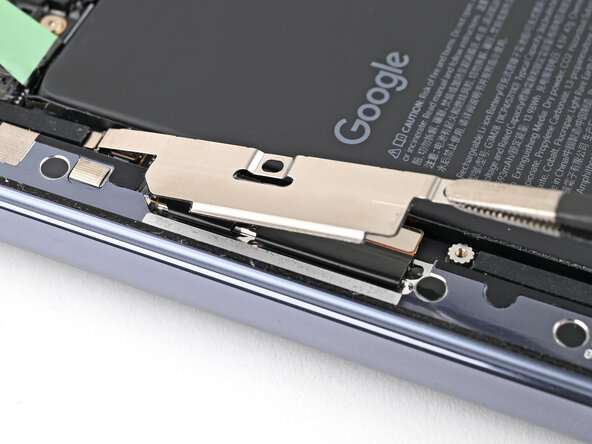
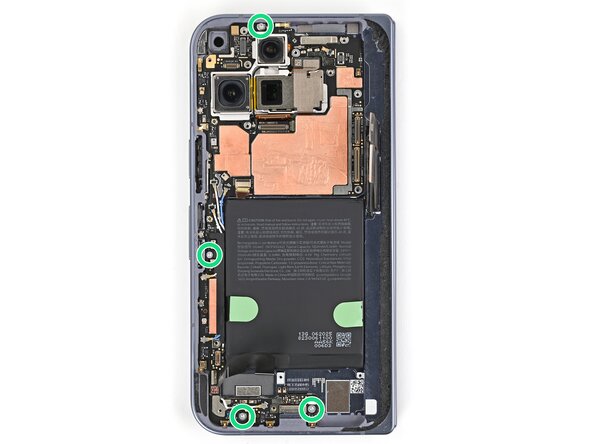
    • Use a Torx Plus 3IP driver to remove the three 3.0 mm‑long screws securing the top bracket.

  8. Google Pixel 10 Pro Fold Inner Screen Assembly Replacement: stap 8, afbeelding 1 van 3 Google Pixel 10 Pro Fold Inner Screen Assembly Replacement: stap 8, afbeelding 2 van 3 Google Pixel 10 Pro Fold Inner Screen Assembly Replacement: stap 8, afbeelding 3 van 3
    • Use the point of a spudger to pry up the top bracket and release its clip from the top edge of the frame.

    • Remove the top bracket.

  9. Google Pixel 10 Pro Fold Inner Screen Assembly Replacement, Disconnect the back cover cable: stap 9, afbeelding 1 van 2 Google Pixel 10 Pro Fold Inner Screen Assembly Replacement, Disconnect the back cover cable: stap 9, afbeelding 2 van 2
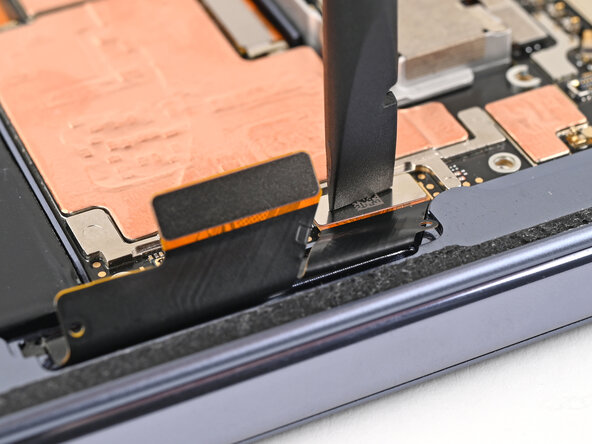
    • When disconnecting press connectors, pry only at the gold outlines on the logic board.

    • Don't insert your spudger anywhere else, as you risk dislodging surface‑mounted components.

    • Use the point of a spudger to pry up and disconnect the back cover cable.

  10. Google Pixel 10 Pro Fold Inner Screen Assembly Replacement, Remove the back cover: stap 10, afbeelding 1 van 1
    • Lift the back cover off the frame and remove it.

  11. Google Pixel 10 Pro Fold Inner Screen Assembly Replacement, Remove the vibrator screws: stap 11, afbeelding 1 van 2 Google Pixel 10 Pro Fold Inner Screen Assembly Replacement, Remove the vibrator screws: stap 11, afbeelding 2 van 2
    • Use a Torx Plus 3IP driver to remove the three 3.2 mm‑long screw securing the vibrator.

  12. Google Pixel 10 Pro Fold Inner Screen Assembly Replacement, Remove the vibrator: stap 12, afbeelding 1 van 3 Google Pixel 10 Pro Fold Inner Screen Assembly Replacement, Remove the vibrator: stap 12, afbeelding 2 van 3 Google Pixel 10 Pro Fold Inner Screen Assembly Replacement, Remove the vibrator: stap 12, afbeelding 3 van 3
    • Use tweezers, or your fingers, to lift the right edge of the vibrator and pull it towards the right edge of the phone to release its clip.

    • Remove the vibrator.

  13. Google Pixel 10 Pro Fold Inner Screen Assembly Replacement, Disconnect the base battery: stap 13, afbeelding 1 van 2 Google Pixel 10 Pro Fold Inner Screen Assembly Replacement, Disconnect the base battery: stap 13, afbeelding 2 van 2
    • Use the point of a spudger to pry up and disconnect the base battery press connector.

  14. Google Pixel 10 Pro Fold Inner Screen Assembly Replacement, Disconnect the inner front camera: stap 14, afbeelding 1 van 2 Google Pixel 10 Pro Fold Inner Screen Assembly Replacement, Disconnect the inner front camera: stap 14, afbeelding 2 van 2
    • Use the point of a spudger to pry up and disconnect the inner front camera press connector.

  15. Google Pixel 10 Pro Fold Inner Screen Assembly Replacement, Remove the inner front camera: stap 15, afbeelding 1 van 3 Google Pixel 10 Pro Fold Inner Screen Assembly Replacement, Remove the inner front camera: stap 15, afbeelding 2 van 3 Google Pixel 10 Pro Fold Inner Screen Assembly Replacement, Remove the inner front camera: stap 15, afbeelding 3 van 3
    • Insert the point of a spudger under the inner front camera cable and pry up to separate the adhesive securing the camera.

    • Remove the inner front camera.

  16. Google Pixel 10 Pro Fold Inner Screen Assembly Replacement, Remove the graphite sheet: stap 16, afbeelding 1 van 2 Google Pixel 10 Pro Fold Inner Screen Assembly Replacement, Remove the graphite sheet: stap 16, afbeelding 2 van 2
    • Slide an opening pick between the graphite sheet and the bottom speaker to separate the adhesive.

  17. Google Pixel 10 Pro Fold Inner Screen Assembly Replacement: stap 17, afbeelding 1 van 3 Google Pixel 10 Pro Fold Inner Screen Assembly Replacement: stap 17, afbeelding 2 van 3 Google Pixel 10 Pro Fold Inner Screen Assembly Replacement: stap 17, afbeelding 3 van 3
    • Peel the graphite sheet off the logic board to separate the remaining adhesive.

  18. Google Pixel 10 Pro Fold Inner Screen Assembly Replacement, Remove the antenna bracket screws: stap 18, afbeelding 1 van 2 Google Pixel 10 Pro Fold Inner Screen Assembly Replacement, Remove the antenna bracket screws: stap 18, afbeelding 2 van 2
    • Use a Torx Plus 3IP driver to remove the three screws securing the antenna bracket:

    • One 1.9 mm‑long screw

    • Two 2.8 mm‑long screws

  19. Google Pixel 10 Pro Fold Inner Screen Assembly Replacement, Remove the antenna bracket: stap 19, afbeelding 1 van 3 Google Pixel 10 Pro Fold Inner Screen Assembly Replacement, Remove the antenna bracket: stap 19, afbeelding 2 van 3 Google Pixel 10 Pro Fold Inner Screen Assembly Replacement, Remove the antenna bracket: stap 19, afbeelding 3 van 3
    • Use the point of a spudger to pry up the antenna bracket and release its two clips from the top and right edges of the frame.

  20. Google Pixel 10 Pro Fold Inner Screen Assembly Replacement, Disconnect the 5G mmWave antenna: stap 20, afbeelding 1 van 2 Google Pixel 10 Pro Fold Inner Screen Assembly Replacement, Disconnect the 5G mmWave antenna: stap 20, afbeelding 2 van 2
    • Use the point of a spudger to pry up and disconnect the 5G mmWave antenna press connector.

  21. Google Pixel 10 Pro Fold Inner Screen Assembly Replacement, Remove the 5G mmWave antenna: stap 21, afbeelding 1 van 3 Google Pixel 10 Pro Fold Inner Screen Assembly Replacement, Remove the 5G mmWave antenna: stap 21, afbeelding 2 van 3 Google Pixel 10 Pro Fold Inner Screen Assembly Replacement, Remove the 5G mmWave antenna: stap 21, afbeelding 3 van 3
    • Insert the point of a spudger under the left edge of the 5G mmWave antenna.

    • Pry up the antenna to separate its adhesive and remove it.

  22. Google Pixel 10 Pro Fold Inner Screen Assembly Replacement, Separate the conductive fabric: stap 22, afbeelding 1 van 2 Google Pixel 10 Pro Fold Inner Screen Assembly Replacement, Separate the conductive fabric: stap 22, afbeelding 2 van 2
    • Use the point of a spudger to peel the section of conductive fabric connecting the loudspeaker to the frame.

  23. Google Pixel 10 Pro Fold Inner Screen Assembly Replacement, Remove the loudspeaker screw: stap 23, afbeelding 1 van 2 Google Pixel 10 Pro Fold Inner Screen Assembly Replacement, Remove the loudspeaker screw: stap 23, afbeelding 2 van 2
    • Use a Torx Plus 3IP driver to remove the 2.4 mm‑long screw securing the loudspeaker.

  24. Google Pixel 10 Pro Fold Inner Screen Assembly Replacement, Remove the loudspeaker: stap 24, afbeelding 1 van 2 Google Pixel 10 Pro Fold Inner Screen Assembly Replacement, Remove the loudspeaker: stap 24, afbeelding 2 van 2
    • Use the point of a spudger to pry up the left edge of the loudspeaker to separate the adhesive securing it to the frame.

  25. Google Pixel 10 Pro Fold Inner Screen Assembly Replacement: stap 25, afbeelding 1 van 2 Google Pixel 10 Pro Fold Inner Screen Assembly Replacement: stap 25, afbeelding 2 van 2
    • Use your fingers to lift the top edge of the loudspeaker and pull it out of its recess in the frame.

    • Remove the loudspeaker.

  26. Google Pixel 10 Pro Fold Inner Screen Assembly Replacement, Remove the interconnect cable bracket screws: stap 26, afbeelding 1 van 2 Google Pixel 10 Pro Fold Inner Screen Assembly Replacement, Remove the interconnect cable bracket screws: stap 26, afbeelding 2 van 2
    • Use a Torx Plus 3IP driver to remove the two 2.8 mm‑long screws securing the interconnect cable bracket.

    • The bracket will sit upright when its screws are removed.

  27. Google Pixel 10 Pro Fold Inner Screen Assembly Replacement, Remove the interconnect cable bracket: stap 27, afbeelding 1 van 2 Google Pixel 10 Pro Fold Inner Screen Assembly Replacement, Remove the interconnect cable bracket: stap 27, afbeelding 2 van 2
    • Lift the interconnect cable bracket straight up out of its slot in the frame and remove it.

  28. Google Pixel 10 Pro Fold Inner Screen Assembly Replacement, Disconnect the interconnect cables: stap 28, afbeelding 1 van 3 Google Pixel 10 Pro Fold Inner Screen Assembly Replacement, Disconnect the interconnect cables: stap 28, afbeelding 2 van 3 Google Pixel 10 Pro Fold Inner Screen Assembly Replacement, Disconnect the interconnect cables: stap 28, afbeelding 3 van 3
    • Use the point of a spudger to pry up and disconnect the interconnect cable press connectors.

  29. Google Pixel 10 Pro Fold Inner Screen Assembly Replacement, Remove the inner display connector bracket screw: stap 29, afbeelding 1 van 2 Google Pixel 10 Pro Fold Inner Screen Assembly Replacement, Remove the inner display connector bracket screw: stap 29, afbeelding 2 van 2
    • Use a Torx Plus 3IP driver to remove the 2.8 mm‑long screw securing the inner display connector bracket.

  30. Google Pixel 10 Pro Fold Inner Screen Assembly Replacement, Remove the inner display connector bracket: stap 30, afbeelding 1 van 2 Google Pixel 10 Pro Fold Inner Screen Assembly Replacement, Remove the inner display connector bracket: stap 30, afbeelding 2 van 2
    • Use the point of a spudger to pry up the inner screen connector bracket and release its plastic clip from the left edge of the frame.

  31. Google Pixel 10 Pro Fold Inner Screen Assembly Replacement: stap 31, afbeelding 1 van 2 Google Pixel 10 Pro Fold Inner Screen Assembly Replacement: stap 31, afbeelding 2 van 2
    • Pull the inner display connector bracket towards the left edge of the phone to release its metal clip.

  32. Google Pixel 10 Pro Fold Inner Screen Assembly Replacement, Disconnect the inner screen: stap 32, afbeelding 1 van 2 Google Pixel 10 Pro Fold Inner Screen Assembly Replacement, Disconnect the inner screen: stap 32, afbeelding 2 van 2
    • Use the point of a spudger to pry up and disconnect the inner screen press connector.

  33. Google Pixel 10 Pro Fold Inner Screen Assembly Replacement, Disconnect the side buttons: stap 33, afbeelding 1 van 2 Google Pixel 10 Pro Fold Inner Screen Assembly Replacement, Disconnect the side buttons: stap 33, afbeelding 2 van 2
    • Use tweezers, or your fingers, to peel off the yellow tape on the side button cable ZIF connector.

    • Set the tape aside. You'll need it during reassembly.

  34. Google Pixel 10 Pro Fold Inner Screen Assembly Replacement: stap 34, afbeelding 1 van 2 Google Pixel 10 Pro Fold Inner Screen Assembly Replacement: stap 34, afbeelding 2 van 2
    • Use the point of a spudger, or your fingernail, to lift the locking tab on the side button cable ZIF connector.

  35. Google Pixel 10 Pro Fold Inner Screen Assembly Replacement: stap 35, afbeelding 1 van 2 Google Pixel 10 Pro Fold Inner Screen Assembly Replacement: stap 35, afbeelding 2 van 2
    • Use angled tweezers to pull the side button cable straight out of its slot.

    • Take care not to puncture the battery—it can leak dangerous chemicals and/or catch fire.

  36. Google Pixel 10 Pro Fold Inner Screen Assembly Replacement, Remove the logic board screws: stap 36, afbeelding 1 van 2 Google Pixel 10 Pro Fold Inner Screen Assembly Replacement, Remove the logic board screws: stap 36, afbeelding 2 van 2
    • Use a Torx Plus 3IP driver to remove the four 2.8 mm‑long screws securing the logic board.

  37. Google Pixel 10 Pro Fold Inner Screen Assembly Replacement, Remove the logic board: stap 37, afbeelding 1 van 2 Google Pixel 10 Pro Fold Inner Screen Assembly Replacement, Remove the logic board: stap 37, afbeelding 2 van 2
    • Insert a spudger under the top edge of the logic board, next to the 5G mmWave antenna cutout.

    • Pry up the logic board enough so you can grip the top edge with your fingers.

    • You might feel some resistance since the logic board is bonded to the frame by thermal paste.

  38. Google Pixel 10 Pro Fold Inner Screen Assembly Replacement: stap 38, afbeelding 1 van 3 Google Pixel 10 Pro Fold Inner Screen Assembly Replacement: stap 38, afbeelding 2 van 3 Google Pixel 10 Pro Fold Inner Screen Assembly Replacement: stap 38, afbeelding 3 van 3
    • Lift the top of the logic board slowly until the clips at the bottom edge of the logic board release.

    • Slide the logic board out of the USB-C port cutout and remove it.

  39. Google Pixel 10 Pro Fold Inner Screen Assembly Replacement, Remove the old thermal paste: stap 39, afbeelding 1 van 3 Google Pixel 10 Pro Fold Inner Screen Assembly Replacement, Remove the old thermal paste: stap 39, afbeelding 2 van 3 Google Pixel 10 Pro Fold Inner Screen Assembly Replacement, Remove the old thermal paste: stap 39, afbeelding 3 van 3
    • Use the flat end of a spudger to scrape off all of the thermal paste from the frame.

    • Apply isopropyl alcohol (>90%) and use a coffee filter or microfiber cloth to clean any thermal paste residue.

  40. Google Pixel 10 Pro Fold Inner Screen Assembly Replacement: stap 40, afbeelding 1 van 3 Google Pixel 10 Pro Fold Inner Screen Assembly Replacement: stap 40, afbeelding 2 van 3 Google Pixel 10 Pro Fold Inner Screen Assembly Replacement: stap 40, afbeelding 3 van 3
    • Repeat the previous step to remove thermal paste on the back of the logic board.

  41. Google Pixel 10 Pro Fold Inner Screen Assembly Replacement, Place the back cover: stap 41, afbeelding 1 van 1
    • Place the back cover on the frame to protect the base battery while working on the flipside of the phone.

  42. Google Pixel 10 Pro Fold Inner Screen Assembly Replacement, Insert an opening pick: stap 42, afbeelding 1 van 3 Google Pixel 10 Pro Fold Inner Screen Assembly Replacement, Insert an opening pick: stap 42, afbeelding 2 van 3 Google Pixel 10 Pro Fold Inner Screen Assembly Replacement, Insert an opening pick: stap 42, afbeelding 3 van 3
    • Apply a suction cup to the screen, as close to the center of the bottom edge as possible.

    • Pull up on the suction cup with strong, steady force to create a gap between the screen and the frame.

    • Insert an opening pick into the gap.

    • If your screen is badly cracked, covering it with a layer of clear packing tape may allow the suction cup to adhere. Alternatively, very strong tape may be used instead of the suction cup. If all else fails, you can superglue the suction cup to the screen.

  43. Google Pixel 10 Pro Fold Inner Screen Assembly Replacement, Separate the adhesive: stap 43, afbeelding 1 van 3 Google Pixel 10 Pro Fold Inner Screen Assembly Replacement, Separate the adhesive: stap 43, afbeelding 2 van 3 Google Pixel 10 Pro Fold Inner Screen Assembly Replacement, Separate the adhesive: stap 43, afbeelding 3 van 3
    • During the next three steps, don't insert your opening pick deeper than 3 mm to prevent damaging internal components.

    • Optionally, you can measure and mark your opening pick at 3 mm to help you visualize the length.

    • Slide the opening pick around the bottom right corner and up the right edge of the screen to separate the adhesive.

  44. Google Pixel 10 Pro Fold Inner Screen Assembly Replacement: stap 44, afbeelding 1 van 3 Google Pixel 10 Pro Fold Inner Screen Assembly Replacement: stap 44, afbeelding 2 van 3 Google Pixel 10 Pro Fold Inner Screen Assembly Replacement: stap 44, afbeelding 3 van 3
    • Slide the pick around the top right corner and along the top edge of the screen.

  45. Google Pixel 10 Pro Fold Inner Screen Assembly Replacement: stap 45, afbeelding 1 van 3 Google Pixel 10 Pro Fold Inner Screen Assembly Replacement: stap 45, afbeelding 2 van 3 Google Pixel 10 Pro Fold Inner Screen Assembly Replacement: stap 45, afbeelding 3 van 3
    • Slide your pick down the left edge and around the bottom left corner to separate the remaining adhesive.

  46. Google Pixel 10 Pro Fold Inner Screen Assembly Replacement: stap 46, afbeelding 1 van 3 Google Pixel 10 Pro Fold Inner Screen Assembly Replacement: stap 46, afbeelding 2 van 3 Google Pixel 10 Pro Fold Inner Screen Assembly Replacement: stap 46, afbeelding 3 van 3
    • Don't fully remove the screen yet, as it's still connected to the phone by a cable.

    • At this point, the screen should be free from the frame. If there's still resistance around the edges, use an opening pick to separate any remaining adhesive.

    • Lift the left edge of the screen and swing it over the right edge of the phone, like opening a book.

    • Prop up the screen with your suction handle or a clean, sturdy object.

  47. Google Pixel 10 Pro Fold Inner Screen Assembly Replacement, Remove the display cable bracket screws: stap 47, afbeelding 1 van 2 Google Pixel 10 Pro Fold Inner Screen Assembly Replacement, Remove the display cable bracket screws: stap 47, afbeelding 2 van 2
    Gereedschap gebruikt in deze stap:
    FixMat
    $36.95
    • Throughout this repair, keep track of each screw and make sure it goes back exactly where it came from.

    • While the Pixel 10 Pro Fold uses Torx Plus screws, standard Torx bits also work. Use the same size or one size larger (T3 or T4 Torx bits with 3IP Torx Plus screws) and apply constant, downward force to prevent stripping.

    • Use a Torx Plus 3IP driver to remove the three screws securing the display cable bracket:

    • One 1.8 mm‑long screw

    • Two 2.5 mm‑long screws

  48. Google Pixel 10 Pro Fold Inner Screen Assembly Replacement, Remove the display bracket: stap 48, afbeelding 1 van 3 Google Pixel 10 Pro Fold Inner Screen Assembly Replacement, Remove the display bracket: stap 48, afbeelding 2 van 3 Google Pixel 10 Pro Fold Inner Screen Assembly Replacement, Remove the display bracket: stap 48, afbeelding 3 van 3
    • Use the point of a spudger to pry up the display bracket and release its clip from the bottom edge of the frame.

    • Remove the display bracket.

  49. Google Pixel 10 Pro Fold Inner Screen Assembly Replacement, Disconnect the screen: stap 49, afbeelding 1 van 2 Google Pixel 10 Pro Fold Inner Screen Assembly Replacement, Disconnect the screen: stap 49, afbeelding 2 van 2
    • When disconnecting press connectors, pry only at the gold outlines on the logic board.

    • Don't insert your spudger anywhere else, as you risk dislodging surface‑mounted components.

    • Use the point of a spudger to pry up the display cable press connector.

  50. Google Pixel 10 Pro Fold Inner Screen Assembly Replacement, Remove the screen: stap 50, afbeelding 1 van 1
    • Lift the screen off the frame and remove it.

  51. Google Pixel 10 Pro Fold Inner Screen Assembly Replacement, Disconnect the flip battery: stap 51, afbeelding 1 van 2 Google Pixel 10 Pro Fold Inner Screen Assembly Replacement, Disconnect the flip battery: stap 51, afbeelding 2 van 2
    • Use the point of a spudger to pry up and disconnect the flip battery press connector.

  52. Google Pixel 10 Pro Fold Inner Screen Assembly Replacement, Remove the conductive fabric: stap 52, afbeelding 1 van 3 Google Pixel 10 Pro Fold Inner Screen Assembly Replacement, Remove the conductive fabric: stap 52, afbeelding 2 van 3 Google Pixel 10 Pro Fold Inner Screen Assembly Replacement, Remove the conductive fabric: stap 52, afbeelding 3 van 3
    • Use tweezers to remove the conductive fabric over the interconnect cable bracket.

  53. Google Pixel 10 Pro Fold Inner Screen Assembly Replacement, Remove the interconnect cable bracket screws: stap 53, afbeelding 1 van 2 Google Pixel 10 Pro Fold Inner Screen Assembly Replacement, Remove the interconnect cable bracket screws: stap 53, afbeelding 2 van 2
    • Use a Torx Plus 3IP driver to remove the two 2.8 mm‑long screws securing the interconnect cable bracket.

  54. Google Pixel 10 Pro Fold Inner Screen Assembly Replacement, Remove the interconnect cable bracket: stap 54, afbeelding 1 van 3 Google Pixel 10 Pro Fold Inner Screen Assembly Replacement, Remove the interconnect cable bracket: stap 54, afbeelding 2 van 3 Google Pixel 10 Pro Fold Inner Screen Assembly Replacement, Remove the interconnect cable bracket: stap 54, afbeelding 3 van 3
    • Use tweezers to pull the interconnect cable bracket towards the bottom edge of the phone to release its clip.

    • Lift the bracket straight up out of its slot in the frame and remove it.

  55. Google Pixel 10 Pro Fold Inner Screen Assembly Replacement, Disconnect the lower interconnect cable: stap 55, afbeelding 1 van 2 Google Pixel 10 Pro Fold Inner Screen Assembly Replacement, Disconnect the lower interconnect cable: stap 55, afbeelding 2 van 2
    • Use the point of a spudger to pry up and disconnect the interconnect cable press connector from the lower board.

  56. Google Pixel 10 Pro Fold Inner Screen Assembly Replacement, Remove the rubber spacer: stap 56, afbeelding 1 van 3 Google Pixel 10 Pro Fold Inner Screen Assembly Replacement, Remove the rubber spacer: stap 56, afbeelding 2 van 3 Google Pixel 10 Pro Fold Inner Screen Assembly Replacement, Remove the rubber spacer: stap 56, afbeelding 3 van 3
    • Use tweezers to peel off the rubber spacer along the long edge of the lower board.

    • Set the spacer aside. You'll need it during reassembly.

  57. Google Pixel 10 Pro Fold Inner Screen Assembly Replacement, Separate the conductive fabric: stap 57, afbeelding 1 van 2 Google Pixel 10 Pro Fold Inner Screen Assembly Replacement, Separate the conductive fabric: stap 57, afbeelding 2 van 2
    • Use the point of a spudger to peel off the lower board's conductive fabric enough to grip it with tweezers.

  58. Google Pixel 10 Pro Fold Inner Screen Assembly Replacement: stap 58, afbeelding 1 van 2 Google Pixel 10 Pro Fold Inner Screen Assembly Replacement: stap 58, afbeelding 2 van 2
    • Use tweezers to peel the conductive fabric off the left edge of the frame.

  59. Google Pixel 10 Pro Fold Inner Screen Assembly Replacement, Remove the lower board: stap 59, afbeelding 1 van 2 Google Pixel 10 Pro Fold Inner Screen Assembly Replacement, Remove the lower board: stap 59, afbeelding 2 van 2
    • Use the point of a spudger to pry up the bottom right corner of the lower board until it's slightly above the edge of the frame.

  60. Google Pixel 10 Pro Fold Inner Screen Assembly Replacement: stap 60, afbeelding 1 van 2 Google Pixel 10 Pro Fold Inner Screen Assembly Replacement: stap 60, afbeelding 2 van 2
    • Use the point of a spudger to pry up the bottom left corner of the lower board and lift it out of its alignment peg.

  61. Google Pixel 10 Pro Fold Inner Screen Assembly Replacement: stap 61, afbeelding 1 van 3 Google Pixel 10 Pro Fold Inner Screen Assembly Replacement: stap 61, afbeelding 2 van 3 Google Pixel 10 Pro Fold Inner Screen Assembly Replacement: stap 61, afbeelding 3 van 3
    • Slide an opening pick down the long section of the lower board to separate the adhesive securing it to the frame.

    • Remove the lower board.

  62. Google Pixel 10 Pro Fold Inner Screen Assembly Replacement, Disconnect the top interconnect cable: stap 62, afbeelding 1 van 2 Google Pixel 10 Pro Fold Inner Screen Assembly Replacement, Disconnect the top interconnect cable: stap 62, afbeelding 2 van 2
    • Use the point of a spudger to pry up and disconnect the interconnect cable press connector from the upper board.

  63. Google Pixel 10 Pro Fold Inner Screen Assembly Replacement, Disconnect the antenna: stap 63, afbeelding 1 van 2 Google Pixel 10 Pro Fold Inner Screen Assembly Replacement, Disconnect the antenna: stap 63, afbeelding 2 van 2
    • Use the point of a spudger to pry up and disconnect the antenna press connector from the upper board.

  64. Google Pixel 10 Pro Fold Inner Screen Assembly Replacement, Remove the rubber spacer: stap 64, afbeelding 1 van 3 Google Pixel 10 Pro Fold Inner Screen Assembly Replacement, Remove the rubber spacer: stap 64, afbeelding 2 van 3 Google Pixel 10 Pro Fold Inner Screen Assembly Replacement, Remove the rubber spacer: stap 64, afbeelding 3 van 3
    • Use tweezers to peel off the rubber spacer along the long edge of the upper board.

    • Set the spacer aside. You'll need it during reassembly.

  65. Google Pixel 10 Pro Fold Inner Screen Assembly Replacement, Separate the conductive fabric: stap 65, afbeelding 1 van 2 Google Pixel 10 Pro Fold Inner Screen Assembly Replacement, Separate the conductive fabric: stap 65, afbeelding 2 van 2
    • Use the point of a spudger to peel off the upper board's conductive fabric enough to grip it with tweezers.

  66. Google Pixel 10 Pro Fold Inner Screen Assembly Replacement: stap 66, afbeelding 1 van 2 Google Pixel 10 Pro Fold Inner Screen Assembly Replacement: stap 66, afbeelding 2 van 2
    • Use tweezers to peel the conductive fabric off the left edge of the frame.

  67. Google Pixel 10 Pro Fold Inner Screen Assembly Replacement, Remove the SIM card tray: stap 67, afbeelding 1 van 3 Google Pixel 10 Pro Fold Inner Screen Assembly Replacement, Remove the SIM card tray: stap 67, afbeelding 2 van 3 Google Pixel 10 Pro Fold Inner Screen Assembly Replacement, Remove the SIM card tray: stap 67, afbeelding 3 van 3
    • Insert a SIM eject tool, bit, or straightened paper clip into the SIM card tray hole and press firmly to eject it.

    • Remove the SIM card tray.

  68. Google Pixel 10 Pro Fold Inner Screen Assembly Replacement, Remove the upper board screw: stap 68, afbeelding 1 van 2 Google Pixel 10 Pro Fold Inner Screen Assembly Replacement, Remove the upper board screw: stap 68, afbeelding 2 van 2
    • Use a Torx Plus 3IP driver to remove the 2.1 mm‑long screw securing the upper board.

  69. Google Pixel 10 Pro Fold Inner Screen Assembly Replacement, Remove the upper board: stap 69, afbeelding 1 van 2 Google Pixel 10 Pro Fold Inner Screen Assembly Replacement, Remove the upper board: stap 69, afbeelding 2 van 2
    • Use the point of a spudger to pry up the upper board and release its plastic clip from the left edge of the frame.

  70. Google Pixel 10 Pro Fold Inner Screen Assembly Replacement: stap 70, afbeelding 1 van 3 Google Pixel 10 Pro Fold Inner Screen Assembly Replacement: stap 70, afbeelding 2 van 3 Google Pixel 10 Pro Fold Inner Screen Assembly Replacement: stap 70, afbeelding 3 van 3
    • Slide the spudger under the length of the upper board to separate the adhesive securing it to the frame.

    • Remove the upper board.

  71. Google Pixel 10 Pro Fold Inner Screen Assembly Replacement, End of disassembly: stap 71, afbeelding 1 van 1
    • Congratulations on completing disassembly! The remaining steps will show you how to reassemble your device.

  72. Google Pixel 10 Pro Fold Inner Screen Assembly Replacement, Remove the stickers: stap 72, afbeelding 1 van 2 Google Pixel 10 Pro Fold Inner Screen Assembly Replacement, Remove the stickers: stap 72, afbeelding 2 van 2
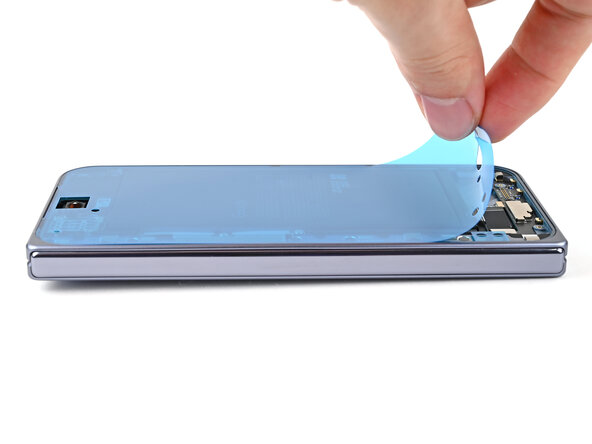
    • Remove any of the white stickers and yellow tape from your replacement inner screen assembly.

  73. Google Pixel 10 Pro Fold Inner Screen Assembly Replacement, Remove the liners: stap 73, afbeelding 1 van 3 Google Pixel 10 Pro Fold Inner Screen Assembly Replacement, Remove the liners: stap 73, afbeelding 2 van 3 Google Pixel 10 Pro Fold Inner Screen Assembly Replacement, Remove the liners: stap 73, afbeelding 3 van 3
    • Use tweezers to remove the blue liner from the bottom of the black pull tab.

    • Press the pull tab down to adhere it to the frame.

  74. Google Pixel 10 Pro Fold Inner Screen Assembly Replacement: stap 74, afbeelding 1 van 3 Google Pixel 10 Pro Fold Inner Screen Assembly Replacement: stap 74, afbeelding 2 van 3 Google Pixel 10 Pro Fold Inner Screen Assembly Replacement: stap 74, afbeelding 3 van 3
    • Use tweezers to remove the blue liner from the secondary flip battery adhesive strip.

  75. Google Pixel 10 Pro Fold Inner Screen Assembly Replacement: stap 75, afbeelding 1 van 3 Google Pixel 10 Pro Fold Inner Screen Assembly Replacement: stap 75, afbeelding 2 van 3 Google Pixel 10 Pro Fold Inner Screen Assembly Replacement: stap 75, afbeelding 3 van 3
    • Use your fingers, or tweezers, to remove the large blue liner from the main flip battery adhesive strip.

  76. Google Pixel 10 Pro Fold Inner Screen Assembly Replacement, Compare your new flip battery jacket: stap 76, afbeelding 1 van 2 Google Pixel 10 Pro Fold Inner Screen Assembly Replacement, Compare your new flip battery jacket: stap 76, afbeelding 2 van 2
    • Before removing any liners, check that your flip battery jacket matches the size and shape of the cutout in the frame.

    • The clear liner should face the frame.

  77. Google Pixel 10 Pro Fold Inner Screen Assembly Replacement, Apply the new jacket: stap 77, afbeelding 1 van 3 Google Pixel 10 Pro Fold Inner Screen Assembly Replacement, Apply the new jacket: stap 77, afbeelding 2 van 3 Google Pixel 10 Pro Fold Inner Screen Assembly Replacement, Apply the new jacket: stap 77, afbeelding 3 van 3
    • Peel off the flip battery jacket from its clear liner.

    • Align the jacket so it doesn't overlap with the flip battery adhesive.

    • Lay the jacket on the frame.

  78. Google Pixel 10 Pro Fold Inner Screen Assembly Replacement: stap 78, afbeelding 1 van 3 Google Pixel 10 Pro Fold Inner Screen Assembly Replacement: stap 78, afbeelding 2 van 3 Google Pixel 10 Pro Fold Inner Screen Assembly Replacement: stap 78, afbeelding 3 van 3
    • Use the flat end of a spudger, or your fingers, to press down the jacket and adhere it to the frame.

  79. Google Pixel 10 Pro Fold Inner Screen Assembly Replacement: stap 79, afbeelding 1 van 3 Google Pixel 10 Pro Fold Inner Screen Assembly Replacement: stap 79, afbeelding 2 van 3 Google Pixel 10 Pro Fold Inner Screen Assembly Replacement: stap 79, afbeelding 3 van 3
    • Use your fingers, or tweezers, to remove the blue liner from the flip battery jacket.

    • At this point, all of the liners should be removed from the battery well. If any liners remain, remove them now.

  80. Google Pixel 10 Pro Fold Inner Screen Assembly Replacement, Install the new battery: stap 80, afbeelding 1 van 3 Google Pixel 10 Pro Fold Inner Screen Assembly Replacement, Install the new battery: stap 80, afbeelding 2 van 3 Google Pixel 10 Pro Fold Inner Screen Assembly Replacement, Install the new battery: stap 80, afbeelding 3 van 3
    • Be careful during this step, as it's easy to stick the adhesive in the wrong spot. Take your time and work slowly.

    • Align the top edge of the flip battery with the top edge of the battery well.

    • Lay the battery over the frame.

  81. Google Pixel 10 Pro Fold Inner Screen Assembly Replacement: stap 81, afbeelding 1 van 2 Google Pixel 10 Pro Fold Inner Screen Assembly Replacement: stap 81, afbeelding 2 van 2
    • Press down along the perimeter of the flip battery to adhere it to the frame.

    • Let the phone sit for an hour for the adhesive to cure.

  82. Google Pixel 10 Pro Fold Inner Screen Assembly Replacement, Place the upper board: stap 82, afbeelding 1 van 2 Google Pixel 10 Pro Fold Inner Screen Assembly Replacement, Place the upper board: stap 82, afbeelding 2 van 2
    • Remove any liners covering the upper board adhesive.

    • Place the upper board into its slot in the frame and press it down so it sits flat.

  83. Google Pixel 10 Pro Fold Inner Screen Assembly Replacement, Install the upper board screw: stap 83, afbeelding 1 van 2 Google Pixel 10 Pro Fold Inner Screen Assembly Replacement, Install the upper board screw: stap 83, afbeelding 2 van 2
    • Use a Torx Plus 3IP driver to install the 2.1 mm‑long screw securing the upper board.

  84. Google Pixel 10 Pro Fold Inner Screen Assembly Replacement, Insert the SIM card tray: stap 84, afbeelding 1 van 2 Google Pixel 10 Pro Fold Inner Screen Assembly Replacement, Insert the SIM card tray: stap 84, afbeelding 2 van 2
    • While holding the upper board in place, reinsert the SIM card tray.

  85. Google Pixel 10 Pro Fold Inner Screen Assembly Replacement, Adhere the pull tab: stap 85, afbeelding 1 van 2 Google Pixel 10 Pro Fold Inner Screen Assembly Replacement, Adhere the pull tab: stap 85, afbeelding 2 van 2
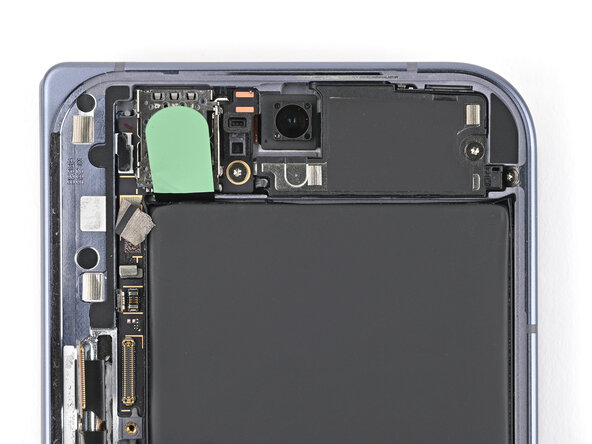
    • Use a spudger to press the green tab near the SIM card tray against the edge of the flip battery well.

    • Slide the spudger across the green tab to smooth out and adhere it against the SIM card tray.

  86. Google Pixel 10 Pro Fold Inner Screen Assembly Replacement, Adhere the conductive fabric: stap 86, afbeelding 1 van 2 Google Pixel 10 Pro Fold Inner Screen Assembly Replacement, Adhere the conductive fabric: stap 86, afbeelding 2 van 2
    • Use the point of a spudger to press the upper board conductive fabric onto the left edge of the frame.

  87. Google Pixel 10 Pro Fold Inner Screen Assembly Replacement, Place the rubber spacer: stap 87, afbeelding 1 van 2 Google Pixel 10 Pro Fold Inner Screen Assembly Replacement, Place the rubber spacer: stap 87, afbeelding 2 van 2
    • Place the rubber spacer onto its spot on the upper board, making sure it sits between its gold outlines on the board.

  88. Google Pixel 10 Pro Fold Inner Screen Assembly Replacement, Connect the antenna: stap 88, afbeelding 1 van 1
    • Use the point of a spudger to reconnect the antenna press connector to the upper board.

  89. Google Pixel 10 Pro Fold Inner Screen Assembly Replacement, Connect the top interconnect cable: stap 89, afbeelding 1 van 1
    • Reconnect the interconnect cable press connector to the upper board.

  90. Google Pixel 10 Pro Fold Inner Screen Assembly Replacement, Place the lower board: stap 90, afbeelding 1 van 3 Google Pixel 10 Pro Fold Inner Screen Assembly Replacement, Place the lower board: stap 90, afbeelding 2 van 3 Google Pixel 10 Pro Fold Inner Screen Assembly Replacement, Place the lower board: stap 90, afbeelding 3 van 3
    • Remove any liners covering the lower board adhesive.

    • Place the lower board into its slot on the frame.

  91. Google Pixel 10 Pro Fold Inner Screen Assembly Replacement: stap 91, afbeelding 1 van 2 Google Pixel 10 Pro Fold Inner Screen Assembly Replacement: stap 91, afbeelding 2 van 2
    • Use your finger to press down the bottom left corner of the lower board and slot it into its alignment peg.

  92. Google Pixel 10 Pro Fold Inner Screen Assembly Replacement: stap 92, afbeelding 1 van 2 Google Pixel 10 Pro Fold Inner Screen Assembly Replacement: stap 92, afbeelding 2 van 2
    • Use your fingers to press down the bottom right corner of the lower board to engage its grounding clips and thread it through its screw post.

  93. Google Pixel 10 Pro Fold Inner Screen Assembly Replacement: stap 93, afbeelding 1 van 2 Google Pixel 10 Pro Fold Inner Screen Assembly Replacement: stap 93, afbeelding 2 van 2
    • Use the point of a spudger to press the lower board conductive fabric onto the left edge of the frame.

  94. Google Pixel 10 Pro Fold Inner Screen Assembly Replacement, Place the rubber spacer: stap 94, afbeelding 1 van 2 Google Pixel 10 Pro Fold Inner Screen Assembly Replacement, Place the rubber spacer: stap 94, afbeelding 2 van 2
    • Place the rubber spacer onto its spot on the lower board, making sure it sits between its gold outlines on the board.

  95. Google Pixel 10 Pro Fold Inner Screen Assembly Replacement, Connect the interconnect cable: stap 95, afbeelding 1 van 1
    • Reconnect the interconnect cable to the lower board.

  96. Google Pixel 10 Pro Fold Inner Screen Assembly Replacement, Place the interconnect cable bracket: stap 96, afbeelding 1 van 2 Google Pixel 10 Pro Fold Inner Screen Assembly Replacement, Place the interconnect cable bracket: stap 96, afbeelding 2 van 2
    • Use tweezers to slide the top of the interconnect cable bracket into its clip.

  97. Google Pixel 10 Pro Fold Inner Screen Assembly Replacement: stap 97, afbeelding 1 van 2 Google Pixel 10 Pro Fold Inner Screen Assembly Replacement: stap 97, afbeelding 2 van 2
    • While pressing down the bracket, slide it into its slot in the left edge of the frame.

  98. Google Pixel 10 Pro Fold Inner Screen Assembly Replacement, Install the interconnect cable bracket screws: stap 98, afbeelding 1 van 2 Google Pixel 10 Pro Fold Inner Screen Assembly Replacement, Install the interconnect cable bracket screws: stap 98, afbeelding 2 van 2
    • Use a Torx Plus 3IP driver to install the two 2.8 mm‑long screws securing the interconnect cable bracket.

  99. Google Pixel 10 Pro Fold Inner Screen Assembly Replacement, Compare your new conductive fabric: stap 99, afbeelding 1 van 2 Google Pixel 10 Pro Fold Inner Screen Assembly Replacement, Compare your new conductive fabric: stap 99, afbeelding 2 van 2
    • Before removing any liners, check that both of your conductive fabric matches the size and shape of the interconnect cable bracket.

    • The clear liner should face the frame.

  100. Google Pixel 10 Pro Fold Inner Screen Assembly Replacement, Remove the old adhesive: stap 100, afbeelding 1 van 1
    • If there's adhesive residue on the interconnect cable bracket, use isopropyl alcohol (>90%) and a lint-free cloth to remove it.

  101. Google Pixel 10 Pro Fold Inner Screen Assembly Replacement, Apply the new conductive fabric: stap 101, afbeelding 1 van 3 Google Pixel 10 Pro Fold Inner Screen Assembly Replacement, Apply the new conductive fabric: stap 101, afbeelding 2 van 3 Google Pixel 10 Pro Fold Inner Screen Assembly Replacement, Apply the new conductive fabric: stap 101, afbeelding 3 van 3
    • Peel off the conductive fabric from its clear liner.

    • Align the fabric with the outer edge of the interconnect cable and the white outline on the frame.

    • Press the fabric to the bracket, making sure it overlaps onto the frame.

  102. Google Pixel 10 Pro Fold Inner Screen Assembly Replacement: stap 102, afbeelding 1 van 2 Google Pixel 10 Pro Fold Inner Screen Assembly Replacement: stap 102, afbeelding 2 van 2
    • Use the flat end of a spudger, or your fingers, to press down the conductive fabric and adhere it to the frame.

  103. Google Pixel 10 Pro Fold Inner Screen Assembly Replacement: stap 103, afbeelding 1 van 2 Google Pixel 10 Pro Fold Inner Screen Assembly Replacement: stap 103, afbeelding 2 van 2
    • Remove the large blue liner on top of the conductive fabric.

  104. Google Pixel 10 Pro Fold Inner Screen Assembly Replacement: stap 104, afbeelding 1 van 3 Google Pixel 10 Pro Fold Inner Screen Assembly Replacement: stap 104, afbeelding 2 van 3 Google Pixel 10 Pro Fold Inner Screen Assembly Replacement: stap 104, afbeelding 3 van 3
    • Use tweezers to peel off the blue pull tab underneath the lip of the conductive fabric.

  105. Google Pixel 10 Pro Fold Inner Screen Assembly Replacement: stap 105, afbeelding 1 van 2 Google Pixel 10 Pro Fold Inner Screen Assembly Replacement: stap 105, afbeelding 2 van 2
    • Use the flat end of a spudger, or your fingers, to press down the conductive fabric and adhere it to the interconnect cable bracket.

  106. Google Pixel 10 Pro Fold Inner Screen Assembly Replacement, Reconnect the flip battery: stap 106, afbeelding 1 van 1
    • Reconnect the flip battery press connector.

  107. Google Pixel 10 Pro Fold Inner Screen Assembly Replacement, Remove the old adhesive: stap 107, afbeelding 1 van 3 Google Pixel 10 Pro Fold Inner Screen Assembly Replacement, Remove the old adhesive: stap 107, afbeelding 2 van 3 Google Pixel 10 Pro Fold Inner Screen Assembly Replacement, Remove the old adhesive: stap 107, afbeelding 3 van 3
    • Use a spudger, or your fingers, to remove the old outer screen adhesive on the frame.

    • Use isopropyl alcohol (>90%) and a coffee filter or a microfiber cloth to remove any adhesive residue.

  108. Google Pixel 10 Pro Fold Inner Screen Assembly Replacement: stap 108, afbeelding 1 van 3 Google Pixel 10 Pro Fold Inner Screen Assembly Replacement: stap 108, afbeelding 2 van 3 Google Pixel 10 Pro Fold Inner Screen Assembly Replacement: stap 108, afbeelding 3 van 3
    • Repeat the previous step for the adhesive on the outer screen.

  109. Google Pixel 10 Pro Fold Inner Screen Assembly Replacement, Compare your new adhesive: stap 109, afbeelding 1 van 2 Google Pixel 10 Pro Fold Inner Screen Assembly Replacement, Compare your new adhesive: stap 109, afbeelding 2 van 2
    • Before removing any liners, check if the outer screen adhesive matches the frame.

    • The clear liner should face the frame.

  110. Google Pixel 10 Pro Fold Inner Screen Assembly Replacement, Apply the new adhesive: stap 110, afbeelding 1 van 2 Google Pixel 10 Pro Fold Inner Screen Assembly Replacement, Apply the new adhesive: stap 110, afbeelding 2 van 2
    • Peel away the top half of the new adhesive strip from its clear liner and keep the liner folded before continuing.

  111. Google Pixel 10 Pro Fold Inner Screen Assembly Replacement: stap 111, afbeelding 1 van 2 Google Pixel 10 Pro Fold Inner Screen Assembly Replacement: stap 111, afbeelding 2 van 2
    • Be careful during this step, as it's easy to stick the adhesive in the wrong spot. Take your time and work slowly.

    • Align the top half of the adhesive over the frame, using the corners as reference points.

    • Place the adhesive on the frame.

  112. Google Pixel 10 Pro Fold Inner Screen Assembly Replacement: stap 112, afbeelding 1 van 3 Google Pixel 10 Pro Fold Inner Screen Assembly Replacement: stap 112, afbeelding 2 van 3 Google Pixel 10 Pro Fold Inner Screen Assembly Replacement: stap 112, afbeelding 3 van 3
    • Use the flat end of a spudger, or your fingers, to press down the top edge of the adhesive and adhere it to the frame.

  113. Google Pixel 10 Pro Fold Inner Screen Assembly Replacement: stap 113, afbeelding 1 van 3 Google Pixel 10 Pro Fold Inner Screen Assembly Replacement: stap 113, afbeelding 2 van 3 Google Pixel 10 Pro Fold Inner Screen Assembly Replacement: stap 113, afbeelding 3 van 3
    • While peeling away the rest of the clear liner, slowly lay the adhesive over the perimeter of the phone.

  114. Google Pixel 10 Pro Fold Inner Screen Assembly Replacement: stap 114, afbeelding 1 van 2 Google Pixel 10 Pro Fold Inner Screen Assembly Replacement: stap 114, afbeelding 2 van 2
    • Use the flat end of a spudger, or your fingers, to press down the rest of the adhesive and adhere it to the frame.

  115. Google Pixel 10 Pro Fold Inner Screen Assembly Replacement: stap 115, afbeelding 1 van 2 Google Pixel 10 Pro Fold Inner Screen Assembly Replacement: stap 115, afbeelding 2 van 2
    • Use the point of a spudger to pry up the segmented tab on the bottom edge of the large blue liner.

  116. Google Pixel 10 Pro Fold Inner Screen Assembly Replacement: stap 116, afbeelding 1 van 3 Google Pixel 10 Pro Fold Inner Screen Assembly Replacement: stap 116, afbeelding 2 van 3 Google Pixel 10 Pro Fold Inner Screen Assembly Replacement: stap 116, afbeelding 3 van 3
    • Lift the tab and peel off the large blue liner to expose the secondary liner.

    • If any of the adhesive starts to peel up with the liner, gently lay it back on the frame and use the flat end of a spudger to secure it to the frame.

  117. Google Pixel 10 Pro Fold Inner Screen Assembly Replacement, Reconnect the outer screen: stap 117, afbeelding 1 van 2 Google Pixel 10 Pro Fold Inner Screen Assembly Replacement, Reconnect the outer screen: stap 117, afbeelding 2 van 2
    • Support the screen with your hand or prop it up on something sturdy.

    • Reconnect the outer screen cable press connector.

  118. Google Pixel 10 Pro Fold Inner Screen Assembly Replacement, Place the display bracket: stap 118, afbeelding 1 van 2 Google Pixel 10 Pro Fold Inner Screen Assembly Replacement, Place the display bracket: stap 118, afbeelding 2 van 2
    • Place the display bracket over its spot on the frame.

  119. Google Pixel 10 Pro Fold Inner Screen Assembly Replacement: stap 119, afbeelding 1 van 2 Google Pixel 10 Pro Fold Inner Screen Assembly Replacement: stap 119, afbeelding 2 van 2
    • Use the point of a spudger to press down the display bracket and slide its clip under the bottom edge of the frame.

  120. Google Pixel 10 Pro Fold Inner Screen Assembly Replacement, Install the display bracket screws: stap 120, afbeelding 1 van 2 Google Pixel 10 Pro Fold Inner Screen Assembly Replacement, Install the display bracket screws: stap 120, afbeelding 2 van 2
    • Use a Torx Plus 3IP driver to install the three screws securing the display cable bracket:

    • One 1.8 mm‑long screw

    • Two 2.5 mm‑long screws

  121. Google Pixel 10 Pro Fold Inner Screen Assembly Replacement, Expose the adhesive: stap 121, afbeelding 1 van 2 Google Pixel 10 Pro Fold Inner Screen Assembly Replacement, Expose the adhesive: stap 121, afbeelding 2 van 2
    • Use tweezers to grip the pull tab of the secondary liner at the bottom left corner of the phone.

  122. Google Pixel 10 Pro Fold Inner Screen Assembly Replacement: stap 122, afbeelding 1 van 3 Google Pixel 10 Pro Fold Inner Screen Assembly Replacement: stap 122, afbeelding 2 van 3 Google Pixel 10 Pro Fold Inner Screen Assembly Replacement: stap 122, afbeelding 3 van 3
    • Peel the liner from the left and top edge of the phone.

  123. Google Pixel 10 Pro Fold Inner Screen Assembly Replacement: stap 123, afbeelding 1 van 3 Google Pixel 10 Pro Fold Inner Screen Assembly Replacement: stap 123, afbeelding 2 van 3 Google Pixel 10 Pro Fold Inner Screen Assembly Replacement: stap 123, afbeelding 3 van 3
    • While holding the screen over the frame, peel the liner from the right and bottom edge of the frame and expose the adhesive.

  124. Google Pixel 10 Pro Fold Inner Screen Assembly Replacement, Secure the outer screen: stap 124, afbeelding 1 van 3 Google Pixel 10 Pro Fold Inner Screen Assembly Replacement, Secure the outer screen: stap 124, afbeelding 2 van 3 Google Pixel 10 Pro Fold Inner Screen Assembly Replacement, Secure the outer screen: stap 124, afbeelding 3 van 3
    • Align the outer screen over the frame and press it into place.

  125. Google Pixel 10 Pro Fold Inner Screen Assembly Replacement: stap 125, afbeelding 1 van 2 Google Pixel 10 Pro Fold Inner Screen Assembly Replacement: stap 125, afbeelding 2 van 2
    • Press along the perimeter of the outer screen to adhere it to the frame.

    • Optionally, you can use a hair dryer or heat gun to lightly heat the edges of the back cover and create a stronger bond.

    • Let the phone sit a few hours for the adhesive to cure.

  126. Google Pixel 10 Pro Fold Inner Screen Assembly Replacement, Remove the back cover: stap 126, afbeelding 1 van 2 Google Pixel 10 Pro Fold Inner Screen Assembly Replacement, Remove the back cover: stap 126, afbeelding 2 van 2
    • Lift the back cover off the frame and remove it.

  127. Google Pixel 10 Pro Fold Inner Screen Assembly Replacement, Remove the old adhesive: stap 127, afbeelding 1 van 2 Google Pixel 10 Pro Fold Inner Screen Assembly Replacement, Remove the old adhesive: stap 127, afbeelding 2 van 2
    • Use tweezers, or your fingers, to remove the old base battery adhesive from the frame.

    • Apply isopropyl alcohol (>90%) and use a coffee filter or microfiber cloth to clean any adhesive residue.

  128. Google Pixel 10 Pro Fold Inner Screen Assembly Replacement, Compare your new adhesive: stap 128, afbeelding 1 van 2 Google Pixel 10 Pro Fold Inner Screen Assembly Replacement, Compare your new adhesive: stap 128, afbeelding 2 van 2
    • Before removing any liners, check that your base battery adhesive matches the size and shape of the cutout in the frame.

    • The clear liner should face the frame.

  129. Google Pixel 10 Pro Fold Inner Screen Assembly Replacement, Apply the new adhesive: stap 129, afbeelding 1 van 3 Google Pixel 10 Pro Fold Inner Screen Assembly Replacement, Apply the new adhesive: stap 129, afbeelding 2 van 3 Google Pixel 10 Pro Fold Inner Screen Assembly Replacement, Apply the new adhesive: stap 129, afbeelding 3 van 3
    • Be careful during this step, as it's easy to stick the adhesive in the wrong spot. Take your time and work slowly.

    • Peel off the adhesive strip from its clear liner.

    • Align the adhesive strip with the top right corner of the base battery recess and press it onto the frame.

  130. Google Pixel 10 Pro Fold Inner Screen Assembly Replacement: stap 130, afbeelding 1 van 3 Google Pixel 10 Pro Fold Inner Screen Assembly Replacement: stap 130, afbeelding 2 van 3 Google Pixel 10 Pro Fold Inner Screen Assembly Replacement: stap 130, afbeelding 3 van 3
    • Use the flat end of a spudger, or your fingers, to press down the adhesive strips and adhere them to the frame.

  131. Google Pixel 10 Pro Fold Inner Screen Assembly Replacement, Remove the liner: stap 131, afbeelding 1 van 3 Google Pixel 10 Pro Fold Inner Screen Assembly Replacement, Remove the liner: stap 131, afbeelding 2 van 3 Google Pixel 10 Pro Fold Inner Screen Assembly Replacement, Remove the liner: stap 131, afbeelding 3 van 3
    • Peel off the colored liner to expose the base battery adhesive strips.

  132. Google Pixel 10 Pro Fold Inner Screen Assembly Replacement, Install the new battery: stap 132, afbeelding 1 van 3 Google Pixel 10 Pro Fold Inner Screen Assembly Replacement, Install the new battery: stap 132, afbeelding 2 van 3 Google Pixel 10 Pro Fold Inner Screen Assembly Replacement, Install the new battery: stap 132, afbeelding 3 van 3
    • Align the new base battery with the top edge of the battery recess and press it to the frame.

  133. Google Pixel 10 Pro Fold Inner Screen Assembly Replacement: stap 133, afbeelding 1 van 2 Google Pixel 10 Pro Fold Inner Screen Assembly Replacement: stap 133, afbeelding 2 van 2
    • Use your fingers to press along the battery to adhere it to the frame.

    • Let the phone sit for an hour for the adhesive to cure.

  134. Google Pixel 10 Pro Fold Inner Screen Assembly Replacement, Apply the thermal paste: stap 134, afbeelding 1 van 3 Google Pixel 10 Pro Fold Inner Screen Assembly Replacement, Apply the thermal paste: stap 134, afbeelding 2 van 3 Google Pixel 10 Pro Fold Inner Screen Assembly Replacement, Apply the thermal paste: stap 134, afbeelding 3 van 3
    • Apply thermal paste (seven total) to the motherboard in the same locations as the old thermal paste:

    • Five small beads of thermal paste

    • Two larger, "pea-sized" beads of thermal paste

  135. Google Pixel 10 Pro Fold Inner Screen Assembly Replacement, Place the logic board: stap 135, afbeelding 1 van 3 Google Pixel 10 Pro Fold Inner Screen Assembly Replacement, Place the logic board: stap 135, afbeelding 2 van 3 Google Pixel 10 Pro Fold Inner Screen Assembly Replacement, Place the logic board: stap 135, afbeelding 3 van 3
    • Place the logic board back into its cutout in the frame, making sure no cables get trapped underneath it.

    • While pushing the logic board toward the bottom edge of the phone, press the logic board into its alignment pegs.

    • The bottom of the logic board should sit even with the frame.

  136. Google Pixel 10 Pro Fold Inner Screen Assembly Replacement: stap 136, afbeelding 1 van 3 Google Pixel 10 Pro Fold Inner Screen Assembly Replacement: stap 136, afbeelding 2 van 3 Google Pixel 10 Pro Fold Inner Screen Assembly Replacement: stap 136, afbeelding 3 van 3
    • This step can be tricky. Work slowly and follow the directions closely to make sure you install the logic board properly.

    • While using one hand to press down the thin vertical section of the logic board, use your other hand to press on the top section of the logic board against the left edge of the frame and engage its grounding clip.

    • Press the logic board straight down to slot it into its alignment peg.

    • The logic board should sit flat in the frame and shouldn't be able to spring up and down. If it's not seated properly, lift the logic board out of the frame and try again.

  137. Google Pixel 10 Pro Fold Inner Screen Assembly Replacement, Install the logic board screws: stap 137, afbeelding 1 van 2 Google Pixel 10 Pro Fold Inner Screen Assembly Replacement, Install the logic board screws: stap 137, afbeelding 2 van 2
    • Use a Torx Plus 3IP driver to install the four 2.8 mm‑long screws securing the logic board.

  138. Google Pixel 10 Pro Fold Inner Screen Assembly Replacement, Connect the side buttons: stap 138, afbeelding 1 van 2 Google Pixel 10 Pro Fold Inner Screen Assembly Replacement, Connect the side buttons: stap 138, afbeelding 2 van 2
    • Use angled tweezers to slide the side button cable straight into its slot.

    • Take care not to puncture the battery—it can leak dangerous chemicals and/or catch fire.

  139. Google Pixel 10 Pro Fold Inner Screen Assembly Replacement: stap 139, afbeelding 1 van 2 Google Pixel 10 Pro Fold Inner Screen Assembly Replacement: stap 139, afbeelding 2 van 2
    • Flip the locking tab down and lightly press on it until it clicks into place.

  140. Google Pixel 10 Pro Fold Inner Screen Assembly Replacement: stap 140, afbeelding 1 van 3 Google Pixel 10 Pro Fold Inner Screen Assembly Replacement: stap 140, afbeelding 2 van 3 Google Pixel 10 Pro Fold Inner Screen Assembly Replacement: stap 140, afbeelding 3 van 3
    • Place the yellow tape over the ZIF connector and its cable.

  141. Google Pixel 10 Pro Fold Inner Screen Assembly Replacement, Connect the inner screen: stap 141, afbeelding 1 van 1
    • Reconnect the inner screen press connector.

  142. Google Pixel 10 Pro Fold Inner Screen Assembly Replacement, Install the inner display connector bracket: stap 142, afbeelding 1 van 2 Google Pixel 10 Pro Fold Inner Screen Assembly Replacement, Install the inner display connector bracket: stap 142, afbeelding 2 van 2
    • Slide the inner display connector bracket's clip into its slot on the logic board.

  143. Google Pixel 10 Pro Fold Inner Screen Assembly Replacement: stap 143, afbeelding 1 van 3 Google Pixel 10 Pro Fold Inner Screen Assembly Replacement: stap 143, afbeelding 2 van 3 Google Pixel 10 Pro Fold Inner Screen Assembly Replacement: stap 143, afbeelding 3 van 3
    • Use the point of a spudger to press down the bracket and slide its plastic clip into the left edge of the frame.

  144. Google Pixel 10 Pro Fold Inner Screen Assembly Replacement, Install the inner display connector bracket screw: stap 144, afbeelding 1 van 2 Google Pixel 10 Pro Fold Inner Screen Assembly Replacement, Install the inner display connector bracket screw: stap 144, afbeelding 2 van 2
    • Use a Torx Plus 3IP driver to install the 2.8 mm‑long screw securing the inner display connector bracket.

  145. Google Pixel 10 Pro Fold Inner Screen Assembly Replacement, Connect the interconnect cables: stap 145, afbeelding 1 van 2 Google Pixel 10 Pro Fold Inner Screen Assembly Replacement, Connect the interconnect cables: stap 145, afbeelding 2 van 2
    • Reconnect the two interconnect cable press connectors.

  146. Google Pixel 10 Pro Fold Inner Screen Assembly Replacement: stap 146, afbeelding 1 van 2 Google Pixel 10 Pro Fold Inner Screen Assembly Replacement: stap 146, afbeelding 2 van 2
    • Slide the interconnect cable bracket straight into its slot in the frame.

  147. Google Pixel 10 Pro Fold Inner Screen Assembly Replacement, Install the interconnect cable bracket screws: stap 147, afbeelding 1 van 3 Google Pixel 10 Pro Fold Inner Screen Assembly Replacement, Install the interconnect cable bracket screws: stap 147, afbeelding 2 van 3 Google Pixel 10 Pro Fold Inner Screen Assembly Replacement, Install the interconnect cable bracket screws: stap 147, afbeelding 3 van 3
    • While pressing the bracket to the frame, use a Torx Plus 3IP driver to install the two 2.8 mm‑long screws securing the interconnect cable bracket.

  148. Google Pixel 10 Pro Fold Inner Screen Assembly Replacement, Place the 5G mmWave antenna: stap 148, afbeelding 1 van 2 Google Pixel 10 Pro Fold Inner Screen Assembly Replacement, Place the 5G mmWave antenna: stap 148, afbeelding 2 van 2
    • Place the 5G mmWave antenna into its slot in the frame.

  149. Google Pixel 10 Pro Fold Inner Screen Assembly Replacement: stap 149, afbeelding 1 van 2 Google Pixel 10 Pro Fold Inner Screen Assembly Replacement: stap 149, afbeelding 2 van 2
    • Use a spudger to press the antenna down into its thermal pad so it sits flat in the frame.

  150. Google Pixel 10 Pro Fold Inner Screen Assembly Replacement, Place the antenna bracket: stap 150, afbeelding 1 van 3 Google Pixel 10 Pro Fold Inner Screen Assembly Replacement, Place the antenna bracket: stap 150, afbeelding 2 van 3 Google Pixel 10 Pro Fold Inner Screen Assembly Replacement, Place the antenna bracket: stap 150, afbeelding 3 van 3
    • Slide the clip at the top right of the antenna bracket under the frame.

    • Press the bracket flat to the logic board and align its screw holes.

  151. Google Pixel 10 Pro Fold Inner Screen Assembly Replacement: stap 151, afbeelding 1 van 2 Google Pixel 10 Pro Fold Inner Screen Assembly Replacement: stap 151, afbeelding 2 van 2
    • While pressing the bracket against the logic board, slide the top left clip under the frame.

  152. Google Pixel 10 Pro Fold Inner Screen Assembly Replacement, Install the antenna bracket screws: stap 152, afbeelding 1 van 2 Google Pixel 10 Pro Fold Inner Screen Assembly Replacement, Install the antenna bracket screws: stap 152, afbeelding 2 van 2
    • Use a Torx Plus 3IP driver to install the three screws securing the antenna bracket:

    • One 1.9 mm‑long screw

    • Two 2.8 mm‑long screws

  153. Google Pixel 10 Pro Fold Inner Screen Assembly Replacement, Place the inner front camera: stap 153, afbeelding 1 van 3 Google Pixel 10 Pro Fold Inner Screen Assembly Replacement, Place the inner front camera: stap 153, afbeelding 2 van 3 Google Pixel 10 Pro Fold Inner Screen Assembly Replacement, Place the inner front camera: stap 153, afbeelding 3 van 3
    • Remove any liners covering the inner front camera recess.

    • Place the inner front camera over its slot in the frame and press it down to adhere it.

  154. Google Pixel 10 Pro Fold Inner Screen Assembly Replacement, Reconnect the inner front camera: stap 154, afbeelding 1 van 1
    • Reconnect the inner front camera press connector.

  155. Google Pixel 10 Pro Fold Inner Screen Assembly Replacement, Place the loudspeaker: stap 155, afbeelding 1 van 3 Google Pixel 10 Pro Fold Inner Screen Assembly Replacement, Place the loudspeaker: stap 155, afbeelding 2 van 3 Google Pixel 10 Pro Fold Inner Screen Assembly Replacement, Place the loudspeaker: stap 155, afbeelding 3 van 3
    • Insert the loudspeaker at an angle into the bottom of the frame and press down to secure it.

  156. Google Pixel 10 Pro Fold Inner Screen Assembly Replacement, Install the loudspeaker screw: stap 156, afbeelding 1 van 2 Google Pixel 10 Pro Fold Inner Screen Assembly Replacement, Install the loudspeaker screw: stap 156, afbeelding 2 van 2
    • Use a Torx Plus 3IP driver to install the 2.4 mm‑long screw securing the loudspeaker.

  157. Google Pixel 10 Pro Fold Inner Screen Assembly Replacement, Remove the conductive fabric: stap 157, afbeelding 1 van 3 Google Pixel 10 Pro Fold Inner Screen Assembly Replacement, Remove the conductive fabric: stap 157, afbeelding 2 van 3 Google Pixel 10 Pro Fold Inner Screen Assembly Replacement, Remove the conductive fabric: stap 157, afbeelding 3 van 3
    • Use tweezers or your fingers to peel off the conductive fabric on top of the loudspeaker.

  158. Google Pixel 10 Pro Fold Inner Screen Assembly Replacement: stap 158, afbeelding 1 van 1
    • If there's some adhesive residue left on the loudspeaker, use isopropyl alcohol (>90%) and a coffee filter or a microfiber cloth to remove it.

  159. Google Pixel 10 Pro Fold Inner Screen Assembly Replacement, Apply the conductive fabric: stap 159, afbeelding 1 van 3 Google Pixel 10 Pro Fold Inner Screen Assembly Replacement, Apply the conductive fabric: stap 159, afbeelding 2 van 3 Google Pixel 10 Pro Fold Inner Screen Assembly Replacement, Apply the conductive fabric: stap 159, afbeelding 3 van 3
    • Peel off the clear liner on the top loudspeaker conductive fabric.

    • Place the conductive fabric over its spot on the loudspeaker.

  160. Google Pixel 10 Pro Fold Inner Screen Assembly Replacement: stap 160, afbeelding 1 van 2 Google Pixel 10 Pro Fold Inner Screen Assembly Replacement: stap 160, afbeelding 2 van 2
    • Use the flat end of a spudger or your fingers to press down the conductive fabric and adhere it.

  161. Google Pixel 10 Pro Fold Inner Screen Assembly Replacement: stap 161, afbeelding 1 van 2 Google Pixel 10 Pro Fold Inner Screen Assembly Replacement: stap 161, afbeelding 2 van 2
    • Remove the small, rounded blue liner on the underside of the tape.

    • Press down the fabric so it adheres to the frame.

  162. Google Pixel 10 Pro Fold Inner Screen Assembly Replacement: stap 162, afbeelding 1 van 3 Google Pixel 10 Pro Fold Inner Screen Assembly Replacement: stap 162, afbeelding 2 van 3 Google Pixel 10 Pro Fold Inner Screen Assembly Replacement: stap 162, afbeelding 3 van 3
    • Remove the large blue liner from the conductive fabric.

  163. Google Pixel 10 Pro Fold Inner Screen Assembly Replacement, Apply the graphite sheet: stap 163, afbeelding 1 van 3 Google Pixel 10 Pro Fold Inner Screen Assembly Replacement, Apply the graphite sheet: stap 163, afbeelding 2 van 3 Google Pixel 10 Pro Fold Inner Screen Assembly Replacement, Apply the graphite sheet: stap 163, afbeelding 3 van 3
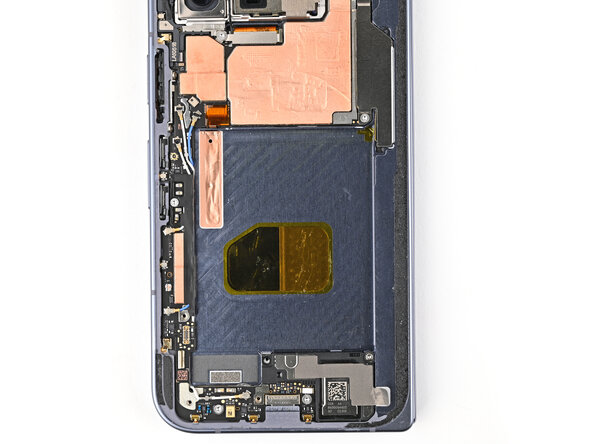
    • Peel the clear liner off your replacement graphite sheet to expose the adhesive on the upper half.

    • Align the upper half of the graphite sheet over the logic board and lay it down.

  164. Google Pixel 10 Pro Fold Inner Screen Assembly Replacement: stap 164, afbeelding 1 van 3 Google Pixel 10 Pro Fold Inner Screen Assembly Replacement: stap 164, afbeelding 2 van 3 Google Pixel 10 Pro Fold Inner Screen Assembly Replacement: stap 164, afbeelding 3 van 3
    • Use the flat end of your spudger or your finger to press down the upper half of the graphite sheet and secure it to the logic board.

  165. Google Pixel 10 Pro Fold Inner Screen Assembly Replacement: stap 165, afbeelding 1 van 3 Google Pixel 10 Pro Fold Inner Screen Assembly Replacement: stap 165, afbeelding 2 van 3 Google Pixel 10 Pro Fold Inner Screen Assembly Replacement: stap 165, afbeelding 3 van 3
    • Remove the blue liner on the underside of the graphite sheet to expose the adhesive.

  166. Google Pixel 10 Pro Fold Inner Screen Assembly Replacement: stap 166, afbeelding 1 van 3 Google Pixel 10 Pro Fold Inner Screen Assembly Replacement: stap 166, afbeelding 2 van 3 Google Pixel 10 Pro Fold Inner Screen Assembly Replacement: stap 166, afbeelding 3 van 3
    • Drag a spudger or your finger from the middle section of the graphite sheet to the adhesive section over the loudspeaker to flatten the graphite sheet and adhere it.

  167. Google Pixel 10 Pro Fold Inner Screen Assembly Replacement: stap 167, afbeelding 1 van 3 Google Pixel 10 Pro Fold Inner Screen Assembly Replacement: stap 167, afbeelding 2 van 3 Google Pixel 10 Pro Fold Inner Screen Assembly Replacement: stap 167, afbeelding 3 van 3
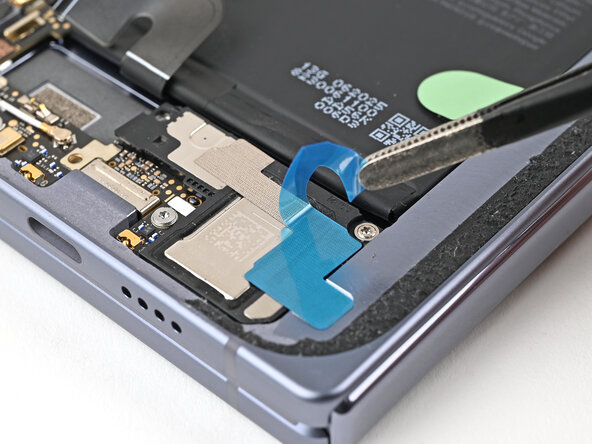
    • Remove the two small blue liners from the top of the graphite sheet to expose the copper.

  168. Google Pixel 10 Pro Fold Inner Screen Assembly Replacement: stap 168, afbeelding 1 van 3 Google Pixel 10 Pro Fold Inner Screen Assembly Replacement: stap 168, afbeelding 2 van 3 Google Pixel 10 Pro Fold Inner Screen Assembly Replacement: stap 168, afbeelding 3 van 3
    • Grip the pull tab at the top of the graphite sheet and peel off the remaining liner.

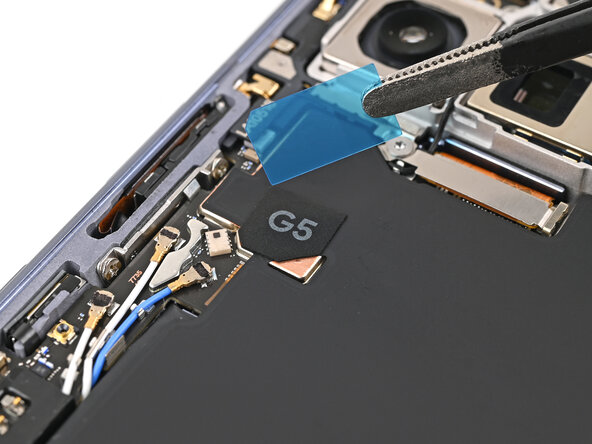
  169. Google Pixel 10 Pro Fold Inner Screen Assembly Replacement, Apply the G5 sticker: stap 169, afbeelding 1 van 3 Google Pixel 10 Pro Fold Inner Screen Assembly Replacement, Apply the G5 sticker: stap 169, afbeelding 2 van 3 Google Pixel 10 Pro Fold Inner Screen Assembly Replacement, Apply the G5 sticker: stap 169, afbeelding 3 van 3
  170. Google Pixel 10 Pro Fold Inner Screen Assembly Replacement: stap 170, afbeelding 1 van 2 Google Pixel 10 Pro Fold Inner Screen Assembly Replacement: stap 170, afbeelding 2 van 2
    • Remove the blue liner from the G5 sticker.

  171. Google Pixel 10 Pro Fold Inner Screen Assembly Replacement, Connect the base battery: stap 171, afbeelding 1 van 1
    • Reconnect the base battery press connector.

  172. Google Pixel 10 Pro Fold Inner Screen Assembly Replacement, Place the vibrator: stap 172, afbeelding 1 van 3 Google Pixel 10 Pro Fold Inner Screen Assembly Replacement, Place the vibrator: stap 172, afbeelding 2 van 3 Google Pixel 10 Pro Fold Inner Screen Assembly Replacement, Place the vibrator: stap 172, afbeelding 3 van 3
    • Use tweezers to slide the left edge of the vibrator into its clip and rest it in its cutout in the frame.

  173. Google Pixel 10 Pro Fold Inner Screen Assembly Replacement, Install the vibrator screws: stap 173, afbeelding 1 van 2 Google Pixel 10 Pro Fold Inner Screen Assembly Replacement, Install the vibrator screws: stap 173, afbeelding 2 van 2
    • Use a Torx Plus 3IP driver to install the three 3.2 mm‑long screw securing the vibrator.

  174. Google Pixel 10 Pro Fold Inner Screen Assembly Replacement, Remove the old adhesive: stap 174, afbeelding 1 van 3 Google Pixel 10 Pro Fold Inner Screen Assembly Replacement, Remove the old adhesive: stap 174, afbeelding 2 van 3 Google Pixel 10 Pro Fold Inner Screen Assembly Replacement, Remove the old adhesive: stap 174, afbeelding 3 van 3
    • Use a spudger and tweezers to remove the old back cover adhesive from the frame.

  175. Google Pixel 10 Pro Fold Inner Screen Assembly Replacement: stap 175, afbeelding 1 van 1
    • Use isopropyl alcohol (>90%) and a coffee filter or a microfiber cloth to remove any adhesive residue.

  176. Google Pixel 10 Pro Fold Inner Screen Assembly Replacement: stap 176, afbeelding 1 van 2 Google Pixel 10 Pro Fold Inner Screen Assembly Replacement: stap 176, afbeelding 2 van 2
    • Repeat the previous two steps to remove the residue from the back cover.

  177. Google Pixel 10 Pro Fold Inner Screen Assembly Replacement, Compare your adhesive: stap 177, afbeelding 1 van 2 Google Pixel 10 Pro Fold Inner Screen Assembly Replacement, Compare your adhesive: stap 177, afbeelding 2 van 2
    • Before removing any liners, check if the back cover adhesive matches the frame.

    • The clear liner should face the frame.

  178. Google Pixel 10 Pro Fold Inner Screen Assembly Replacement, Apply the new adhesive: stap 178, afbeelding 1 van 2 Google Pixel 10 Pro Fold Inner Screen Assembly Replacement, Apply the new adhesive: stap 178, afbeelding 2 van 2
    • Peel away the bottom half of the new adhesive strip from its clear liner and keep it folded before continuing.

  179. Google Pixel 10 Pro Fold Inner Screen Assembly Replacement: stap 179, afbeelding 1 van 2 Google Pixel 10 Pro Fold Inner Screen Assembly Replacement: stap 179, afbeelding 2 van 2
    • Be careful during this step, as it's easy to stick the adhesive in the wrong spot. Take your time and work slowly.

    • Align the bottom half of the adhesive over the frame, using the corners as reference points.

    • Place the adhesive on the frame.

  180. Google Pixel 10 Pro Fold Inner Screen Assembly Replacement: stap 180, afbeelding 1 van 3 Google Pixel 10 Pro Fold Inner Screen Assembly Replacement: stap 180, afbeelding 2 van 3 Google Pixel 10 Pro Fold Inner Screen Assembly Replacement: stap 180, afbeelding 3 van 3
    • Use the flat end of a spudger, or your fingers, to press down the bottom edge of the adhesive and adhere it to the frame.

  181. Google Pixel 10 Pro Fold Inner Screen Assembly Replacement: stap 181, afbeelding 1 van 3 Google Pixel 10 Pro Fold Inner Screen Assembly Replacement: stap 181, afbeelding 2 van 3 Google Pixel 10 Pro Fold Inner Screen Assembly Replacement: stap 181, afbeelding 3 van 3
    • While peeling away the rest of the clear liner, slowly lay the rest of the adhesive over the perimeter of the phone.

  182. Google Pixel 10 Pro Fold Inner Screen Assembly Replacement: stap 182, afbeelding 1 van 2 Google Pixel 10 Pro Fold Inner Screen Assembly Replacement: stap 182, afbeelding 2 van 2
    • Use the flat end of a spudger, or your fingers, to press down the rest of the adhesive and adhere it to the frame.

  183. Google Pixel 10 Pro Fold Inner Screen Assembly Replacement: stap 183, afbeelding 1 van 2 Google Pixel 10 Pro Fold Inner Screen Assembly Replacement: stap 183, afbeelding 2 van 2
    • Use a spudger to pry up the segmented tab on the bottom right corner of the large blue liner.

  184. Google Pixel 10 Pro Fold Inner Screen Assembly Replacement: stap 184, afbeelding 1 van 3 Google Pixel 10 Pro Fold Inner Screen Assembly Replacement: stap 184, afbeelding 2 van 3 Google Pixel 10 Pro Fold Inner Screen Assembly Replacement: stap 184, afbeelding 3 van 3
    • Lift the tab and peel off the large blue liner to expose the secondary liner.

    • If any of the adhesive starts to peel up with the liner, gently lay it back on the frame and use the flat end of a spudger to secure it.

  185. Google Pixel 10 Pro Fold Inner Screen Assembly Replacement, Reconnect the back cover cable: stap 185, afbeelding 1 van 2 Google Pixel 10 Pro Fold Inner Screen Assembly Replacement, Reconnect the back cover cable: stap 185, afbeelding 2 van 2
    • While holding the back cover or propping it up, reconnect the back cover cable.

  186. Google Pixel 10 Pro Fold Inner Screen Assembly Replacement, Place the top bracket: stap 186, afbeelding 1 van 3 Google Pixel 10 Pro Fold Inner Screen Assembly Replacement, Place the top bracket: stap 186, afbeelding 2 van 3 Google Pixel 10 Pro Fold Inner Screen Assembly Replacement, Place the top bracket: stap 186, afbeelding 3 van 3
    • Place the top bracket into its spot in the frame.

  187. Google Pixel 10 Pro Fold Inner Screen Assembly Replacement: stap 187, afbeelding 1 van 2 Google Pixel 10 Pro Fold Inner Screen Assembly Replacement: stap 187, afbeelding 2 van 2
    • Use a spudger or your finger to push the bracket upwards and slide its clip under the top edge of the frame.

  188. Google Pixel 10 Pro Fold Inner Screen Assembly Replacement, Install the top bracket screws: stap 188, afbeelding 1 van 2 Google Pixel 10 Pro Fold Inner Screen Assembly Replacement, Install the top bracket screws: stap 188, afbeelding 2 van 2
    • Use a Torx Plus 3IP driver to install the three 3.0 mm‑long screws securing the top bracket.

  189. Google Pixel 10 Pro Fold Inner Screen Assembly Replacement, Expose the adhesive: stap 189, afbeelding 1 van 2 Google Pixel 10 Pro Fold Inner Screen Assembly Replacement, Expose the adhesive: stap 189, afbeelding 2 van 2
    • Separate one of the secondary liner's pull tabs at the top right corner.

  190. Google Pixel 10 Pro Fold Inner Screen Assembly Replacement: stap 190, afbeelding 1 van 2 Google Pixel 10 Pro Fold Inner Screen Assembly Replacement: stap 190, afbeelding 2 van 2
    • Peel the liner from the right and bottom edge of the frame.

  191. Google Pixel 10 Pro Fold Inner Screen Assembly Replacement: stap 191, afbeelding 1 van 3 Google Pixel 10 Pro Fold Inner Screen Assembly Replacement: stap 191, afbeelding 2 van 3 Google Pixel 10 Pro Fold Inner Screen Assembly Replacement: stap 191, afbeelding 3 van 3
    • While holding the back cover over the frame, peel the liner from the left and top edge of the frame and expose the adhesive.

  192. Google Pixel 10 Pro Fold Inner Screen Assembly Replacement, Secure the back cover: stap 192, afbeelding 1 van 3 Google Pixel 10 Pro Fold Inner Screen Assembly Replacement, Secure the back cover: stap 192, afbeelding 2 van 3 Google Pixel 10 Pro Fold Inner Screen Assembly Replacement, Secure the back cover: stap 192, afbeelding 3 van 3
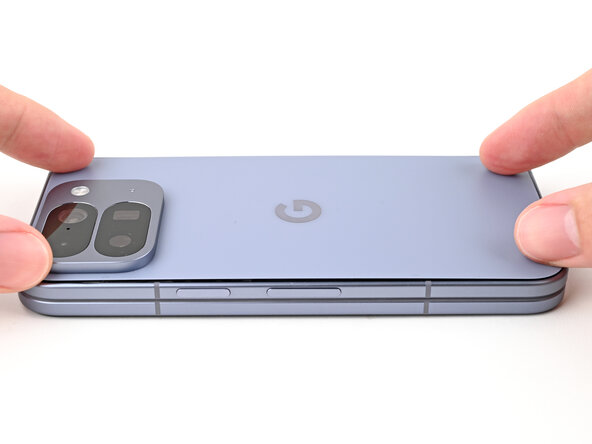
    • Align the back cover over the frame and press it into place.

  193. Google Pixel 10 Pro Fold Inner Screen Assembly Replacement: stap 193, afbeelding 1 van 2 Google Pixel 10 Pro Fold Inner Screen Assembly Replacement: stap 193, afbeelding 2 van 2
    • Press along the perimeter of the back cover to adhere it to the frame.

    • Optionally, you can use a hair dryer or heat gun to lightly heat the edges of the back cover and create a stronger bond.

    • Let the phone sit a few hours for the adhesive to cure.

Conclusie

Congratulations on completing your repair!

Calibrate your newly installed batteries after completing this guide.

Take your e-waste to an R2 or e-Stewards certified recycler.

Repair didn’t go as planned? Try some basic troubleshooting, or ask our Google Pixel 10 Pro Fold Answers Community for help.

Alex Diaz-Kokaisl

Lid sinds: 01/16/22

225.999 Reputatie

1.106 handleidingen geschreven

0Gids Commentaar

Voeg opmerking toe

Weergavestatistieken:

Afgelopen 24 uren: 39

Afgelopen 7 dagen: 68

Afgelopen 30 dagen: 116

Altijd: 131