Ga door naar hoofdinhoud
Word lid van de reparatiegemeenschap - Account aanmaken

Alldaymall A88X Touch Sensor Replacement

Wat je nodig hebt

  1. Alldaymall A88X Touch Sensor Replacement, Alldaymall A88X Back Cover: stap 1, afbeelding 1 van 3 Alldaymall A88X Touch Sensor Replacement, Alldaymall A88X Back Cover: stap 1, afbeelding 2 van 3 Alldaymall A88X Touch Sensor Replacement, Alldaymall A88X Back Cover: stap 1, afbeelding 3 van 3
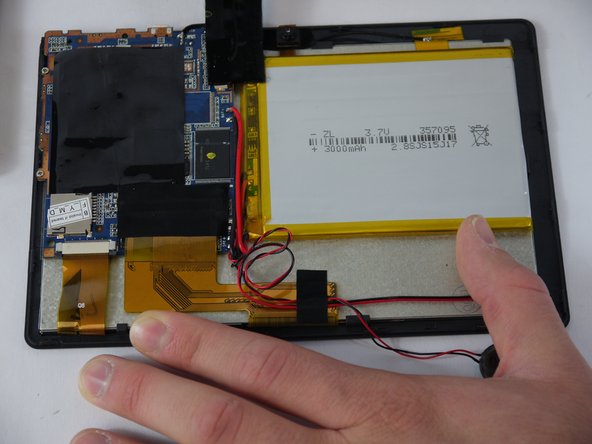
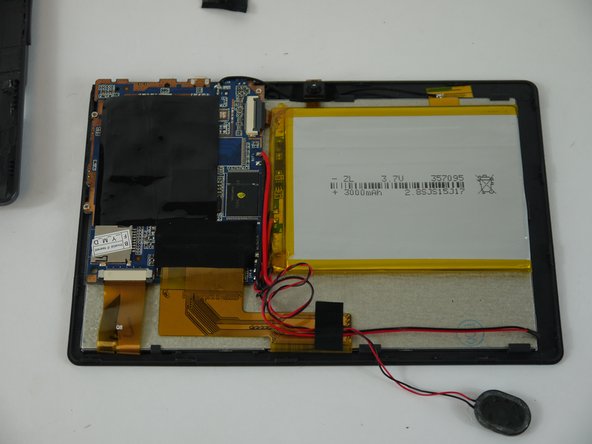
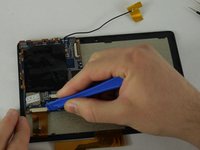
    • Using a plastic opening tool, carefully pry the device apart. Make your way around the entire perimeter of the device and carefully place the two panels next to each other.

    • After the panels are separated, watch out for the speaker on the rear panel as it's wire is rather short.

    • When separating the panels keep an eye out for the power button and volume rocker as they can be dislodged.

    Vraag FixBot

    Voeg opmerking toe

  2. Alldaymall A88X Touch Sensor Replacement: stap 2, afbeelding 1 van 1
    Gereedschap gebruikt in deze stap:
    Tweezers
    $4.99
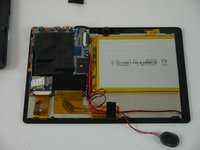
    • Grip the speaker from the sides with your fingers or a pair of tweezers and slowly begin to remove it from the rear panel.

    • When removing the speaker, make sure not to disconnect the wires in any way.

    • After the speaker has been removed, place the rear panel aside.

    Vraag FixBot

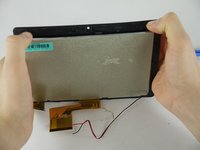
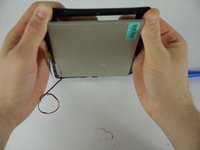
    Voeg opmerking toe

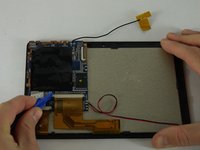
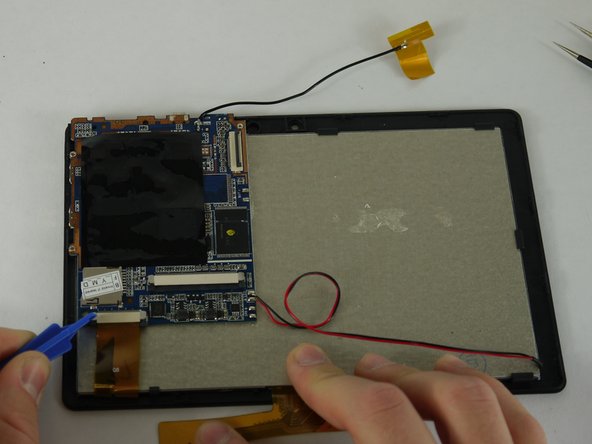
  3. Alldaymall A88X Touch Sensor Replacement, Speaker: stap 3, afbeelding 1 van 3 Alldaymall A88X Touch Sensor Replacement, Speaker: stap 3, afbeelding 2 van 3 Alldaymall A88X Touch Sensor Replacement, Speaker: stap 3, afbeelding 3 van 3
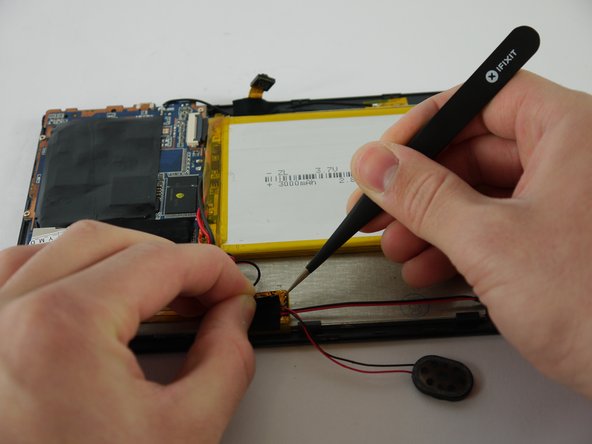
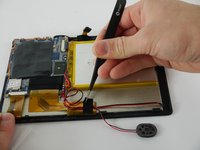
    • Carefully separate the speaker wire from the tape and proceed to peel the tape off in an upwards direction.

    • The tape we are removing covers a number of connections on the motherboard. Be extra careful not to sever any of these.

    Vraag FixBot

    Voeg opmerking toe

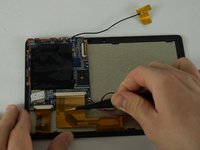
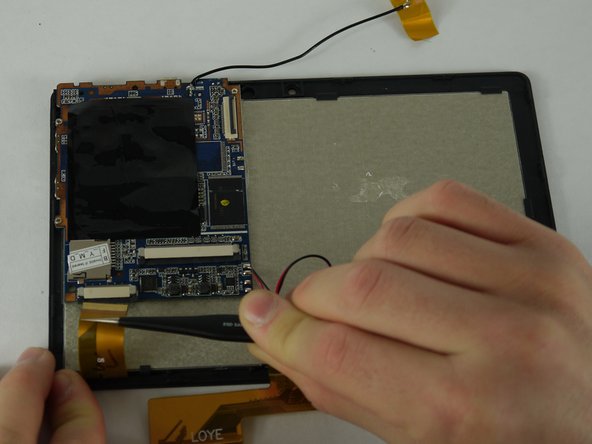
  4. Alldaymall A88X Touch Sensor Replacement: stap 4, afbeelding 1 van 3 Alldaymall A88X Touch Sensor Replacement: stap 4, afbeelding 2 van 3 Alldaymall A88X Touch Sensor Replacement: stap 4, afbeelding 3 van 3
    Gereedschap gebruikt in deze stap:
    Tweezers
    $4.99
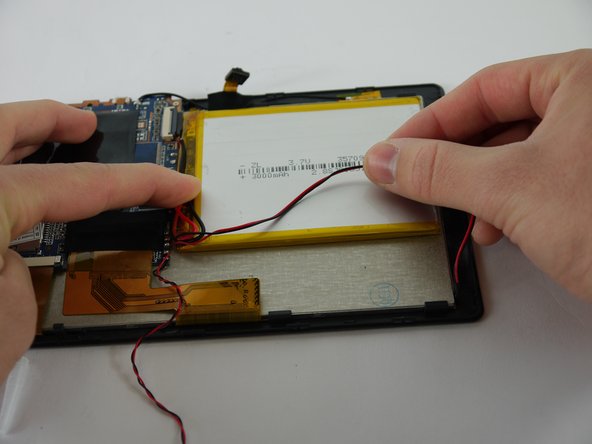
    • Using a pair of tweezers, begin separating the tape downwards from the back panel.

    • Pull the tape away from the wire bundle beneath.

    • Isolate the wire running from the speaker to the motherboard.

    Vraag FixBot

    Voeg opmerking toe

  5. Alldaymall A88X Touch Sensor Replacement: stap 5, afbeelding 1 van 3 Alldaymall A88X Touch Sensor Replacement: stap 5, afbeelding 2 van 3 Alldaymall A88X Touch Sensor Replacement: stap 5, afbeelding 3 van 3
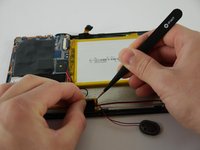
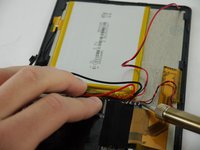
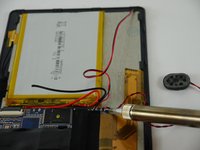
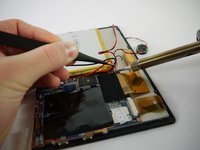
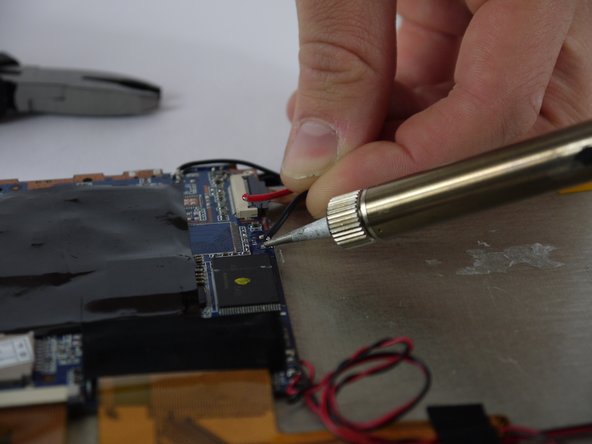
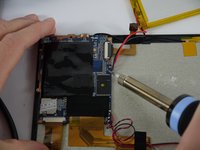
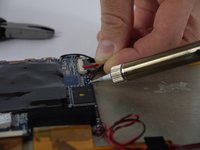
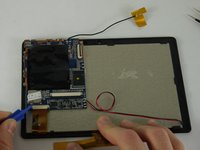
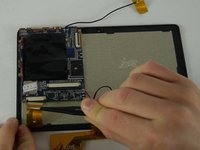
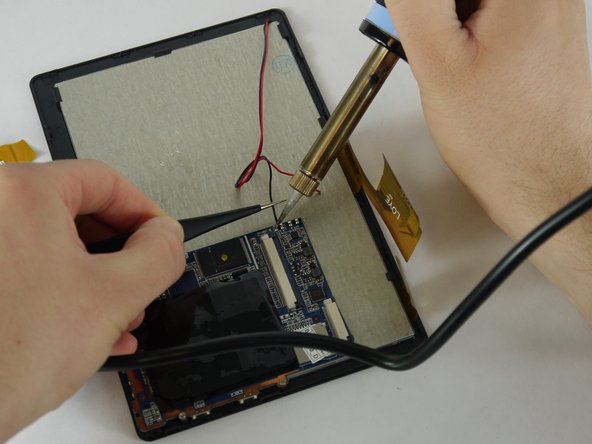
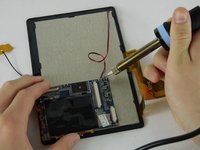
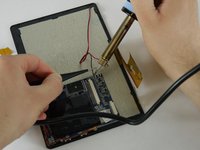
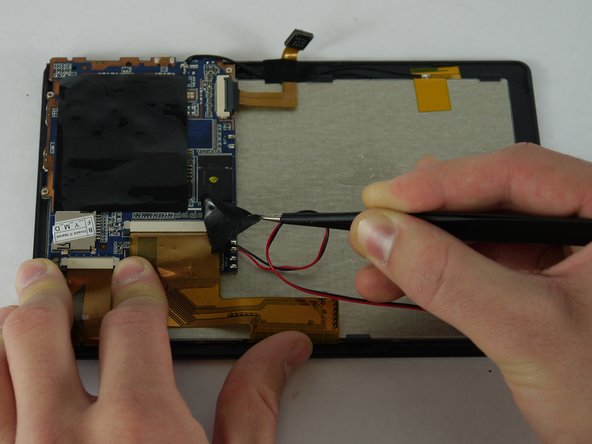
    • Desolder the speaker wires from the motherboard.

    Vraag FixBot

    Voeg opmerking toe

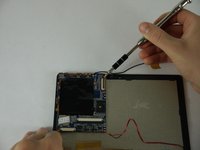
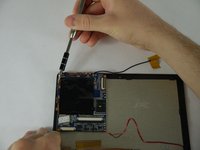
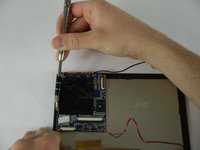
  6. Alldaymall A88X Touch Sensor Replacement, Camera: stap 6, afbeelding 1 van 3 Alldaymall A88X Touch Sensor Replacement, Camera: stap 6, afbeelding 2 van 3 Alldaymall A88X Touch Sensor Replacement, Camera: stap 6, afbeelding 3 van 3
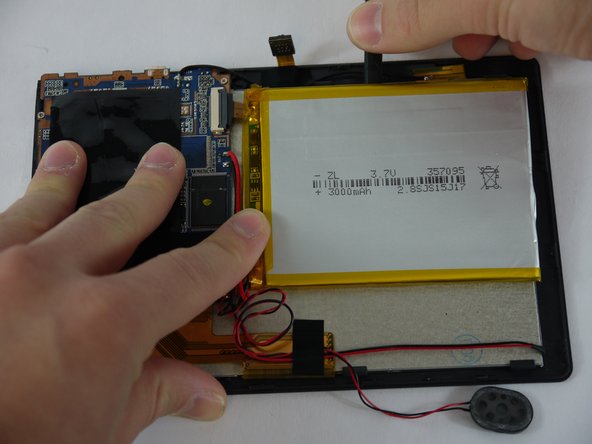
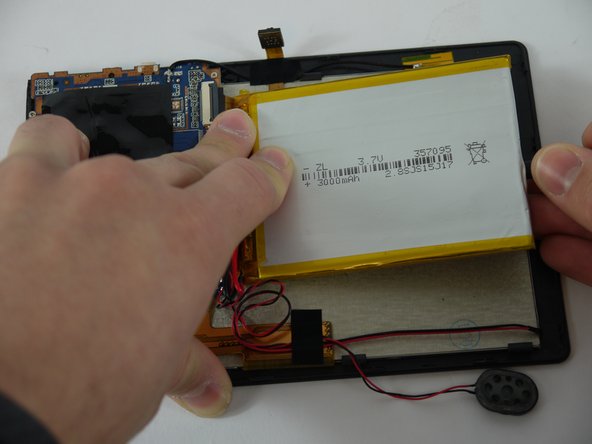
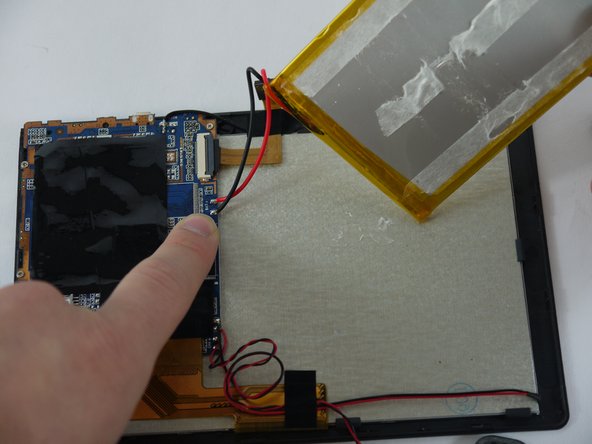
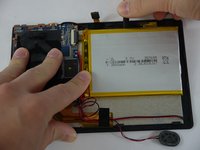
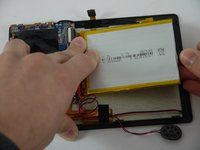
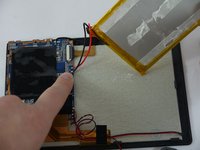
    • Using a nylon spudger, slowly work your way underneath the battery separating it from the panel beneath.

    • After the battery is separated from the panel make sure to place it face down above the tablet itself.

    • Throughout the removal process keep an eye on the battery's wires and make sure they do not break.

    Vraag FixBot

    Voeg opmerking toe

  7. Alldaymall A88X Touch Sensor Replacement: stap 7, afbeelding 1 van 2 Alldaymall A88X Touch Sensor Replacement: stap 7, afbeelding 2 van 2
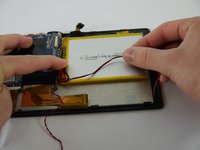
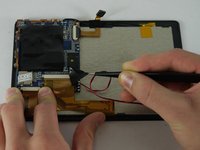
    • Desolder the wires that connect the battery to the motherboard.

    Vraag FixBot

    Voeg opmerking toe

  8. Alldaymall A88X Touch Sensor Replacement: stap 8, afbeelding 1 van 2 Alldaymall A88X Touch Sensor Replacement: stap 8, afbeelding 2 van 2
    Gereedschap gebruikt in deze stap:
    Tweezers
    $4.99
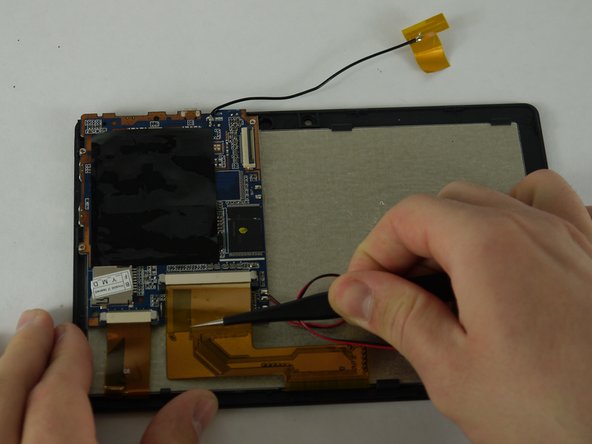
    • Using a pair of tweezers begin to peel the tape covering the ribbon cable on the motherboard.

    Vraag FixBot

    Voeg opmerking toe

  9. Alldaymall A88X Touch Sensor Replacement: stap 9, afbeelding 1 van 3 Alldaymall A88X Touch Sensor Replacement: stap 9, afbeelding 2 van 3 Alldaymall A88X Touch Sensor Replacement: stap 9, afbeelding 3 van 3
    • Using a pair of tweezers begin to peel the antenna from the metal panel.

    • Work your way down until the antenna is completely removed.

    • Be careful not deform the antenna or sever its connection.

    Vraag FixBot

    Voeg opmerking toe

  10. Alldaymall A88X Touch Sensor Replacement: stap 10, afbeelding 1 van 1
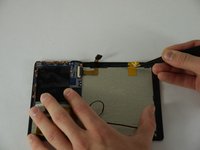
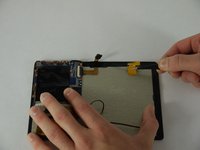
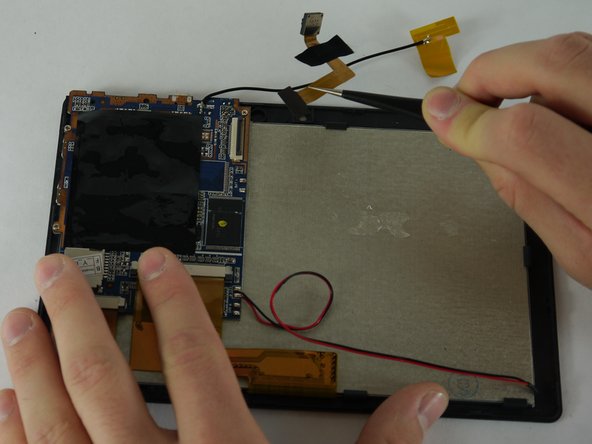
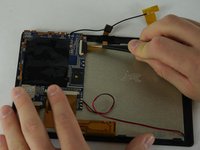
    • Using a pair of tweezers remove the tape securing the cameras to the back panel.

    Vraag FixBot

    Voeg opmerking toe

  11. Alldaymall A88X Touch Sensor Replacement: stap 11, afbeelding 1 van 1
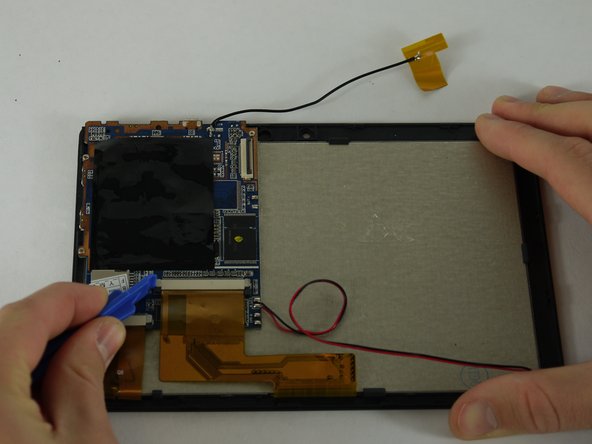
    • Using a plastic opening tool lift up the flap on the ribbon cable receptacle.

    Vraag FixBot

    Voeg opmerking toe

  12. Alldaymall A88X Touch Sensor Replacement: stap 12, afbeelding 1 van 2 Alldaymall A88X Touch Sensor Replacement: stap 12, afbeelding 2 van 2
    • Using a pair of tweezers remove the camera assembly from its housing and its receptacles.

    Vraag FixBot

    Voeg opmerking toe

  13. Alldaymall A88X Touch Sensor Replacement, Motherboard: stap 13, afbeelding 1 van 3 Alldaymall A88X Touch Sensor Replacement, Motherboard: stap 13, afbeelding 2 van 3 Alldaymall A88X Touch Sensor Replacement, Motherboard: stap 13, afbeelding 3 van 3
    Gereedschap gebruikt in deze stap:
    Tweezers
    $4.99
    • Use a plastic opening tool to pull out the black knobs on both sides of the ribbon cable receptacle.

    • Using a pair of tweezers remove the ribbon cable from its receptacle.

    Vraag FixBot

    Voeg opmerking toe

  14. Alldaymall A88X Touch Sensor Replacement: stap 14, afbeelding 1 van 3 Alldaymall A88X Touch Sensor Replacement: stap 14, afbeelding 2 van 3 Alldaymall A88X Touch Sensor Replacement: stap 14, afbeelding 3 van 3
    • Now on the left ribbon cable use a plastic opening tool to pull out the black knobs on both sides of the ribbon cable receptacle.

    • Using a pair of tweezers remove the ribbon cable from its receptacle.

    Vraag FixBot

    Voeg opmerking toe

  15. Alldaymall A88X Touch Sensor Replacement: stap 15, afbeelding 1 van 2 Alldaymall A88X Touch Sensor Replacement: stap 15, afbeelding 2 van 2
    • Desolder the wires that connect the backlight to the motherboard.

    Vraag FixBot

    Voeg opmerking toe

  16. Alldaymall A88X Touch Sensor Replacement: stap 16, afbeelding 1 van 3 Alldaymall A88X Touch Sensor Replacement: stap 16, afbeelding 2 van 3 Alldaymall A88X Touch Sensor Replacement: stap 16, afbeelding 3 van 3
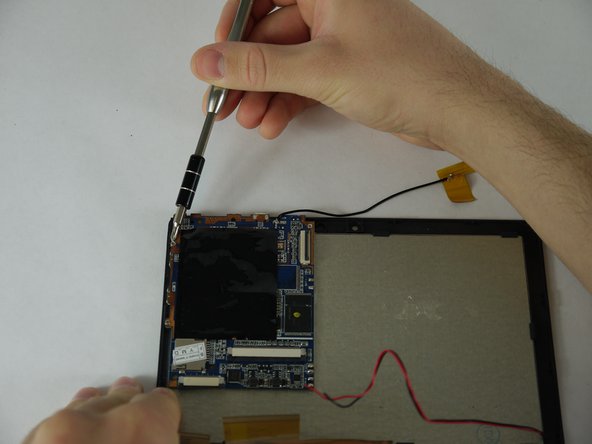
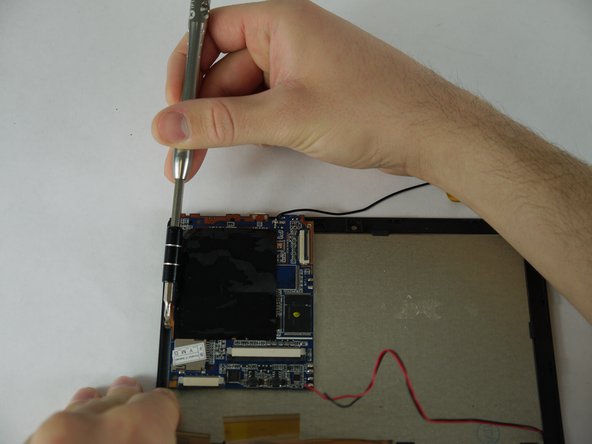
    • Using a PH0 screw bit unscrew the three 3mm screws securing the motherboard to the back panel.

    Vraag FixBot

    Voeg opmerking toe

  17. Alldaymall A88X Touch Sensor Replacement: stap 17, afbeelding 1 van 1
    • Carefully lift up on the motherboard from its housing.

    Vraag FixBot

    Voeg opmerking toe

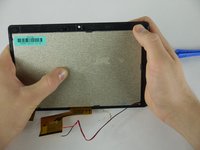
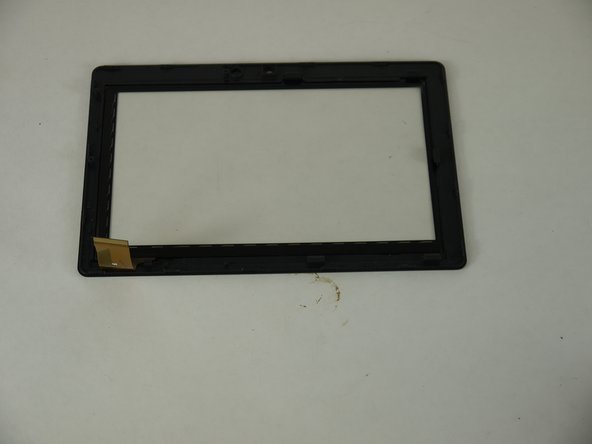
  18. Alldaymall A88X Touch Sensor Replacement, LCD Screen and Touch Sensor Assembly: stap 18, afbeelding 1 van 3 Alldaymall A88X Touch Sensor Replacement, LCD Screen and Touch Sensor Assembly: stap 18, afbeelding 2 van 3 Alldaymall A88X Touch Sensor Replacement, LCD Screen and Touch Sensor Assembly: stap 18, afbeelding 3 van 3
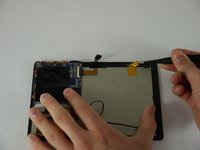
    • Gently pry the brackets holding the touch sensor to the LCD Screen

    • Do not bend the touch sensor to much as it may shatter.

    Vraag FixBot

    Voeg opmerking toe

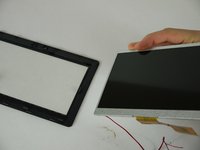
  19. Alldaymall A88X Touch Sensor Replacement, Touch Sensor: stap 19, afbeelding 1 van 2 Alldaymall A88X Touch Sensor Replacement, Touch Sensor: stap 19, afbeelding 2 van 2
    • Set the LCD Screen aside.

    Vraag FixBot

    Voeg opmerking toe

Conclusie

To reassemble your device, follow these instructions in reverse order.

Annuleren: ik heb deze handleiding niet afgemaakt.

2 andere personen hebben deze handleiding voltooid.

Drhaber

Lid sinds: 02/10/16

985 Reputatie

7 handleidingen geschreven

Team

USF Tampa, Team 4-1, Lacy Spring 2016 Lid van USF Tampa, Team 4-1, Lacy Spring 2016

USFT-LACY-S16S4G1

4 Leden

16 handleidingen geschreven

2Gids Commentaar

Fantastic guide!

Corey - Antwoord Deel
Great work on me snaping the clips

Ecocat - Antwoord Deel
Voeg opmerking toe

Weergavestatistieken:

Afgelopen 24 uren: 1

Afgelopen 7 dagen: 8

Afgelopen 30 dagen: 43

Altijd: 933