Ga door naar hoofdinhoud
Word lid van de reparatiegemeenschap - Account aanmaken

A Gaming Laptop Produced by Asus from their ROG Line of products. This page will help you repair/replace parts of your ROG Strix G16 laptop.

New Laptop - Second HD Inaccessible

I purchased ROG Strix G16 and realized the hard drive was too small to install all of my games onto. I contacted the seller and they recommended buying a 1T internal hard drive along with instructions since there was an extra slot available. I have the extra drive installed, but it's not registering. What do I need to do so it's recognized and functional?

Beantwoord deze vraag Dit probleem heb ik ook

Is dit een goede vraag?

Score 0
3 opmerkingen

It's not registering as in you can't see it in File Explorer? Or it's not showing in BIOS?

door

I can't see it in explorer - It's there in device manager, but cannot access it normally

door

I have the answer to my question using these links provided by a friend - in case anyone else has the same issue: https://learn.microsoft.com/en-us/window..., https://learn.microsoft.com/en-us/troubl..., and https://learn.microsoft.com/en-us/troubl...

door

Voeg een opmerking toe

2 Antwoorden

Het nuttigste antwoord

I have the answer to my question using these links provided by a friend - in case anyone else has the same issue: https://learn.microsoft.com/en-us/window..., https://learn.microsoft.com/en-us/troubl..., and https://learn.microsoft.com/en-us/troubl...

Was dit antwoord nuttig?

Score 1

1 Opmerking:

You beat me to the punch! Glad you got it figured out.

door

Voeg een opmerking toe

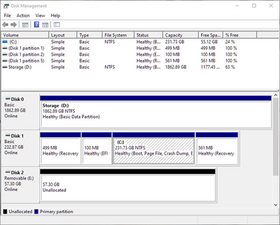
Based on your previous comment. I would wager the disk hasn't been initialized. It's something I have seen commonly with new drives because they leave them that way so you can format it the way you want.

Check to see if it's visible in Disk Management. In Windows 10/11 you can see that by right clicking on the Start button (or pressing Win + X).

Once you Disk Management you'll get a visual of what physical storage devices are connected. My guess is that One of them will show like the below image as "Unallocated." You can right click on the drive and select "New Simple Volume" specify what size and format you want (for Windows you'll most likely want to use NTFS) and it will ask what drive letter you want to assign, though not necessarily in that order.

Block Image

Once you get through that, you should be able to see the Volume you created in File Explorer.

Was dit antwoord nuttig?

Score 1
Voeg een opmerking toe

Voeg je antwoord toe

Brenda Gray zal eeuwig dankbaar zijn.
Weergavestatistieken:

Afgelopen 24 uren: 0

Afgelopen 7 dagen: 4

Afgelopen 30 dagen: 26

Altijd: 264