Ga door naar hoofdinhoud
Word lid van de reparatiegemeenschap - Account aanmaken

OnePlus 7 Pro Screen Replacement

Wat je nodig hebt

Video overzicht

OnePlus 7 Pro Screen Replacement

  1. OnePlus 7 Pro Screen Replacement, OnePlus 7 Pro Screen Replacement: stap 1, afbeelding 1 van 3 OnePlus 7 Pro Screen Replacement, OnePlus 7 Pro Screen Replacement: stap 1, afbeelding 2 van 3 OnePlus 7 Pro Screen Replacement, OnePlus 7 Pro Screen Replacement: stap 1, afbeelding 3 van 3
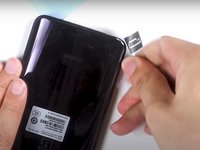
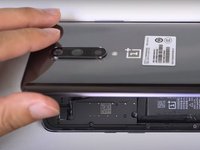
    • Insert and gently push the SIM card ejector tool (or an unfolded paperclip) into the small hole on the left side of the top edge of the phone.

    • Press gently to eject the SIM tray.

    • Remove the SIM card tray from the device.

    • To reinsert the SIM card tray, orient the SIM card with the gold contacts facing up and the notch to the bottom right. Reinsert the SIM card by pressing the card gently into the SIM tray slot.

    Vraag FixBot
  2. OnePlus 7 Pro Screen Replacement: stap 2, afbeelding 1 van 2 OnePlus 7 Pro Screen Replacement: stap 2, afbeelding 2 van 2
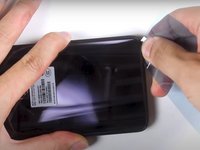
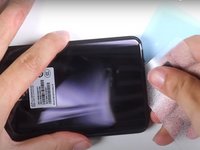
    • Use a heat gun to lightly heat the edges of the back to soften the adhesive that connects the back cover to the rest of the frame.

    • Using a heat gun, hair dryer, or hot plate will make the metal frame rather hot to the touch, so handle it with care.

    • Be careful not to overheat the device –the OLED display, battery and other internal parts can be damaged by excessive heat. Approximately one minute should be enough to soften the adhesive.

    • An iFixit iOpener, hairdryer, or hot plate can also be used to heat the edges. See the iOpener Heating guide for instructions on using the iOpener.

    Vraag FixBot
  3. OnePlus 7 Pro Screen Replacement: stap 3, afbeelding 1 van 3 OnePlus 7 Pro Screen Replacement: stap 3, afbeelding 2 van 3 OnePlus 7 Pro Screen Replacement: stap 3, afbeelding 3 van 3
    Gereedschap gebruikt in deze stap:
    Plastic Cards
    $2.99
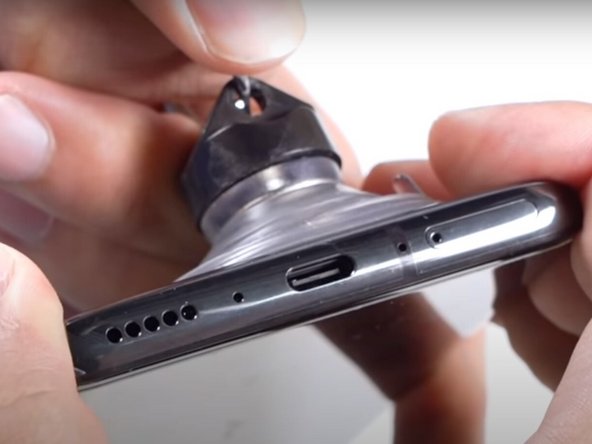
    • Apply a suction cup to the lower portion of the phone's backing and pull firmly to create a crack between the back cover and the rest of the phone.

    • Insert a Jimmy tool, opening pick, or plastic card under the edge of the back cover.

    Vraag FixBot
  4. OnePlus 7 Pro Screen Replacement: stap 4, afbeelding 1 van 3 OnePlus 7 Pro Screen Replacement: stap 4, afbeelding 2 van 3 OnePlus 7 Pro Screen Replacement: stap 4, afbeelding 3 van 3
    • Use a plastic card or Jimmy tool to slice around the phone's seam, cutting through the adhesive.

    Vraag FixBot
  5. OnePlus 7 Pro Screen Replacement: stap 5, afbeelding 1 van 2 OnePlus 7 Pro Screen Replacement: stap 5, afbeelding 2 van 2
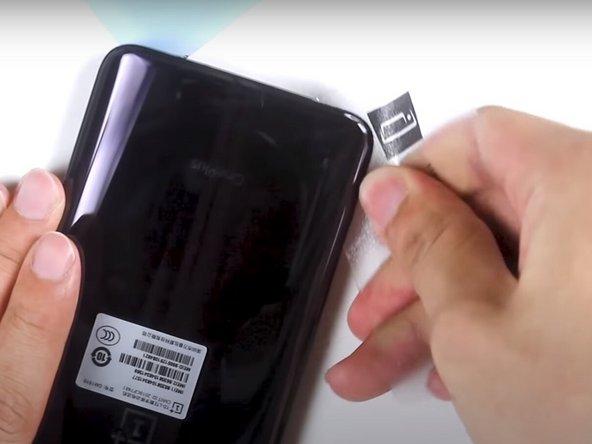
    • Remove the phone's back cover.

    • If you have replacement adhesive strips, remove any remaining adhesive from the device frame using the Jimmy tool.

    Vraag FixBot
  6. OnePlus 7 Pro Screen Replacement: stap 6, afbeelding 1 van 3 OnePlus 7 Pro Screen Replacement: stap 6, afbeelding 2 van 3 OnePlus 7 Pro Screen Replacement: stap 6, afbeelding 3 van 3
    Gereedschap gebruikt in deze stap:
    Tweezers
    $4.99
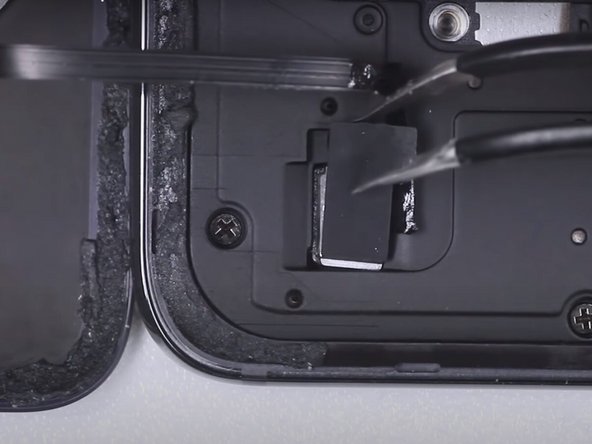
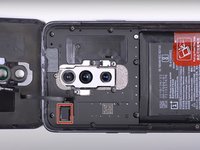
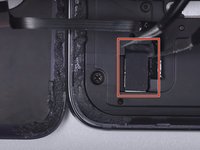
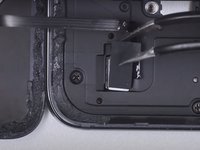
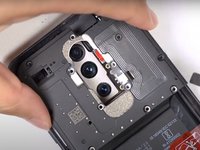
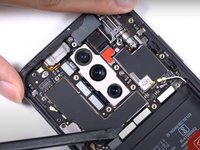
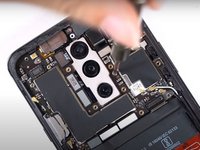
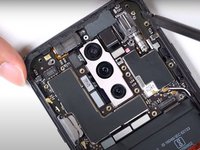
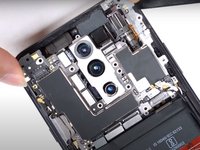
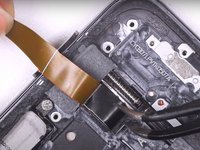
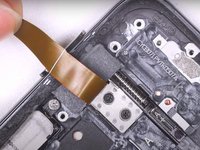
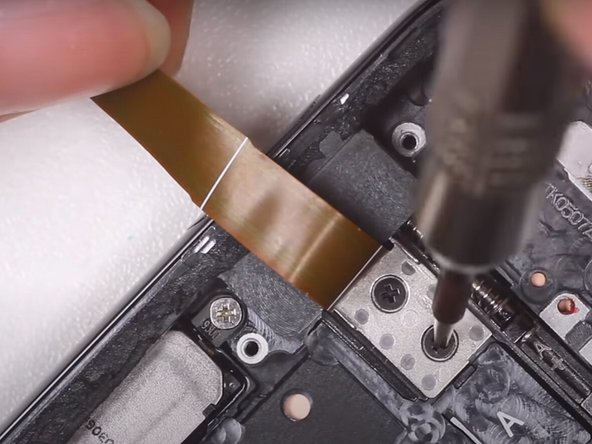
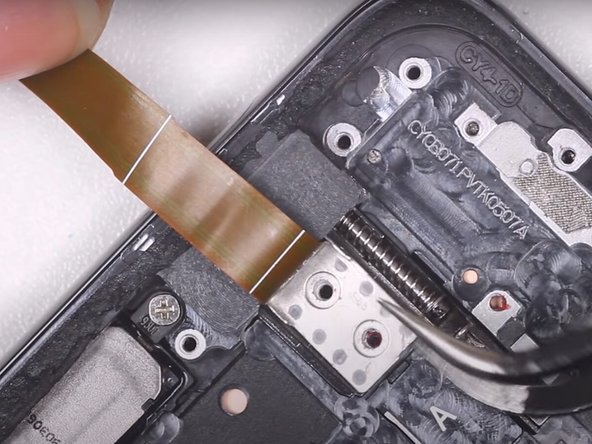
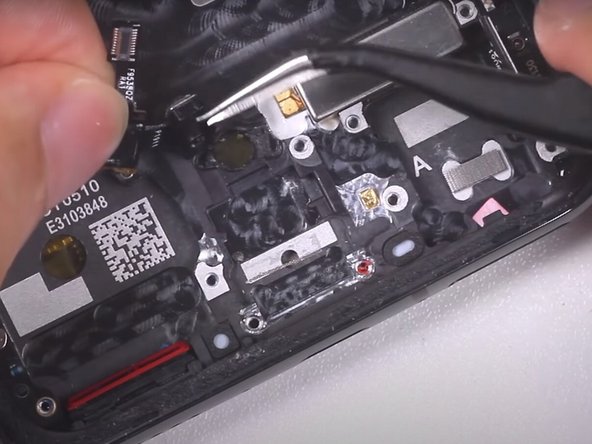
    • Use a pair of tweezers to lift up the piece of black tape covering the laser autofocus and flash flex cable.

    • Use a pair of tweezers to lift and remove the covering on the laser autofocus and flash flex cable.

    Vraag FixBot
  7. OnePlus 7 Pro Screen Replacement: stap 7, afbeelding 1 van 1
    • Use the flat end of a spudger to disconnect the laser autofocus and flash flex cable.

    Vraag FixBot
  8. OnePlus 7 Pro Screen Replacement: stap 8, afbeelding 1 van 1
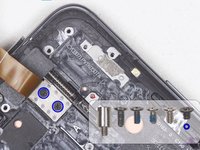
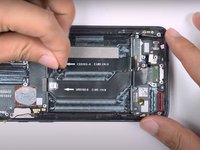
    • Use a Phillips #000 screwdriver to remove the fourteen screws from the plastic motherboard cover.

    Vraag FixBot
  9. OnePlus 7 Pro Screen Replacement: stap 9, afbeelding 1 van 2 OnePlus 7 Pro Screen Replacement: stap 9, afbeelding 2 van 2
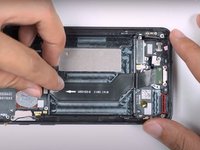
    • Use the flat end of a spudger to lift up the plastic motherboard cover.

    • Remove the plastic motherboard cover.

    Vraag FixBot
  10. OnePlus 7 Pro Screen Replacement: stap 10, afbeelding 1 van 1
    • Use the flat end of a spudger to disconnect the power flex cable.

    Vraag FixBot
  11. OnePlus 7 Pro Screen Replacement: stap 11, afbeelding 1 van 3 OnePlus 7 Pro Screen Replacement: stap 11, afbeelding 2 van 3 OnePlus 7 Pro Screen Replacement: stap 11, afbeelding 3 van 3
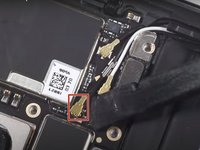
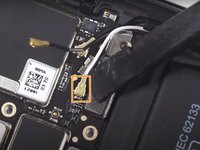
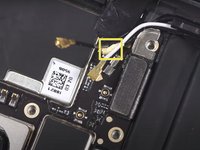
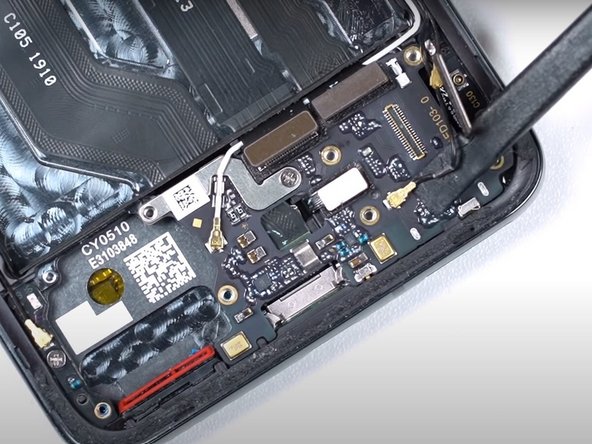
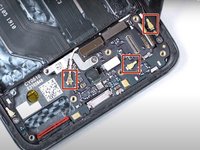
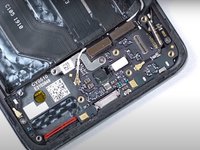
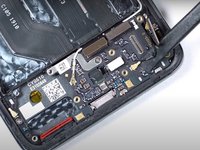
    • Use the flat end of a spudger to disconnect the longer black coaxial cable.

    • Use the flat end of a spudger to disconnect the white coaxial cable.

    • Use the flat end of a spudger to disconnect the shorter black coaxial cable.

    Vraag FixBot
  12. OnePlus 7 Pro Screen Replacement: stap 12, afbeelding 1 van 3 OnePlus 7 Pro Screen Replacement: stap 12, afbeelding 2 van 3 OnePlus 7 Pro Screen Replacement: stap 12, afbeelding 3 van 3
    • Use the flat end of a spudger to disconnect the display and touch flex cable, main flex cable, and USB port cable.

    Vraag FixBot
  13. OnePlus 7 Pro Screen Replacement: stap 13, afbeelding 1 van 1
    • Use the flat end of a spudger to disconnect the black cable on the left-hand side of the phone.

    Vraag FixBot
  14. OnePlus 7 Pro Screen Replacement: stap 14, afbeelding 1 van 3 OnePlus 7 Pro Screen Replacement: stap 14, afbeelding 2 van 3 OnePlus 7 Pro Screen Replacement: stap 14, afbeelding 3 van 3
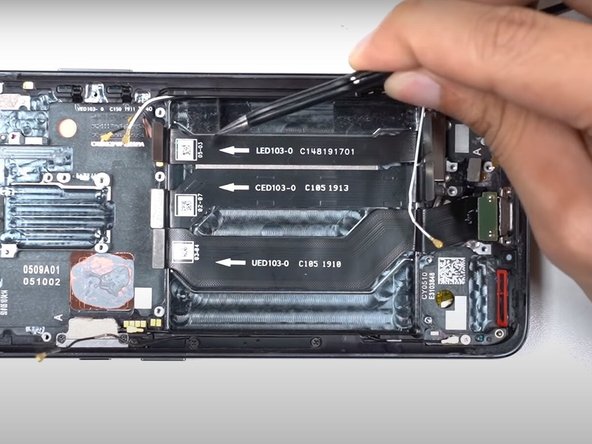
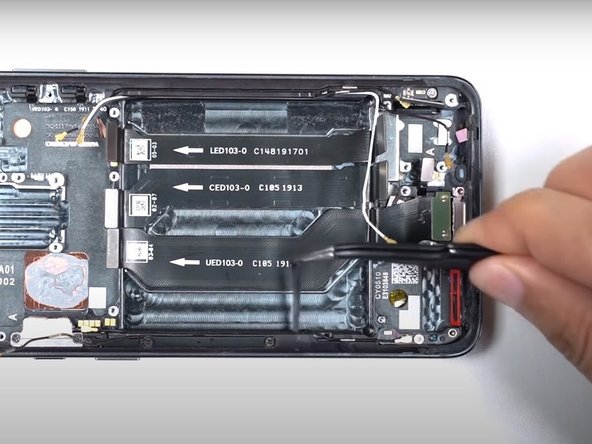
    • Use the flat end of a spudger to pry up the long black cable on the left-hand side of the phone.

    • Use the flat end of a spudger to disconnect the end of the long black cable.

    Vraag FixBot
  15. OnePlus 7 Pro Screen Replacement: stap 15, afbeelding 1 van 3 OnePlus 7 Pro Screen Replacement: stap 15, afbeelding 2 van 3 OnePlus 7 Pro Screen Replacement: stap 15, afbeelding 3 van 3
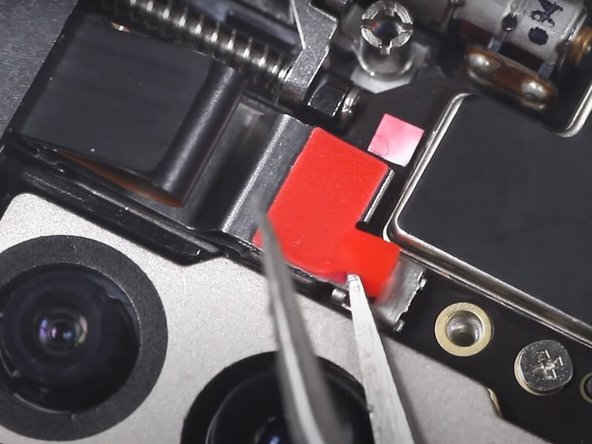
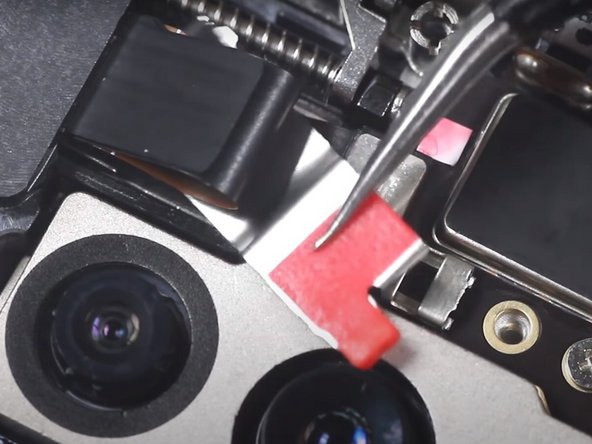
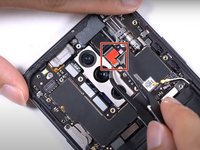
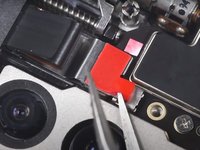
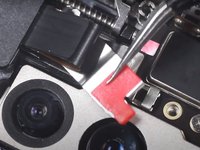
    • Use a pair of tweezers to pry up the red plastic tab.

    • Use a pair of tweezers to remove the assembly connected to the red plastic tab.

    Vraag FixBot
  16. OnePlus 7 Pro Screen Replacement: stap 16, afbeelding 1 van 1
    • Use the flat end of a spudger to disconnect the connector that was underneath the red plastic tab.

    Vraag FixBot
  17. OnePlus 7 Pro Screen Replacement: stap 17, afbeelding 1 van 2 OnePlus 7 Pro Screen Replacement: stap 17, afbeelding 2 van 2
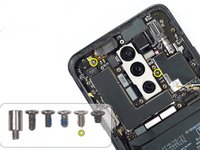
    • Use a Phillips #000 screwdriver to remove the remaining two screws securing the motherboard.

    Vraag FixBot
  18. OnePlus 7 Pro Screen Replacement: stap 18, afbeelding 1 van 3 OnePlus 7 Pro Screen Replacement: stap 18, afbeelding 2 van 3 OnePlus 7 Pro Screen Replacement: stap 18, afbeelding 3 van 3
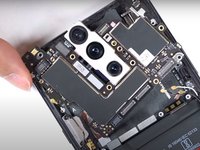
    • Use the flat end of a spudger to lift up the phone's motherboard.

    • Remove the motherboard.

    Vraag FixBot
  19. OnePlus 7 Pro Screen Replacement: stap 19, afbeelding 1 van 2 OnePlus 7 Pro Screen Replacement: stap 19, afbeelding 2 van 2
    • Use a Phillips #000 screwdriver to remove two short screws.

    • Use a Phillips #000 screwdriver to remove one screw.

    Vraag FixBot
  20. OnePlus 7 Pro Screen Replacement: stap 20, afbeelding 1 van 3 OnePlus 7 Pro Screen Replacement: stap 20, afbeelding 2 van 3 OnePlus 7 Pro Screen Replacement: stap 20, afbeelding 3 van 3
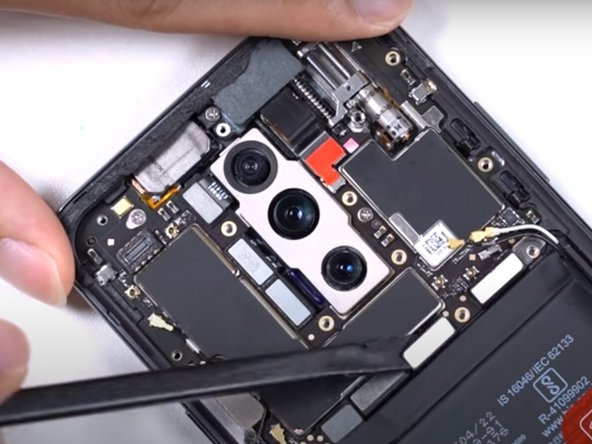
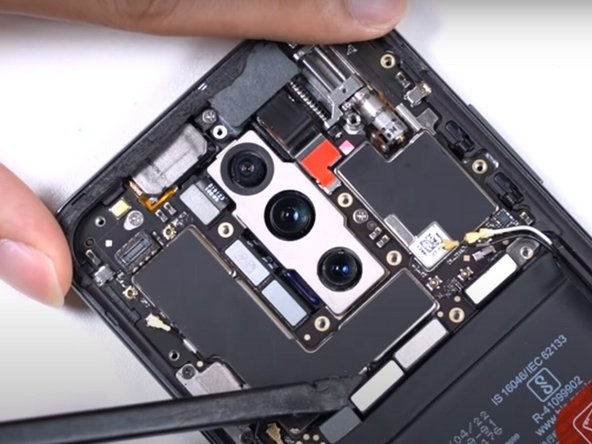
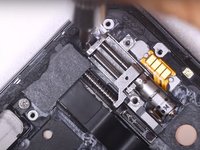
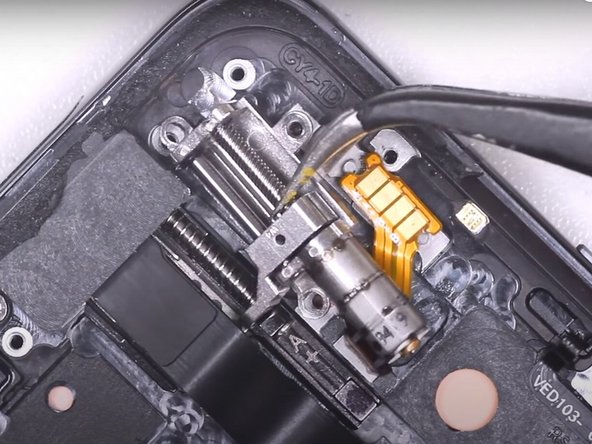
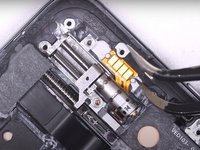
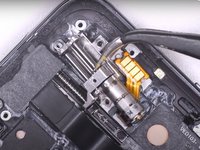
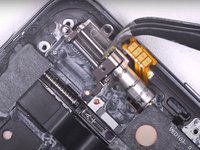
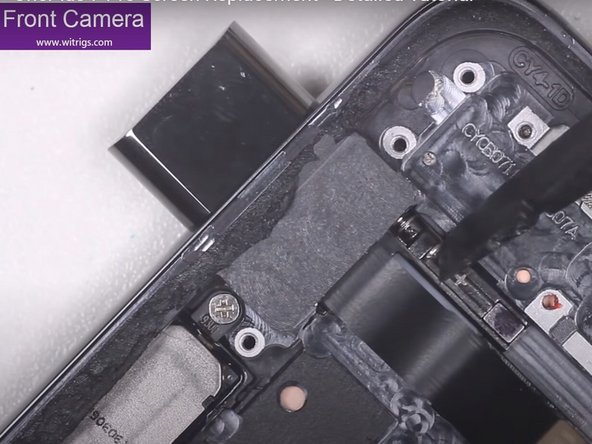
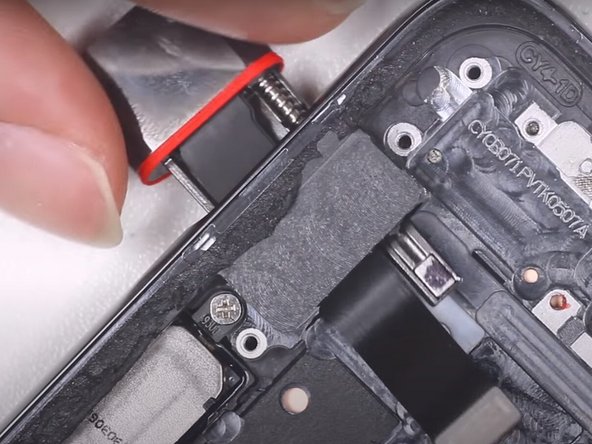
    • Use a pair of tweezers to remove the camera elevator assembly.

    Vraag FixBot
  21. OnePlus 7 Pro Screen Replacement: stap 21, afbeelding 1 van 3 OnePlus 7 Pro Screen Replacement: stap 21, afbeelding 2 van 3 OnePlus 7 Pro Screen Replacement: stap 21, afbeelding 3 van 3
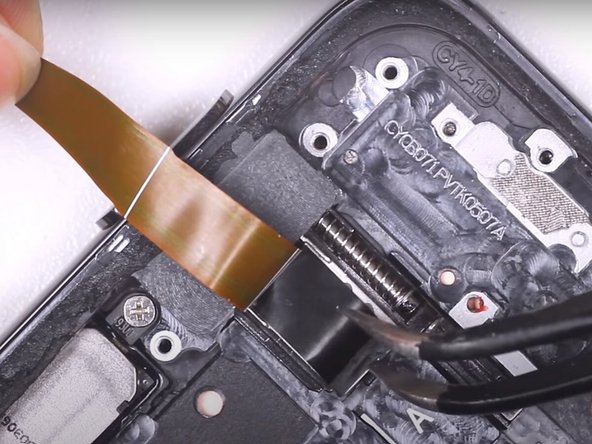
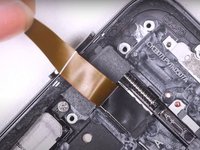
    • Lift up the large flex cable with your fingers.

    • Use a pair of tweezers to remove the black plastic screw covering.

    Vraag FixBot
  22. OnePlus 7 Pro Screen Replacement: stap 22, afbeelding 1 van 3 OnePlus 7 Pro Screen Replacement: stap 22, afbeelding 2 van 3 OnePlus 7 Pro Screen Replacement: stap 22, afbeelding 3 van 3
    • Use a Phillips #000 screwdriver to remove two small screws from the metal covering.

    • Remove the metal covering.

    Vraag FixBot
  23. OnePlus 7 Pro Screen Replacement: stap 23, afbeelding 1 van 3 OnePlus 7 Pro Screen Replacement: stap 23, afbeelding 2 van 3 OnePlus 7 Pro Screen Replacement: stap 23, afbeelding 3 van 3
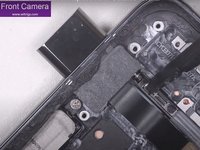
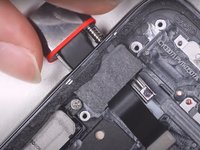
    • Use the flat end of a spudger or your fingers to gently remove the front camera assembly.

    Vraag FixBot
  24. OnePlus 7 Pro Screen Replacement: stap 24, afbeelding 1 van 2 OnePlus 7 Pro Screen Replacement: stap 24, afbeelding 2 van 2
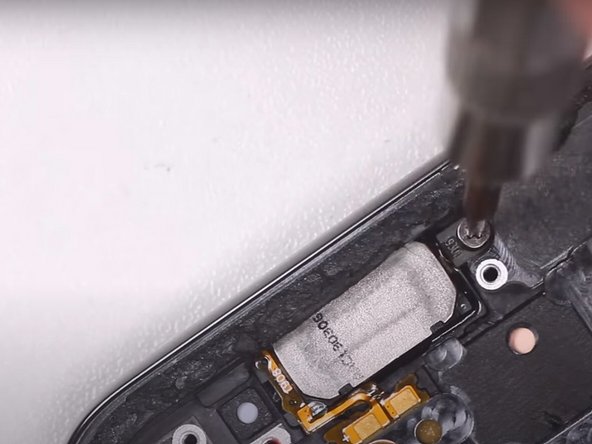
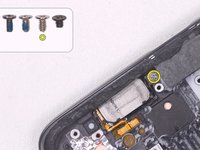
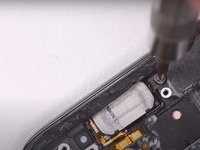
    • Use a Phillips #000 screwdriver to remove one screw in the upper left-hand corner.

    Vraag FixBot
  25. OnePlus 7 Pro Screen Replacement: stap 25, afbeelding 1 van 3 OnePlus 7 Pro Screen Replacement: stap 25, afbeelding 2 van 3 OnePlus 7 Pro Screen Replacement: stap 25, afbeelding 3 van 3
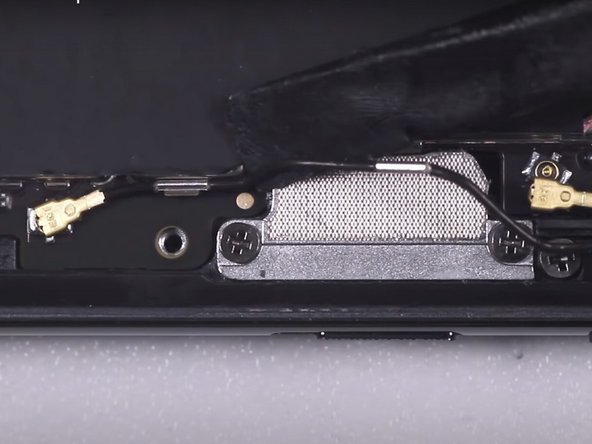
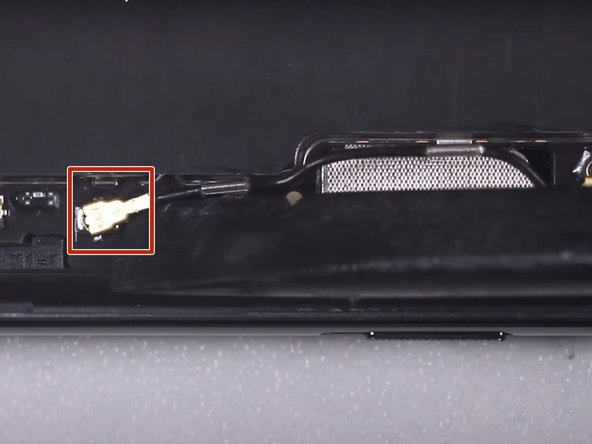
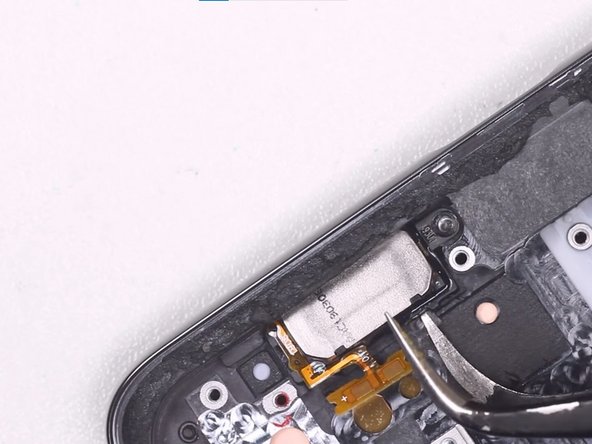
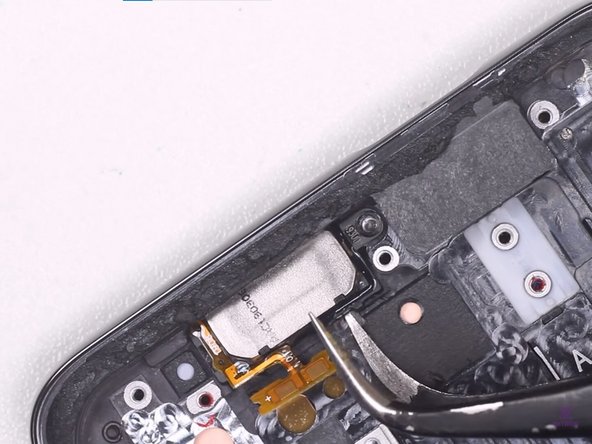
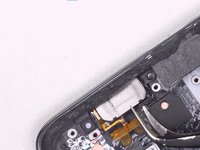
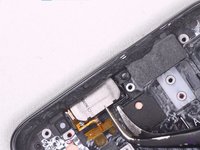
    • Use a pair of tweezers to disconnect the earpiece's yellow flex cable.

    • Use a pair of tweezers to remove the earpice.

    Vraag FixBot
  26. OnePlus 7 Pro Screen Replacement: stap 26, afbeelding 1 van 2 OnePlus 7 Pro Screen Replacement: stap 26, afbeelding 2 van 2
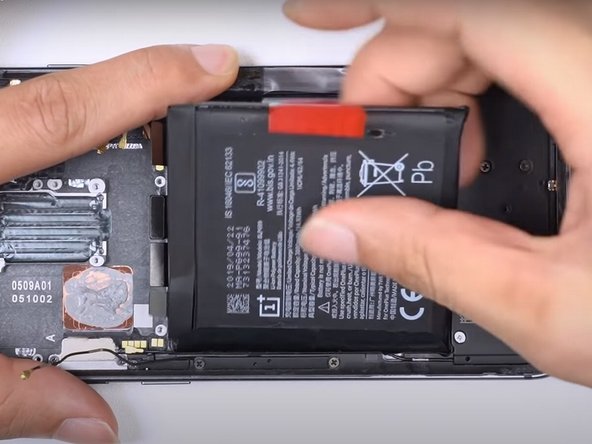
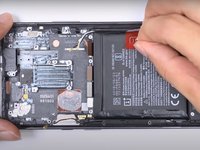
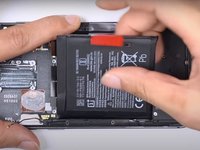
    • Use your fingers to pull on the red sticker labelled 'Pull Up From This Side.'

    • Remove the battery.

    Vraag FixBot
  27. OnePlus 7 Pro Screen Replacement: stap 27, afbeelding 1 van 3 OnePlus 7 Pro Screen Replacement: stap 27, afbeelding 2 van 3 OnePlus 7 Pro Screen Replacement: stap 27, afbeelding 3 van 3
    • Use your fingers to grab the black tab and remove the plastic that was underneath the battery.

    Vraag FixBot
  28. OnePlus 7 Pro Screen Replacement: stap 28, afbeelding 1 van 2 OnePlus 7 Pro Screen Replacement: stap 28, afbeelding 2 van 2
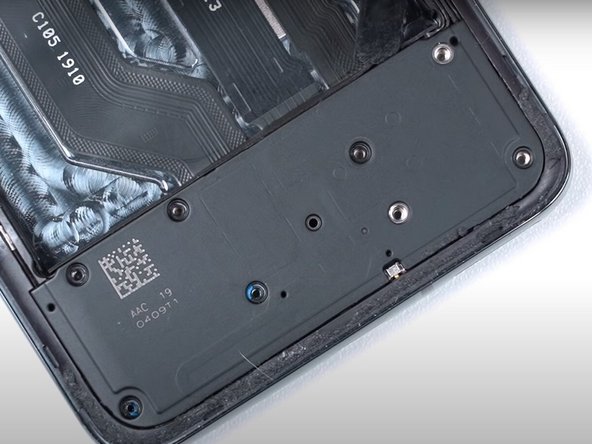
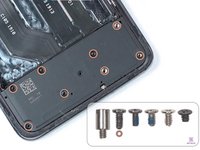
    • Use a Phillips #000 screwdriver to remove eight screws from the bottom panel.

    • Use the flat end of a spudger to pry up the bottom cover.

    • Remove the bottom cover.

    Vraag FixBot
  29. OnePlus 7 Pro Screen Replacement: stap 29, afbeelding 1 van 1
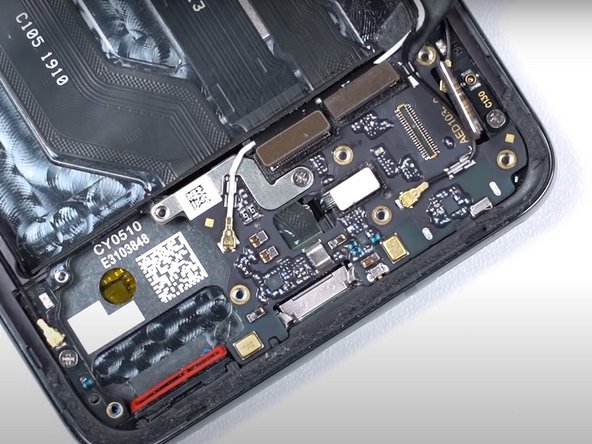
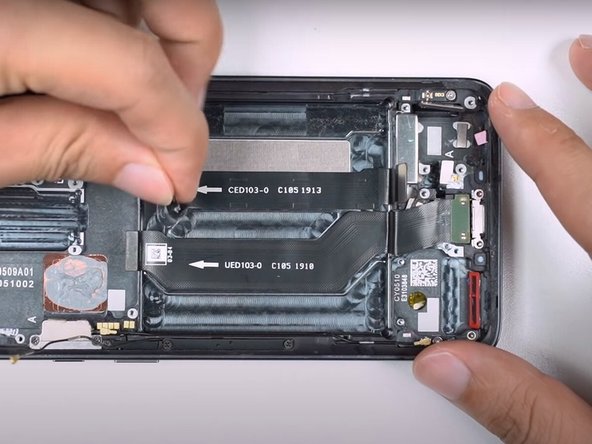
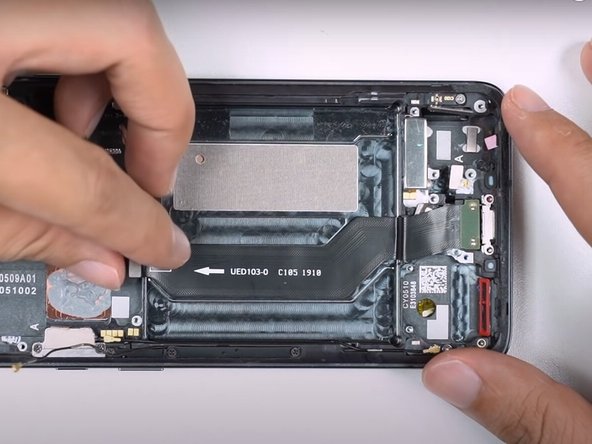
    • Use the flat end of a spudger to disconnect the fingerprint sensor, the LED flex cable, the CED flex cable, and the display and touch flex cable.

    Vraag FixBot
  30. OnePlus 7 Pro Screen Replacement: stap 30, afbeelding 1 van 3 OnePlus 7 Pro Screen Replacement: stap 30, afbeelding 2 van 3 OnePlus 7 Pro Screen Replacement: stap 30, afbeelding 3 van 3
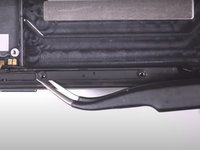
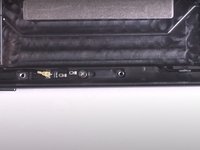
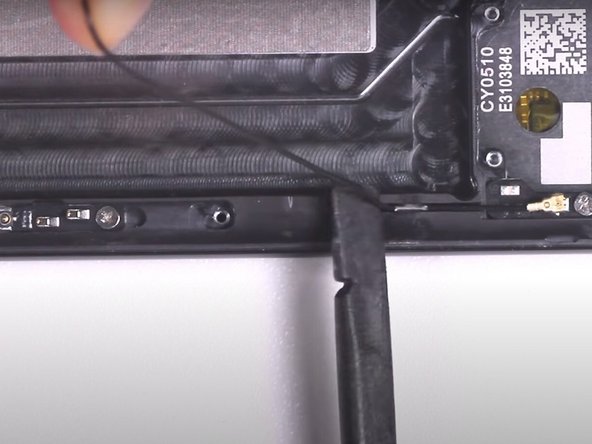
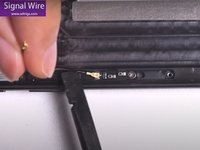
    • Use the flat end of a spudger to disconnect the three coaxial cables near the bottom of the phone.

    • To disconnect the longer coaxial cable, you will need to pry the wire from its clips.

    Vraag FixBot
  31. OnePlus 7 Pro Screen Replacement: stap 31, afbeelding 1 van 3 OnePlus 7 Pro Screen Replacement: stap 31, afbeelding 2 van 3 OnePlus 7 Pro Screen Replacement: stap 31, afbeelding 3 van 3
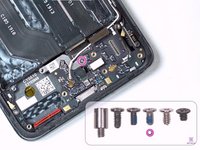
    • Use a Phillips #000 screwdriver to remove one screw.

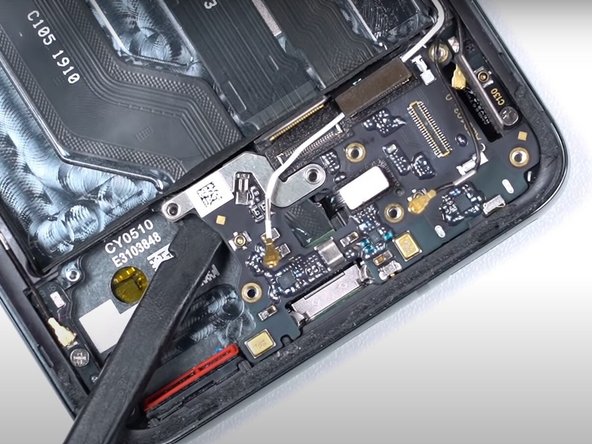
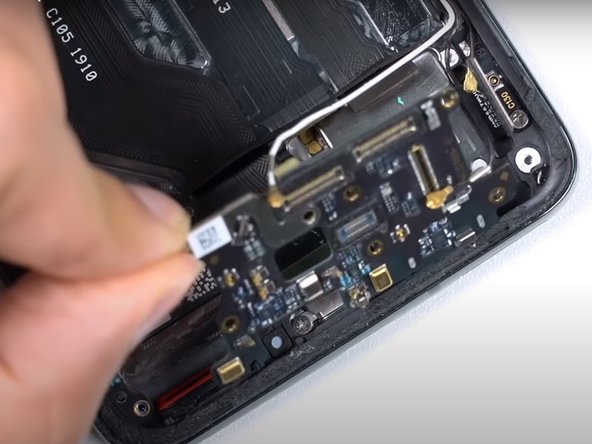
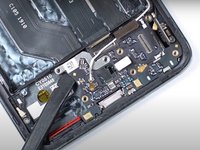
    • Use the flat end of a spudger to lift up the sub-board.

    • Remove the phone's sub-board.

    Vraag FixBot
  32. OnePlus 7 Pro Screen Replacement: stap 32, afbeelding 1 van 2 OnePlus 7 Pro Screen Replacement: stap 32, afbeelding 2 van 2
    • Use a Phillips #000 screwdriver to remove two screws.

    Vraag FixBot
  33. OnePlus 7 Pro Screen Replacement: stap 33, afbeelding 1 van 3 OnePlus 7 Pro Screen Replacement: stap 33, afbeelding 2 van 3 OnePlus 7 Pro Screen Replacement: stap 33, afbeelding 3 van 3
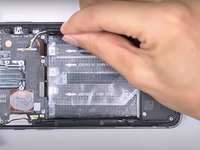
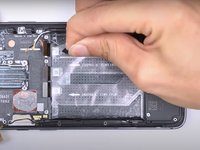
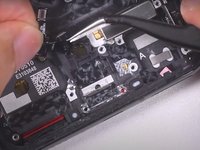
    • Use a pair of tweezers to peel out the black stickers from the sides and bottom of the battery area.

    Vraag FixBot
  34. OnePlus 7 Pro Screen Replacement: stap 34, afbeelding 1 van 2 OnePlus 7 Pro Screen Replacement: stap 34, afbeelding 2 van 2
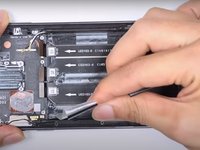
    • Use your fingers to remove the three signal cables.

    Vraag FixBot
  35. OnePlus 7 Pro Screen Replacement: stap 35, afbeelding 1 van 1
    • Use the flat end of a spudger to disconnect the USB port flex cable.

    Vraag FixBot
  36. OnePlus 7 Pro Screen Replacement: stap 36, afbeelding 1 van 3 OnePlus 7 Pro Screen Replacement: stap 36, afbeelding 2 van 3 OnePlus 7 Pro Screen Replacement: stap 36, afbeelding 3 van 3
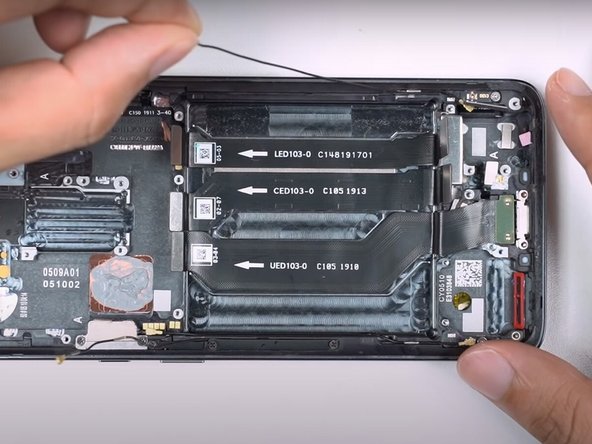
    • Use your fingers to remove the LED flex cable, CED flex cable, and USB port cable.

    Vraag FixBot
  37. OnePlus 7 Pro Screen Replacement: stap 37, afbeelding 1 van 2 OnePlus 7 Pro Screen Replacement: stap 37, afbeelding 2 van 2
    • Use a pair of tweezers to disconnect the fingerprint sensor.

    Vraag FixBot
  38. OnePlus 7 Pro Screen Replacement: stap 38, afbeelding 1 van 1
    • Remove the vibration sensor using a pair of tweezers.

    Vraag FixBot
  39. OnePlus 7 Pro Screen Replacement: stap 39, afbeelding 1 van 1
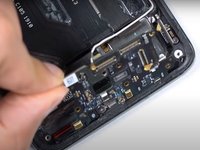
    • Disconnect the coaxial cable in the lower left-hand corner using the flat end of a spudger.

    Vraag FixBot
  40. OnePlus 7 Pro Screen Replacement: stap 40, afbeelding 1 van 3 OnePlus 7 Pro Screen Replacement: stap 40, afbeelding 2 van 3 OnePlus 7 Pro Screen Replacement: stap 40, afbeelding 3 van 3
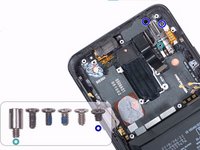
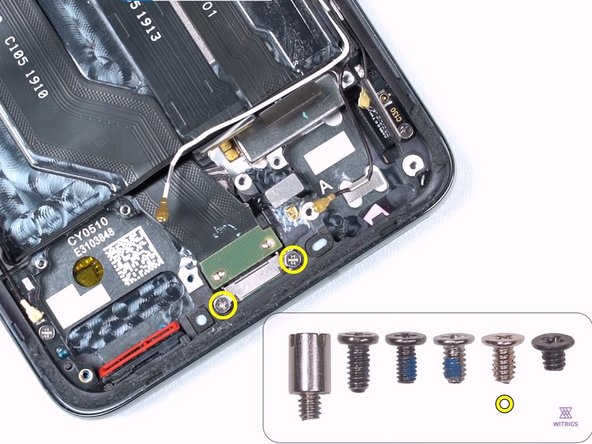
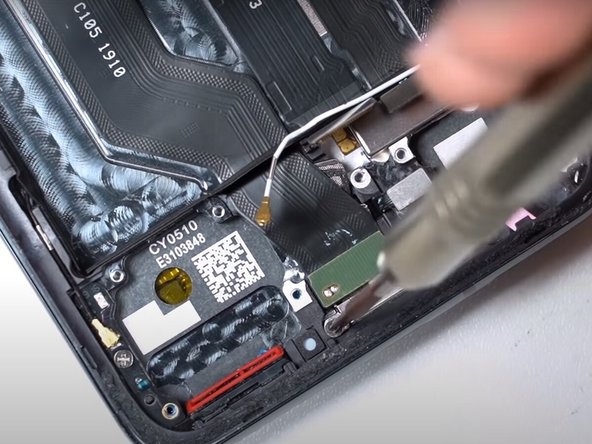
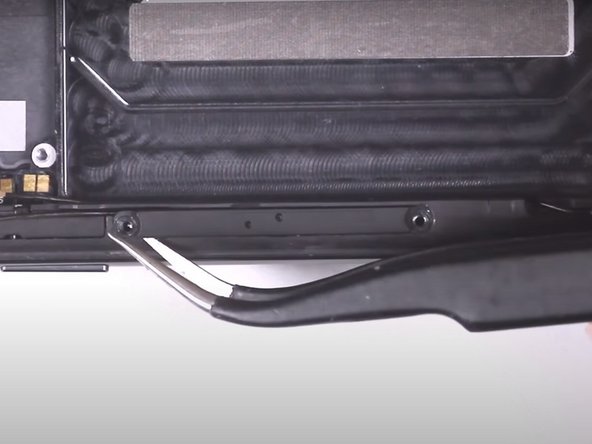
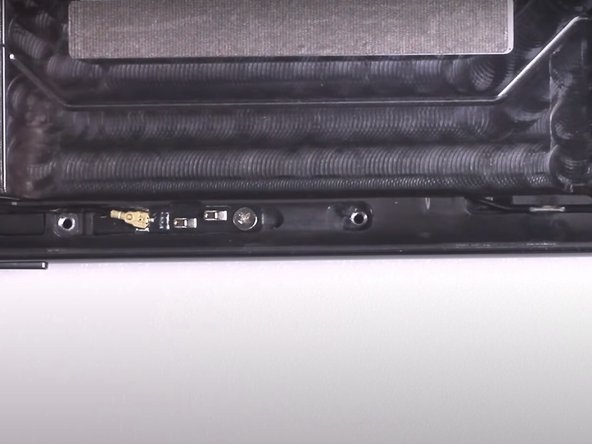
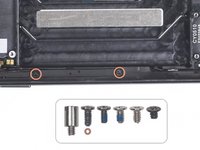
    • Use a Phillips #000 screwdriver to remove two screws on the left-hand side of the phone's frame.

    • Use a pair of tweezers to remove the plastic piece that was secured with the two previous screws.

    Vraag FixBot
  41. OnePlus 7 Pro Screen Replacement: stap 41, afbeelding 1 van 3 OnePlus 7 Pro Screen Replacement: stap 41, afbeelding 2 van 3 OnePlus 7 Pro Screen Replacement: stap 41, afbeelding 3 van 3
    • Remove the coaxial cable using the flat end of a spudger.

    • Remove the coaxial cable from the left-hand side of the battery's area.

    Vraag FixBot
Conclusie

To reassemble your device, install each of the components removed during this guide into a new screen with a frame by following these instructions in reverse order.

9 andere personen hebben deze handleiding voltooid.

Selena

Lid sinds: 12/15/19

2.944 Reputatie

14 handleidingen geschreven

12Gids Commentaar

So I have a friend that owns this phone and has had the screen replaced, there is however some misalignment of the screen and frame on her phone in the form of a very obvious crack between the two, the two surfaces are also not flush. Could someone in theory have improperly repaired the phone by separating the screen from the frame and gluing a new one in place?

Thank you and have a nice day.

Clayton Lawliss - Antwoord Deel
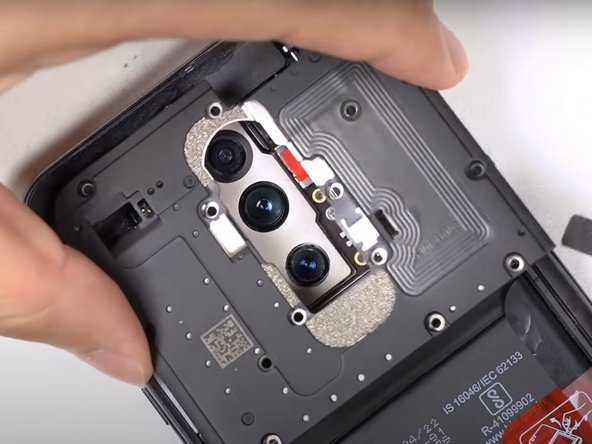
No that is due to the frame being bent, if it is bent the screen will not sit properly and it is a difficult task to un bend a frame but it is possible.

Zach Benson - Antwoord Deel
Is it possible to replace just the top glass if the rest of the screen is intact? It's got surface cracks both front and back.

MJ Mulenga III - Antwoord Deel
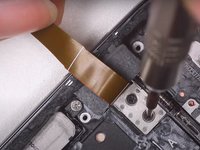
No don't and I mean DONT go that route the glass or whatever seems cheaper but the repair of separating them is next to impossible. Its like trying to take a part two potatoe chips that have been glued together and in the process not breaking either. Get a screen replacement.

Zach Benson - Antwoord Deel
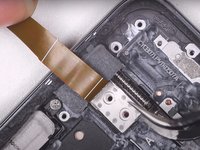
Absolutely none of this is necessary as they don’t sell the screen with the frame. If you’re unlucky like me you’ll get the entire phone apart and then it will tell you to reassemble parts onto screen WITH frame.

Joel Tool - Antwoord Deel

Voeg opmerking toe

Weergavestatistieken:

Afgelopen 24 uren: 10

Afgelopen 7 dagen: 62

Afgelopen 30 dagen: 336

Altijd: 24,824