Deze vertaling is door een computer gegenereerd en is nog niet door iemand nagekeken. Spreek je deze taal? Bekijk het hier.

Nest Dropcam Pro-leds vervangen

David Foens en 4 andere bijdragers
Voor het laatst geüpdatet op 19 aug 2026
Bekeken: 2K
Statistieken weergeven:
- Afgelopen 24 uur:
- 2
- Afgelopen 7 dagen:
- 21
- Afgelopen 30 dagen:
- 80
- Altijd:
- 2.015
Commentaar: 2
2 comments on steps.
Voltooid: 0 1
Niemand heeft deze handleiding als "voltooid" gemarkeerd. Ben jij de eerste?
1 persoon heeft deze handleiding als "voltooid" gemarkeerd. Dat ben jij—lekker bezig!
Favorieten: 0 1
Niemand heeft deze handleiding gemarkeerd als favoriet of volgt de handleiding. Ben jij de eerste?
1 persoon heeft deze handleiding als favoriet gemarkeerd (en blijft daarmee op de hoogte van meldingen)—dat ben jij!
Inleiding
Ga naar stap 1 ↓Gebruik deze handleiding om de leds in de Nest Dropcam Pro te vervangen als ze kapot of doorgebrand zijn. Zorg ervoor dat de stekker uit het stopcontact is voordat je het apparaat opent.
Wat je nodig hebt
Gereedschap
-
-
-
Spudger4.9


-
-
-
Druk de bevestigingsclips aan beide kanten van de behuizing in om de camera uit de houder te verwijderen.
 Vraag FixBot
-
-
-
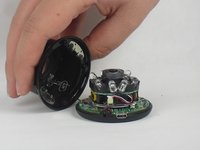
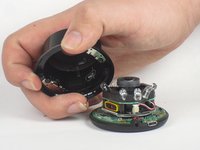
Til de voorzijde van de behuizing langzaam op, aangezien er een antennekabel aan het moederbord vastzit.
-
Koppel de antennekabel voorzichtig los van het moederbord. Je zult voelen dat deze kabel uit zijn plek "klikt" wanneer hij wordt losgekoppeld.
-
-
-
-
-
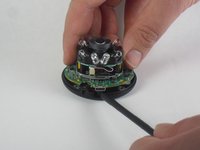
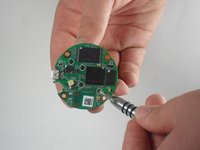
Steek een spudger onder de micro-USB-poort en til deze op om het moederbord los te maken van de achterbehuizing.
-
-
-
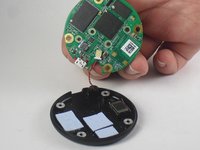
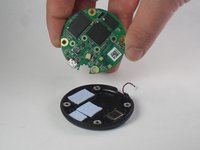
Trek het moederbord weg van de achterkant van de behuizing.
-
Koppel de rode en zwarte kabel los die het moederbord verbindt met de achterkant van de behuizing.
-
-
-
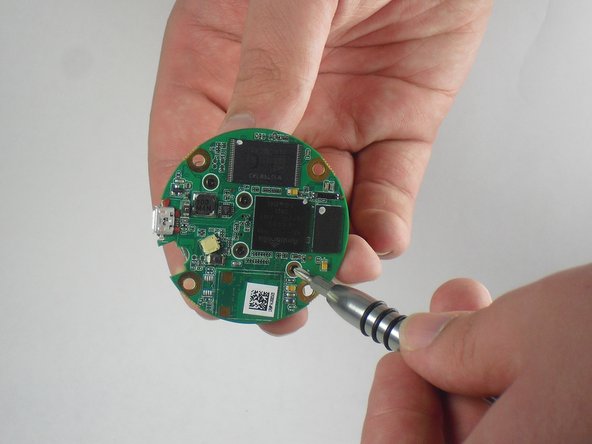
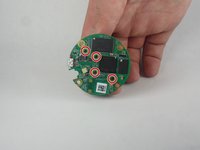
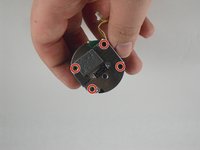
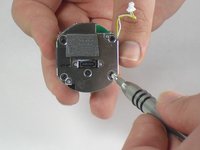
Verwijder de vier schroeven van 2 mm met een Philips #0-schroevendraaier.
-
-
-
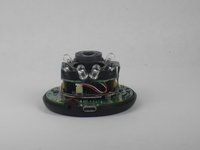
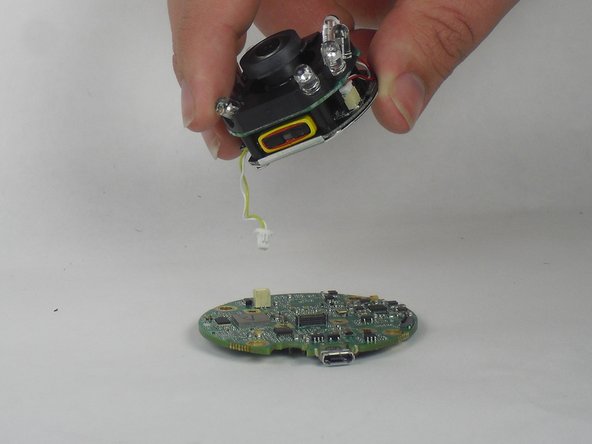
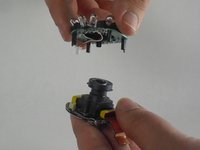
Til de lensmontage en de led-module weg van het moederbord.
-
Koppel de gele en witte kabel los van het moederbord.
-
-
-
-
-
-
Verwijder de vier schroeven van 2 mm met een Philips #0-schroevendraaier.
-
-
-
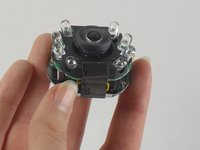
Verwijder de papieren afdichting die de lens en leds bij elkaar houdt.
-
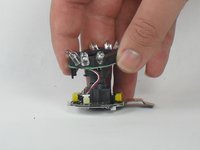
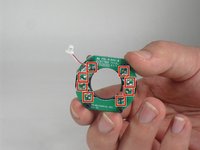
Koppel de rode en witte bedrading los van het onderste bord.
-
-
-
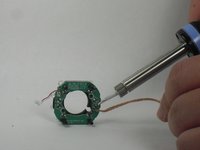
Gebruik een desoldeerpomp om de leds los te koppelen van het moederbord.
-
-














Volg deze instructies in omgekeerde volgorde om je apparaat weer in elkaar te zetten.

Team

USF Tampa, Team 15-4, Blackwell Fall 2015 Lid van USF Tampa, Team 15-4, Blackwell Fall 2015
USFT-BLACKWELL-F15S15G4
3 Leden
72 handleidingen geschreven
