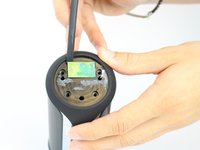
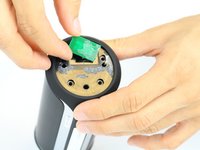
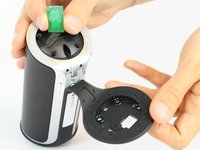
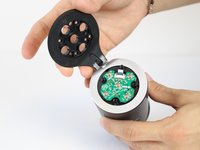
Ga door naar hoofdinhoud
Word lid van de reparatiegemeenschap - Account aanmaken

JBL Flip 2 MicroUSB Port Replacement

Wat je nodig hebt

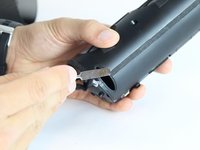
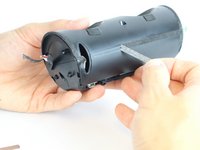
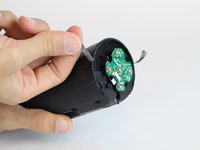
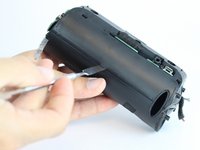
  1. JBL Flip 2 MicroUSB Port Replacement, JBL Flip 2 Outer Case Disassembly: stap 1, afbeelding 1 van 2 JBL Flip 2 MicroUSB Port Replacement, JBL Flip 2 Outer Case Disassembly: stap 1, afbeelding 2 van 2
    • Begin by removing the rubber caps on both sides of the JBL Flip 2 by using the black spudger to get in between the creases.

    • Be very careful when removing the NFC rubber cap. There is a chip that is glued to the inside of the rubber cap. So, peel the rubber cap off slowly and remove the chip on the inside while peeling the rubber cap off.

    Vraag FixBot
  2. JBL Flip 2 MicroUSB Port Replacement: stap 2, afbeelding 1 van 2 JBL Flip 2 MicroUSB Port Replacement: stap 2, afbeelding 2 van 2
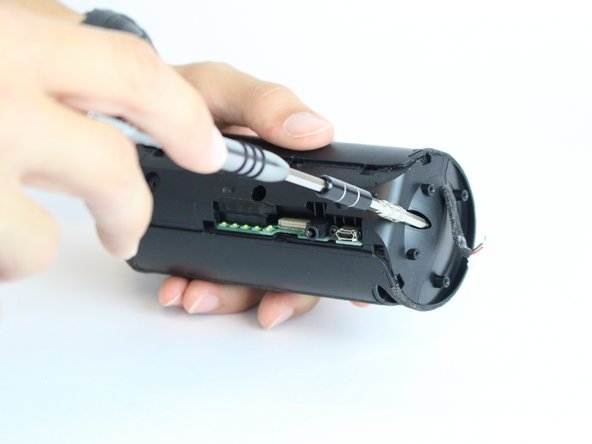
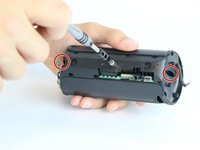
    • Remove the eight 7.0 mm Phillips #1 screws on both sides of the JBL Flip 2.

    Vraag FixBot
  3. JBL Flip 2 MicroUSB Port Replacement: stap 3, afbeelding 1 van 3 JBL Flip 2 MicroUSB Port Replacement: stap 3, afbeelding 2 van 3 JBL Flip 2 MicroUSB Port Replacement: stap 3, afbeelding 3 van 3
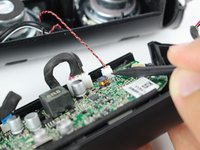
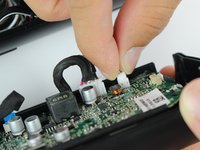
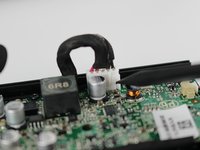
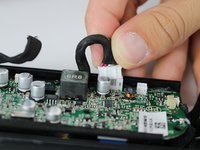
    • The NFC chip is glued onto the side of the device. Use the black spudger to separate the mic from the surface.

    • Be careful not to sever the wire connecting the nfc chip to the inside of the device.

    • Gently slide the NFC chip into the device through the slot that the wire comes from.

    Vraag FixBot
  4. JBL Flip 2 MicroUSB Port Replacement: stap 4, afbeelding 1 van 2 JBL Flip 2 MicroUSB Port Replacement: stap 4, afbeelding 2 van 2
    • Peel the black rubber piece from one end to the other.

    Vraag FixBot
  5. JBL Flip 2 MicroUSB Port Replacement: stap 5, afbeelding 1 van 3 JBL Flip 2 MicroUSB Port Replacement: stap 5, afbeelding 2 van 3 JBL Flip 2 MicroUSB Port Replacement: stap 5, afbeelding 3 van 3
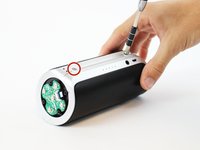
    • Remove the two 7.0 mm Phillips #1 screws.

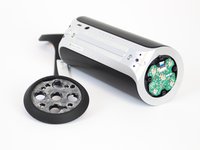
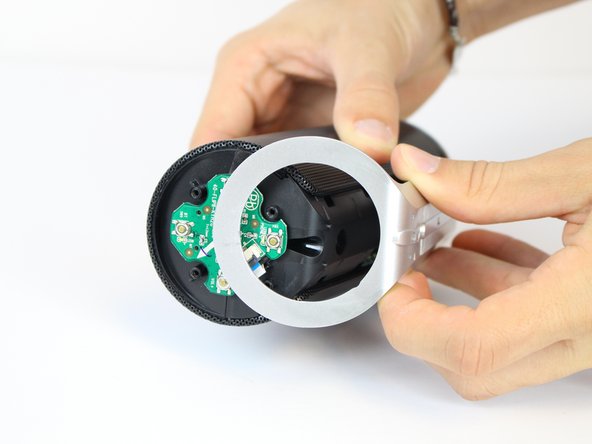
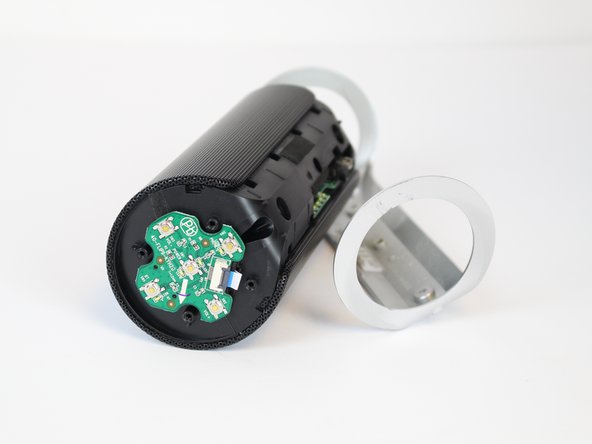
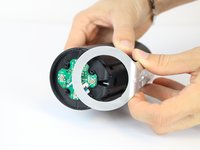
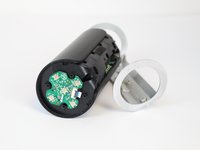
    • Carefully detach the silver plastic cover by pulling both ends off.

    • Pull both ends at the same time with the same amount of force to prevent the cover from breaking.

    • Separate the silver plastic piece by pulling it off from the middle.

    Vraag FixBot
  6. JBL Flip 2 MicroUSB Port Replacement: stap 6, afbeelding 1 van 3 JBL Flip 2 MicroUSB Port Replacement: stap 6, afbeelding 2 van 3 JBL Flip 2 MicroUSB Port Replacement: stap 6, afbeelding 3 van 3
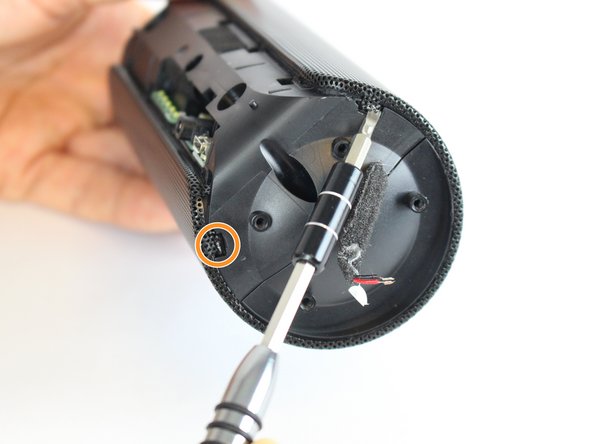
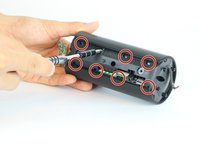
    • Using a flat-head screwdriver or spudger, pry out the 8 metal nibs on the back side of the speaker.

    • Repeat the same process for the 4 remaining metal nibs (two on each end).

    Vraag FixBot
  7. JBL Flip 2 MicroUSB Port Replacement: stap 7, afbeelding 1 van 2 JBL Flip 2 MicroUSB Port Replacement: stap 7, afbeelding 2 van 2
    • Expand the metal casing and carefully slide it off the speaker.

    Vraag FixBot
  8. JBL Flip 2 MicroUSB Port Replacement: stap 8, afbeelding 1 van 2 JBL Flip 2 MicroUSB Port Replacement: stap 8, afbeelding 2 van 2
    • Using the driver adapter, first insert the #4 socket into the driver; followed by the #1 Philip's head bit in order to reach the three 13.0 mm screws.

    Vraag FixBot
  9. JBL Flip 2 MicroUSB Port Replacement: stap 9, afbeelding 1 van 3 JBL Flip 2 MicroUSB Port Replacement: stap 9, afbeelding 2 van 3 JBL Flip 2 MicroUSB Port Replacement: stap 9, afbeelding 3 van 3
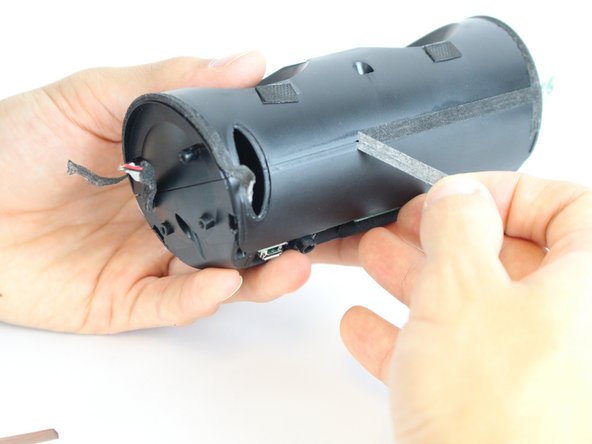
    • Using the classic spudger, get underneath the black tape strips found on both side of the device.

    • After lifting a portion of the tape off of the device, gently peel the tape off of the device, making sure to keep it intact.

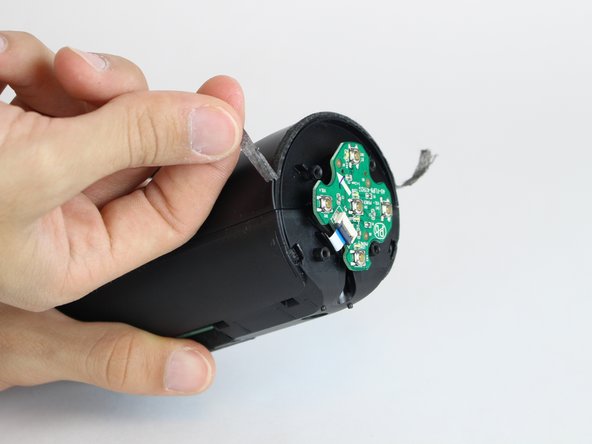
    • There is another piece of tape on the side of the device with the control buttons. Lift the tape with the classic spudger and then peel the rest of the tape off.

    Vraag FixBot
  10. JBL Flip 2 MicroUSB Port Replacement: stap 10, afbeelding 1 van 3 JBL Flip 2 MicroUSB Port Replacement: stap 10, afbeelding 2 van 3 JBL Flip 2 MicroUSB Port Replacement: stap 10, afbeelding 3 van 3
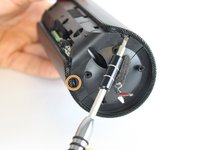
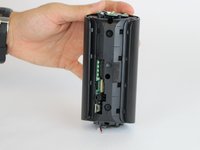
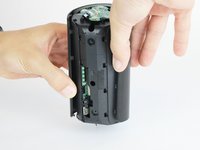
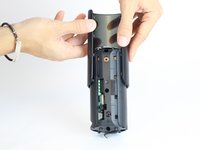
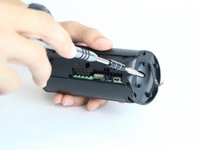
    • Wedge a spudger between the two halves where the tape was to pry the device open.

    • When working with electronics, it's important to choose a tool that's ESD-safe to avoid accidental damage to the device. The regular black nylon spudger or a plastic opening tool should be used whenever possible.

    Vraag FixBot
  11. JBL Flip 2 MicroUSB Port Replacement: stap 11, afbeelding 1 van 2 JBL Flip 2 MicroUSB Port Replacement: stap 11, afbeelding 2 van 2
    • Use the black spudger to disconnect the speaker cord from it's socket.

    Vraag FixBot
  12. JBL Flip 2 MicroUSB Port Replacement: stap 12, afbeelding 1 van 2 JBL Flip 2 MicroUSB Port Replacement: stap 12, afbeelding 2 van 2
    • Use the black spudger to disconnect the auxiliary wire from its socket.

    Vraag FixBot
  13. JBL Flip 2 MicroUSB Port Replacement: stap 13, afbeelding 1 van 1
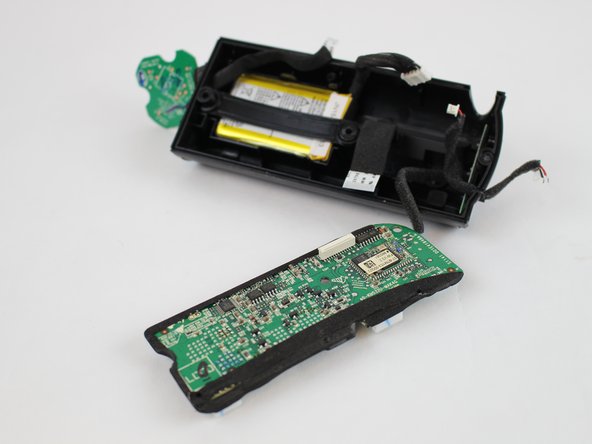
    • Carefully remove the cable connecting the control chip to the motherboard.

    Vraag FixBot
  14. JBL Flip 2 MicroUSB Port Replacement: stap 14, afbeelding 1 van 2 JBL Flip 2 MicroUSB Port Replacement: stap 14, afbeelding 2 van 2
    • Using the black spudger, carefully remove the cord connecting the battery to the motherboard.

    Vraag FixBot
  15. JBL Flip 2 MicroUSB Port Replacement: stap 15, afbeelding 1 van 1
    • Carefully remove the cable connecting the nfc chip to the motherboard.

    Vraag FixBot
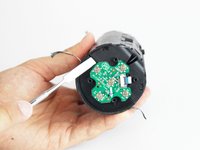
  16. JBL Flip 2 MicroUSB Port Replacement, MicroUSB Port: stap 16, afbeelding 1 van 1
    • Remove the 7.0 mm Philips #1 screw that connects the I/O board to the casing.

    Vraag FixBot
  17. JBL Flip 2 MicroUSB Port Replacement: stap 17, afbeelding 1 van 2 JBL Flip 2 MicroUSB Port Replacement: stap 17, afbeelding 2 van 2
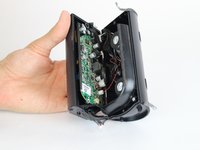
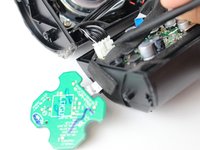
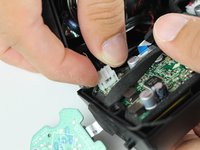
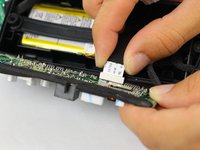
    • Remove the white ribbon cable that connects the I/O board to the motherboard.

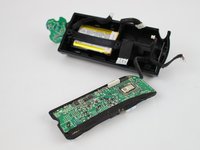
    • Put the motherboard to the side.

    Vraag FixBot
  18. JBL Flip 2 MicroUSB Port Replacement: stap 18, afbeelding 1 van 2 JBL Flip 2 MicroUSB Port Replacement: stap 18, afbeelding 2 van 2
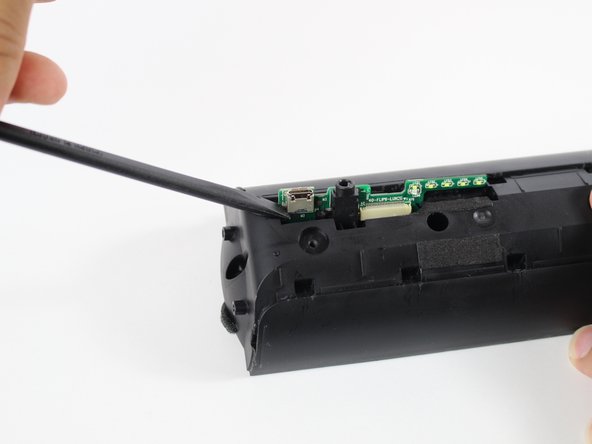
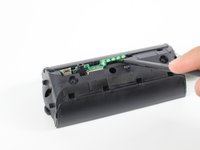
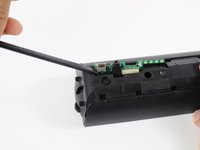
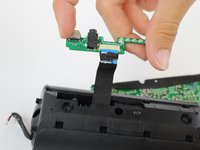
    • With the black spudger, carefully wedge out the I/O board.

    • Be careful not to damage the I/O board with the black spudger.

    Vraag FixBot
  19. JBL Flip 2 MicroUSB Port Replacement: stap 19, afbeelding 1 van 3 JBL Flip 2 MicroUSB Port Replacement: stap 19, afbeelding 2 van 3 JBL Flip 2 MicroUSB Port Replacement: stap 19, afbeelding 3 van 3
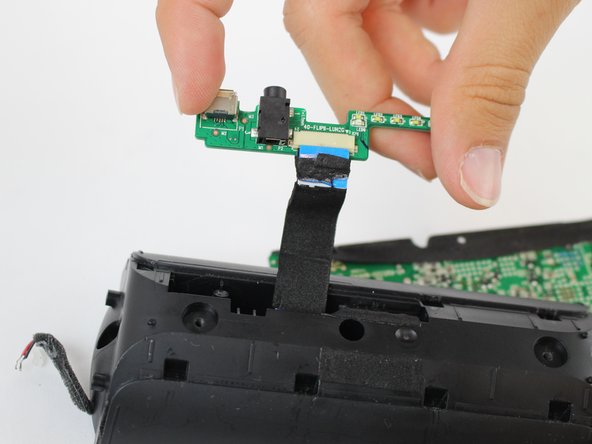
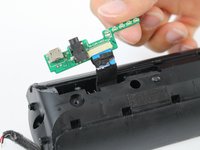
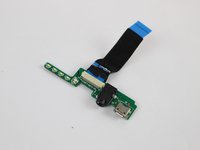
    • Gently pull the I/O board out from the speaker.

    Vraag FixBot
  20. JBL Flip 2 MicroUSB Port Replacement: stap 20, afbeelding 1 van 1
    • Check out IFixit's official soldering guide for help with these special projects.

    • Pry off the loose MicroUSB port.

    • Use the soldering iron to solder the new MicroUSB port onto the I/O board.

    • Soldering iron will be very hot.

    Vraag FixBot
Conclusie

To reassemble your device, follow these instructions in reverse order.

15 andere personen hebben deze handleiding voltooid.

Jonathan Wear

Lid sinds: 02/09/16

1.273 Reputatie

5 handleidingen geschreven

Team

USF Tampa, Team 11-2, Cheng Spring 2016 Lid van USF Tampa, Team 11-2, Cheng Spring 2016

USFT-CHENG-S16S11G2

4 Leden

11 handleidingen geschreven

18Gids Commentaar

In my model MicroUSB is on separate board and both ports were covered by min. 20ml of hot-melt adhesive.

I spent hour on cables separation by sponge pieces - it is very important to use again hot glue to restore hermetic (!) speakers encloser, otherwise you get annoing sound of shaking cable.
101 - Antwoord Deel

Mine was like that too! %#*@ hot glue made it a pain to pull the usb out. sadly i need a new usb board... mine 2 pads were completely gone... not worth trying to even fix the contacts...

Sammy Morini - Antwoord Deel

Good clear guide, but as reported by other earlier, steps starting from 17 will be different in case I/O board with USB is a separate piece of board covered with glue. You need hot glue gun to reassemble the unit after replacing the USC socket. Guy in below link shows the struggle with the glue: https://www.youtube.com/watch?v=N6ahpRyK...

piotr.kaszyca - Antwoord Deel

Anywhere I can just buy the whole usb i/o board?

Charles Burgos - Antwoord Deel

Hi

Did you find it and where ?

Thank You

Marc BERGER - Antwoord Deel

Voeg opmerking toe

Weergavestatistieken:

Afgelopen 24 uren: 1

Afgelopen 7 dagen: 20

Afgelopen 30 dagen: 96

Altijd: 55,710