Inleiding
The IBM ThinkPad T30 is a reliable laptop, but like many older systems, its processor (CPU) can become outdated or fail over time. The processor is responsible for executing instructions and running applications, so issues such as overheating, slow performance, or system instability can often be traced back to this component.
If troubleshooting steps such as cleaning the cooling system or reapplying thermal paste have not resolved these issues, replacing the processor may be necessary. This repair can help improve performance and restore the system to stable working condition.
In this guide, you will learn how to safely remove and replace the processor in the ThinkPad T30. This is a more advanced repair that requires working with internal components and should be attempted by users with some repair experience.
Before beginning, ensure the laptop is completely powered off, unplugged, and the battery is removed. It is also recommended to work in a static-free environment to avoid damaging sensitive components. During disassembly, you will need to carefully remove the cooling assembly, so be cautious of thermal paste and ensure it is properly cleaned and reapplied during reinstallation.
Avoid touching the processor contacts directly, and handle all components with care to prevent damage. Take your time during each step and keep track of screws and parts to ensure proper reassembly.
Wat je nodig hebt
-
-
Flip the ThinkPad upside down with the bottom facing you.
-
Slide the latch to the right into the unlock position.
-
While holding the latch in the unlock position, lift the battery out with your other hand.
 Vraag FixBot
-
-
-
Begin by removing the two black 16 mm Phillips #0 screws. The screws can be identified by the two notches next to each screw. One (marked in red) is near the battery lock and the other (not pictured) is next to the Wi-Fi cover.
-
Push up the bottom of the keyboard by poking your finger through the hole to the right of the yellow bios battery. You will feel slight resistance.
-
-
-
Lift the keyboard to expose the ribbon connector and lean it against the computer screen to keep the ribbon intact.
-
Use the plastic opening tool to gently pry the connector up from the motherboard.
-
You can now safely remove the keyboard.
-
-
-
-
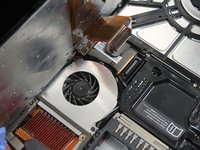
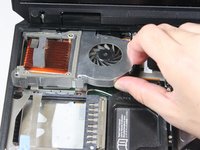
Remove the three 4 mm Phillips #0 screws securing the fan assembly.
-
-
-
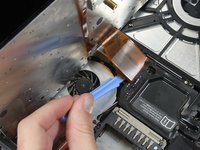
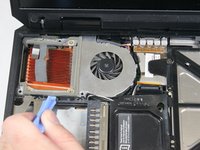
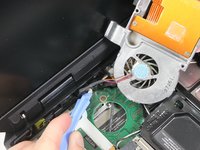
Using the plastic opening tool, gently lift the white connector out of its socket on the motherboard.
-
Follow iFixit's guide for [ongeldige handleidingslink] for a detailed explanation.
-
-
-
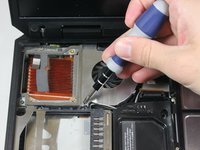
To remove the processor, set the dial on the processor socket to unlock using a small screwdriver.
-
Unscrew until the processor looks like it "lifts" a little.
-
-
-
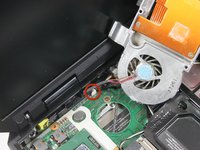
Gently lift up one side of the processor to unseat, then remove completely from device.
-










To reassemble your device, follow these instructions in reverse order. Take your e-waste to an R2 or e-Stewards certified recycler.
Annuleren: ik heb deze handleiding niet afgemaakt.
4 andere personen hebben deze handleiding voltooid.

Team

Cal Poly, Team 3-20, Amido Fall 2012 Lid van Cal Poly, Team 3-20, Amido Fall 2012
CPSU-AMIDO-F12S3G20
3 Leden
17 handleidingen geschreven
