Ga door naar hoofdinhoud
Word lid van de reparatiegemeenschap - Account aanmaken
Framework Desktop Wi-Fi Module Replacement

Wat je nodig hebt

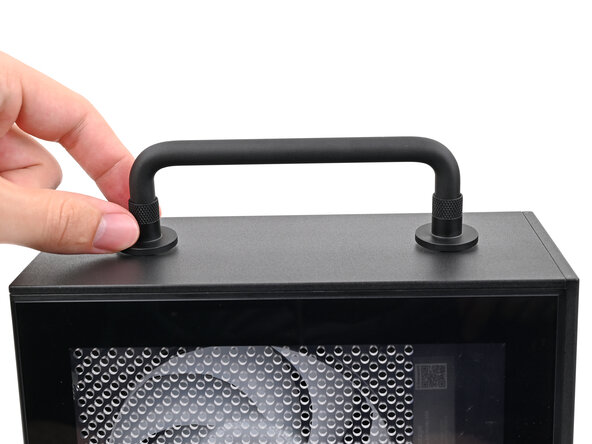
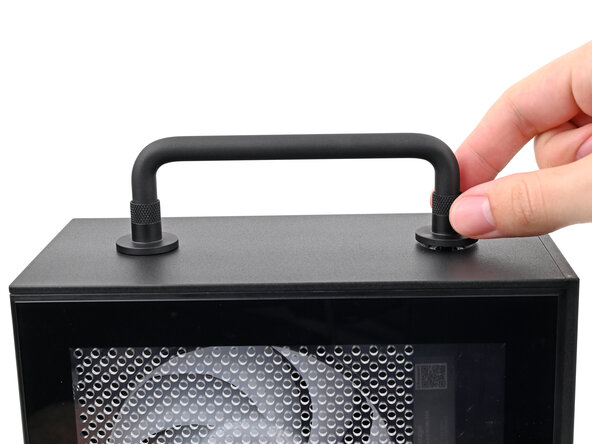
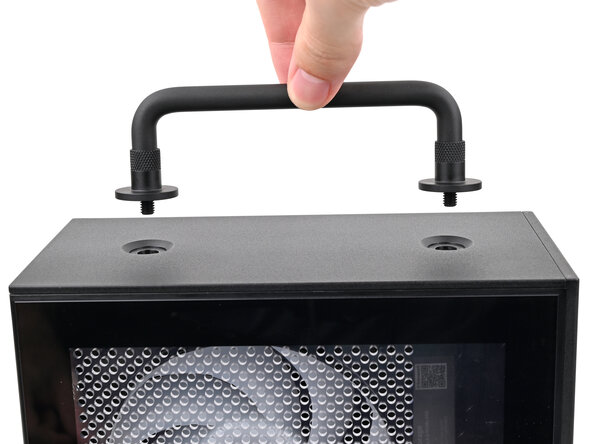
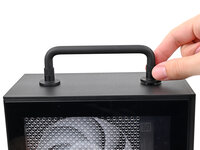
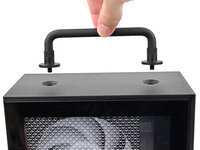
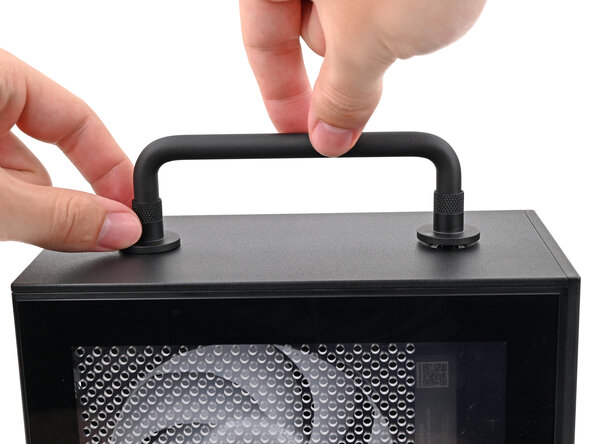
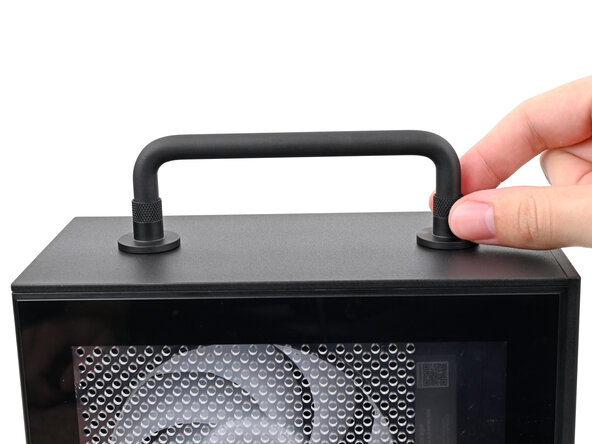
  1. Framework Desktop Wi-Fi Module Replacement, Remove the Handle: stap 1, afbeelding 1 van 3 Framework Desktop Wi-Fi Module Replacement, Remove the Handle: stap 1, afbeelding 2 van 3 Framework Desktop Wi-Fi Module Replacement, Remove the Handle: stap 1, afbeelding 3 van 3
    • If you installed the Handle on your Desktop, follow this step. Otherwise, skip it.

    • Rotate the Handle's screw threads counterclockwise on both sides until it comes free.

    • Remove the Handle.

    Vraag FixBot

    Voeg opmerking toe

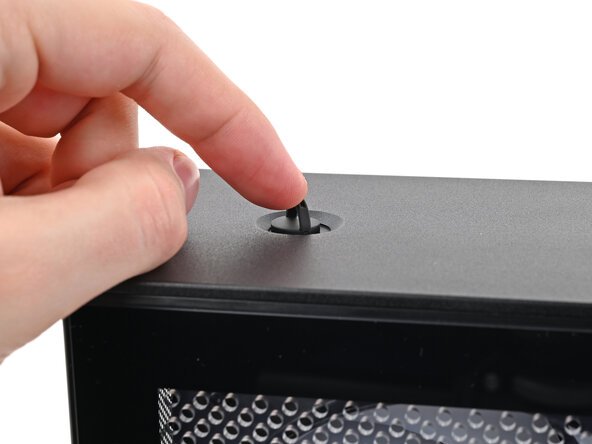
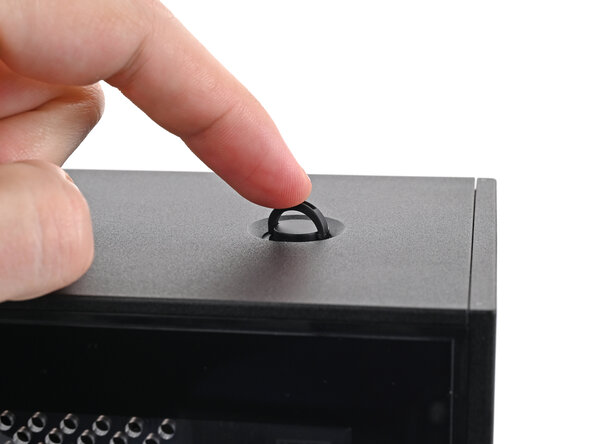
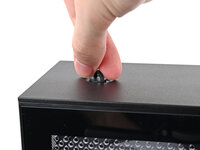
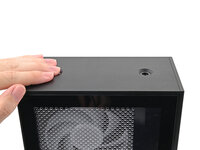
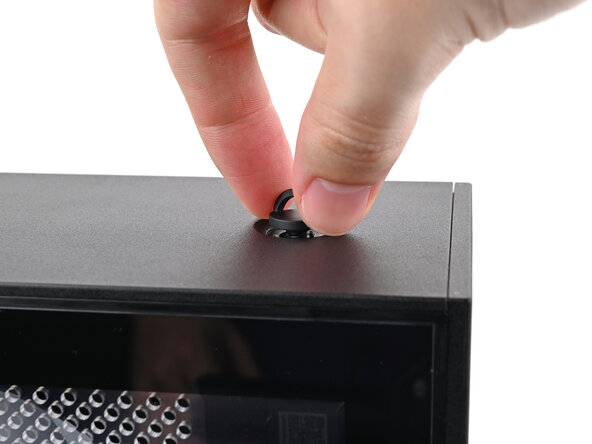
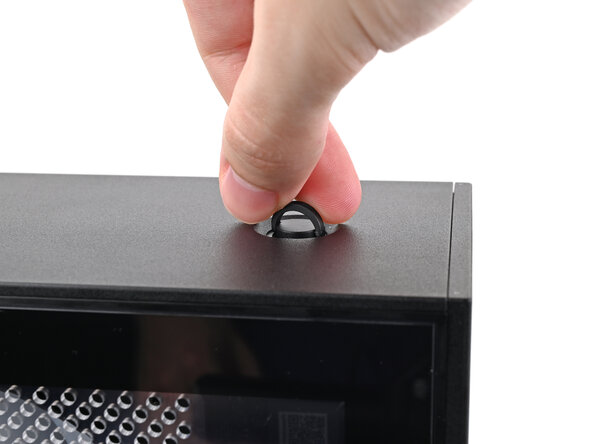
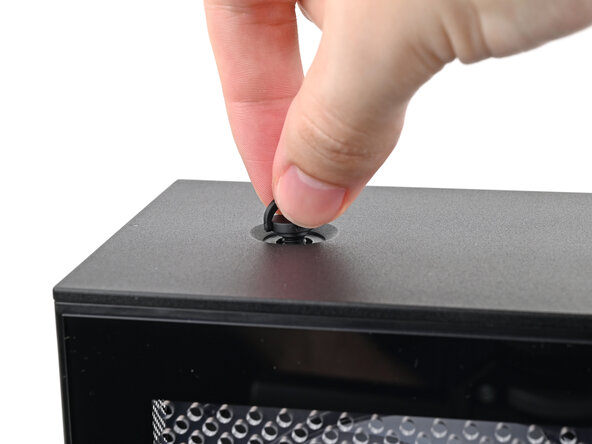
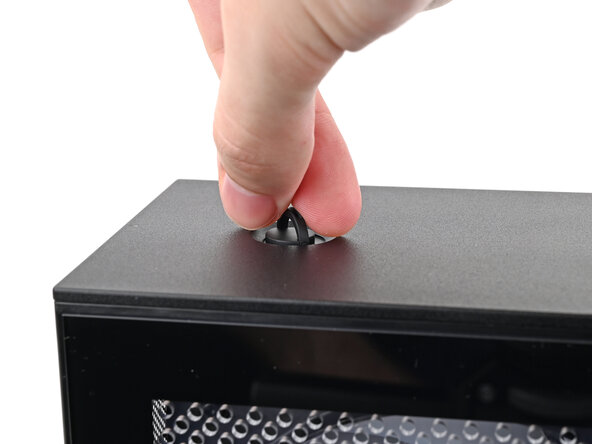
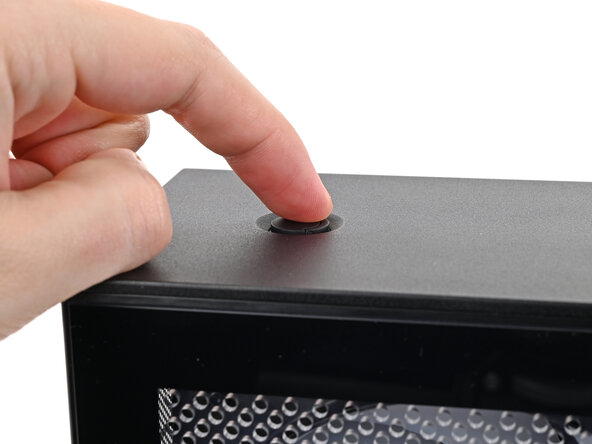
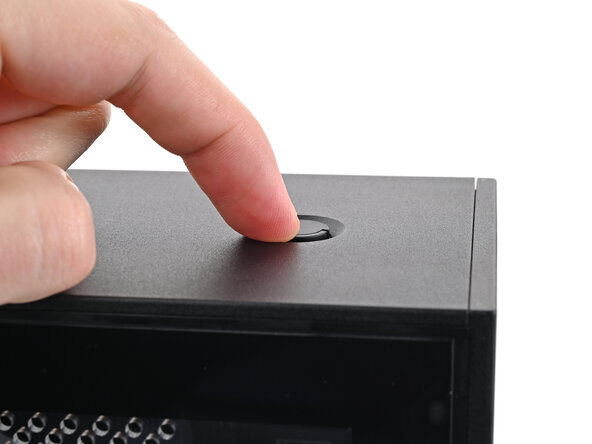
  2. Framework Desktop Wi-Fi Module Replacement, Remove the Top Panel screws: stap 2, afbeelding 1 van 3 Framework Desktop Wi-Fi Module Replacement, Remove the Top Panel screws: stap 2, afbeelding 2 van 3 Framework Desktop Wi-Fi Module Replacement, Remove the Top Panel screws: stap 2, afbeelding 3 van 3
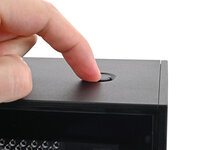
    • Use your finger to lift up the two D-rings on the Top Panel screws.

    Vraag FixBot

    Voeg opmerking toe

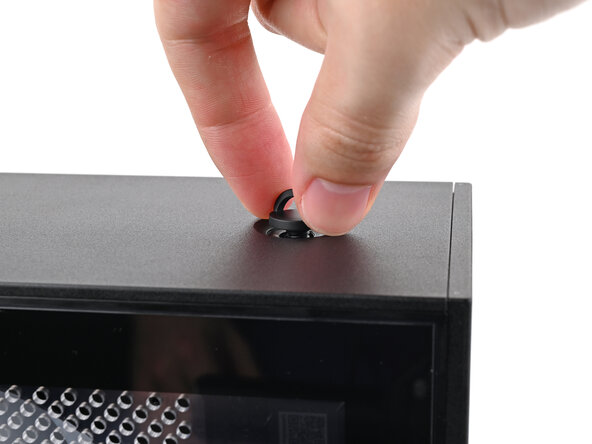
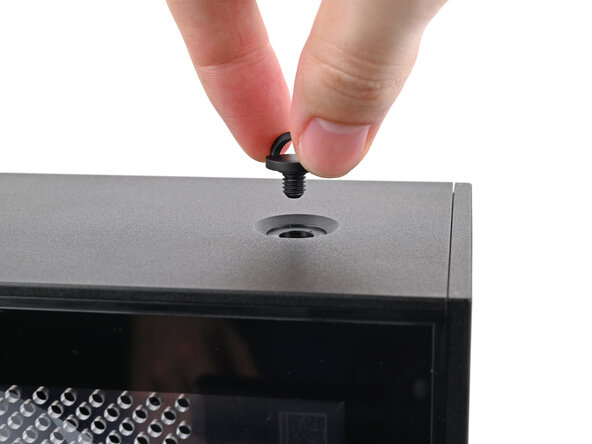
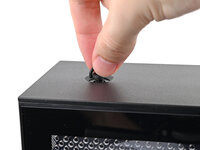
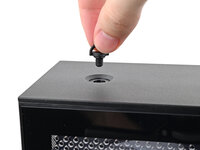
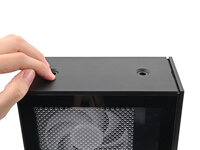
  3. Framework Desktop Wi-Fi Module Replacement: stap 3, afbeelding 1 van 3 Framework Desktop Wi-Fi Module Replacement: stap 3, afbeelding 2 van 3 Framework Desktop Wi-Fi Module Replacement: stap 3, afbeelding 3 van 3
    • Use your fingers to twist the screw counter-clockwise and loosen it.

    • Remove the Top Panel screw.

    Vraag FixBot

    Voeg opmerking toe

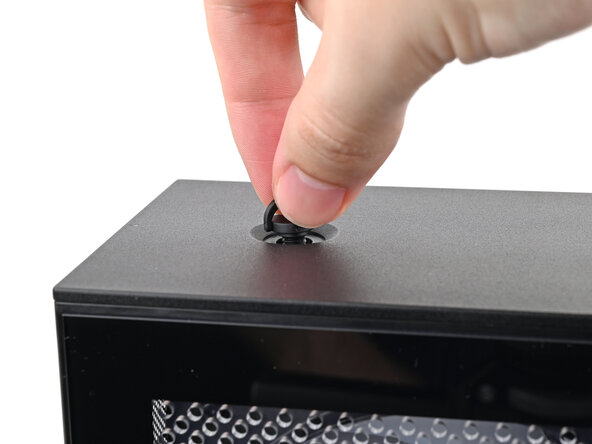
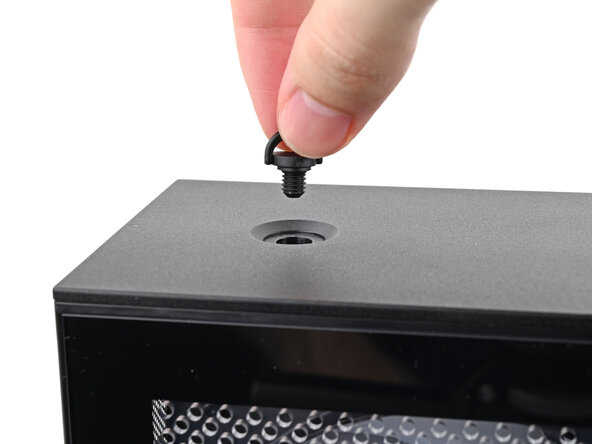
  4. Framework Desktop Wi-Fi Module Replacement: stap 4, afbeelding 1 van 3 Framework Desktop Wi-Fi Module Replacement: stap 4, afbeelding 2 van 3 Framework Desktop Wi-Fi Module Replacement: stap 4, afbeelding 3 van 3
    • Repeat the same procedure for the other Top Panel screw.

    Vraag FixBot

    Voeg opmerking toe

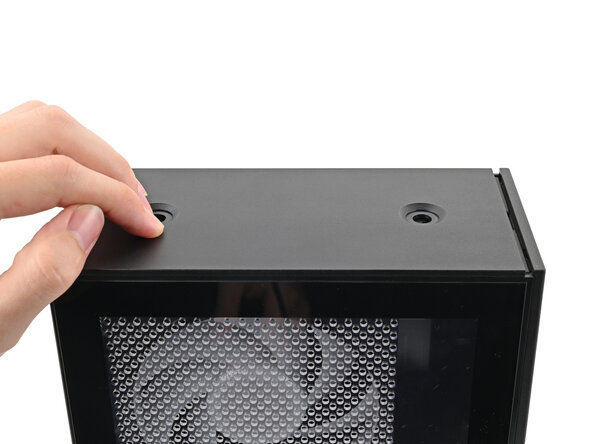
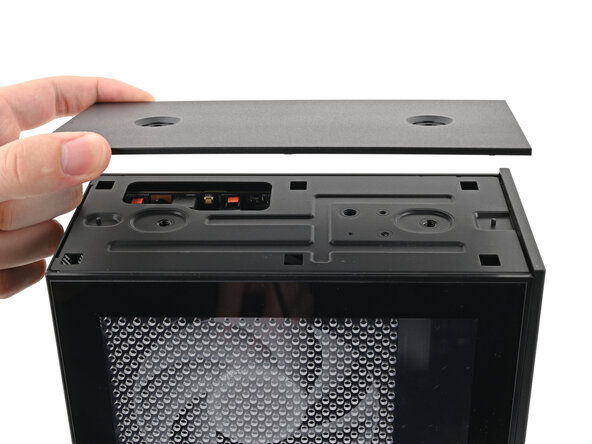
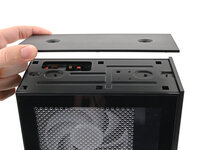
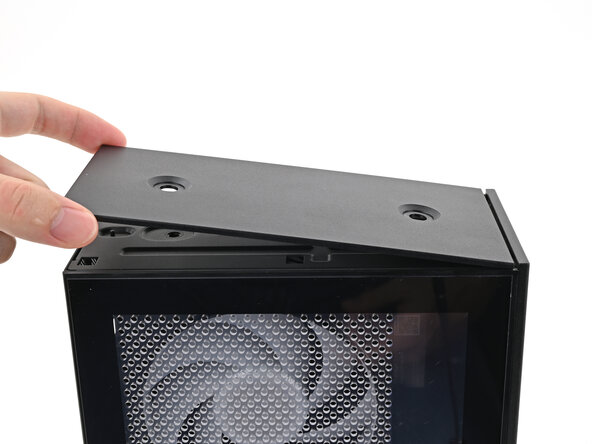
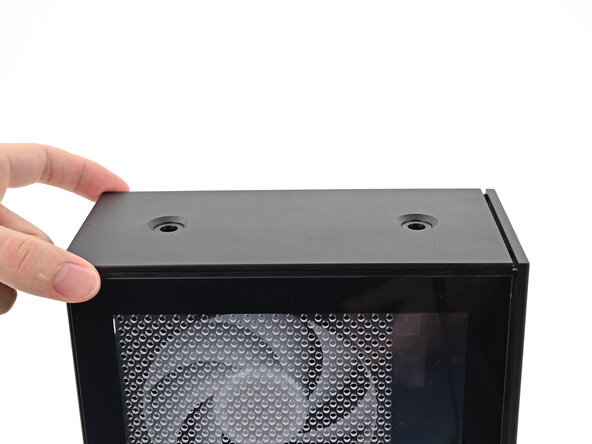
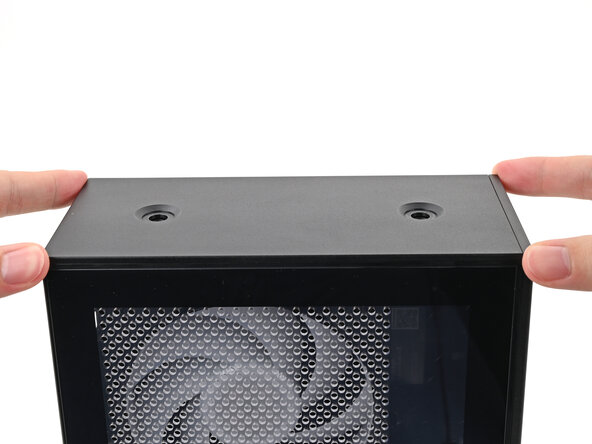
  5. Framework Desktop Wi-Fi Module Replacement, Remove the Top Panel: stap 5, afbeelding 1 van 3 Framework Desktop Wi-Fi Module Replacement, Remove the Top Panel: stap 5, afbeelding 2 van 3 Framework Desktop Wi-Fi Module Replacement, Remove the Top Panel: stap 5, afbeelding 3 van 3
    • Slide the Top Panel towards the rear of the computer to release the clips securing it to the chassis.

    • If you're having a hard time gripping the Top Panel, use the screw holes to get a better handhold.

    • Lift the Top Panel off the chassis and remove it.

    Vraag FixBot

    Voeg opmerking toe

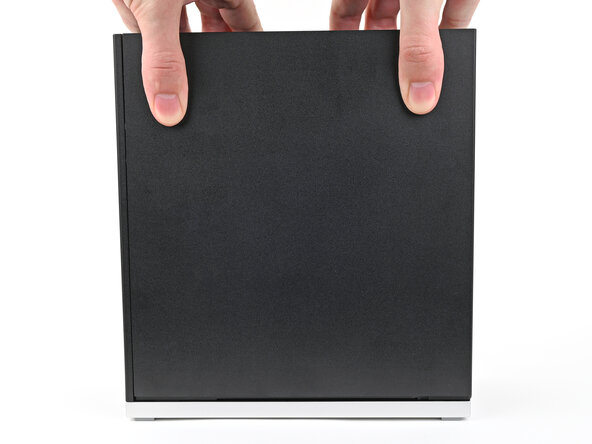
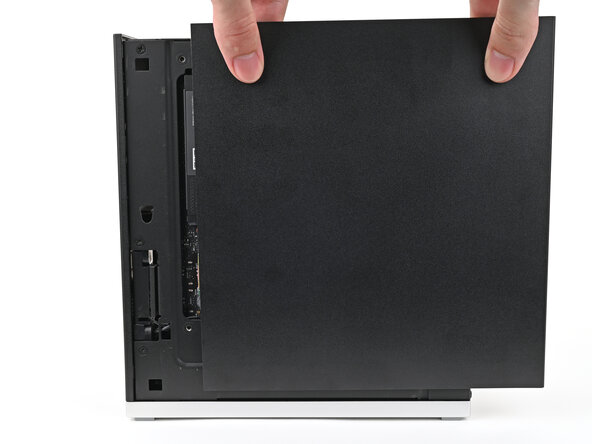
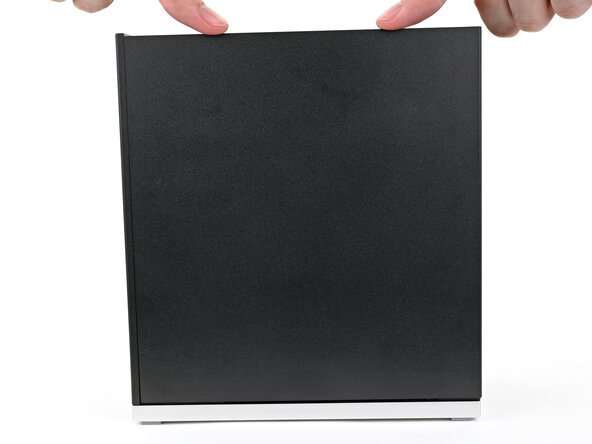
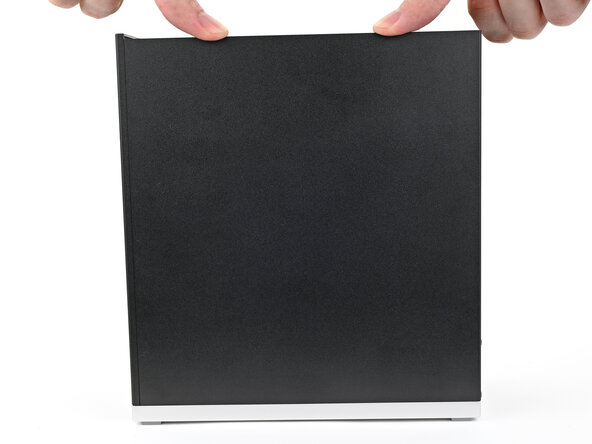
  6. Framework Desktop Wi-Fi Module Replacement, Remove the Right Panel: stap 6, afbeelding 1 van 3 Framework Desktop Wi-Fi Module Replacement, Remove the Right Panel: stap 6, afbeelding 2 van 3 Framework Desktop Wi-Fi Module Replacement, Remove the Right Panel: stap 6, afbeelding 3 van 3
    • Use your fingers to grip the top of the Right Panel and slide it upward to release its clips.

    • Remove the Right Panel.

    Vraag FixBot

    Voeg opmerking toe

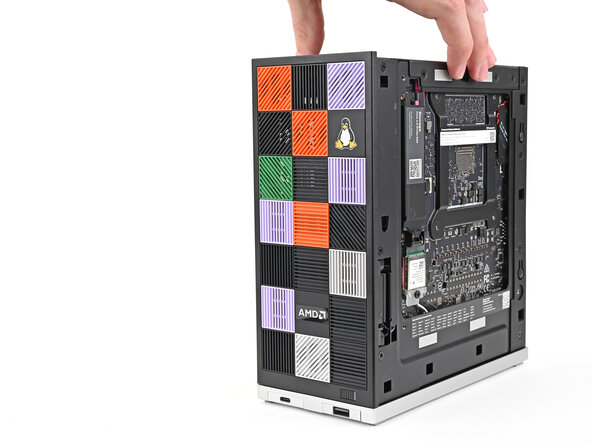
  7. Framework Desktop Wi-Fi Module Replacement, Reposition the Desktop: stap 7, afbeelding 1 van 2 Framework Desktop Wi-Fi Module Replacement, Reposition the Desktop: stap 7, afbeelding 2 van 2
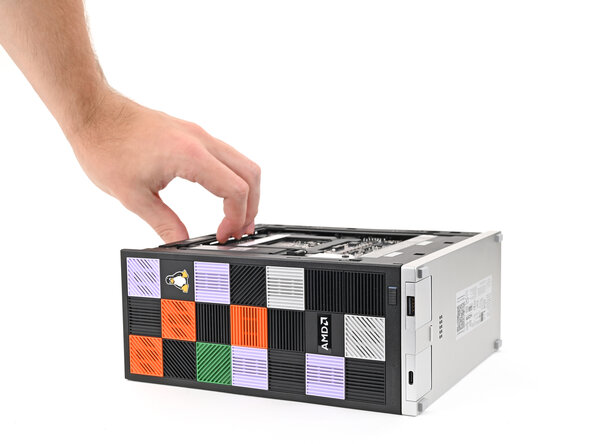
    • Lay the left side of the Desktop on your work surface so the underside of the Mainboard is facing upward.

    Vraag FixBot

    Voeg opmerking toe

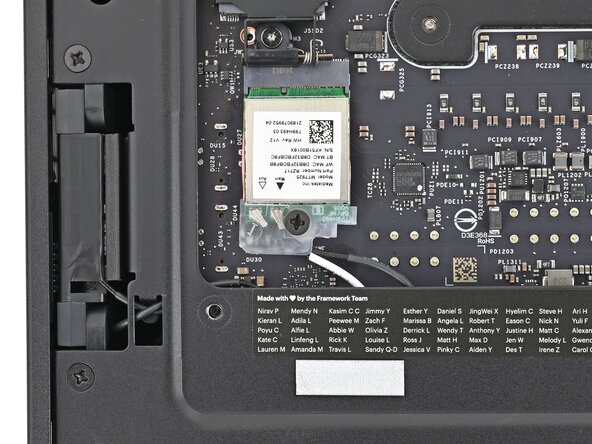
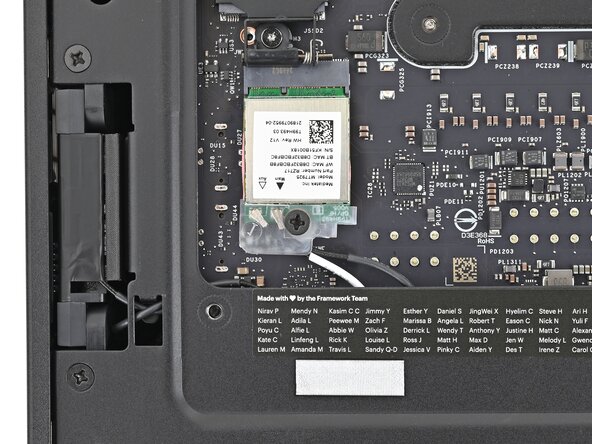
  8. Framework Desktop Wi-Fi Module Replacement, Remove the Wi-Fi Module screw: stap 8, afbeelding 1 van 2 Framework Desktop Wi-Fi Module Replacement, Remove the Wi-Fi Module screw: stap 8, afbeelding 2 van 2
    • Use your Framework Desktop Screwdriver to remove the 7.0 mm‑long Phillips screw securing the Wi-Fi module.

    Vraag FixBot

    Voeg opmerking toe

  9. Framework Desktop Wi-Fi Module Replacement, Remove the Wi-Fi module cover: stap 9, afbeelding 1 van 2 Framework Desktop Wi-Fi Module Replacement, Remove the Wi-Fi module cover: stap 9, afbeelding 2 van 2
    • Use your fingers to slide the Wi-Fi module cover straight off the bottom of the module.

    • Remove the cover.

    Vraag FixBot

    Voeg opmerking toe

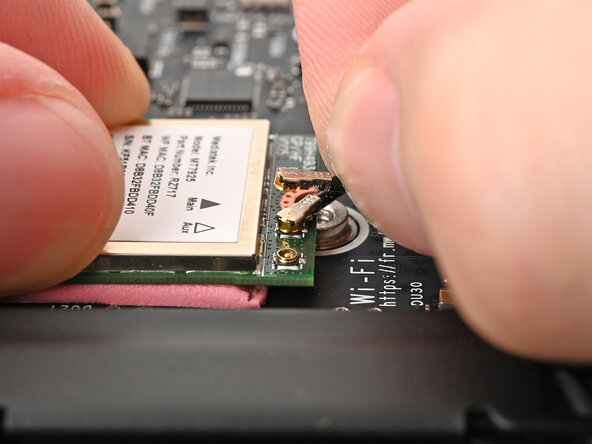
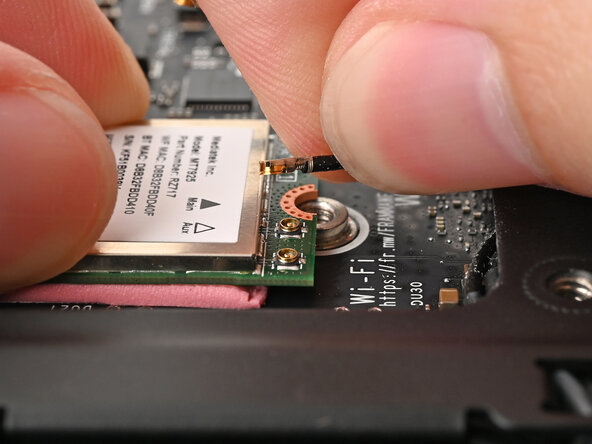
  10. Framework Desktop Wi-Fi Module Replacement, Disconnect the Wi-Fi Module: stap 10, afbeelding 1 van 3 Framework Desktop Wi-Fi Module Replacement, Disconnect the Wi-Fi Module: stap 10, afbeelding 2 van 3 Framework Desktop Wi-Fi Module Replacement, Disconnect the Wi-Fi Module: stap 10, afbeelding 3 van 3
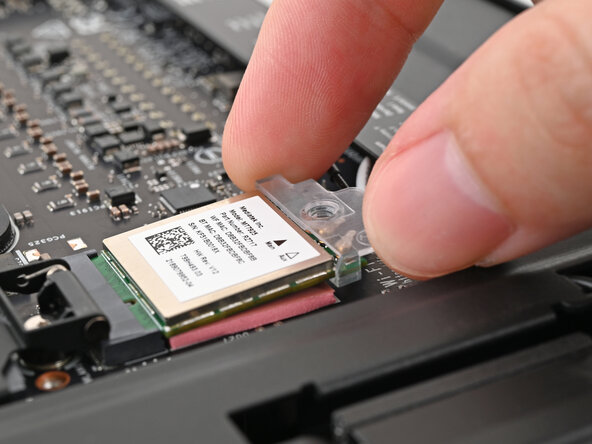
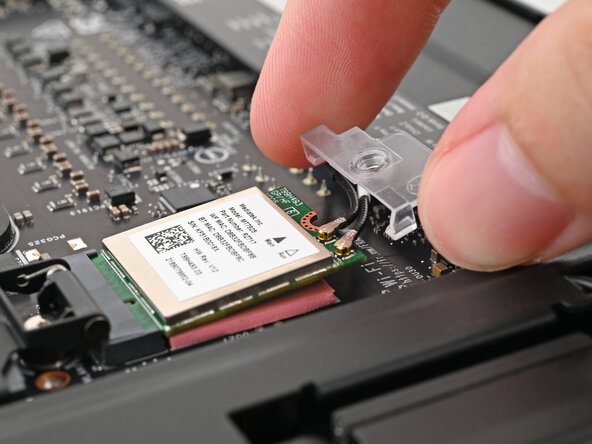
    • The Wi-Fi module has two delicate coaxial cable connectors. Follow this step carefully to avoid damaging them.

    • Press and hold the Wi-Fi module down with your fingers.

    • Use your fingers to grip the white antenna cable, as close to the metal head as possible.

    • If you have angled tweezers, slide one arm of a pair of tweezers under the antenna connector, as close to the metal head as possible.

    • Gently lift the connector straight up to disconnect the white antenna cable.

    • Repeat the procedure with the black antenna cable.

    Vraag FixBot

    Voeg opmerking toe

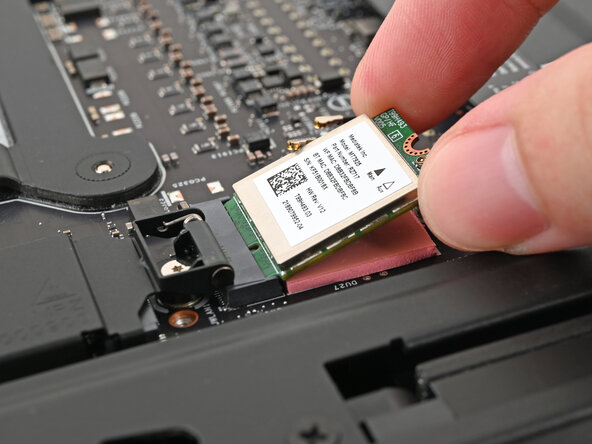
  11. Framework Desktop Wi-Fi Module Replacement, Remove the Wi-Fi module: stap 11, afbeelding 1 van 2 Framework Desktop Wi-Fi Module Replacement, Remove the Wi-Fi module: stap 11, afbeelding 2 van 2
    • Grip the Wi-Fi module by its edges and pull it straight out of its socket.

    • Remove the Wi-Fi module.

    Vraag FixBot

    Voeg opmerking toe

  12. Framework Desktop Wi-Fi Module Replacement, Disassembly complete: stap 12, afbeelding 1 van 1
    • Congratulations on completing disassembly! The remaining steps will show how to reassemble your Framework Desktop.

    Vraag FixBot

    Voeg opmerking toe

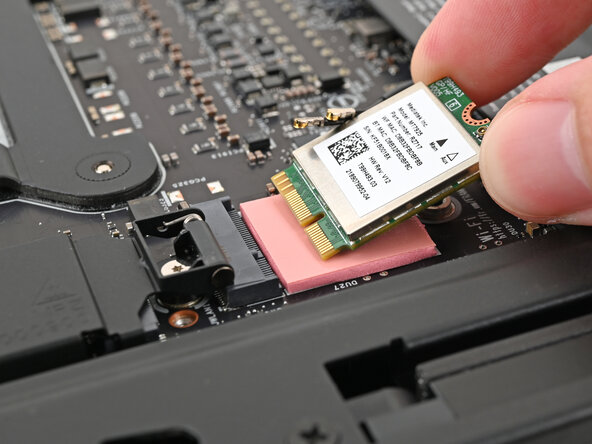
  13. Framework Desktop Wi-Fi Module Replacement, Install the Wi-Fi module: stap 13, afbeelding 1 van 2 Framework Desktop Wi-Fi Module Replacement, Install the Wi-Fi module: stap 13, afbeelding 2 van 2
    • Hold the Wi-Fi module by its edges. Don't touch the gold contacts with your fingers. If you do, wipe the contacts with a clean, lint-free cloth to remove any finger oils.

    • Align the Wi-Fi module's gold contacts and notch with the socket on the Mainboard.

    • Insert the Wi-Fi module into the socket at a shallow angle. The gold contacts should mostly be covered by the socket.

    • The Wi-Fi module fits into the socket in one orientation. If it doesn't fit, try flipping the module.

    Vraag FixBot

    Voeg opmerking toe

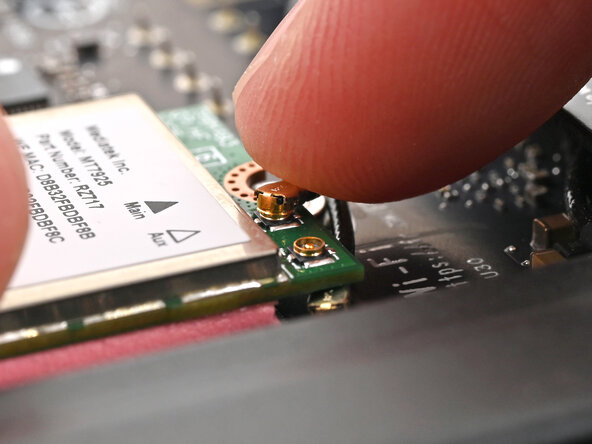
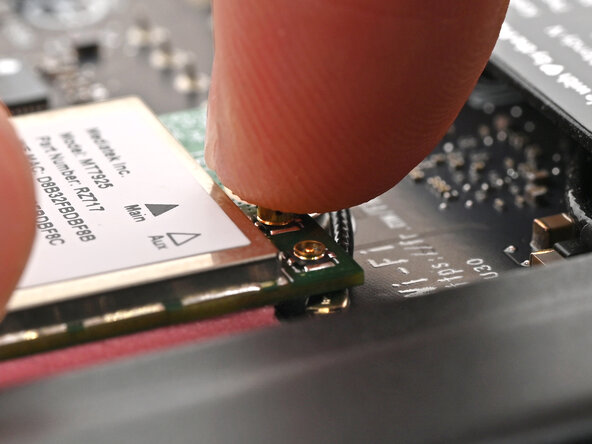
  14. Framework Desktop Wi-Fi Module Replacement, Connect the Wi-Fi Module: stap 14, afbeelding 1 van 3 Framework Desktop Wi-Fi Module Replacement, Connect the Wi-Fi Module: stap 14, afbeelding 2 van 3 Framework Desktop Wi-Fi Module Replacement, Connect the Wi-Fi Module: stap 14, afbeelding 3 van 3
    • Hold the Wi-Fi module down with your fingers.

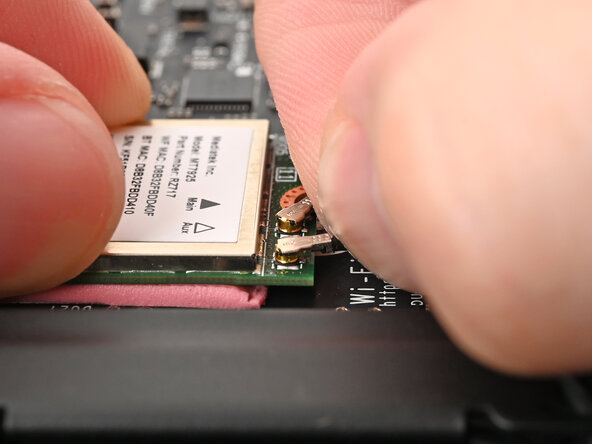
    • Position the black antenna cable connector over the left Wi-Fi module's coaxial socket.

    • Tweezers can help position the connector.

    • Use your finger to press the connector into place. You should feel a faint click, and the cable will stay attached to the socket by itself.

    • These connectors are very delicate! If the connector doesn't feel like it's clicking in place, reposition the connector and try again.

    • Repeat the procedure with the white antenna cable.

    Vraag FixBot

    Voeg opmerking toe

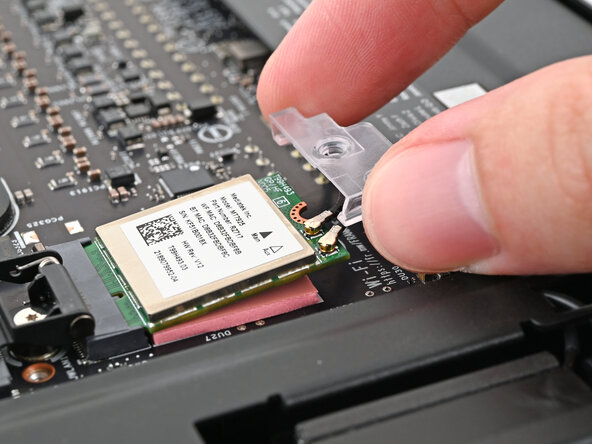
  15. Framework Desktop Wi-Fi Module Replacement: stap 15, afbeelding 1 van 3 Framework Desktop Wi-Fi Module Replacement: stap 15, afbeelding 2 van 3 Framework Desktop Wi-Fi Module Replacement: stap 15, afbeelding 3 van 3
    • Hook the Wi-Fi bracket over the corner of the Wi-Fi module opposite the antenna cables.

    • Rotate the bracket over the Wi-Fi module, making sure the screw hole isn't being obstructed by the antenna cables.

    Vraag FixBot

    Voeg opmerking toe

  16. Framework Desktop Wi-Fi Module Replacement, Install the Wi-Fi module screw: stap 16, afbeelding 1 van 2 Framework Desktop Wi-Fi Module Replacement, Install the Wi-Fi module screw: stap 16, afbeelding 2 van 2
    • Use your Framework Desktop Screwdriver to install the screw securing the Wi-Fi module.

    Vraag FixBot

    Voeg opmerking toe

  17. Framework Desktop Wi-Fi Module Replacement, Install the Right Panel: stap 17, afbeelding 1 van 3 Framework Desktop Wi-Fi Module Replacement, Install the Right Panel: stap 17, afbeelding 2 van 3 Framework Desktop Wi-Fi Module Replacement, Install the Right Panel: stap 17, afbeelding 3 van 3
    • Slide the Right Panel onto the right edge of the chassis, from top to bottom, and press it flat to ensure its clips are slotted into place.

    • There should be a small gap between the bottom of the Right Panel and the silver base.

    • Push the Right Panel towards the base of the computer to engage the clips.

    Vraag FixBot

    Voeg opmerking toe

  18. Framework Desktop Wi-Fi Module Replacement, Install the Top Panel: stap 18, afbeelding 1 van 3 Framework Desktop Wi-Fi Module Replacement, Install the Top Panel: stap 18, afbeelding 2 van 3 Framework Desktop Wi-Fi Module Replacement, Install the Top Panel: stap 18, afbeelding 3 van 3
    • Orient the Top Panel so its arrow is pointing towards the rear of the computer.

    • While holding the Top Panel at a slight downward angle, slide it across the top of the chassis (from rear to front) until you feel its clips catch.

    • There should be a small gap between the Top Panel and the front of the Desktop.

    • Lay the Top Panel flat on the chassis to align the remaining clips.

    Vraag FixBot

    Voeg opmerking toe

  19. Framework Desktop Wi-Fi Module Replacement: stap 19, afbeelding 1 van 2 Framework Desktop Wi-Fi Module Replacement: stap 19, afbeelding 2 van 2
    • While securing the computer with one hand, use the other hand to slide the Top Panel towards the front of the computer to close the gap and engage the clips.

    Vraag FixBot

    Voeg opmerking toe

  20. Framework Desktop Wi-Fi Module Replacement, Install the Handle: stap 20, afbeelding 1 van 2 Framework Desktop Wi-Fi Module Replacement, Install the Handle: stap 20, afbeelding 2 van 2
    • If you're installing the Handle on your Desktop, follow this step. Otherwise, skip it.

    • Place the Handle over the Top Panel screw holes.

    • While holding the Handle in place, twist the screw threads on both sides clockwise until they're snug on the Top Panel.

    Vraag FixBot

    Voeg opmerking toe

  21. Framework Desktop Wi-Fi Module Replacement, Install the top panel screws: stap 21, afbeelding 1 van 3 Framework Desktop Wi-Fi Module Replacement, Install the top panel screws: stap 21, afbeelding 2 van 3 Framework Desktop Wi-Fi Module Replacement, Install the top panel screws: stap 21, afbeelding 3 van 3
    • Insert the top panel screw into its hole and twist clockwise until it feels snug.

    Vraag FixBot

    Voeg opmerking toe

  22. Framework Desktop Wi-Fi Module Replacement: stap 22, afbeelding 1 van 3 Framework Desktop Wi-Fi Module Replacement: stap 22, afbeelding 2 van 3 Framework Desktop Wi-Fi Module Replacement: stap 22, afbeelding 3 van 3
    • Repeat the same procedure for the other top panel screw.

    Vraag FixBot

    Voeg opmerking toe

  23. Framework Desktop Wi-Fi Module Replacement: stap 23, afbeelding 1 van 3 Framework Desktop Wi-Fi Module Replacement: stap 23, afbeelding 2 van 3 Framework Desktop Wi-Fi Module Replacement: stap 23, afbeelding 3 van 3
    • Use your finger to close the two D-rings on the top panel screws.

    Vraag FixBot

    Voeg opmerking toe

Conclusie

You finished fixing your Framework Desktop!

Take your e-waste to an R2 or e-Stewards certified recycler.

If you need help, contact Framework support.

Annuleren: ik heb deze handleiding niet afgemaakt.

Alex Diaz-Kokaisl

Lid sinds: 01/16/22

239.177 Reputatie

1.171 handleidingen geschreven

0Gids Commentaar

Voeg opmerking toe

Weergavestatistieken:

Afgelopen 24 uren: 2

Afgelopen 7 dagen: 16

Afgelopen 30 dagen: 53

Altijd: 947