Ga door naar hoofdinhoud
Word lid van de reparatiegemeenschap - Account aanmaken

Ematic FunTab 3 Battery Replacement

Wat je nodig hebt

  1. Ematic FunTab 3 Battery Replacement, Back Panel: stap 1, afbeelding 1 van 3 Ematic FunTab 3 Battery Replacement, Back Panel: stap 1, afbeelding 2 van 3 Ematic FunTab 3 Battery Replacement, Back Panel: stap 1, afbeelding 3 van 3
    • Turn off the device before starting

    • To prevent damage, open the device on the side without the buttons.

    • Insert the hooked end of the plastic opening tool in the gap between the screen and the back panel on the edge of the device.

    • Slide the plastic opening tool down the long side of the device.

    • Insert tool again and slide it down the long slide of the case a second time.

  2. Ematic FunTab 3 Battery Replacement: stap 2, afbeelding 1 van 1
    • Pull the back panel away from the screen.

  3. Ematic FunTab 3 Battery Replacement, Battery: stap 3, afbeelding 1 van 1
    • Remove the black tape to reveal the wire ribbon connector.

  4. Ematic FunTab 3 Battery Replacement: stap 4, afbeelding 1 van 3 Ematic FunTab 3 Battery Replacement: stap 4, afbeelding 2 van 3 Ematic FunTab 3 Battery Replacement: stap 4, afbeelding 3 van 3
    Gereedschap gebruikt in deze stap:
    Tweezers
    $4.99
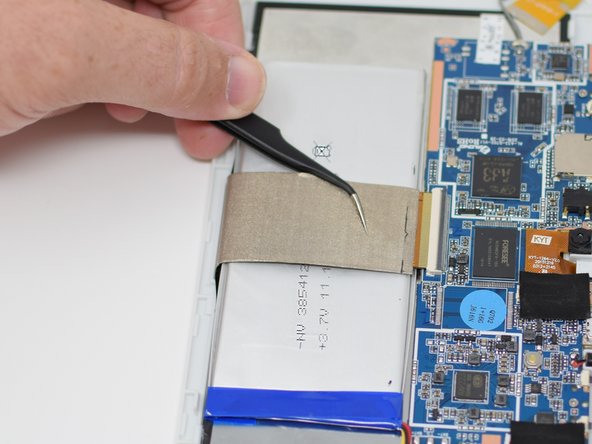
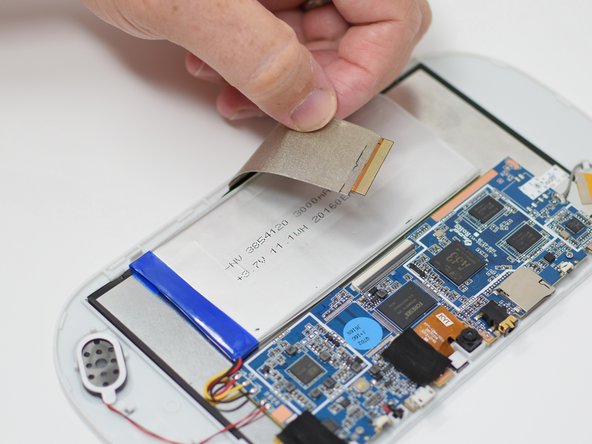
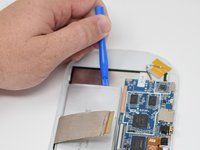
    • Flip up the black retaining tab using the plastic opening tool.

    • Pull out the large wire ribbon that crosses over the battery.

    • You may need tweezers to pull out the wire ribbon.

  5. Ematic FunTab 3 Battery Replacement: stap 5, afbeelding 1 van 3 Ematic FunTab 3 Battery Replacement: stap 5, afbeelding 2 van 3 Ematic FunTab 3 Battery Replacement: stap 5, afbeelding 3 van 3
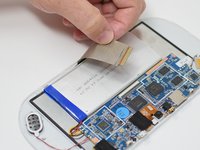
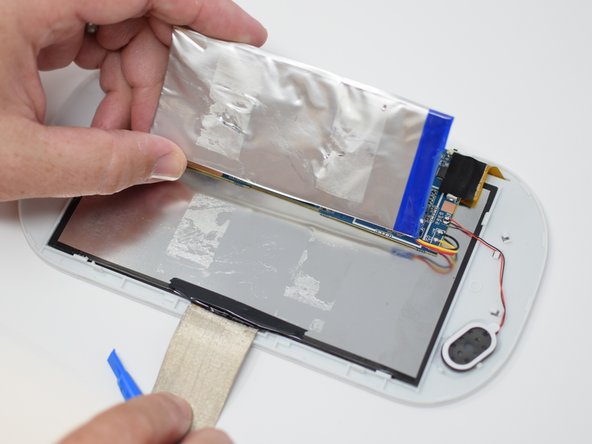
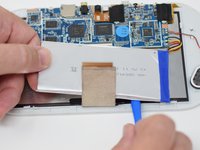
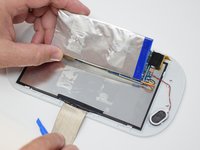
    • Insert the plastic opening tool under the battery.

    • Using the plastic opening tool, pry up the battery.

    • There is tape on the back of the battery. Some more force may be required to separate the battery from the back of the display.

  6. Ematic FunTab 3 Battery Replacement: stap 6, afbeelding 1 van 2 Ematic FunTab 3 Battery Replacement: stap 6, afbeelding 2 van 2
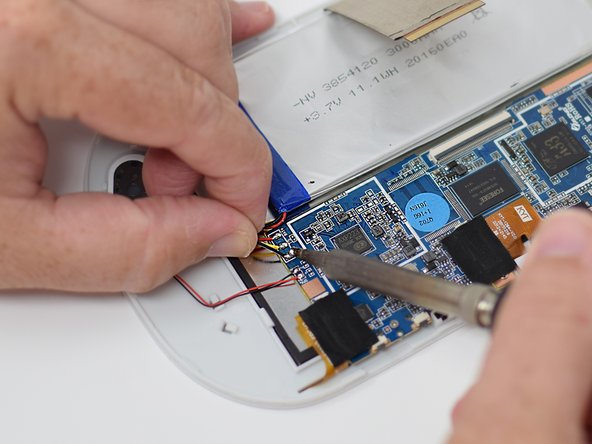
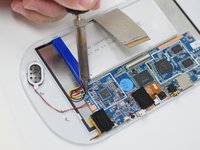
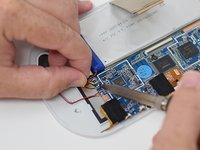
    • Remove the wires from the motherboard using a soldering iron tool. Here is a link on How To Solder and Desolder Connections.

    • After the connections are desoldered, remove the battery.

    • Close the black ribbon retaining tabs once ribbons are inserted during reassembly.

Conclusie

To reassemble your device, follow these instructions in reverse order.

Amanda Davis

Lid sinds: 07/11/18

581 Reputatie

5 handleidingen geschreven

Team

UW Tacoma, Team S1-G5, Cardinal Summer 2018 Lid van UW Tacoma, Team S1-G5, Cardinal Summer 2018

UWT-CARDINAL-SU18S1G5

4 Leden

12 handleidingen geschreven

0Gids Commentaar

Voeg opmerking toe

Weergavestatistieken:

Afgelopen 24 uren: 1

Afgelopen 7 dagen: 5

Afgelopen 30 dagen: 13

Altijd: 790