Ga door naar hoofdinhoud
Word lid van de reparatiegemeenschap - Account aanmaken

DualShock 4 CUH-ZCT2 Touchpad Replacement

Wat je nodig hebt

  1. DualShock 4 CUH-ZCT2 Touchpad Replacement, Remove the rear panel screws: stap 1, afbeelding 1 van 2 DualShock 4 CUH-ZCT2 Touchpad Replacement, Remove the rear panel screws: stap 1, afbeelding 2 van 2
    • Use a Phillips screwdriver to remove the four 6.4 mm-long screws from the rear panel.

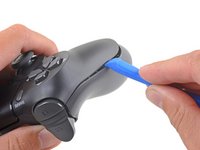
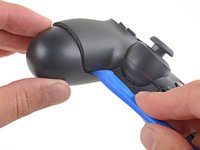
  2. DualShock 4 CUH-ZCT2 Touchpad Replacement, Separate the rear panel: stap 2, afbeelding 1 van 2 DualShock 4 CUH-ZCT2 Touchpad Replacement, Separate the rear panel: stap 2, afbeelding 2 van 2
    • Four fragile plastic clips hold the panels together. You can see their locations more clearly in this guide.

    • The clips help hold the seams together. If you break these clips, the controller will still work.

    • Insert an opening tool into the crease where the front and rear panel meet, starting from the outside edge of either handle.

    • Gently pry the rear panel off of the front panel until they become partially separated.

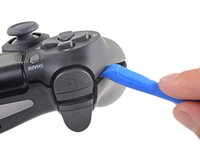
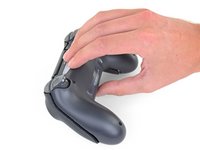
  3. DualShock 4 CUH-ZCT2 Touchpad Replacement, Release the plastic clips: stap 3, afbeelding 1 van 3 DualShock 4 CUH-ZCT2 Touchpad Replacement, Release the plastic clips: stap 3, afbeelding 2 van 3 DualShock 4 CUH-ZCT2 Touchpad Replacement, Release the plastic clips: stap 3, afbeelding 3 van 3
    • Use the opening tool to separate the panels by releasing the plastic clips around the perimeter of the controller.

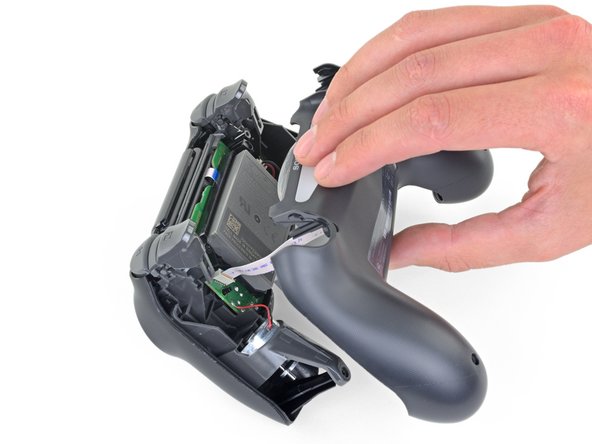
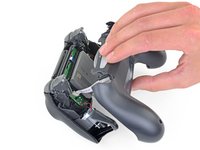
  4. DualShock 4 CUH-ZCT2 Touchpad Replacement, Remove the rear panel: stap 4, afbeelding 1 van 2 DualShock 4 CUH-ZCT2 Touchpad Replacement, Remove the rear panel: stap 4, afbeelding 2 van 2
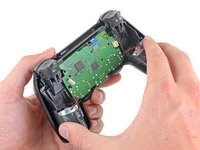
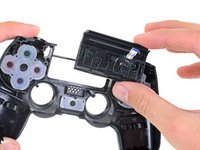
    • Lift the rear panel directly away from the controller.

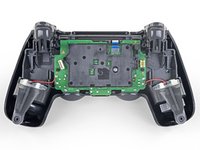
    • Do not completely remove the rear panel. It is still attached to the controller by a ribbon cable.

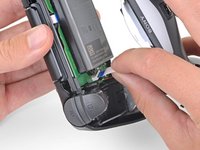
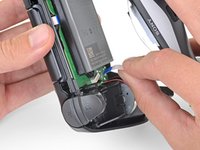
  5. DualShock 4 CUH-ZCT2 Touchpad Replacement: stap 5, afbeelding 1 van 2 DualShock 4 CUH-ZCT2 Touchpad Replacement: stap 5, afbeelding 2 van 2
    Gereedschap gebruikt in deze stap:
    Tweezers
    $4.99
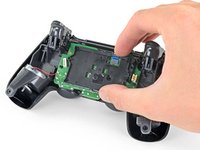
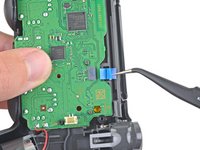
    • Use your fingers to gently pull the ribbon cable straight out of its connector on the motherboard.

    • Since this cable's pull tab is too small to grab with fingers or tweezers, grab the cable itself. Otherwise utilize pull tabs whenever possible.

    • During reassembly, grab the ribbon cable by the blue tab and gently press the cable straight into the connector. Push the blue tab rather than the ribbon cable itself.

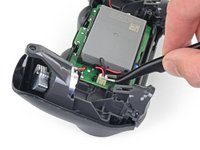
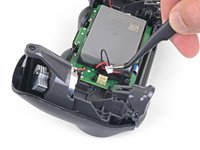
  6. DualShock 4 CUH-ZCT2 Touchpad Replacement, Remove the battery: stap 6, afbeelding 1 van 2 DualShock 4 CUH-ZCT2 Touchpad Replacement, Remove the battery: stap 6, afbeelding 2 van 2
    Gereedschap gebruikt in deze stap:
    Tweezers
    $4.99
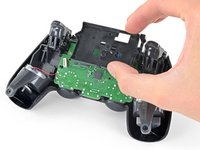
    • Use a pair of tweezers to pull the battery's power connector straight up from the motherboard.

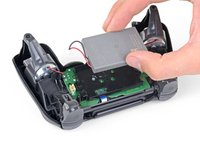
  7. DualShock 4 CUH-ZCT2 Touchpad Replacement: stap 7, afbeelding 1 van 2 DualShock 4 CUH-ZCT2 Touchpad Replacement: stap 7, afbeelding 2 van 2
    • Remove the battery.

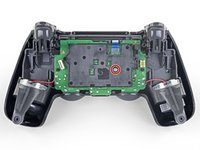
  8. DualShock 4 CUH-ZCT2 Touchpad Replacement, Remove the motherboard: stap 8, afbeelding 1 van 2 DualShock 4 CUH-ZCT2 Touchpad Replacement, Remove the motherboard: stap 8, afbeelding 2 van 2
    • Use a Phillips screwdriver to remove the 6.4 mm-long screw securing the battery bracket.

  9. DualShock 4 CUH-ZCT2 Touchpad Replacement: stap 9, afbeelding 1 van 2 DualShock 4 CUH-ZCT2 Touchpad Replacement: stap 9, afbeelding 2 van 2
    • Remove the battery bracket.

  10. DualShock 4 CUH-ZCT2 Touchpad Replacement: stap 10, afbeelding 1 van 2 DualShock 4 CUH-ZCT2 Touchpad Replacement: stap 10, afbeelding 2 van 2
    Gereedschap gebruikt in deze stap:
    Tweezers
    $4.99
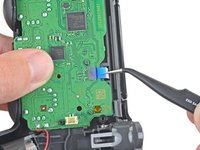
    • Use a pair of tweezers to disconnect the touch panel ribbon cable.

    • Pull the ribbon cable directly away from its connector on the motherboard by the blue pull tab, not by the cable itself.

  11. DualShock 4 CUH-ZCT2 Touchpad Replacement: stap 11, afbeelding 1 van 2 DualShock 4 CUH-ZCT2 Touchpad Replacement: stap 11, afbeelding 2 van 2
    • Separate the motherboard and midframe assembly from the front panel.

  12. DualShock 4 CUH-ZCT2 Touchpad Replacement, Remove the touchpad: stap 12, afbeelding 1 van 3 DualShock 4 CUH-ZCT2 Touchpad Replacement, Remove the touchpad: stap 12, afbeelding 2 van 3 DualShock 4 CUH-ZCT2 Touchpad Replacement, Remove the touchpad: stap 12, afbeelding 3 van 3
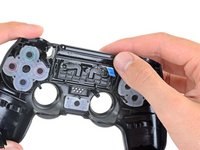
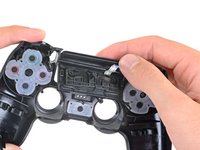
    • Push the bottom of the touchpad in from the front side of the controller to separate it from the front case.

    • Remove the touchpad from the bezel holding it to the front case.

Conclusie

To reassemble your device, follow the above steps in reverse order.

Take your e-waste to an R2 or e-Stewards certified recycler.

Repair didn’t go as planned? Check out our Answers community for troubleshooting help.

2 andere personen hebben deze handleiding voltooid.

Sam Omiotek

Lid sinds: 02/25/19

95.161 Reputatie

290 handleidingen geschreven

0Gids Commentaar

Voeg opmerking toe

Weergavestatistieken:

Afgelopen 24 uren: 12

Afgelopen 7 dagen: 70

Afgelopen 30 dagen: 292

Altijd: 10,633