Ga door naar hoofdinhoud
Word lid van de reparatiegemeenschap - Account aanmaken

Asus A53S Fan Assembly Replacement

Wat je nodig hebt

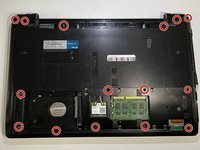
  1. Asus A53S Fan Assembly Replacement, Motherboard: stap 1, afbeelding 1 van 3 Asus A53S Fan Assembly Replacement, Motherboard: stap 1, afbeelding 2 van 3 Asus A53S Fan Assembly Replacement, Motherboard: stap 1, afbeelding 3 van 3
    • Power off your device and remove the battery before beginning this guide.

    • Flip the laptop so the underside is facing up.

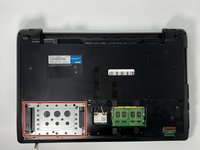
    • Using a Phillips #01 screwdriver, unscrew the two 6 mm screws.

    Vraag FixBot

    Voeg opmerking toe

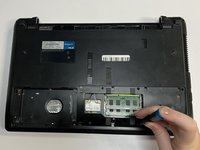
  2. Asus A53S Fan Assembly Replacement: stap 2, afbeelding 1 van 2 Asus A53S Fan Assembly Replacement: stap 2, afbeelding 2 van 2
    • Place a spudger under the white wire and pull it up gently, disconnecting it from the Wi-Fi card.

    • Use the same method on the black wire.

    Vraag FixBot

    Voeg opmerking toe

  3. Asus A53S Fan Assembly Replacement: stap 3, afbeelding 1 van 3 Asus A53S Fan Assembly Replacement: stap 3, afbeelding 2 van 3 Asus A53S Fan Assembly Replacement: stap 3, afbeelding 3 van 3
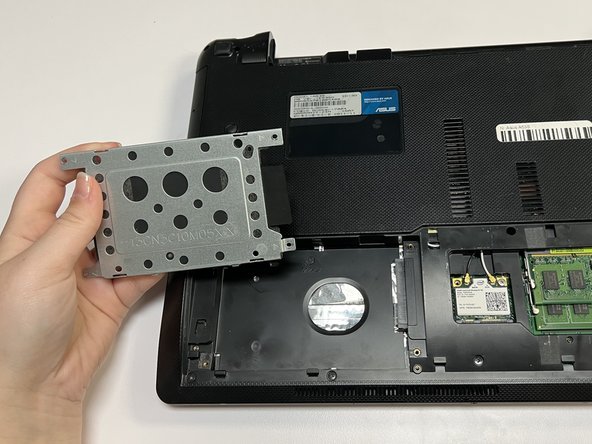
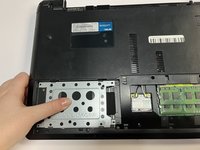
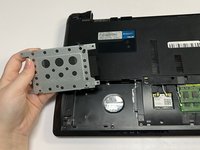
    • Push the hard drive to the left and remove it.

    Vraag FixBot

    Voeg opmerking toe

  4. Asus A53S Fan Assembly Replacement: stap 4, afbeelding 1 van 2 Asus A53S Fan Assembly Replacement: stap 4, afbeelding 2 van 2
    • Using a Phillips #01 screwdriver, unscrew the fifteen 6 mm screws.

    Vraag FixBot

    Voeg opmerking toe

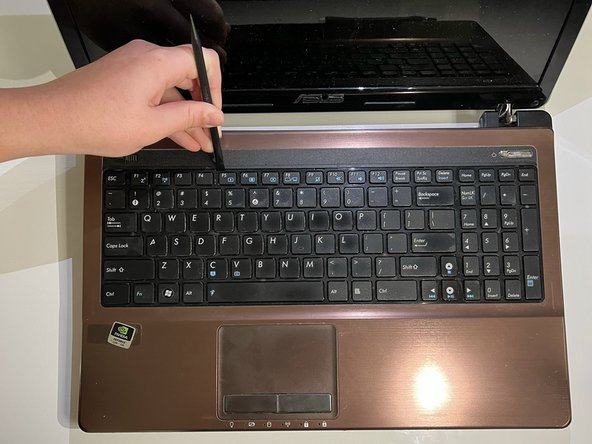
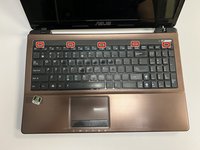
  5. Asus A53S Fan Assembly Replacement: stap 5, afbeelding 1 van 2 Asus A53S Fan Assembly Replacement: stap 5, afbeelding 2 van 2
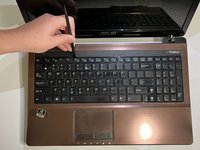
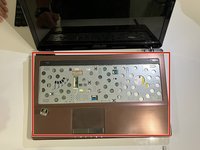
    • Flip over the laptop and open it.

    • Using the spudger, insert the flat end into the notches at the top of the keyboard and slowly "pop" the keyboard up and out of the device.

    Vraag FixBot

    Voeg opmerking toe

  6. Asus A53S Fan Assembly Replacement: stap 6, afbeelding 1 van 2 Asus A53S Fan Assembly Replacement: stap 6, afbeelding 2 van 2
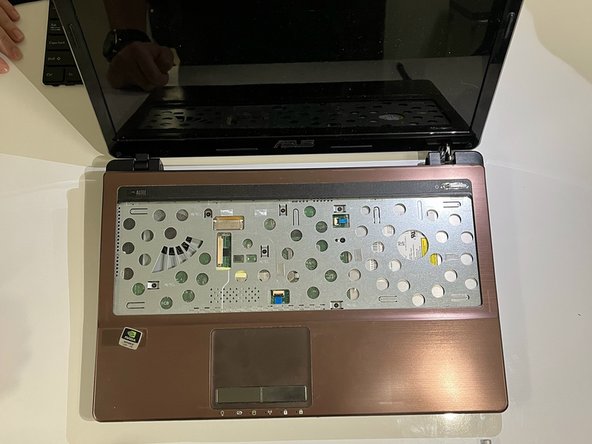
    • Using the flat end of the spudger, lift the black ZIF connector lock bar and disconnect the keyboard from the computer.

    • Remove the keyboard.

    Vraag FixBot

    Voeg opmerking toe

  7. Asus A53S Fan Assembly Replacement: stap 7, afbeelding 1 van 2 Asus A53S Fan Assembly Replacement: stap 7, afbeelding 2 van 2
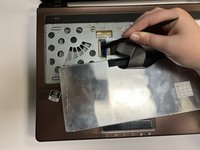
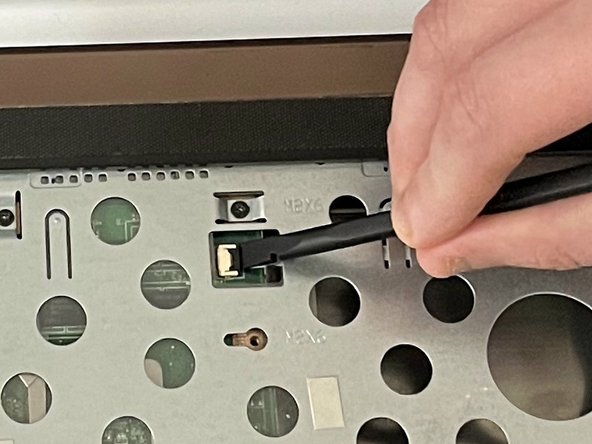
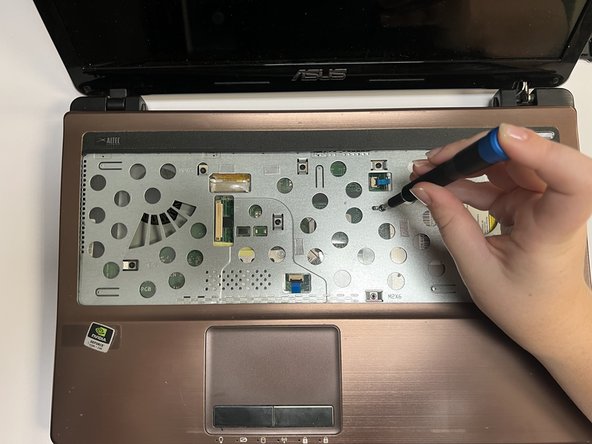
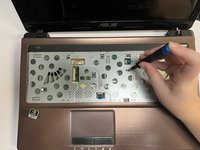
    • Using the spudger, place the flat end under the black lock bar holding the power switch. Push the spudger up and to the left, disconnecting the power switch.

    • Use the same technique on the touchpad to disconnect it.

    Vraag FixBot

    Voeg opmerking toe

  8. Asus A53S Fan Assembly Replacement: stap 8, afbeelding 1 van 2 Asus A53S Fan Assembly Replacement: stap 8, afbeelding 2 van 2
    • Using a Phillips #01 screwdriver, unscrew the seven 6 mm screws.

    Vraag FixBot

    Voeg opmerking toe

  9. Asus A53S Fan Assembly Replacement: stap 9, afbeelding 1 van 1
    • Gently pull out the optical drive.

    Vraag FixBot

    Voeg opmerking toe

  10. Asus A53S Fan Assembly Replacement: stap 10, afbeelding 1 van 1
    • Flip the laptop back over so that the bottom is facing up.

    • Use a Phillips #01 screwdriver to unscrew the three 6 mm screws.

    Vraag FixBot

    Voeg opmerking toe

  11. Asus A53S Fan Assembly Replacement: stap 11, afbeelding 1 van 2 Asus A53S Fan Assembly Replacement: stap 11, afbeelding 2 van 2
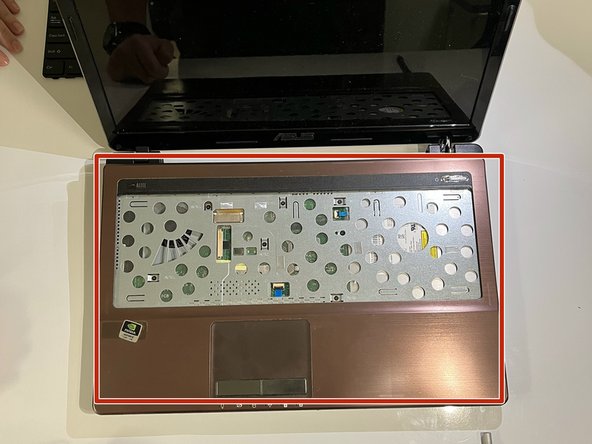
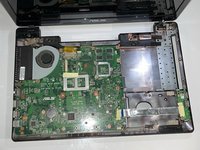
    • Turn the laptop back over so that you can open it.

    • Gently separate the cover from the laptop by putting an opening tool between the cover and the lower part of the laptop.

    Vraag FixBot

    Voeg opmerking toe

  12. Asus A53S Fan Assembly Replacement: stap 12, afbeelding 1 van 1
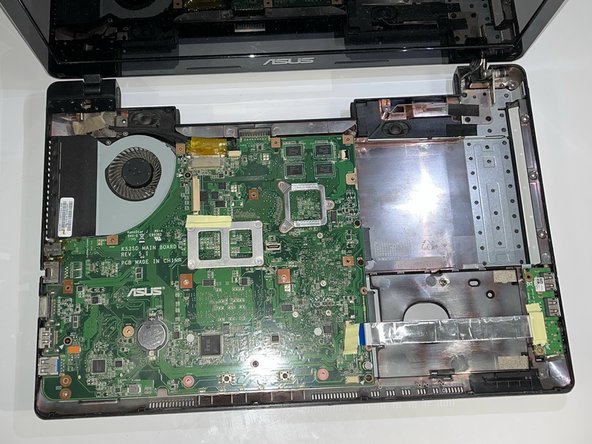
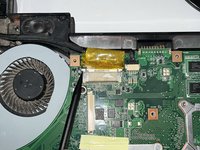
    • Remove the yellow tape.

    Vraag FixBot

    Voeg opmerking toe

  13. Asus A53S Fan Assembly Replacement: stap 13, afbeelding 1 van 1
    • Using the flat end of a spudger, flip ZIF connector lock bar up, disconnecting the USB board from the mother board.

    Vraag FixBot

    Voeg opmerking toe

  14. Asus A53S Fan Assembly Replacement: stap 14, afbeelding 1 van 2 Asus A53S Fan Assembly Replacement: stap 14, afbeelding 2 van 2
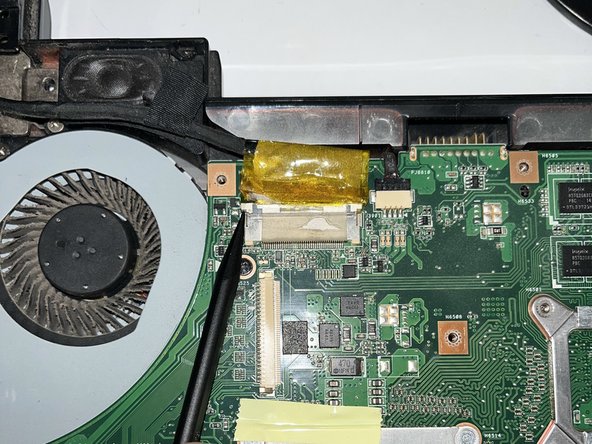
    • Using the pointy end of a spudger, push upwards on the notches of the tan part of the LCD connector.

    Vraag FixBot

    Voeg opmerking toe

  15. Asus A53S Fan Assembly Replacement: stap 15, afbeelding 1 van 2 Asus A53S Fan Assembly Replacement: stap 15, afbeelding 2 van 2
    • Using the pointy end of a spudger, gently push upwards on the black part of the speaker connector.

    Vraag FixBot

    Voeg opmerking toe

  16. Asus A53S Fan Assembly Replacement: stap 16, afbeelding 1 van 2 Asus A53S Fan Assembly Replacement: stap 16, afbeelding 2 van 2
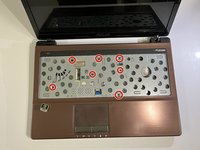
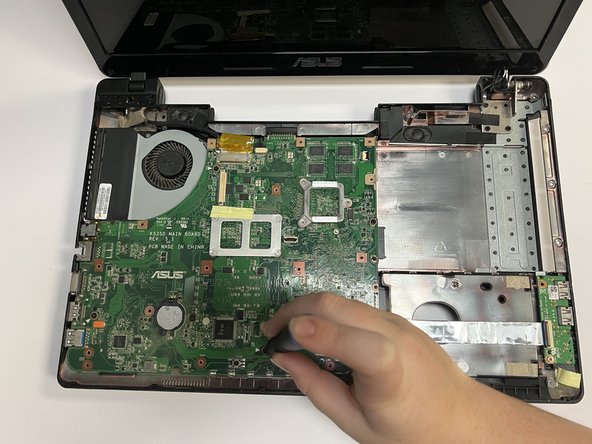
    • Using a Phillips #01 screwdriver, unscrew the five 6 mm screws at the indicated places.

    • Using a Phillips #01 screwdriver, unscrew the 5 mm screws.

    • All of these screws are indicated by a small white arrow.

    Vraag FixBot

    Voeg opmerking toe

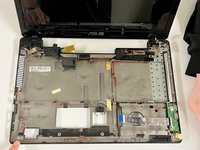
  17. Asus A53S Fan Assembly Replacement: stap 17, afbeelding 1 van 2 Asus A53S Fan Assembly Replacement: stap 17, afbeelding 2 van 2
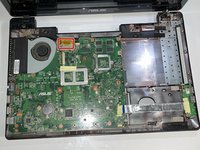
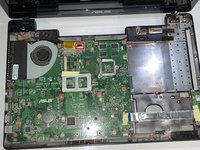
    • Gently lift the motherboard, removing it from the laptop shell.

    Vraag FixBot

    Voeg opmerking toe

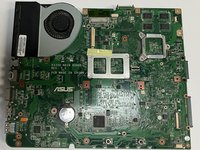
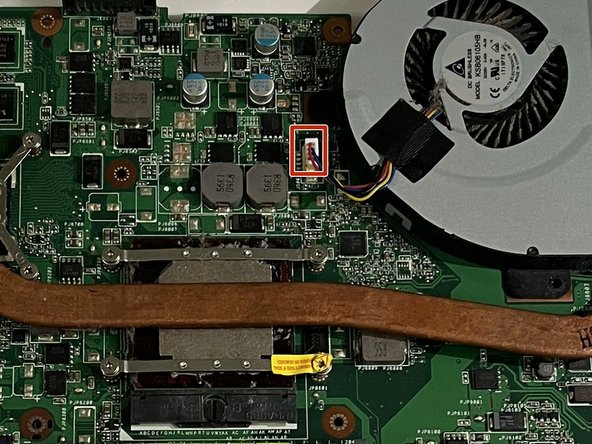
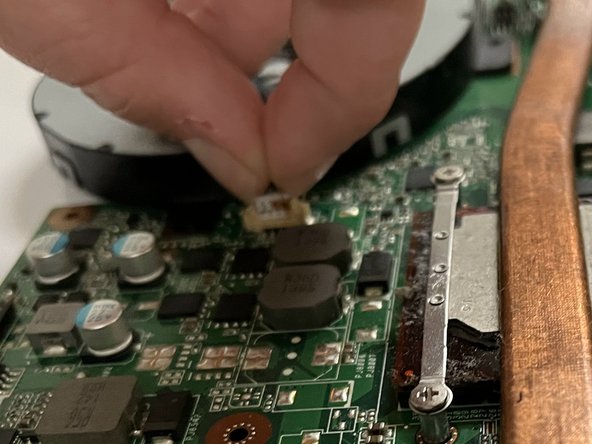
  18. Asus A53S Fan Assembly Replacement, Fan Assembly: stap 18, afbeelding 1 van 3 Asus A53S Fan Assembly Replacement, Fan Assembly: stap 18, afbeelding 2 van 3 Asus A53S Fan Assembly Replacement, Fan Assembly: stap 18, afbeelding 3 van 3
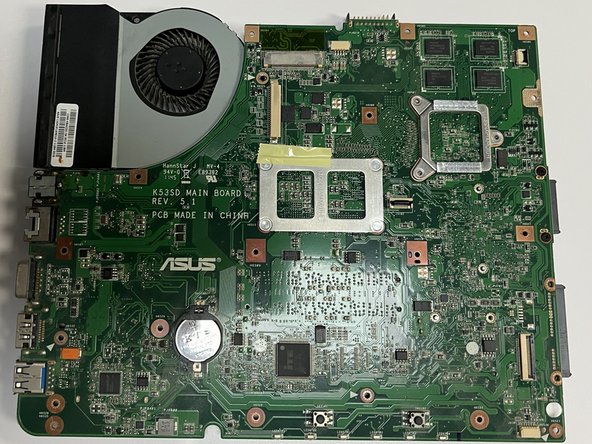
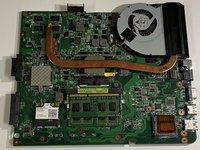
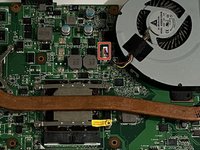
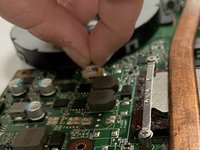
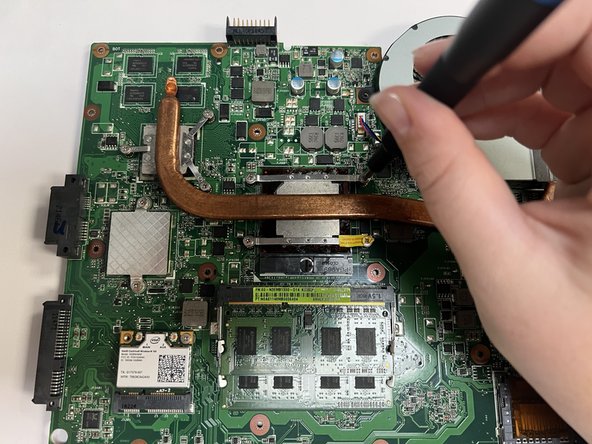
    • Flip the motherboard so that the fan and heat sink are facing up.

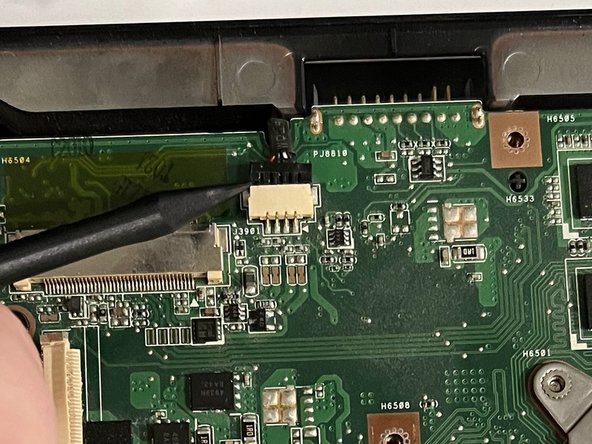
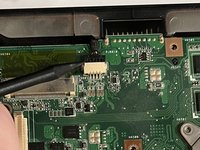
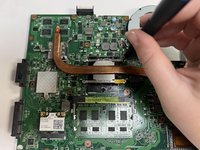
    • Pinch the upper part of the connector and pull upwards, slightly shimmying it side to side, to disconnect the fan.

    Vraag FixBot

    Voeg opmerking toe

  19. Asus A53S Fan Assembly Replacement: stap 19, afbeelding 1 van 3 Asus A53S Fan Assembly Replacement: stap 19, afbeelding 2 van 3 Asus A53S Fan Assembly Replacement: stap 19, afbeelding 3 van 3
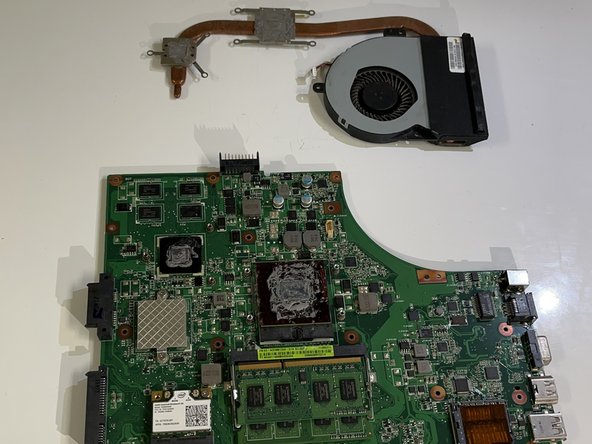
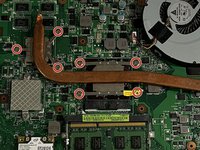
    • Using a Phillips #01 screwdriver, unscrew the seven 5 mm screws.

    • Remove the fan assembly.

    Vraag FixBot

    Voeg opmerking toe

Conclusie

To reassemble your device, follow these instructions in reverse order.

Annuleren: ik heb deze handleiding niet afgemaakt.

2 andere personen hebben deze handleiding voltooid.

0Gids Commentaar

Voeg opmerking toe

Weergavestatistieken:

Afgelopen 24 uren: 2

Afgelopen 7 dagen: 22

Afgelopen 30 dagen: 55

Altijd: 1,006