Ga door naar hoofdinhoud
Word lid van de reparatiegemeenschap - Account aanmaken

Sony Tablet S Battery Replacement

Wat je nodig hebt

  1. Sony Tablet S Battery Replacement, Battery: stap 1, afbeelding 1 van 2 Sony Tablet S Battery Replacement, Battery: stap 1, afbeelding 2 van 2
    • Ensure that the device is completely turned off before attempting a repair. The battery may still have charge; use caution touching the components.

    • Use a plastic opening tool to remove the two rubber grips on the back of the tablet.

    Vraag FixBot

    Voeg opmerking toe

  2. Sony Tablet S Battery Replacement: stap 2, afbeelding 1 van 1
    • Remove the two 10mm Phillips #0 screws located under the grips.

    Vraag FixBot

    Voeg opmerking toe

  3. Sony Tablet S Battery Replacement: stap 3, afbeelding 1 van 2 Sony Tablet S Battery Replacement: stap 3, afbeelding 2 van 2
    • Flip the tablet over and use a plastic opening tool to pry the casing away from the top of the screen. Push the back cover off.

    • There is adhesive holding the case on located at the top of the screen. Push the casing toward the top of the screen while also wiggling it back and forth.

    Vraag FixBot

    Voeg opmerking toe

  4. Sony Tablet S Battery Replacement: stap 4, afbeelding 1 van 1
    • Once the casing is off, remove the nine 5mm Phillips #0 screws shown.

    Vraag FixBot

    Voeg opmerking toe

  5. Sony Tablet S Battery Replacement: stap 5, afbeelding 1 van 1
    • Remove the white ribbon cable by pulling the blue tab straight up out of the socket and then peeling up the tape securing it to the tablet.

    • Use caution when removing the cable, as the socket is very fragile.

    Vraag FixBot

    Voeg opmerking toe

  6. Sony Tablet S Battery Replacement: stap 6, afbeelding 1 van 1
    • Remove the copper ribbon cable by gently using a spudger to pry it up from its socket.

    • Use caution when removing the cable, as the socket is very fragile.

    Vraag FixBot

    Voeg opmerking toe

  7. Sony Tablet S Battery Replacement: stap 7, afbeelding 1 van 1
    • Slide the bottom grey cover piece away from the body and remove it.

    • If this piece gives resistance, use a spudger on the sides of the tablet to pry it loose.

    Vraag FixBot

    Voeg opmerking toe

  8. Sony Tablet S Battery Replacement: stap 8, afbeelding 1 van 1
    • Remove the five 4mm Phillips #000 screws.

    • Remove the two 5mm Phillips #000 screws holding the charger in place.

    Vraag FixBot

    Voeg opmerking toe

  9. Sony Tablet S Battery Replacement: stap 9, afbeelding 1 van 3 Sony Tablet S Battery Replacement: stap 9, afbeelding 2 van 3 Sony Tablet S Battery Replacement: stap 9, afbeelding 3 van 3
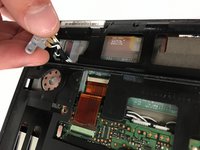
    • Position the charging port at an angle so you can thread it through the opening as you remove the black plastic cover from the back of the tablet.

    • If the cover is not coming off easily, use a plastic opening tool to pry it loose from the edges of the screen.

    Vraag FixBot

    Voeg opmerking toe

  10. Sony Tablet S Battery Replacement: stap 10, afbeelding 1 van 2 Sony Tablet S Battery Replacement: stap 10, afbeelding 2 van 2
    • Use a spudger to lift the zero insertion force connector latch for the long ribbon cable to the right of the battery, then pull the cable loose from its socket.

    • Use caution when removing the cable, as the socket is very fragile.

    Vraag FixBot

    Voeg opmerking toe

  11. Sony Tablet S Battery Replacement: stap 11, afbeelding 1 van 1
    • Remove the three 5mm Phillips #0 screws securing the original battery.

    Vraag FixBot

    Voeg opmerking toe

  12. Sony Tablet S Battery Replacement: stap 12, afbeelding 1 van 2 Sony Tablet S Battery Replacement: stap 12, afbeelding 2 van 2
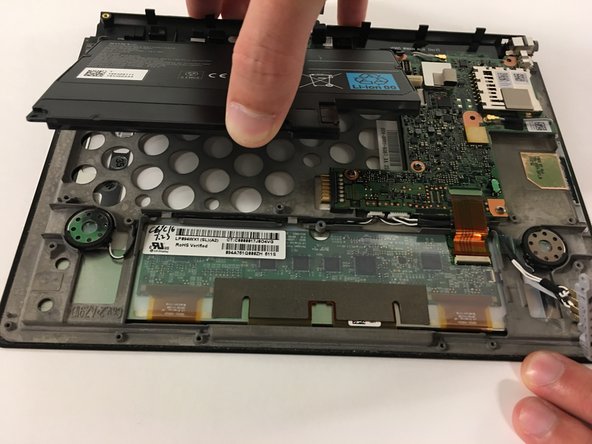
    • Use the spudger to pop the battery loose and remove the battery.

    Vraag FixBot

    Voeg opmerking toe

Conclusie

To reassemble your device, follow these instructions in reverse order.

Annuleren: ik heb deze handleiding niet afgemaakt.

4 andere personen hebben deze handleiding voltooid.

Austin Mann

Lid sinds: 09/28/16

287 Reputatie

5 handleidingen geschreven

Team

USF Tampa, Team 3-5, Passmore Fall 2016 Lid van USF Tampa, Team 3-5, Passmore Fall 2016

USFT-PASSMORE-F16S3G5

3 Leden

5 handleidingen geschreven

1Gids Commentaar

To change polarizer sticker of the screen, is it necessary to remove battery, motherboard etc. or I can just go with removing the adhesive of the bezel? Even after removing the bezel adhesive, is it easy to replace the sticker without damaging the lcd or digitizer?

Saravanan Theckyam - Antwoord Deel

Voeg opmerking toe

Weergavestatistieken:

Afgelopen 24 uren: 0

Afgelopen 7 dagen: 5

Afgelopen 30 dagen: 36

Altijd: 3,263