Ga door naar hoofdinhoud
Word lid van de reparatiegemeenschap - Account aanmaken

Replacement or expansion RAM

Wat je nodig hebt

  1. Replacement or expansion RAM, Battery: stap 1, afbeelding 1 van 3 Replacement or expansion RAM, Battery: stap 1, afbeelding 2 van 3 Replacement or expansion RAM, Battery: stap 1, afbeelding 3 van 3
    • Unlock the battery latch on the right.

    • Unlock the battery lock on the left.

    • Remove the battery pack from its slot.

  2. Replacement or expansion RAM, Access to Components 2: stap 2, afbeelding 1 van 3 Replacement or expansion RAM, Access to Components 2: stap 2, afbeelding 2 van 3 Replacement or expansion RAM, Access to Components 2: stap 2, afbeelding 3 van 3
    • Using the Philips # 0 screwdriver, unscrew the 2 screws of the top cover

    • Check the marks indicating the direction in which the cover must be removed.

    • Remove the bottom cover by removing it in the direction of the markers.

  3. Replacement or expansion RAM: stap 3, afbeelding 1 van 1
    • Then appear the other components of the Laptop.

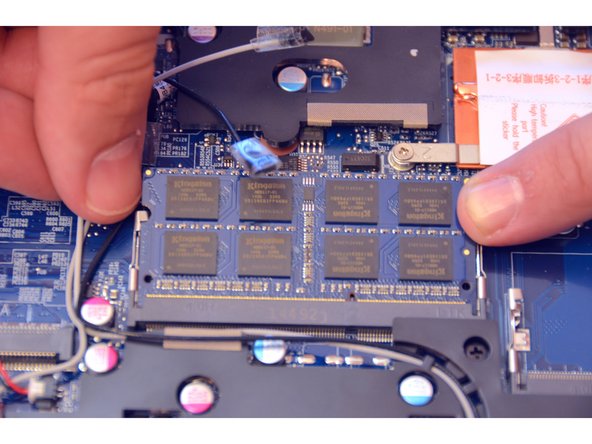
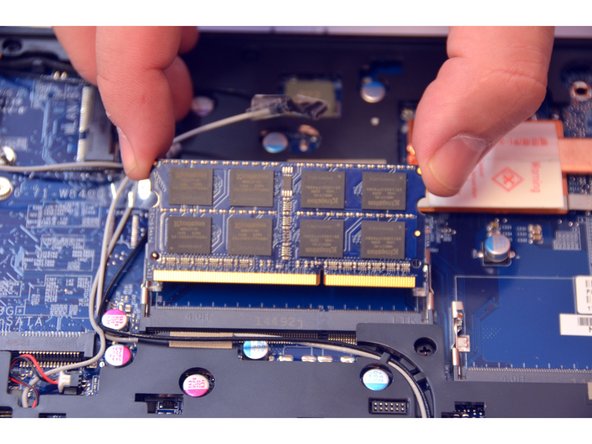
  4. Replacement or expansion RAM, RAM: stap 4, afbeelding 1 van 3 Replacement or expansion RAM, RAM: stap 4, afbeelding 2 van 3 Replacement or expansion RAM, RAM: stap 4, afbeelding 3 van 3
    • Here is the RAM bar installed by default.

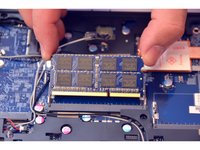
    • Locate and remove the spring blades that hold the memory module in place.

    • Remove the memory module (RAM).

  5. Replacement or expansion RAM: stap 5, afbeelding 1 van 1
    • Here is the RAM bar out of its location.

Conclusie

To reassemble your device follow the instructions in reverse order

Met dank aan deze vertalers:

fr en

100%

irlanda helpt ons de wereld te repareren! Doe je mee?
Begin met vertalen ›

Felice Suglia

Lid sinds: 06/15/13

33.562 Reputatie

283 handleidingen geschreven

0Gids Commentaar

Voeg opmerking toe

Weergavestatistieken:

Afgelopen 24 uren: 2

Afgelopen 7 dagen: 16

Afgelopen 30 dagen: 44

Altijd: 469