
PowerBook G4 Aluminum 15" 1.67 GHz PRAM Battery Replacement

Voor het laatst geüpdatet op 31 jul 2013
Bekeken: 26K
Statistieken weergeven:
- Afgelopen 24 uur:
- 3
- Afgelopen 7 dagen:
- 38
- Afgelopen 30 dagen:
- 135
- Altijd:
- 25.738
Commentaar: 11
7 opmerkingen over de stappen, 4 opmerkingen op de handleiding.
Bekijk de opmerkingen bij de handleidingVoltooid: 11 12
11 mensen hebben deze handleiding als "voltooid" gemarkeerd. Ben jij de volgende?
12 personen hebben deze handleiding als "voltooid" gemarkeerd. Een daarvan ben jij—lekker bezig!
Favorieten: 6 7
6 mensen hebben deze handleiding als favoriet gemarkeerd en volgen deze. Ben jij de volgende?
7 personen hebben deze handleiding als favoriet gemarkeerd (en blijven daarmee op de hoogte van meldingen)—een daarvan ben jij!
Inleiding
Ga naar stap 1 ↓The PRAM battery on your PowerBook gives the RAM power to store startup information when you shut off your computer. Luckily, it is easily accessible.
Wat je nodig hebt


-
-
-
Use a coin to turn the battery locking screw 90 degrees clockwise.
-
Lift the battery out of the computer.
 Vraag FixBot
-
-
-
-
-
Remove the following 10 screws:
-
Two 3 mm Phillips in the battery compartment, on either side of the battery contacts.
-
Four 3 mm Phillips around the memory compartment.
-
Four 16 mm Phillips along the hinge.
-
-
-
Remove the memory compartment cover.
-
Remove the two 12 mm Phillips screws on the Aluminum bracket at the top of the memory compartment.
-
-
-
Rotate the computer 90 degrees clockwise so the power receptacle faces you.
-
Remove the three 3 mm Phillips screws along the edge of the lower case.
-
-
-
-
Turn the computer 90 degrees clockwise so the hinge faces you.
-
Remove the lower 5 mm Phillips screw on each side of the hinge (two total).
-
-
-
Rotate the computer 90 degrees clockwise so the ports face you.
-
Remove the three 3 mm Phillips screws along the edge of the lower case.
-
When replacing these screws, you must install them in the correct order. Begin by installing the screw closest to the display hinge, then work your way toward the front of the computer. Also, be careful not to put the screws in the two holes on either side of the video out port.
-
-
-
Turn the computer over and open the display.
-
Remove the two 4.2 mm long, 1.5 mm hex screws at the top corners of the upper case (two total).
-
-
-
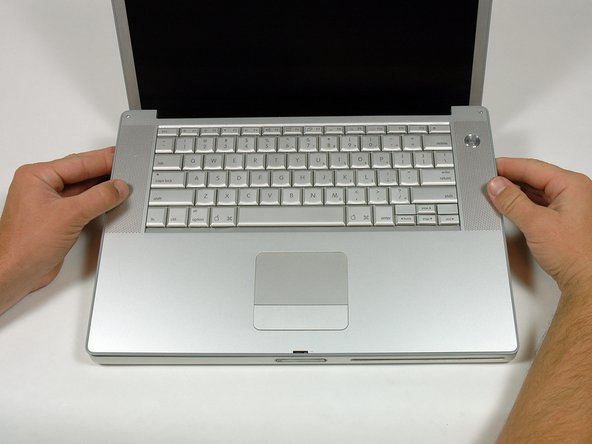
Grasp the back corners of the upper case and pull up.
-
Lift the back of the case up and work your fingers along the sides, freeing the case as you go. Once you have freed the sides, you may need to rock the case up and down to free the front of the upper case.
-
-
-
Rotate the upper case up and toward the screen, so that the upper case rests against it.
-
-
-
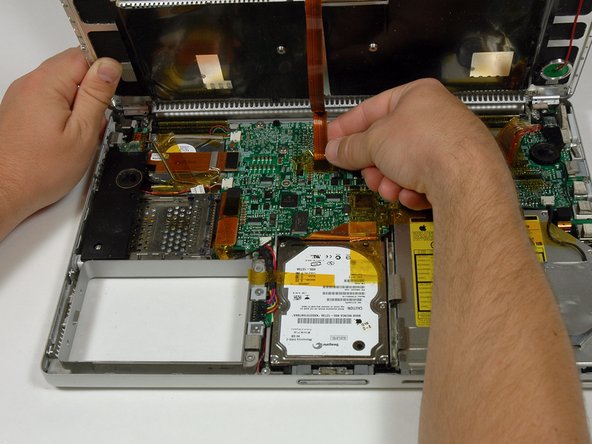
Remove the amber tape securing the trackpad ribbon to the logic board.
-
Disconnect the trackpad ribbon from the logic board by pulling up on the connector.
-
Remove the upper case from the computer.
-
-
-
-
-
Use a spudger to pry up the PRAM battery from the optical drive.
-
-
-
Disconnect the PRAM battery cable from the logic board and remove the PRAM battery.
-
-





To reassemble your device, follow these instructions in reverse order.
Annuleren: ik heb deze handleiding niet afgemaakt.
11 andere personen hebben deze handleiding voltooid.
Bijgevoegde documenten

4 opmerkingen onder de handleiding
It would be helpful to know whether a new PRAM battery unit needs charging as in this article
https://discussions.apple.com/thread/239...
or whether it is assumed that it will start charging in the course of normal use.
It is not standard but you can change it anyway...
The Apple part number (MPN) for the board that this PRAM is connected to inside an A1138 PowerBook is 820-1819-A.
The MPN for the board inside an A1107 PowerBook is 820-1814-A.
The only available Li-Po battery replacement I can find with the required 2-pin connector already attached to the wires is the CS-AP1107SL by Cameron Sino. However, this battery is marketed as compatible with the A1107 or more generally with the 17-inch PowerBooks.
I wonder why it is not also marketed as compatible with the A1138. According to https://www.smallbattery.company.org.uk/... the LP302030 battery is used on both 820-1819-A and 820-1814-A boards.
While the boards may be different, I think that the rectangular 3.7 V Li-Po battery packs can be used in any 15-inch and 17-inch PowerBook.
