Ga door naar hoofdinhoud
Word lid van de reparatiegemeenschap - Account aanmaken

Power Mac G4 Cube Video Card Replacement

Wat je nodig hebt

  1. Power Mac G4 Cube Video Card Replacement, Outer Case: stap 1, afbeelding 1 van 3 Power Mac G4 Cube Video Card Replacement, Outer Case: stap 1, afbeelding 2 van 3 Power Mac G4 Cube Video Card Replacement, Outer Case: stap 1, afbeelding 3 van 3
    • Release the back handle of the PowerMac. Slowly pull out the cube by holding the end of the handle. Watch for any parts that may become entangled with the outer case.

    • Push back the handle after you have taken the core out of the case.

    Vraag FixBot

    Voeg opmerking toe

  2. Power Mac G4 Cube Video Card Replacement: stap 2, afbeelding 1 van 2 Power Mac G4 Cube Video Card Replacement: stap 2, afbeelding 2 van 2
    • Place the cube upside down and remove the four T10 Torx screws on the front plate. Then remove the two screws on each side.

    Vraag FixBot

    Voeg opmerking toe

  3. Power Mac G4 Cube Video Card Replacement: stap 3, afbeelding 1 van 1
    • Slowly lift the plate off the cube and disconnect the power cord.

    Vraag FixBot

    Voeg opmerking toe

  4. Power Mac G4 Cube Video Card Replacement: stap 4, afbeelding 1 van 1
    • Remove the four pillars from each corner.

    • The pillars should come out fairly easily.

    Vraag FixBot

    Voeg opmerking toe

  5. Power Mac G4 Cube Video Card Replacement, Video Card: stap 5, afbeelding 1 van 1
    • Remove the screws on the back of the VGA port.

    Vraag FixBot

    Voeg opmerking toe

  6. Power Mac G4 Cube Video Card Replacement: stap 6, afbeelding 1 van 1
    • Remove the screw attaching the video card to the logic board.

    Vraag FixBot

    Voeg opmerking toe

  7. Power Mac G4 Cube Video Card Replacement: stap 7, afbeelding 1 van 2 Power Mac G4 Cube Video Card Replacement: stap 7, afbeelding 2 van 2
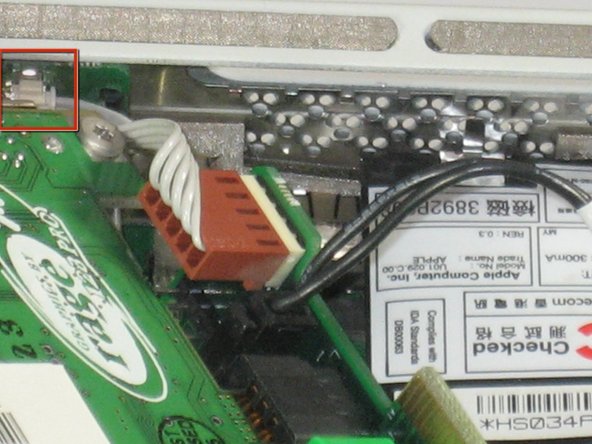
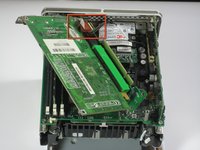
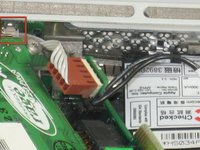
    • Remove power cord from the video card.

    Vraag FixBot

    Voeg opmerking toe

  8. Power Mac G4 Cube Video Card Replacement: stap 8, afbeelding 1 van 1
    • Remove the power cord.

    • Remove the connector.

    • Remove the video card from the logic board.

    Vraag FixBot

    Voeg opmerking toe

  9. Power Mac G4 Cube Video Card Replacement: stap 9, afbeelding 1 van 1
    • Carefully lift the video card from the logic board.

    • The video card should come out easily.

    Vraag FixBot

    Voeg opmerking toe

  10. Power Mac G4 Cube Video Card Replacement: stap 10, afbeelding 1 van 2 Power Mac G4 Cube Video Card Replacement: stap 10, afbeelding 2 van 2
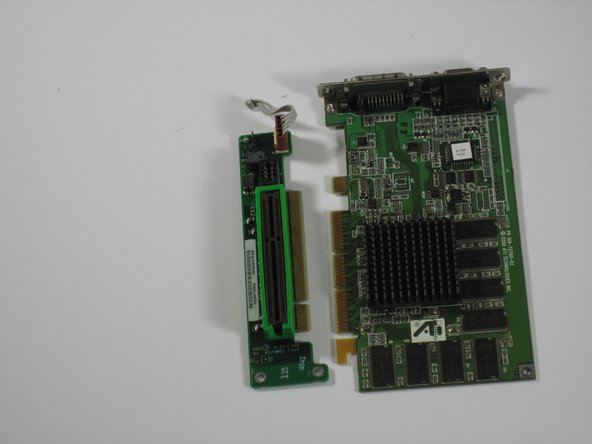
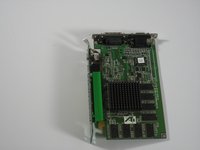
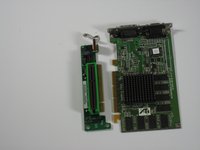
    • Separate the video card from the adapter.

    Vraag FixBot

    Voeg opmerking toe

Conclusie

To reassemble your device, follow these instructions in reverse order.

Annuleren: ik heb deze handleiding niet afgemaakt.

9 andere personen hebben deze handleiding voltooid.

Ryan Chun

Lid sinds: 06/24/10

1.076 Reputatie

7 handleidingen geschreven

Team

Cal Poly, Team 2-7, Johann Summer 2010 Lid van Cal Poly, Team 2-7, Johann Summer 2010

CPSU-JOHANN-R10S2G7

5 Leden

21 handleidingen geschreven

0Gids Commentaar

Voeg opmerking toe

Weergavestatistieken:

Afgelopen 24 uren: 1

Afgelopen 7 dagen: 19

Afgelopen 30 dagen: 81

Altijd: 11,554