Ga door naar hoofdinhoud
Word lid van de reparatiegemeenschap - Account aanmaken

OLPC XO-4 Touch Wireless Card Replacement

Wat je nodig hebt

  1. OLPC XO-4 Touch Wireless Card Replacement, Battery: stap 1, afbeelding 1 van 1
    • Turn the laptop upside-down, with the handle facing away from you.

    Vraag FixBot
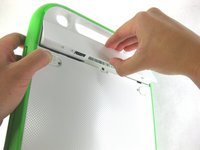
  2. OLPC XO-4 Touch Wireless Card Replacement: stap 2, afbeelding 1 van 2 OLPC XO-4 Touch Wireless Card Replacement: stap 2, afbeelding 2 van 2
    • Pull the lock tabs towards the green outer edges of the laptop.

    • Hold the left lock tab in the unlock position until the battery is completely removed in the next step.

    Vraag FixBot
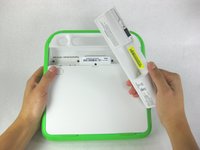
  3. OLPC XO-4 Touch Wireless Card Replacement: stap 3, afbeelding 1 van 2 OLPC XO-4 Touch Wireless Card Replacement: stap 3, afbeelding 2 van 2
    • Lift up on the middle of the battery to remove it from the device.

    Vraag FixBot
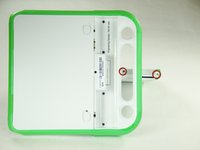
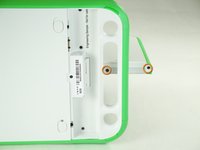
  4. OLPC XO-4 Touch Wireless Card Replacement, Screen Frame: stap 4, afbeelding 1 van 3 OLPC XO-4 Touch Wireless Card Replacement, Screen Frame: stap 4, afbeelding 2 van 3 OLPC XO-4 Touch Wireless Card Replacement, Screen Frame: stap 4, afbeelding 3 van 3
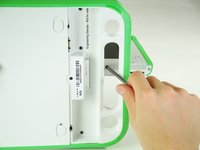
    • Remove the two 4mm Phillips #1 screws underneath the screen on the right-hand side.

    • Rotate the screen 180° and remove the other two screws.

    • You will have to put your screwdriver through the handle in order to reach the middle screw for both sides.

    Vraag FixBot
  5. OLPC XO-4 Touch Wireless Card Replacement: stap 5, afbeelding 1 van 3 OLPC XO-4 Touch Wireless Card Replacement: stap 5, afbeelding 2 van 3 OLPC XO-4 Touch Wireless Card Replacement: stap 5, afbeelding 3 van 3
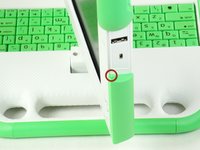
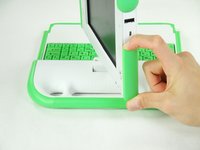
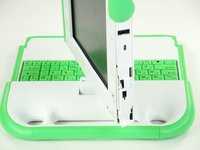
    • Remove the green side panel by pressing down on the small green button on the top and sliding the panel up.

    • Repeat the step above for the panel on the other side.

    Vraag FixBot
  6. OLPC XO-4 Touch Wireless Card Replacement: stap 6, afbeelding 1 van 1
    • Be careful not to pull the bottom too far out because a ribbon cable is under the frame and can easily break.

    • Gently lift up the lower part of the frame and pull it down to free the screen frame.

    Vraag FixBot
  7. OLPC XO-4 Touch Wireless Card Replacement: stap 7, afbeelding 1 van 2 OLPC XO-4 Touch Wireless Card Replacement: stap 7, afbeelding 2 van 2
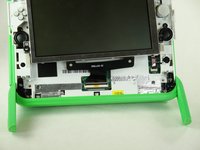
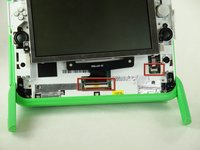
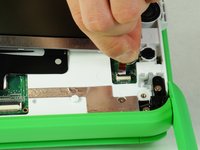
    • Lift the black connector and pull the ribbon cable out by the purple tab, freeing the frame.

    Vraag FixBot
  8. OLPC XO-4 Touch Wireless Card Replacement, Screen: stap 8, afbeelding 1 van 1
    • Remove the four 7.62mm screws using a Phillips #1 screwdriver.

    Vraag FixBot
  9. OLPC XO-4 Touch Wireless Card Replacement: stap 9, afbeelding 1 van 2 OLPC XO-4 Touch Wireless Card Replacement: stap 9, afbeelding 2 van 2
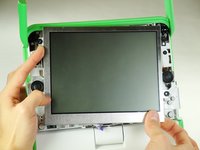
    • Be careful not to pull the screen out too far. There are two ribbon cables attached to the screen, and they can easily break.

    • Carefully lift the screen out.

    Vraag FixBot
  10. OLPC XO-4 Touch Wireless Card Replacement: stap 10, afbeelding 1 van 3 OLPC XO-4 Touch Wireless Card Replacement: stap 10, afbeelding 2 van 3 OLPC XO-4 Touch Wireless Card Replacement: stap 10, afbeelding 3 van 3
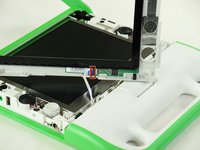
    • Notice that the laptop in this picture has been turned 180° with the antennas now below the screen.

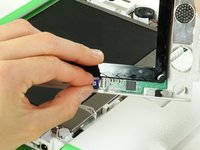
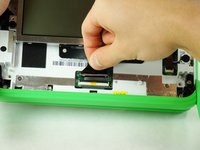
    • For each ribbon cable, lift up the black connector and gently pull the ribbon cables out by the plastic tabs.

    Vraag FixBot
  11. OLPC XO-4 Touch Wireless Card Replacement: stap 11, afbeelding 1 van 1
    • Remove the screen from the laptop.

    Vraag FixBot
  12. OLPC XO-4 Touch Wireless Card Replacement, Back Cover: stap 12, afbeelding 1 van 1
    • Remove the four 6mm screws using a Phillips #1 screwdriver.

    Vraag FixBot
  13. OLPC XO-4 Touch Wireless Card Replacement: stap 13, afbeelding 1 van 2 OLPC XO-4 Touch Wireless Card Replacement: stap 13, afbeelding 2 van 2
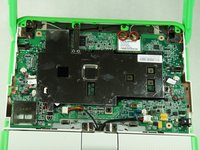
    • Rotate the top half of the laptop so that the back cover is facing you.

    • Pull up the tabs on the lower part of the back cover and pull it down and away from the antennas.

    • Remove the back cover by gently lifting it off of the laptop.

    Vraag FixBot
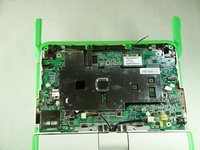
  14. OLPC XO-4 Touch Wireless Card Replacement, Wireless Card: stap 14, afbeelding 1 van 3 OLPC XO-4 Touch Wireless Card Replacement, Wireless Card: stap 14, afbeelding 2 van 3 OLPC XO-4 Touch Wireless Card Replacement, Wireless Card: stap 14, afbeelding 3 van 3
    • When pulling out the connectors, make sure to hold the metal connector instead of the wire.

    • Gently pull out the two antenna connectors by pulling them away from the motherboard.

    Vraag FixBot
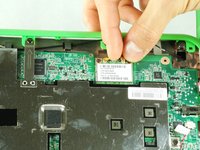
  15. OLPC XO-4 Touch Wireless Card Replacement: stap 15, afbeelding 1 van 1
    • Remove the black 4mm Phillips #1 screw holding the wireless card in.

    Vraag FixBot
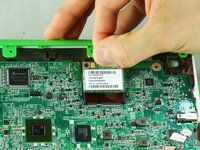
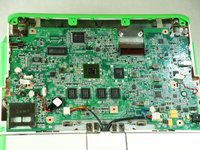
  16. OLPC XO-4 Touch Wireless Card Replacement: stap 16, afbeelding 1 van 2 OLPC XO-4 Touch Wireless Card Replacement: stap 16, afbeelding 2 van 2
    • Remove the wireless card from the laptop by gently sliding it out of its socket.

    Vraag FixBot
Conclusie

To reassemble your device, follow these instructions in reverse order.

Zach Yasuda

Lid sinds: 01/24/13

173 Reputatie

2 handleidingen geschreven

Team

Cal Poly, Team 3-29, Amido Winter 2013 Lid van Cal Poly, Team 3-29, Amido Winter 2013

CPSU-AMIDO-W13S3G29

4 Leden

20 handleidingen geschreven

0Gids Commentaar

Voeg opmerking toe

Weergavestatistieken:

Afgelopen 24 uren: 1

Afgelopen 7 dagen: 10

Afgelopen 30 dagen: 75

Altijd: 730