Ga door naar hoofdinhoud
Word lid van de reparatiegemeenschap - Account aanmaken

Macintosh Powerbook 5300cs Trackpad Replacement

Wat je nodig hebt

    1. Macintosh Powerbook 5300cs Trackpad Replacement, Battery: stap 1, afbeelding 1 van 1
      • The battery compartment is located in the front-right side of the laptop.

      Vraag FixBot

      Voeg opmerking toe

    2. Macintosh Powerbook 5300cs Trackpad Replacement: stap 2, afbeelding 1 van 1
      • To insert the battery, gently slide it into the compartment until it clicks in place.

      • To remove, slide the button highlighted in the red rectangle to the right to release the battery and slide it from the compartment.

      Vraag FixBot

      Voeg opmerking toe

    1. Macintosh Powerbook 5300cs Trackpad Replacement, Keyboard: stap 3, afbeelding 1 van 1
      • With the laptop upside down and with the battery removed, use a Torx #9 screw driver to remove the three .84 in. screws shown.

      Vraag FixBot

      Voeg opmerking toe

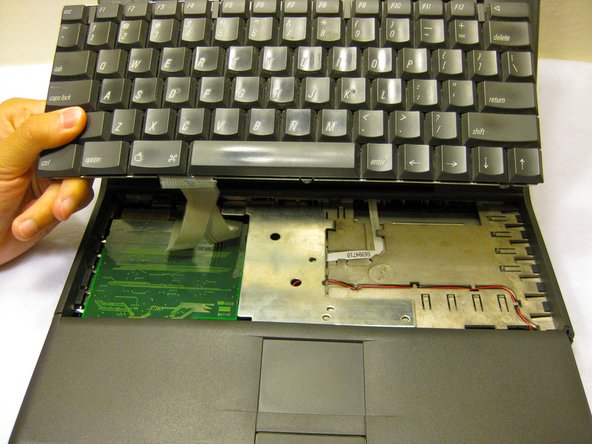
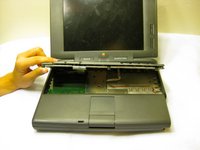
    2. Macintosh Powerbook 5300cs Trackpad Replacement: stap 4, afbeelding 1 van 2 Macintosh Powerbook 5300cs Trackpad Replacement: stap 4, afbeelding 2 van 2
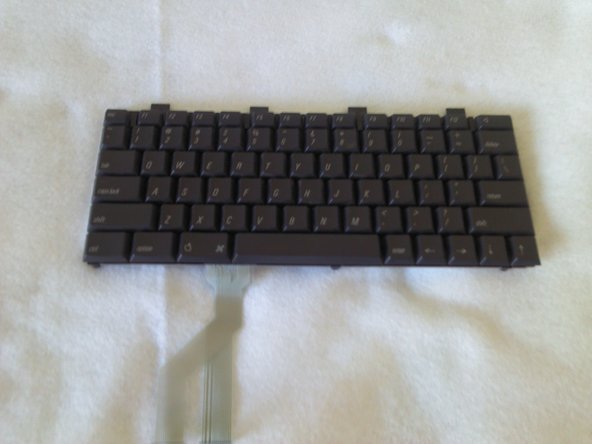
      • Carefully pull up on the front of the keyboard to pop it out from the case.

      • Then slide the back out so the keyboard becomes nearly free.

      Vraag FixBot

      Voeg opmerking toe

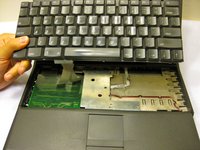
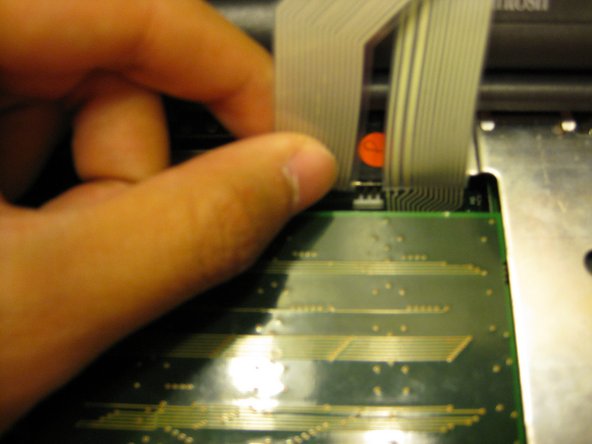
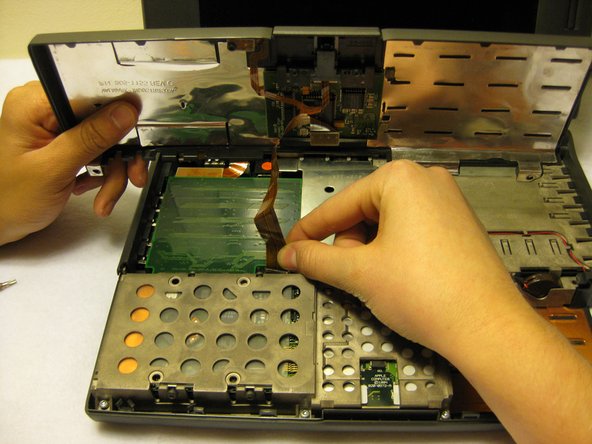
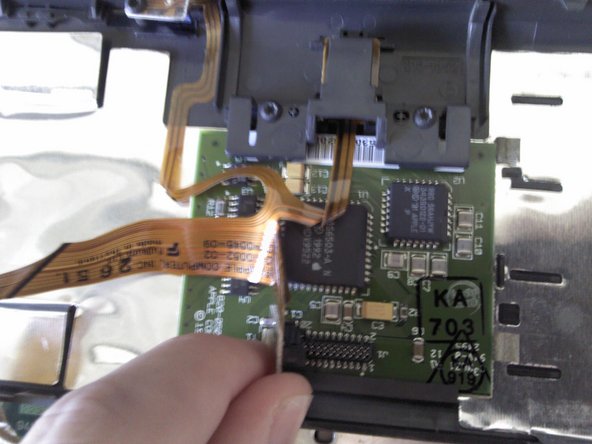
    3. Macintosh Powerbook 5300cs Trackpad Replacement: stap 5, afbeelding 1 van 3 Macintosh Powerbook 5300cs Trackpad Replacement: stap 5, afbeelding 2 van 3 Macintosh Powerbook 5300cs Trackpad Replacement: stap 5, afbeelding 3 van 3
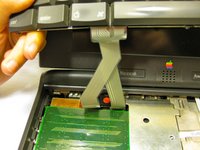
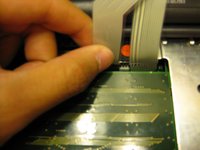
      • Disconnect the ribbon that is connecting the keyboard to the rest of the computer.

      • Pull the keyboard out and repair or replace as needed.

      Vraag FixBot

      Voeg opmerking toe

    1. Macintosh Powerbook 5300cs Trackpad Replacement, Trackpad: stap 6, afbeelding 1 van 3 Macintosh Powerbook 5300cs Trackpad Replacement, Trackpad: stap 6, afbeelding 2 van 3 Macintosh Powerbook 5300cs Trackpad Replacement, Trackpad: stap 6, afbeelding 3 van 3
      • Remove the front plastic panel of the laptop by carefully lifting it up and forward.

      • There will be another another ribbon cable connecting the trackpad; use caution when lifting the front panel.

      Vraag FixBot

      Voeg opmerking toe

    2. Macintosh Powerbook 5300cs Trackpad Replacement: stap 7, afbeelding 1 van 1
      • Remove the orange stripped ribbon that connects the trackpad to the device by carefully pulling the ribbon from its connector up and out.

      Vraag FixBot

      Voeg opmerking toe

    3. Macintosh Powerbook 5300cs Trackpad Replacement: stap 8, afbeelding 1 van 2 Macintosh Powerbook 5300cs Trackpad Replacement: stap 8, afbeelding 2 van 2
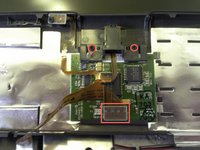
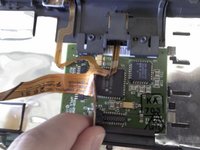
      • With a Torx #9 screwdriver, remove the two .20 in. screws circled in red that are holding the trackpad in place. This will disconnect the mouse button.

      • Following this action, disconnect the ribbon highlighted with the red rectangle connecting the trackpad to the laptop.

      • Remove the mouse button by sliding it out from the top of the orange ribbon.

      Vraag FixBot

      Voeg opmerking toe

    4. Macintosh Powerbook 5300cs Trackpad Replacement: stap 9, afbeelding 1 van 1
      • The trackpad can now be removed from the laptop. Adjust the trackpad as needed.

      Vraag FixBot

      Voeg opmerking toe

Conclusie

To reassemble your device, follow these instructions in reverse order.

Annuleren: ik heb deze handleiding niet afgemaakt.

2 andere personen hebben deze handleiding voltooid.

Ronan

Lid sinds: 10/10/11

72 Reputatie

4 handleidingen geschreven

Team

Cal Poly, Team 6-1, Regan Fall 2011 Lid van Cal Poly, Team 6-1, Regan Fall 2011

CPSU-REGAN-F11S6G1

4 Leden

41 handleidingen geschreven

0Gids Commentaar

Voeg opmerking toe

Weergavestatistieken:

Afgelopen 24 uren: 1

Afgelopen 7 dagen: 12

Afgelopen 30 dagen: 52

Altijd: 1,553