Deze vertaling is door een computer gegenereerd en is nog niet door iemand nagekeken. Spreek je deze taal? Bekijk het hier.
Inleiding
Gebruik deze handleiding om een luidruchtige ventilator te vervangen.
Wat je nodig hebt
-
-
Gereedschap gebruikt in deze stap:P5 Pentalobe Screwdriver Retina MacBook Pro and Air$5.99
-
Verwijder de volgende tien schroeven:
-
Twee 8 mm lange 5-punts Pentalobe-schroeven.
-
Acht 2.5 mm lange 5-punts Pentalobe-schroeven.
 Vraag FixBot
-
-
-
Duw je vingers tussen het scherm en de onderste behuizing en trek de behuizing omhoog om deze van de rest van de MacBook Air te verwijderen.
-
-
-
-
-
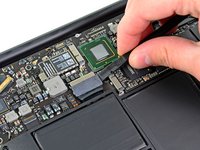
Gebruik de platte kant van een spudger om beide korte kanten van de accu-(kabel)aansluiting omhoog te wippen om deze uit het stopcontact op het logic board te ontkoppelen.
-
Buig de accukabel een klein beetje weg van het logic board, zodat de (kabel)aansluiting niet per ongeluk contact maakt met het stopcontact.
-
-
-
-
-
Verwijder de enkele 2,9 mm Torx-schroef (T5) waarmee de SSD aan het logic board is bevestigd.
-
-
-
-
Gebruik een spudger om het vrije uiteinde van de SSD net ver genoeg op te tillen zodat je het met je andere hand kunt vastpakken.
-
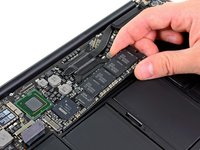
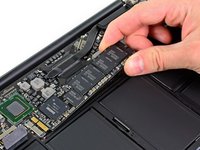
Trek de schijf recht uit het stopcontact en verwijder deze van het logic board.
-
-
-
-
-
Gebruik de platte kant van een spudger om de I/O bord-kabel uit het stopcontact op het I/O bord te wrikken.
-
-
-
Trek de I/O bord-kabel los van de lijm waarmee deze aan de ventilator is bevestigd.
-
-
-
Gebruik de platte kant van een spudger om de (kabel)aansluiting van het I/O bord omhoog uit het stopcontact op het logic board te tillen.
-
Verwijder de kabel van het I/O bord.
-
-
-
-
-
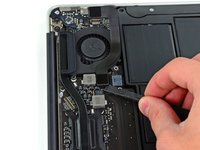
Gebruik de punt van een spudger om voorzichtig de vasthoudflap op het stopcontact van de ventilatorkabel omhoog te klappen.
-
-
-
Verwijder de volgende drie schroeven waarmee de ventilator aan de behuizing is bevestigd:
-
Twee 5,2 mm T5 Torx-schroeven
-
Eén 3,6 mm T5 Torx-schroef
-
-
-
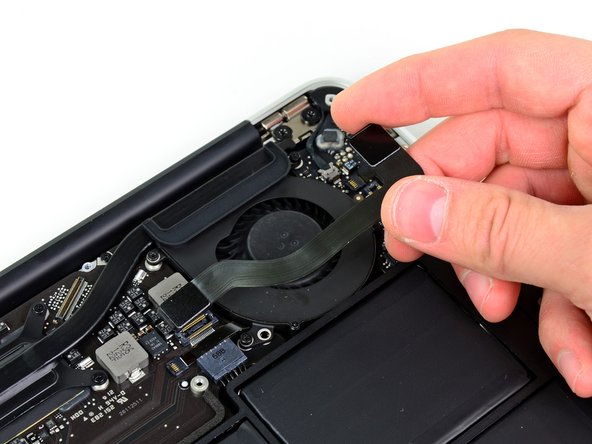
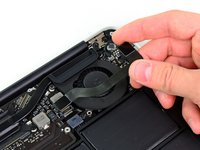
Til de ventilator uit de behuizing en trek de lintkabel van de ventilator voorzichtig uit het stopcontact terwijl je deze uit de Air verwijdert.
-
-








Volg deze instructies in omgekeerde volgorde om je apparaat weer in elkaar te zetten.
Annuleren: ik heb deze handleiding niet afgemaakt.
26 andere personen hebben deze handleiding voltooid.

3Gids Commentaar
I did the same. What to do?
EW
I too broke the socket of trying to pry open the retaining flap. Yes there is a warning “Be sure you are prying up on the hinged retaining flap, not the socket itself.” But there needs to be a much better picture/description of how to DO this on step 9. Without a reference on what/where the retaining flap is, there is a big danger of breaking it. Now my computer is toast.
