Deze vertaling is door een computer gegenereerd en is nog niet door iemand nagekeken. Spreek je deze taal? Bekijk het hier.

Mac mini Mid 2011 RAM vervangen

Walter Galan en 9 andere bijdragers
Voor het laatst geüpdatet op 18 aug 2026
Bekeken: 78K
Statistieken weergeven:
- Afgelopen 24 uur:
- 4
- Afgelopen 7 dagen:
- 38
- Afgelopen 30 dagen:
- 179
- Altijd:
- 78.056
Commentaar: 34
21 opmerkingen over de stappen, 13 opmerkingen op de handleiding.
Bekijk de opmerkingen bij de handleidingVoltooid: 114 115
114 mensen hebben deze handleiding als "voltooid" gemarkeerd. Ben jij de volgende?
115 personen hebben deze handleiding als "voltooid" gemarkeerd. Een daarvan ben jij—lekker bezig!
Favorieten: 52 53
52 mensen hebben deze handleiding als favoriet gemarkeerd en volgen deze. Ben jij de volgende?
53 personen hebben deze handleiding als favoriet gemarkeerd (en blijven daarmee op de hoogte van meldingen)—een daarvan ben jij!
Uitgelichte handleiding
De iFixit-werknemers vonden deze handleiding uitzonderlijk cool.
Inleiding
Ga naar stap 1 ↓Het verwijderen van het RAM is een eenvoudige taak waarvoor geen gereedschap nodig is.
Wat je nodig hebt
Reparatieset
Deze set bevat alle onderdelen en tools om deze handleiding te voltooien.

Onderdelen


-
-
-
Plaats je duimen in de inkepingen in de onderkap.
-
Draai de onderkap tegen de klok in totdat de witte stip op de onderkap is uitgelijnd met de ring op de buitenkant van de behuizing.
 Vraag FixBot
-
-
-
-
Kantel de mini voldoende om de onderklep los te laten komen van de behuizing.
-
Verwijder de onderklep en leg deze opzij.
-
-
-
-
-
Maak de vergrendellipjes aan weerszijden van de RAM chip los door beide lipjes tegelijkertijd van de chip af te duwen.
-
Nadat de RAM chip omhoog is gekomen, trekt u deze recht uit het stopcontact.
-
-


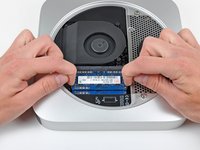
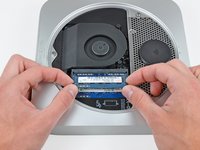
Volg deze instructies in omgekeerde volgorde om uw apparaat weer in elkaar te zetten.
Annuleren: ik heb deze handleiding niet afgemaakt.
114 andere personen hebben deze handleiding voltooid.

13Gids Commentaar
Here is an important trick: Apply no downward pressure while turning the cover. Pressing down will make it harder to turn.
I found this out when searching the web for why I couldn't open the bottom cover.
I have just fitted the two 8 GB rams but despite refitting several times my computer is only reading one card. It simply says 8 GB memory and one space available. The cards slotted tightly and clicked in position. I have tried exerting a little pressure on the cards to see if there was not good contact but they appear connected. Any ideas please?
I had difficulty, only one card is read, the computer says i slot available. Have fitted several times and exerted pressure to ensure contact but still only one card read. Any ideas please?
You should try to find out if the DIMM or the slot is broken: I suppose you tried to switch the DIMMs? The easiest way is to try only one DIMM (memory module), first in the lower slot, then in the upper slot.
IMPORTANT: reset the PRAM after altering the configuration, i.e. after moving a DIMM to another slot. (Hold Cmd+Opt+P+R when turning on the Mac and keep holding the keys until you've heared the start chime two times.)
https://support.apple.com/en-us/HT204063
If the one DIMM works in both slots, the slots are okay. Now try the other DIMM. If the second DIMM also works in both slots, I frankly have no other idea than to try a different version of OS X to rule out the possibility of a software problem.
Removing the cover from the case: come on, people! Use force, but use it gently! There is no way to break things if you turn it into the direction of the second dot (to the left, counterclockwise). If you have to use force, don't push down towards the case, but use this force towards the intended cover rotation – you obviously have to push down also for the grip, but other than that: turn, baby, turn!
