Inleiding
The RAM of the computer is responsible for running all of the programs while the computer is powered on. If a user experiences the computer freezing during operation, it may be due to the RAM being too small or too slow. To fix this, upgrading the RAM is often a quick and easy solution to speeding up the performance of your laptop. This guide goes through the necessary steps in order to replace the RAM currently in the computer.
Wat je nodig hebt
-
-
-
Turn off the laptop.
-
Disconnect the charging cable.
-
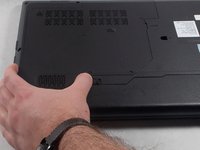
Turn the computer upside down.
 Vraag FixBot
-
-
-
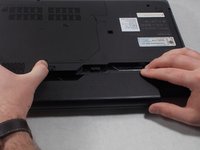
Locate the two switches that lock the battery.
-
Push the right switch outwards to unlock the battery.
-
-
-
Push and hold the left switch outwards to unlock the battery.
-
Pull the battery away from the computer.
-
-
-
-
-
-
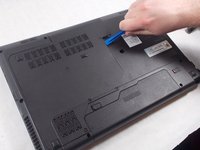
With the screws removed, insert the plastic opening tool into the groove located on the right side.
-
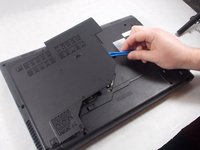
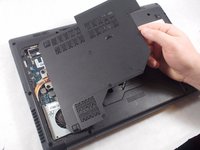
Begin to pry up, and the plate should lift up from the body of the laptop.
-
While lifting up, take the piece in one hand and pull up and to the right to fully remove the back plate.
-
-
-
-
Using your fingers, hold open the two clips holding the top RAM in place.
-
With the clips held away from the RAM, slide the top stick out from it's connection.
-
-
-
With the top RAM stick removed, repeat the same process for the bottom piece. Begin by holding the two clips away from the RAM.
-
With the clips held out, slide the RAM out from the connection.
-
-






To reassemble your device, follow these instructions in reverse order.
Annuleren: ik heb deze handleiding niet afgemaakt.
3 andere personen hebben deze handleiding voltooid.

Team

UMass Dartmouth, Team S1-G1, Simcock Spring 2018 Lid van UMass Dartmouth, Team S1-G1, Simcock Spring 2018
UMASSD-SIMCOCK-S18S1G1
3 Leden
12 handleidingen geschreven
