Ga door naar hoofdinhoud
Word lid van de reparatiegemeenschap - Account aanmaken

HTC Thunderbolt Volume Buttons Replacement

Wat je nodig hebt

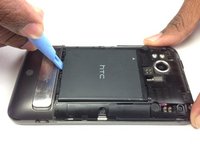
  1. HTC Thunderbolt Volume Buttons Replacement, Rear Panel: stap 1, afbeelding 1 van 1
    • Insert the plastic opening tool into the top of the Thunderbolt near the power button.

    • Gently pry up on the rear panel around the edges until it is loose.

    Vraag FixBot
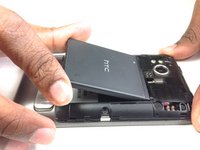
  2. HTC Thunderbolt Volume Buttons Replacement: stap 2, afbeelding 1 van 1
    • Lift and remove the rear panel.

    Vraag FixBot
  3. HTC Thunderbolt Volume Buttons Replacement, Battery: stap 3, afbeelding 1 van 2 HTC Thunderbolt Volume Buttons Replacement, Battery: stap 3, afbeelding 2 van 2
    • Using the plastic opening tool, lift up the battery from the bottom near the kickstand.

    • Remove the battery from the inner frame.

    Vraag FixBot
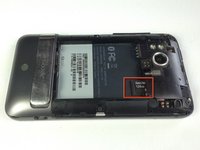
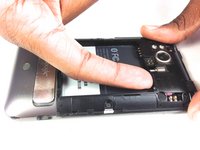
  4. HTC Thunderbolt Volume Buttons Replacement, MicroSD Card: stap 4, afbeelding 1 van 2 HTC Thunderbolt Volume Buttons Replacement, MicroSD Card: stap 4, afbeelding 2 van 2
    • Use your finger to push the MicroSD card in towards the top of the phone, allowing it to be released from the casing.

    Vraag FixBot
  5. HTC Thunderbolt Volume Buttons Replacement: stap 5, afbeelding 1 van 1
    Gereedschap gebruikt in deze stap:
    Tweezers
    $4.99
    • Use tweezers to grab onto the MicroSD card and carefully remove it from the casing.

    Vraag FixBot
  6. HTC Thunderbolt Volume Buttons Replacement, Rear Frame: stap 6, afbeelding 1 van 1
    • Remove the six Phillips screws from the perimeter of the rear frame.

    • By removing the screw with the "void" sticker on it, your Thunderbolt will no longer be covered under warranty.

    Vraag FixBot
  7. HTC Thunderbolt Volume Buttons Replacement: stap 7, afbeelding 1 van 2 HTC Thunderbolt Volume Buttons Replacement: stap 7, afbeelding 2 van 2
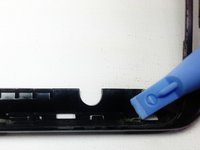
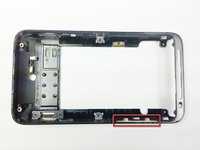
    • Insert the plastic opening tool into the bottom of the phone underneath the soft keys.

    • Gently pry up on the plastic cover by sliding the plastic opening tool across the bottom of the phone.

    • Remove the plastic cover.

    • The plastic cover will have adhesive on it making it difficult to remove.

    Vraag FixBot
  8. HTC Thunderbolt Volume Buttons Replacement: stap 8, afbeelding 1 van 1
    • Remove the two Phillips screws where the plastic cover was.

    Vraag FixBot
  9. HTC Thunderbolt Volume Buttons Replacement: stap 9, afbeelding 1 van 2 HTC Thunderbolt Volume Buttons Replacement: stap 9, afbeelding 2 van 2
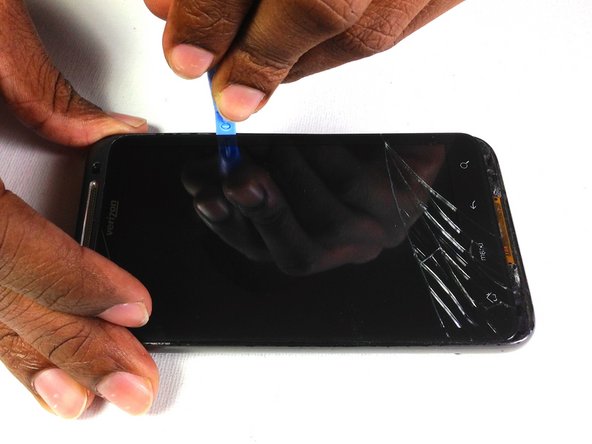
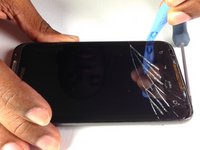
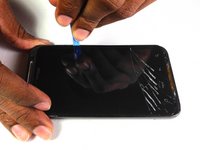
    • Insert the plastic opening tool in between the screen and the frame on the side of the phone.

    • Slowly slide the the plastic opening tool along the side of the phone until the screen begins to separate from the frame.

    • Do the same for the opposite side of the phone.

    Vraag FixBot
  10. HTC Thunderbolt Volume Buttons Replacement: stap 10, afbeelding 1 van 3 HTC Thunderbolt Volume Buttons Replacement: stap 10, afbeelding 2 van 3 HTC Thunderbolt Volume Buttons Replacement: stap 10, afbeelding 3 van 3
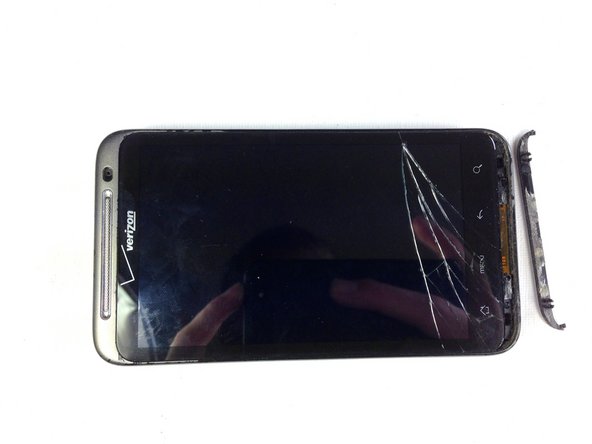
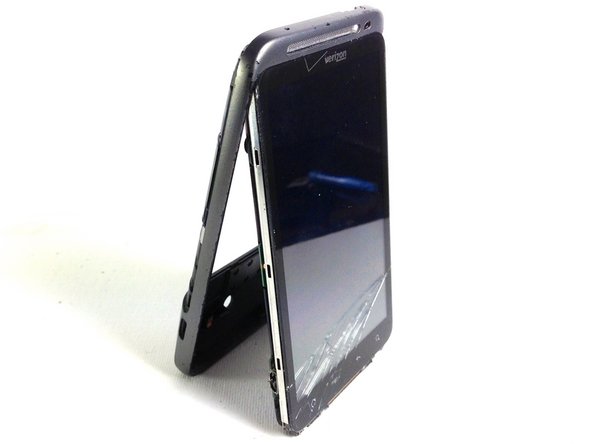
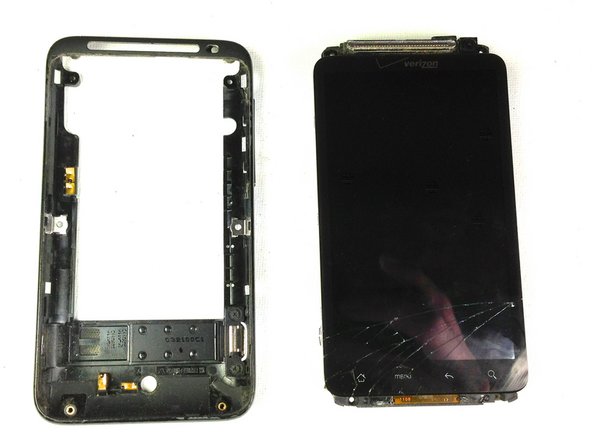
    • Carefully separate the screen and phone from the rear frame, starting from the bottom.

    • Gently pull down on the phone and screen to fully separate it from the rear frame.

    Vraag FixBot
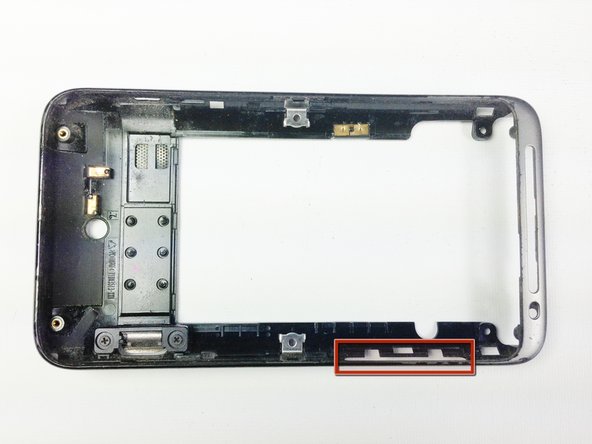
  11. HTC Thunderbolt Volume Buttons Replacement, Volume Buttons: stap 11, afbeelding 1 van 1
    • Locate the side volume buttons

    Vraag FixBot
  12. HTC Thunderbolt Volume Buttons Replacement: stap 12, afbeelding 1 van 2 HTC Thunderbolt Volume Buttons Replacement: stap 12, afbeelding 2 van 2
    • Use a pry tool to lift the buttons out of the case

    Vraag FixBot
Conclusie

To reassemble your device, follow these instructions in reverse order.

Vanessa

Lid sinds: 01/18/13

60 Reputatie

4 handleidingen geschreven

Team

Cal Poly, Team 19-45, Regan Winter 2013 Lid van Cal Poly, Team 19-45, Regan Winter 2013

CPSU-REGAN-W13S19G45

4 Leden

24 handleidingen geschreven

0Gids Commentaar

Voeg opmerking toe

Weergavestatistieken:

Afgelopen 24 uren: 1

Afgelopen 7 dagen: 12

Afgelopen 30 dagen: 68

Altijd: 891