Ga door naar hoofdinhoud
Word lid van de reparatiegemeenschap - Account aanmaken

HP Pavilion zd8000 Base Fans Replacement

Wat je nodig hebt

  1. HP Pavilion zd8000 Base Fans Replacement, Battery: stap 1, afbeelding 1 van 1
    • Slide the battery release latch towards you.

    Vraag FixBot
  2. HP Pavilion zd8000 Base Fans Replacement: stap 2, afbeelding 1 van 2 HP Pavilion zd8000 Base Fans Replacement: stap 2, afbeelding 2 van 2
    • Pull up on the battery to remove it.

    Vraag FixBot
  3. HP Pavilion zd8000 Base Fans Replacement, RAM: stap 3, afbeelding 1 van 2 HP Pavilion zd8000 Base Fans Replacement, RAM: stap 3, afbeelding 2 van 2
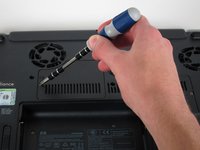
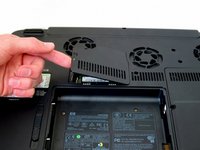
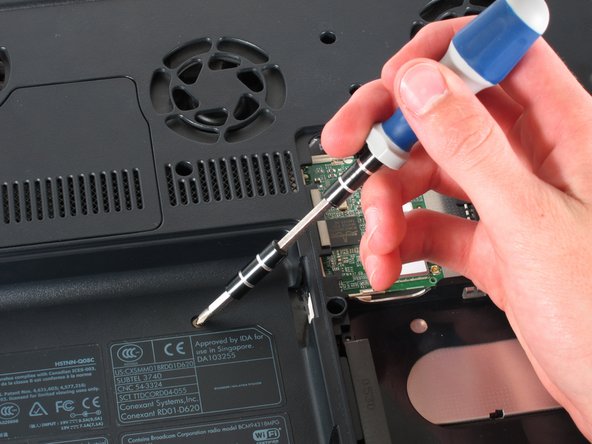
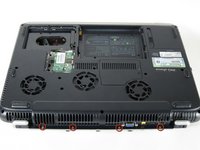
    • Loosen the Phillips screw labeled ‘ram’ and lift the cover.

    Vraag FixBot
  4. HP Pavilion zd8000 Base Fans Replacement: stap 4, afbeelding 1 van 2 HP Pavilion zd8000 Base Fans Replacement: stap 4, afbeelding 2 van 2
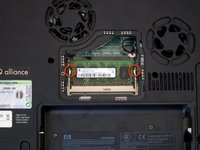
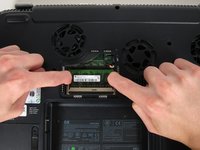
    • Locate the green RAM card and find the metal tabs securing the card.

    • Push outwards on the two tabs to release the card.

    Vraag FixBot
  5. HP Pavilion zd8000 Base Fans Replacement: stap 5, afbeelding 1 van 1
    • Carefully slide the card out at an upward angle away from the slot.

    Vraag FixBot
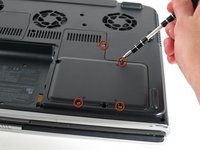
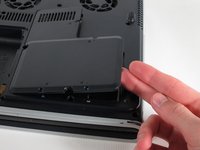
  6. HP Pavilion zd8000 Base Fans Replacement, WiFi Card Cables: stap 6, afbeelding 1 van 2 HP Pavilion zd8000 Base Fans Replacement, WiFi Card Cables: stap 6, afbeelding 2 van 2
    • Unscrew the four 8mm Philips screws marked with an icon resembling a stacks of discs.

    • Lift the cover from the right to remove it.

    Vraag FixBot
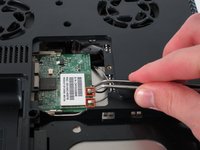
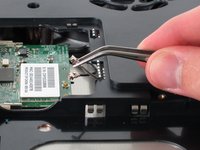
  7. HP Pavilion zd8000 Base Fans Replacement: stap 7, afbeelding 1 van 2 HP Pavilion zd8000 Base Fans Replacement: stap 7, afbeelding 2 van 2
    Gereedschap gebruikt in deze stap:
    Tweezers
    $4.99
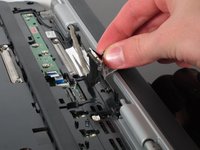
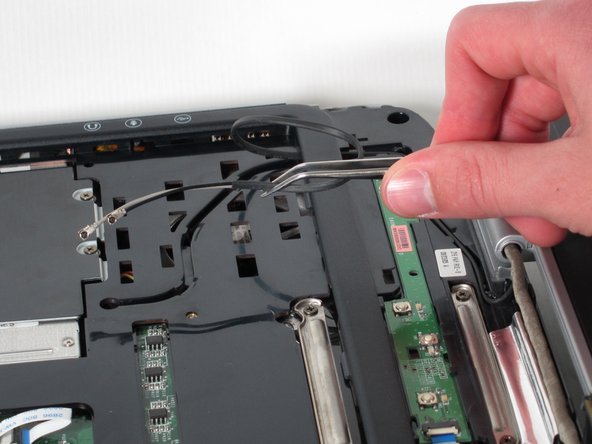
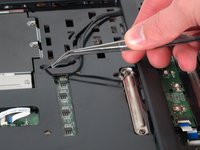
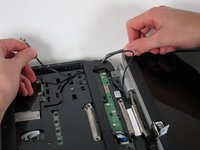
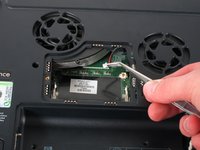
    • Use tweezers to detach the grey and black cables connected to the green WiFi card.

    Vraag FixBot
  8. HP Pavilion zd8000 Base Fans Replacement, CD/Optical Drive: stap 8, afbeelding 1 van 1
    • Remove the 8mm Philips screw located between the hard drive and the WiFi card.

    Vraag FixBot
  9. HP Pavilion zd8000 Base Fans Replacement: stap 9, afbeelding 1 van 2 HP Pavilion zd8000 Base Fans Replacement: stap 9, afbeelding 2 van 2
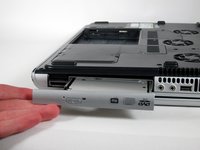
    • Turn the laptop 90 degrees clockwise so you are facing the CD drive.

    • Unbend a paperclip and insert the end into the small hole by the eject button to cause the tray to pop out towards you.

    Vraag FixBot
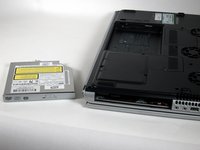
  10. HP Pavilion zd8000 Base Fans Replacement: stap 10, afbeelding 1 van 2 HP Pavilion zd8000 Base Fans Replacement: stap 10, afbeelding 2 van 2
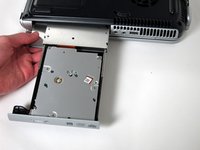
    • Gently pull the tray away from the laptop and the rest of the optical drive will follow.

    Vraag FixBot
  11. HP Pavilion zd8000 Base Fans Replacement, Keyboard: stap 11, afbeelding 1 van 1
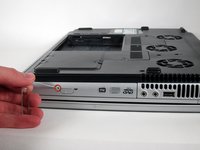
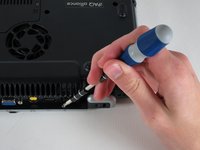
    • Remove the two 8mm Philips screws marked “K” on the bottom of the laptop.

    Vraag FixBot
  12. HP Pavilion zd8000 Base Fans Replacement: stap 12, afbeelding 1 van 2 HP Pavilion zd8000 Base Fans Replacement: stap 12, afbeelding 2 van 2
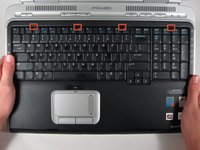
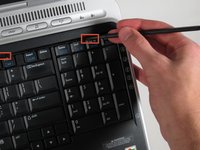
    • Flip the laptop over and open the screen.

    • Push up on the four latches located at the top of the keyboard with the spudger to release them.

    Vraag FixBot
  13. HP Pavilion zd8000 Base Fans Replacement: stap 13, afbeelding 1 van 2 HP Pavilion zd8000 Base Fans Replacement: stap 13, afbeelding 2 van 2
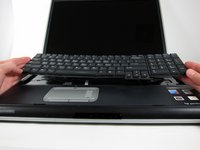
    • Lift the keyboard carefully because it is attached to the motherboard by a ribbon cable.
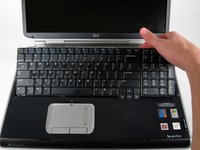
    • Lift the top of the keyboard towards you. Then, while keeping the keyboard at an angle, lift it towards the display.

    Vraag FixBot
  14. HP Pavilion zd8000 Base Fans Replacement: stap 14, afbeelding 1 van 2 HP Pavilion zd8000 Base Fans Replacement: stap 14, afbeelding 2 van 2
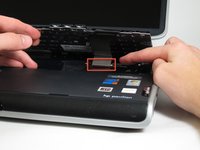
    • Rotate the keyboard so that the bottom is visible.

    • With the keyboard lifted, locate the blue-striped tab on the underside of the black ribbon cable.

    • Pull the tab towards you to release the keyboard from the laptop.

    Vraag FixBot
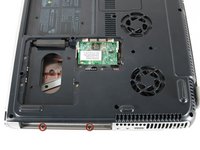
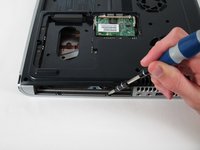
  15. HP Pavilion zd8000 Base Fans Replacement, Switch Cover: stap 15, afbeelding 1 van 2 HP Pavilion zd8000 Base Fans Replacement, Switch Cover: stap 15, afbeelding 2 van 2
    • Place the laptop face-down and rotate it 180 degrees so the vents are facing you.

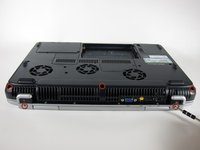
    • Remove the five 8mm Philips screws. Three are on the black base and two are near the hinges.

    Vraag FixBot
  16. HP Pavilion zd8000 Base Fans Replacement: stap 16, afbeelding 1 van 1
    • Flip the laptop over.

    • Fully open the laptop.

    Vraag FixBot
  17. HP Pavilion zd8000 Base Fans Replacement: stap 17, afbeelding 1 van 3 HP Pavilion zd8000 Base Fans Replacement: stap 17, afbeelding 2 van 3 HP Pavilion zd8000 Base Fans Replacement: stap 17, afbeelding 3 van 3
    • Rotate it so the display is on your right and the keyboard is on your left.

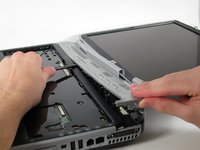
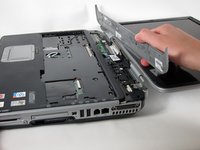
    • Lift the switch cover firmly but slowly so you do not snap it.

    • Lift the switch cover carefully from one end while sliding the spudger between the switch cover and the laptop to separate them.

    • The switch cover should easily separate from the laptop as you run the spudger through.

    Vraag FixBot
  18. HP Pavilion zd8000 Base Fans Replacement, Screen: stap 18, afbeelding 1 van 2 HP Pavilion zd8000 Base Fans Replacement, Screen: stap 18, afbeelding 2 van 2
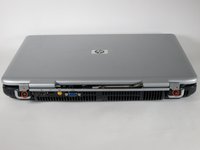
    • Close the lid and rotate the laptop so that the vents are facing you.

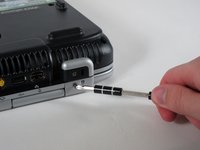
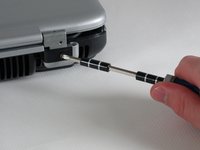
    • Unscrew the two 8mm Philips screws below the hinges.

    Vraag FixBot
  19. HP Pavilion zd8000 Base Fans Replacement: stap 19, afbeelding 1 van 2 HP Pavilion zd8000 Base Fans Replacement: stap 19, afbeelding 2 van 2
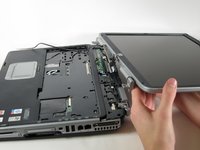
    • Carefully rotate the laptop 90 degrees counter-clockwise and open the screen.

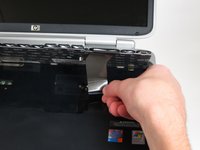
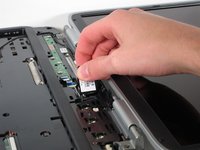
    • Pull on the black tab with the HP service sticker to unplug the display from the motherboard.

    Vraag FixBot
  20. HP Pavilion zd8000 Base Fans Replacement: stap 20, afbeelding 1 van 2 HP Pavilion zd8000 Base Fans Replacement: stap 20, afbeelding 2 van 2
    Gereedschap gebruikt in deze stap:
    Tweezers
    $4.99
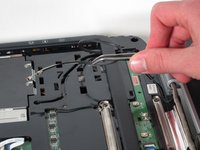
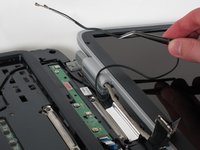
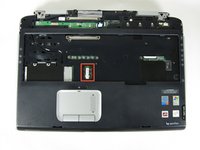
    • Using tweezers, remove the black cable from the hole leading to the WiFi enclosure.

    • Pull gently to remove the black and grey cables from the case.

    • Check the surface beneath the laptop to ensure the cables do not catch on anything when you flip the laptop over.

    Vraag FixBot
  21. HP Pavilion zd8000 Base Fans Replacement: stap 21, afbeelding 1 van 2 HP Pavilion zd8000 Base Fans Replacement: stap 21, afbeelding 2 van 2
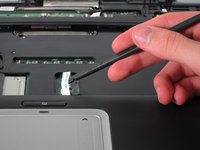
    • Using tweezers, pull the black cable towards the display and through the hole in the casing.

    Vraag FixBot
  22. HP Pavilion zd8000 Base Fans Replacement: stap 22, afbeelding 1 van 3 HP Pavilion zd8000 Base Fans Replacement: stap 22, afbeelding 2 van 3 HP Pavilion zd8000 Base Fans Replacement: stap 22, afbeelding 3 van 3
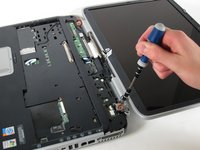
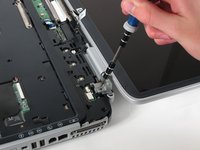
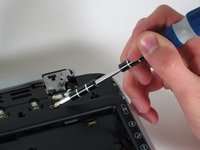
    • Unscrew the two 8mm Philips screws that attach the hinge to the laptop's display.

    • Lift the screen upwards to detach it from the laptop.

    Vraag FixBot
  23. HP Pavilion zd8000 Base Fans Replacement, Top Cover: stap 23, afbeelding 1 van 2 HP Pavilion zd8000 Base Fans Replacement, Top Cover: stap 23, afbeelding 2 van 2
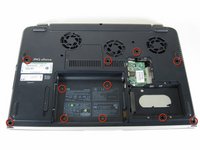
    • With the laptop face-down, remove the eleven 8mm Philips screws.

    Vraag FixBot
  24. HP Pavilion zd8000 Base Fans Replacement: stap 24, afbeelding 1 van 2 HP Pavilion zd8000 Base Fans Replacement: stap 24, afbeelding 2 van 2
    • Rotate the laptop 180 degrees so the vents are facing you.

    • Unscrew the four 3mm Philips screws below the vents.

    Vraag FixBot
  25. HP Pavilion zd8000 Base Fans Replacement: stap 25, afbeelding 1 van 2 HP Pavilion zd8000 Base Fans Replacement: stap 25, afbeelding 2 van 2
    • Rotate the laptop 90 degrees counter-clockwise.

    • Unscrew the two 3mm Philips screws from the optical drive bay.

    Vraag FixBot
  26. HP Pavilion zd8000 Base Fans Replacement: stap 26, afbeelding 1 van 3 HP Pavilion zd8000 Base Fans Replacement: stap 26, afbeelding 2 van 3 HP Pavilion zd8000 Base Fans Replacement: stap 26, afbeelding 3 van 3
    • Flip the laptop over so it is face-up with the trackpad closest to you.

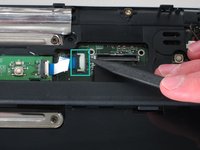
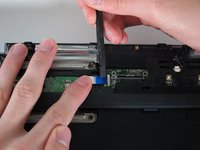
    • Locate the ribbon cable directly above the track pad.

    • Find the black latch at the end of the ribbon cable and unlatch it with a spudger to release it.

    Vraag FixBot
  27. HP Pavilion zd8000 Base Fans Replacement: stap 27, afbeelding 1 van 3 HP Pavilion zd8000 Base Fans Replacement: stap 27, afbeelding 2 van 3 HP Pavilion zd8000 Base Fans Replacement: stap 27, afbeelding 3 van 3
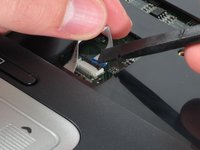
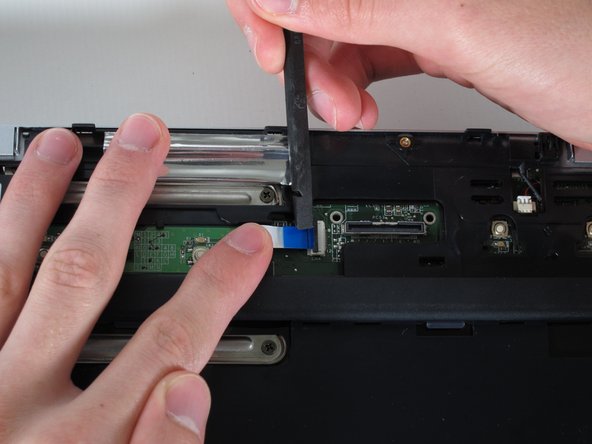
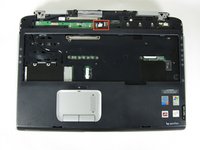
    • Find the ribbon cable on the LED board located at the top of the laptop.

    • You will notice that the ribbon cable is connected to two levels - you will be dealing with the one on the lower level.

    • Find the black latch at the end of the ribbon cable and unlatch it with a spudger to release it.

    Vraag FixBot
  28. HP Pavilion zd8000 Base Fans Replacement: stap 28, afbeelding 1 van 2 HP Pavilion zd8000 Base Fans Replacement: stap 28, afbeelding 2 van 2
    Gereedschap gebruikt in deze stap:
    Tweezers
    $4.99
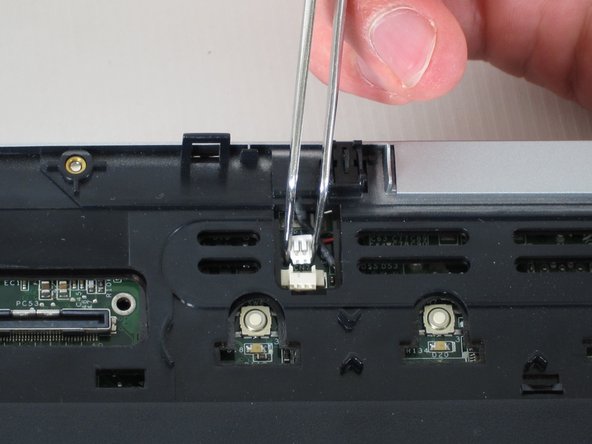
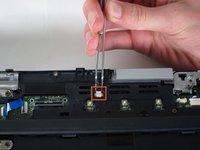
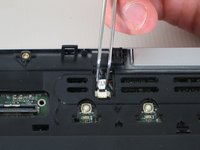
    • Locate the white connector attached to a red and black cable to the right of the LED board.

    • Using tweezers, pull the white connector away from you.

    Vraag FixBot
  29. HP Pavilion zd8000 Base Fans Replacement: stap 29, afbeelding 1 van 2 HP Pavilion zd8000 Base Fans Replacement: stap 29, afbeelding 2 van 2
    • Unscrew the four 8mm Philips screws from the top cover.

    Vraag FixBot
  30. HP Pavilion zd8000 Base Fans Replacement: stap 30, afbeelding 1 van 2 HP Pavilion zd8000 Base Fans Replacement: stap 30, afbeelding 2 van 2
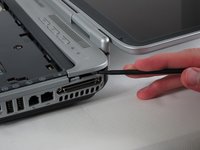
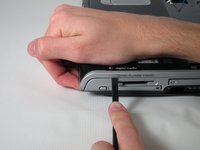
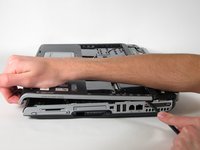
    • Rotate the computer 90 degrees clockwise and insert the spudger at the seam above the card reader.

    • While lifting the front end of the top cover, slide the spudger across the seam.

    • When you have reached the firewire port, it should click open.

    Vraag FixBot
  31. HP Pavilion zd8000 Base Fans Replacement: stap 31, afbeelding 1 van 1
    • Lift the top cover from the left side to remove it completely.

    Vraag FixBot
  32. HP Pavilion zd8000 Base Fans Replacement, USB Module: stap 32, afbeelding 1 van 2 HP Pavilion zd8000 Base Fans Replacement, USB Module: stap 32, afbeelding 2 van 2
    • Rotate the laptop 90 degrees counter-clockwise

    • Locate the USB Module

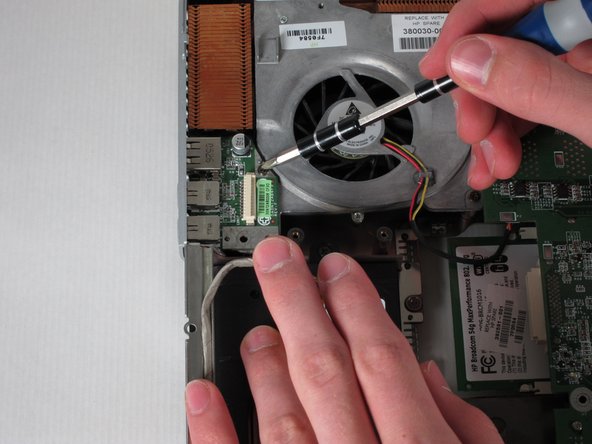
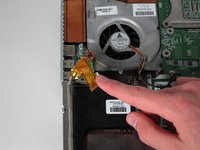
    • Grip the yellow cable cover and pull it to the right to release it.

    Vraag FixBot
  33. HP Pavilion zd8000 Base Fans Replacement: stap 33, afbeelding 1 van 2 HP Pavilion zd8000 Base Fans Replacement: stap 33, afbeelding 2 van 2
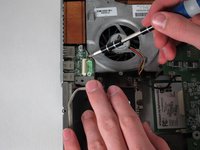
    • Unscrew the 6mm Philips screw connecting the USB module to the fan.

    Vraag FixBot
  34. HP Pavilion zd8000 Base Fans Replacement: stap 34, afbeelding 1 van 1
    • Pull the module to the right and lift it out to release it.

    Vraag FixBot
  35. HP Pavilion zd8000 Base Fans Replacement, Motherboard: stap 35, afbeelding 1 van 2 HP Pavilion zd8000 Base Fans Replacement, Motherboard: stap 35, afbeelding 2 van 2
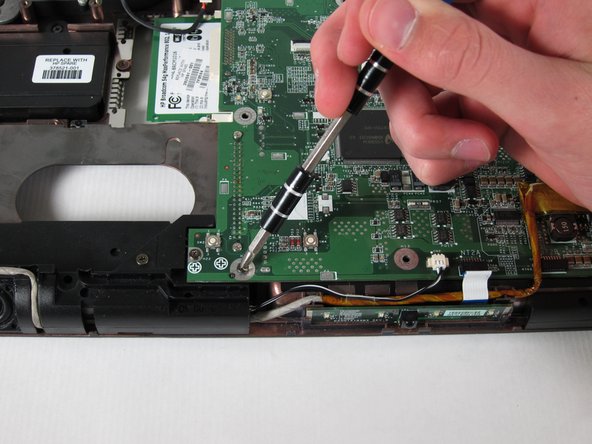
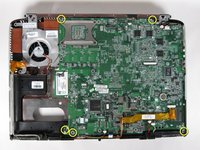
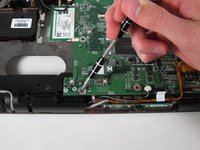
    • Unscrew and remove the five 4mm Philips screws marked with the white Phillips screw icon.

    Vraag FixBot
  36. HP Pavilion zd8000 Base Fans Replacement: stap 36, afbeelding 1 van 1
    • Unscrew and remove the two 8mm Philips screws from the heat sink fan.

    Vraag FixBot
  37. HP Pavilion zd8000 Base Fans Replacement: stap 37, afbeelding 1 van 1
    Gereedschap gebruikt in deze stap:
    Tweezers
    $4.99
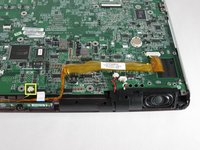
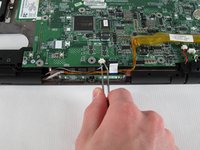
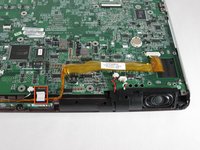
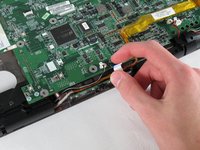
    • Using tweezers, remove the digital drive board cable - the cable set on the right with black, red, green, and white wires.

    • Using tweezers, remove the the rigth speaker cable - the cable set on the left with red and black wires - by pulling the white connector towards you.

    Vraag FixBot
  38. HP Pavilion zd8000 Base Fans Replacement: stap 38, afbeelding 1 van 2 HP Pavilion zd8000 Base Fans Replacement: stap 38, afbeelding 2 van 2
    • Using tweezers, remove the left speaker cable by pulling the white connector towards you.

    Vraag FixBot
  39. HP Pavilion zd8000 Base Fans Replacement: stap 39, afbeelding 1 van 2 HP Pavilion zd8000 Base Fans Replacement: stap 39, afbeelding 2 van 2
    • Remove the LED board cable by pulling the white tab towards you.

    Vraag FixBot
  40. HP Pavilion zd8000 Base Fans Replacement: stap 40, afbeelding 1 van 2 HP Pavilion zd8000 Base Fans Replacement: stap 40, afbeelding 2 van 2
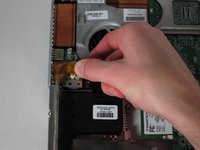
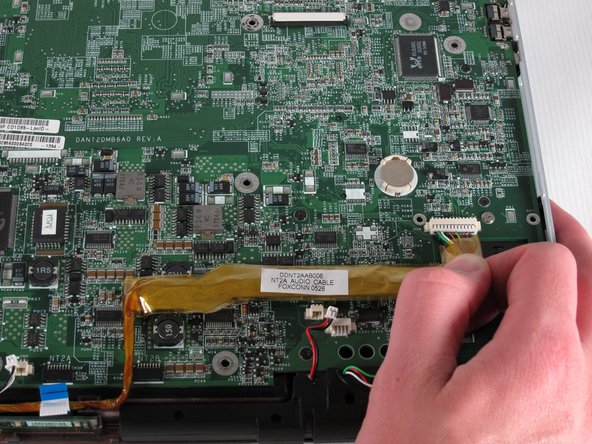
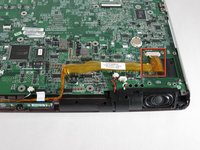
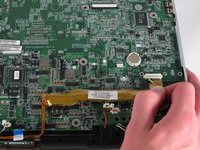
    • Remove the audio cable - the one with the yellow covering located at the bottom-right corner of the motherboard - by pulling the yellow covering towards you.

    Vraag FixBot
  41. HP Pavilion zd8000 Base Fans Replacement: stap 41, afbeelding 1 van 3 HP Pavilion zd8000 Base Fans Replacement: stap 41, afbeelding 2 van 3 HP Pavilion zd8000 Base Fans Replacement: stap 41, afbeelding 3 van 3
    • Rotate the laptop 180 degrees and locate the Bluetooth module at the bottom-left corner of the motherboard.

    • Using tweezers, remove the Bluetooth module’s white connector by pulling it away from you.

    Vraag FixBot
  42. HP Pavilion zd8000 Base Fans Replacement: stap 42, afbeelding 1 van 2 HP Pavilion zd8000 Base Fans Replacement: stap 42, afbeelding 2 van 2
    • Using tweezers, pull up on the Bluetooth module to remove it.

    Vraag FixBot
  43. HP Pavilion zd8000 Base Fans Replacement: stap 43, afbeelding 1 van 2 HP Pavilion zd8000 Base Fans Replacement: stap 43, afbeelding 2 van 2
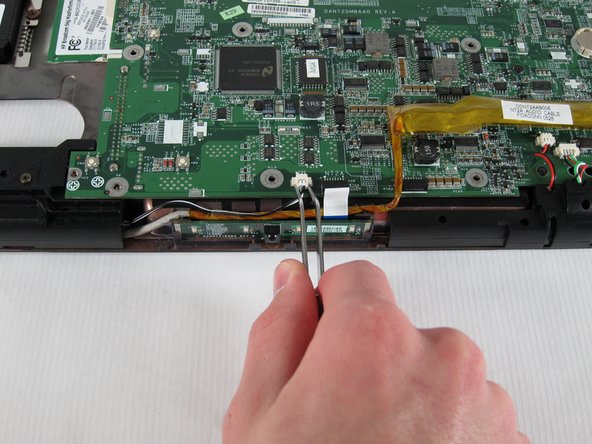
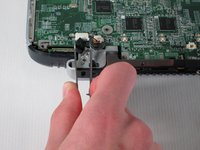
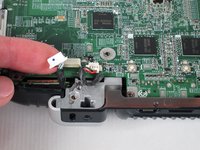
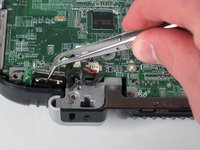
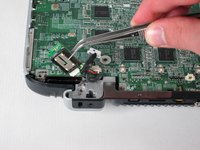
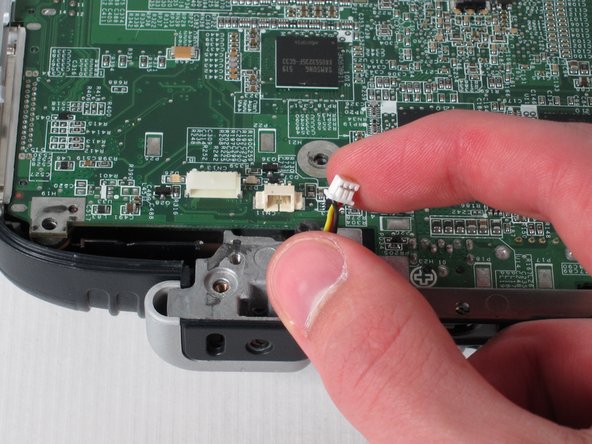
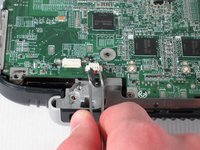
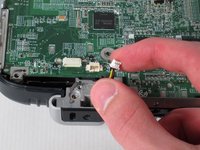
    • Remove the fan cable by pulling the white connector away from you.

    Vraag FixBot
  44. HP Pavilion zd8000 Base Fans Replacement: stap 44, afbeelding 1 van 2 HP Pavilion zd8000 Base Fans Replacement: stap 44, afbeelding 2 van 2
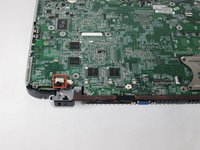
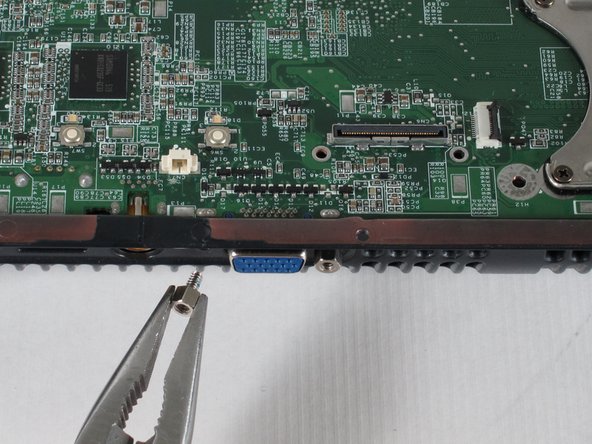
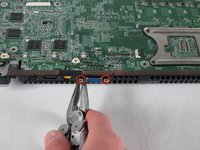
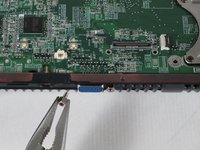
    • Using pliers, unscrew and remove the two bolts from both sides of the blue VGA connector.

    Vraag FixBot
  45. HP Pavilion zd8000 Base Fans Replacement: stap 45, afbeelding 1 van 2 HP Pavilion zd8000 Base Fans Replacement: stap 45, afbeelding 2 van 2
    • Carefully flip the laptop face-down with the battery compartment facing you.

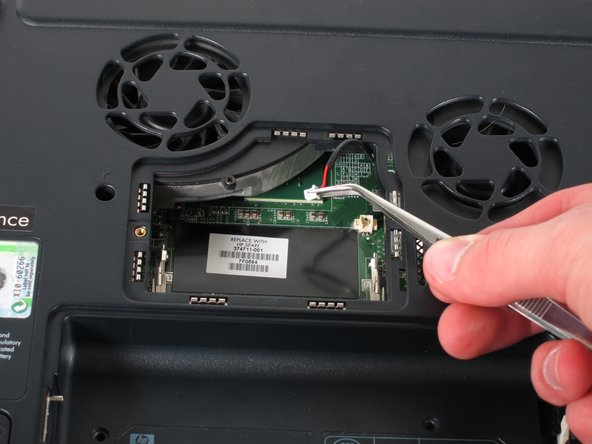
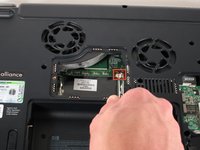
    • Using tweezers, remove the black and red cable from the RAM compartment by pulling on the white connector.

    Vraag FixBot
  46. HP Pavilion zd8000 Base Fans Replacement: stap 46, afbeelding 1 van 2 HP Pavilion zd8000 Base Fans Replacement: stap 46, afbeelding 2 van 2
    • Flip the laptop face-up and turn it so that the drive labelled "hp usb digital drive" faces you.

    • Press the ridged space saver card above the "hp usb digital drive" label to eject and remove it.

    Vraag FixBot
  47. HP Pavilion zd8000 Base Fans Replacement: stap 47, afbeelding 1 van 3 HP Pavilion zd8000 Base Fans Replacement: stap 47, afbeelding 2 van 3 HP Pavilion zd8000 Base Fans Replacement: stap 47, afbeelding 3 van 3
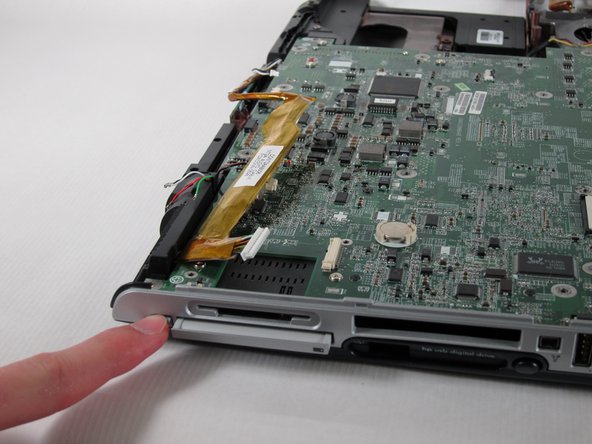
    • Locate the PC card below the SD card reader.

    • Push the button to its left once to eject the button itself, then press it once again to remove the PC card.

    Vraag FixBot
  48. HP Pavilion zd8000 Base Fans Replacement: stap 48, afbeelding 1 van 1
    • Once the PC card pops out, pull it out.

    Vraag FixBot
  49. HP Pavilion zd8000 Base Fans Replacement: stap 49, afbeelding 1 van 2 HP Pavilion zd8000 Base Fans Replacement: stap 49, afbeelding 2 van 2
    • Turn the computer 90 degrees counter-clockwise and clear all cables off of the motherboard.

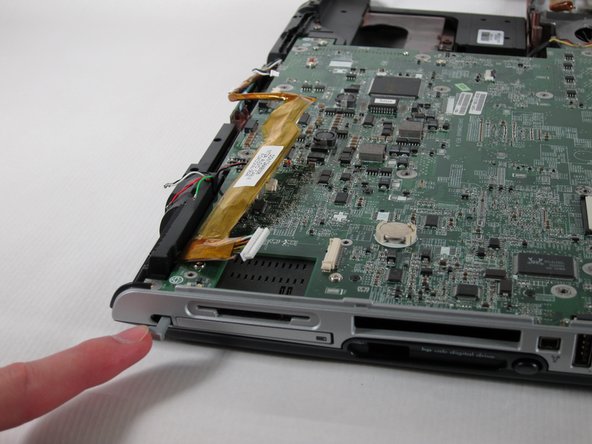
    • Push in the grey button to the left of the PC card as far as possible.

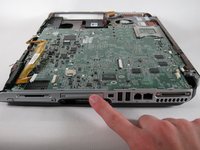
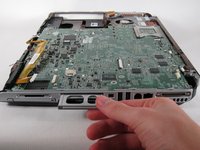
    • Keeping the button pressed down, lift the motherboard up until the button pops out the top of the case.

    Vraag FixBot
  50. HP Pavilion zd8000 Base Fans Replacement: stap 50, afbeelding 1 van 1
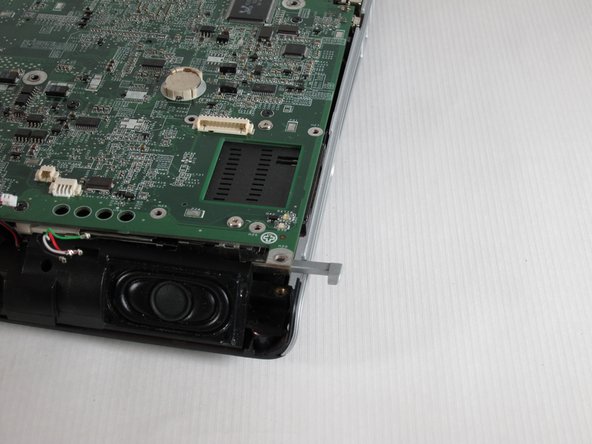
    • Pull the right casing to the side to release the ports on the motherboard from it.

    Vraag FixBot
  51. HP Pavilion zd8000 Base Fans Replacement: stap 51, afbeelding 1 van 2 HP Pavilion zd8000 Base Fans Replacement: stap 51, afbeelding 2 van 2
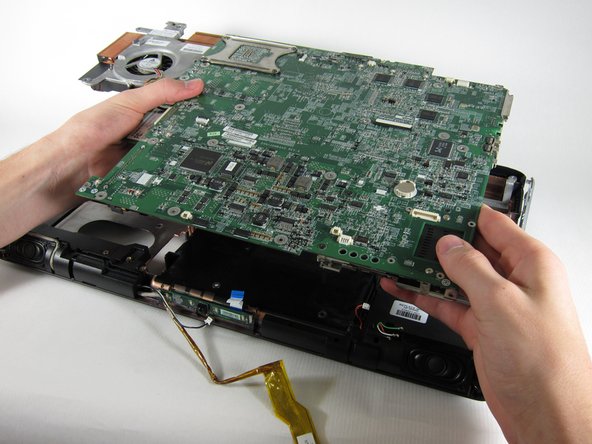
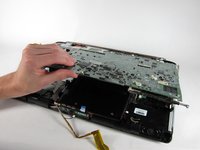
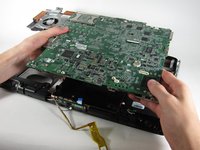
    • Lift the motherboard up until it releases from the bottom casing and remove it from the laptop.

    Vraag FixBot
  52. HP Pavilion zd8000 Base Fans Replacement, Base Fans: stap 52, afbeelding 1 van 2 HP Pavilion zd8000 Base Fans Replacement, Base Fans: stap 52, afbeelding 2 van 2
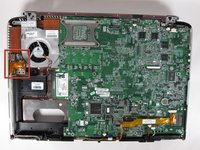
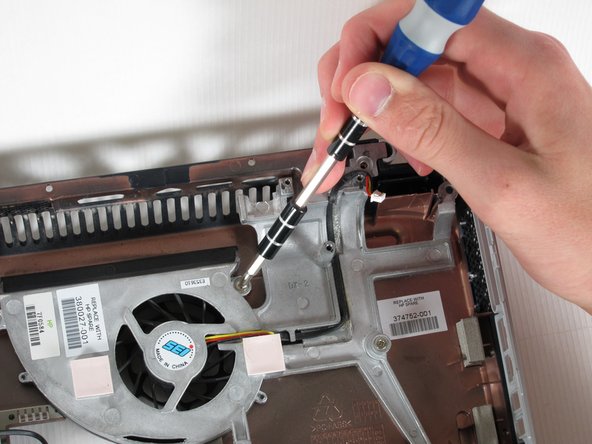
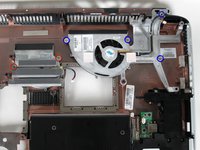
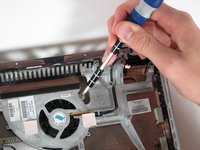
    • Unscrew the two 8mm Philips screws on both sides of the middle fan and remove them.

    • Unscrew the four 8mm Phillips screws from the right fan and remove them.

    Vraag FixBot
  53. HP Pavilion zd8000 Base Fans Replacement: stap 53, afbeelding 1 van 3 HP Pavilion zd8000 Base Fans Replacement: stap 53, afbeelding 2 van 3 HP Pavilion zd8000 Base Fans Replacement: stap 53, afbeelding 3 van 3
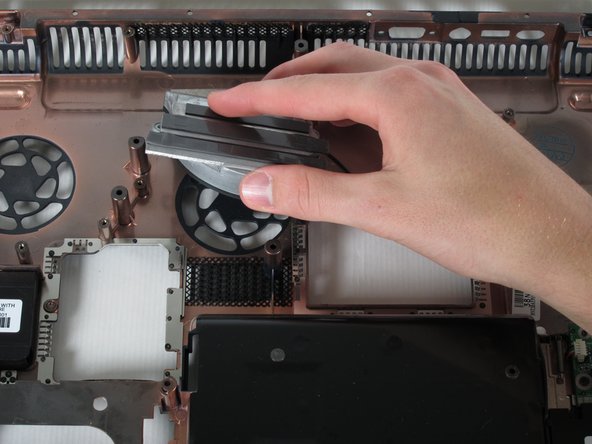
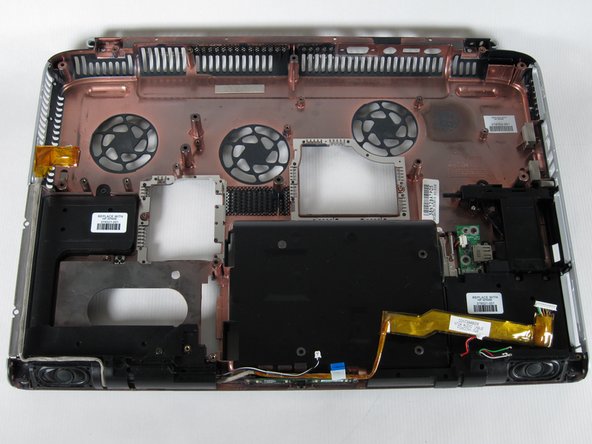
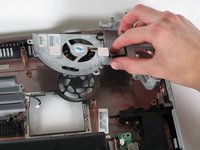
    • Lift both fans up and remove them from the laptop casing.

    Vraag FixBot
Conclusie

To reassemble your device, follow these instructions in reverse order.

3 andere personen hebben deze handleiding voltooid.

Allie Menard

Lid sinds: 04/12/11

820 Reputatie

13 handleidingen geschreven

Team

Cal Poly, Team 24-56, Amido Spring 2011 Lid van Cal Poly, Team 24-56, Amido Spring 2011

CPSU-AMIDO-S11S24G56

4 Leden

13 handleidingen geschreven

1Gids Commentaar

Then what ? I have the zd8000 the original DVDs for the operating system and drivers and the AC power supply and a new hard drive. Wherever would I find a new mobo though ? I would really love to rebuild this old laptop it has a memories , it was the first true widescreen high definition PC ever made. It's special.

Timothy Deshazo - Antwoord Deel

Voeg opmerking toe

Weergavestatistieken:

Afgelopen 24 uren: 1

Afgelopen 7 dagen: 14

Afgelopen 30 dagen: 72

Altijd: 9,616