Ga door naar hoofdinhoud
Word lid van de reparatiegemeenschap - Account aanmaken
HP G62-234DX Trackpad Replacement

Wat je nodig hebt

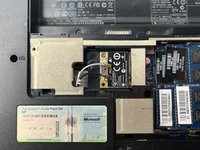
  1. HP G62-234DX Trackpad Replacement, Wi-Fi Card: stap 1, afbeelding 1 van 3 HP G62-234DX Trackpad Replacement, Wi-Fi Card: stap 1, afbeelding 2 van 3 HP G62-234DX Trackpad Replacement, Wi-Fi Card: stap 1, afbeelding 3 van 3
    • Make sure the computer is turned off and disconnected from a charger.

    • Place your laptop on a clean, flat surface with the bottom facing up.

    • Slide the battery lock to the left.

    • Slide the battery out from the laptop while holding the lock to the left.

    • Remove the battery.

    Vraag FixBot
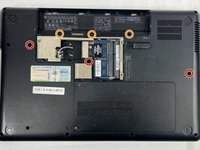
  2. HP G62-234DX Trackpad Replacement: stap 2, afbeelding 1 van 3 HP G62-234DX Trackpad Replacement: stap 2, afbeelding 2 van 3 HP G62-234DX Trackpad Replacement: stap 2, afbeelding 3 van 3
    • Use a Phillips #0 screwdriver to remove the three 6.0 mm screws.

    • The screws that are attached to the panel do not need to be removed completely.

    • Remove the back panel to access the Wi-Fi card.

    Vraag FixBot
  3. HP G62-234DX Trackpad Replacement: stap 3, afbeelding 1 van 3 HP G62-234DX Trackpad Replacement: stap 3, afbeelding 2 van 3 HP G62-234DX Trackpad Replacement: stap 3, afbeelding 3 van 3
    Gereedschap gebruikt in deze stap:
    Tweezers
    $4.99
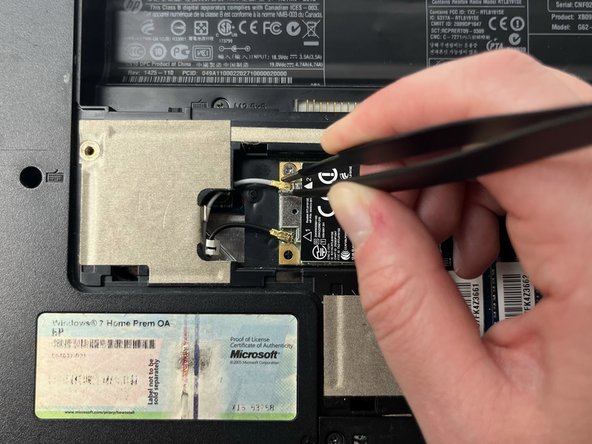
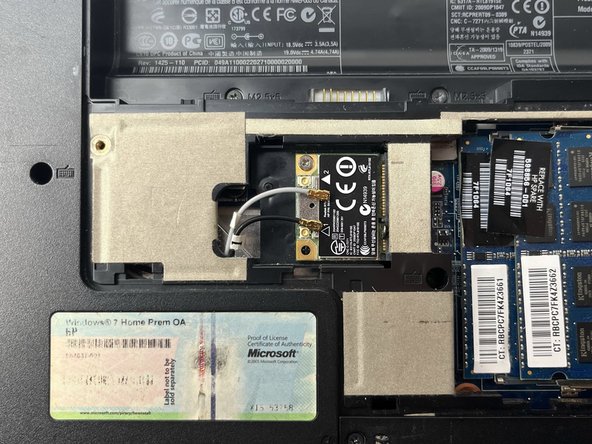
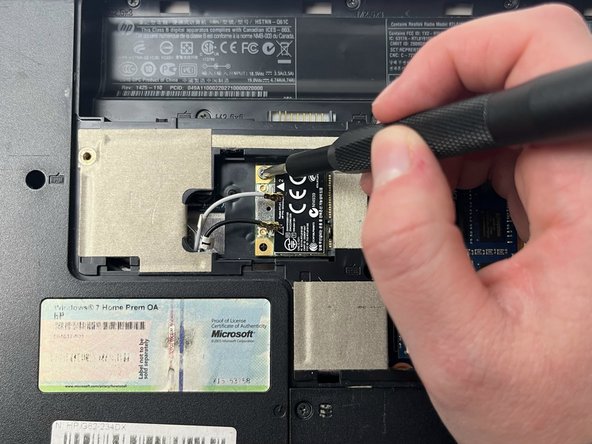
    • Slide a thin, ESD-safe pry tool or tweezers under the wire until it's snug against the connector, and pry straight up from the board to disconnect the coaxial cables from the Wi-Fi card.

    Vraag FixBot
  4. HP G62-234DX Trackpad Replacement: stap 4, afbeelding 1 van 2 HP G62-234DX Trackpad Replacement: stap 4, afbeelding 2 van 2
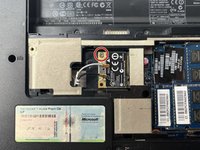
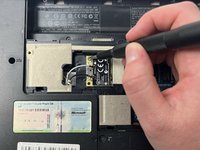
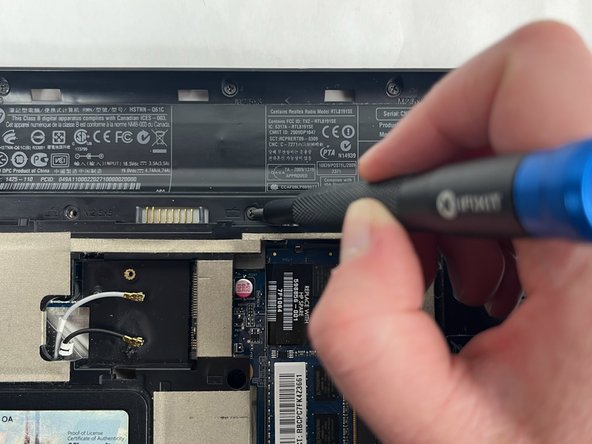
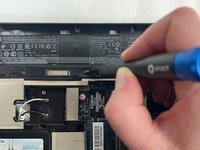
    • Use a Phillips #0 screwdriver to remove the 3.0 mm screw from the Wi-Fi card.

    • When the screw is removed the card will pop up at a 45-degree angle.

    Vraag FixBot
  5. HP G62-234DX Trackpad Replacement: stap 5, afbeelding 1 van 3 HP G62-234DX Trackpad Replacement: stap 5, afbeelding 2 van 3 HP G62-234DX Trackpad Replacement: stap 5, afbeelding 3 van 3
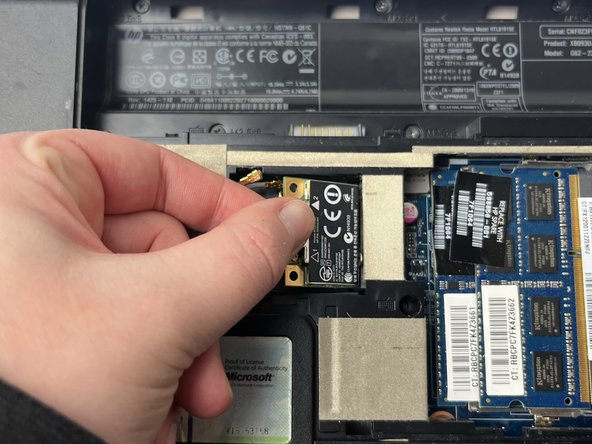
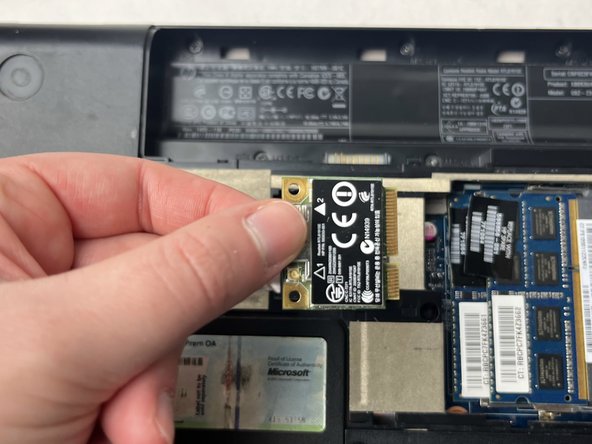
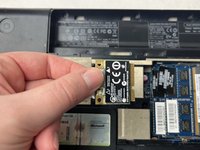
    • Remove the Wi-Fi card by sliding it out from the socket.

    Vraag FixBot
  6. HP G62-234DX Trackpad Replacement, Keyboard: stap 6, afbeelding 1 van 3 HP G62-234DX Trackpad Replacement, Keyboard: stap 6, afbeelding 2 van 3 HP G62-234DX Trackpad Replacement, Keyboard: stap 6, afbeelding 3 van 3
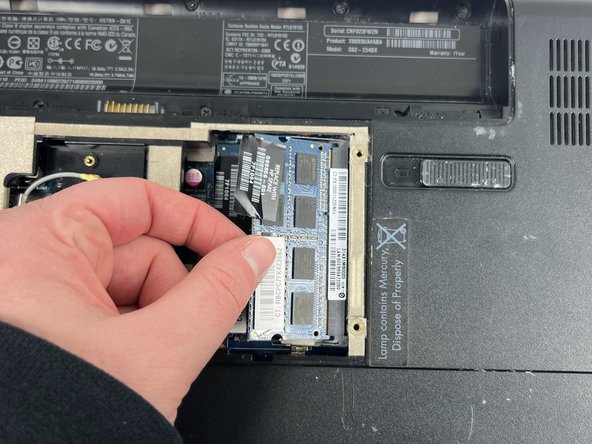
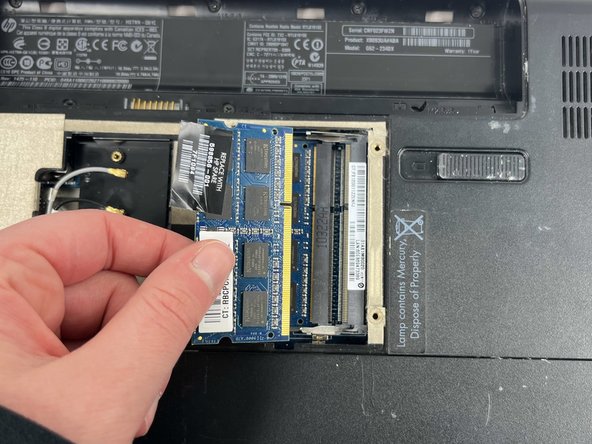
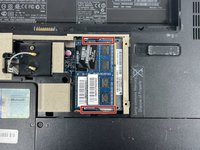
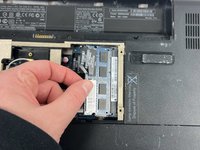
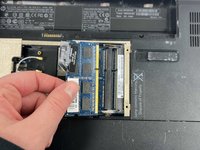
    • Release the tabs on each side of the chip by simultaneously pushing each tab away from the RAM chip.

    • These tabs lock the chip in place and releasing them will cause the chip to "pop" up.

    • Slide the RAM card out of the slot to remove it.

    Vraag FixBot
  7. HP G62-234DX Trackpad Replacement: stap 7, afbeelding 1 van 2 HP G62-234DX Trackpad Replacement: stap 7, afbeelding 2 van 2
    • Use a Phillips #0 screwdriver to remove three 6.5 mm screws.

    • Use a Phillips #0 screwdriver to remove three 5.0 mm screws.

    Vraag FixBot
  8. HP G62-234DX Trackpad Replacement: stap 8, afbeelding 1 van 2 HP G62-234DX Trackpad Replacement: stap 8, afbeelding 2 van 2
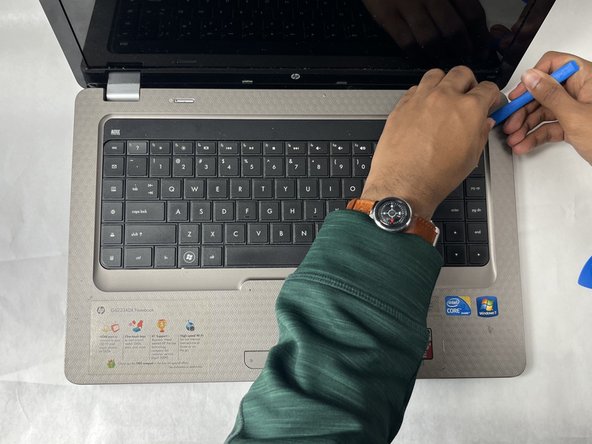
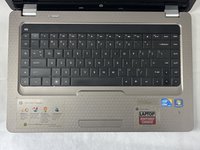
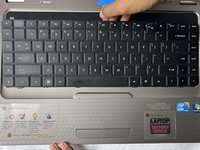
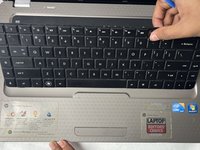
    • Rotate the laptop back to its standard orientation and flip open the screen.

    • Use the iFixit opening tool to separate the keyboard from the tabs. Start from one point on the edge and work your way around until all of the tabs are released.

    Vraag FixBot
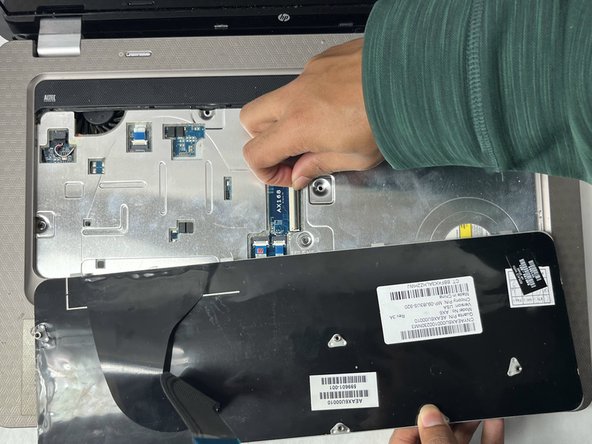
  9. HP G62-234DX Trackpad Replacement: stap 9, afbeelding 1 van 3 HP G62-234DX Trackpad Replacement: stap 9, afbeelding 2 van 3 HP G62-234DX Trackpad Replacement: stap 9, afbeelding 3 van 3
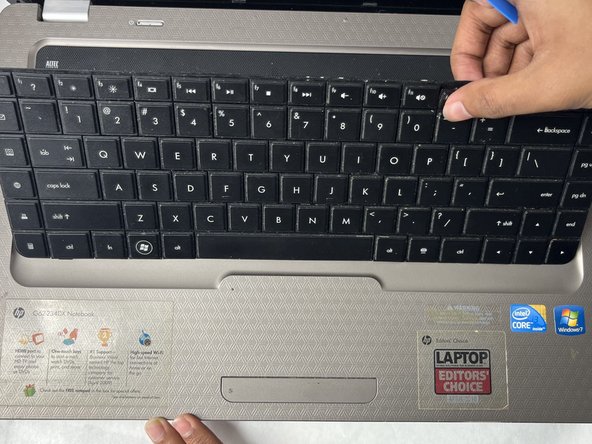
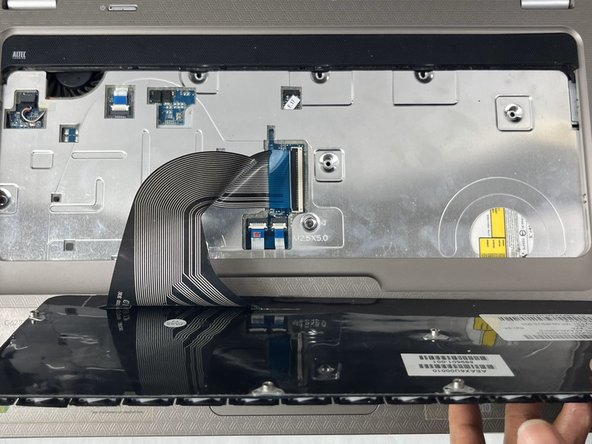
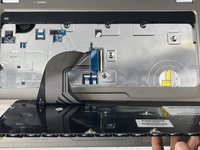
    • Flip the keyboard towards yourself.

    • Do not try to pull it out, as it is still connected to the ribbon cable.

    Vraag FixBot
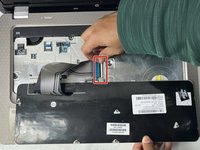
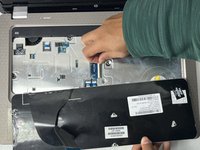
  10. HP G62-234DX Trackpad Replacement: stap 10, afbeelding 1 van 2 HP G62-234DX Trackpad Replacement: stap 10, afbeelding 2 van 2
    • Flip up the locking flap using either your fingernail, or a spudger.

    • Remove the ribbon from the ZIF connector.

    Vraag FixBot
  11. HP G62-234DX Trackpad Replacement: stap 11, afbeelding 1 van 1
    • Remove the keyboard.

    Vraag FixBot
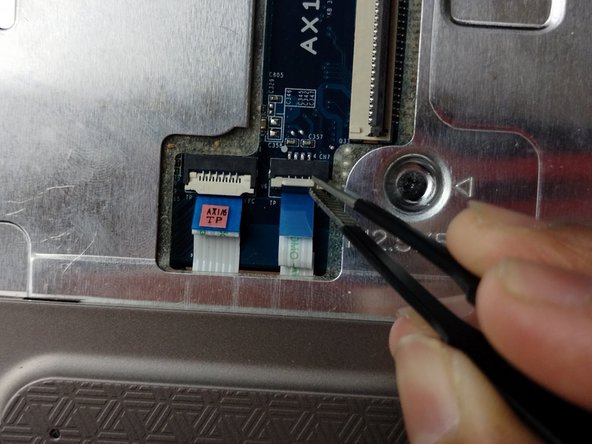
  12. HP G62-234DX Trackpad Replacement, Trackpad: stap 12, afbeelding 1 van 3 HP G62-234DX Trackpad Replacement, Trackpad: stap 12, afbeelding 2 van 3 HP G62-234DX Trackpad Replacement, Trackpad: stap 12, afbeelding 3 van 3
    • Use a Phillips #0 screwdriver to remove two 6.0 mm screws.

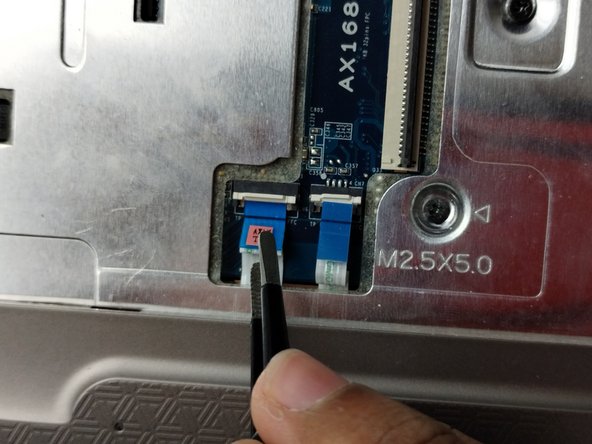
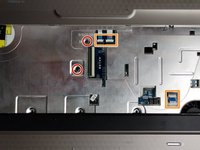
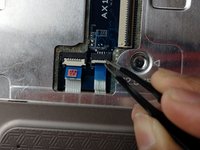
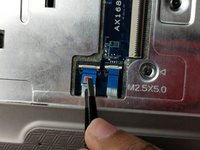
    • Use the tip of a spudger or your fingernail to flip up the small locking flaps on the three connectors attached to the trackpad.

    • Pull the cables out gently.

    Vraag FixBot
  13. HP G62-234DX Trackpad Replacement: stap 13, afbeelding 1 van 3 HP G62-234DX Trackpad Replacement: stap 13, afbeelding 2 van 3 HP G62-234DX Trackpad Replacement: stap 13, afbeelding 3 van 3
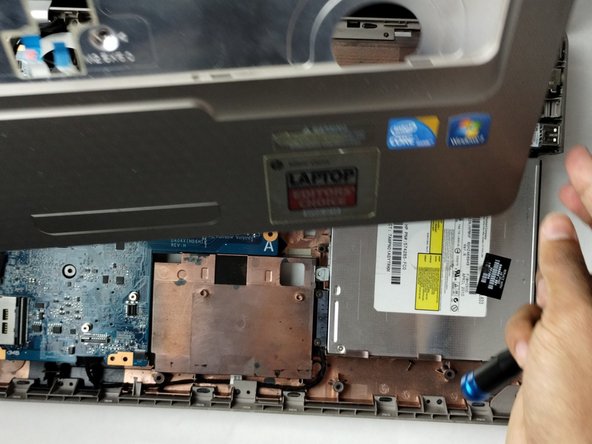
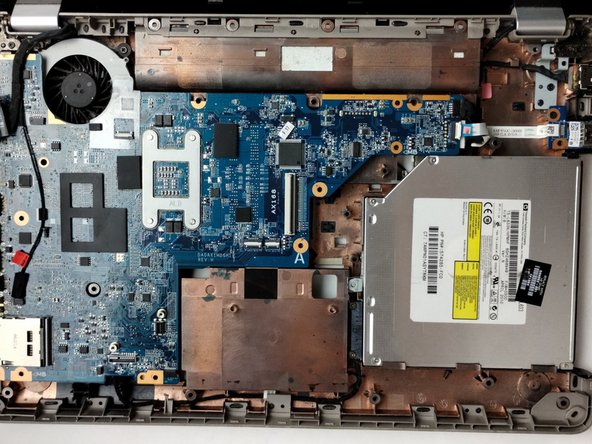
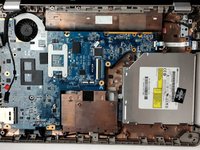
    • Use an opening tool and picks to pry the palm rest assembly from the device.

    • The trackpad is built into the palm rest assembly.

    Vraag FixBot
Conclusie

To reassemble your device, follow these instructions in reverse order.

Één andere persoon heeft deze handleiding voltooid.

Kate Ferland

Lid sinds: 11/01/23

836 Reputatie

6 handleidingen geschreven

Team

UMass Dartmouth, Team 1-1, Petersen Fall 2023 Lid van UMass Dartmouth, Team 1-1, Petersen Fall 2023

UMASSD-PETERSEN-F23S1G1

4 Leden

6 handleidingen geschreven

0Gids Commentaar

Voeg opmerking toe

Weergavestatistieken:

Afgelopen 24 uren: 0

Afgelopen 7 dagen: 1

Afgelopen 30 dagen: 26

Altijd: 259