Inleiding
The cooling fan of any laptop or home computer ensures that the internal parts of the device do not overheat. For this reason it is important to make sure that your cooling fan is in working order and clean of dust. As with all disassembly guides, don’t forget to create a back up of your device’s hard drive.
Wat je nodig hebt
-
-
Slide the lock mechanism on the left side of the laptop to the right.
 Vraag FixBot
-
-
-
While holding the right slide mechanism, remove the battery from the laptop.
-
-
-
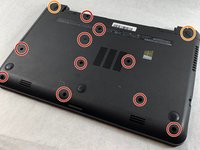
Flip the laptop over to reveal screw locations.
-
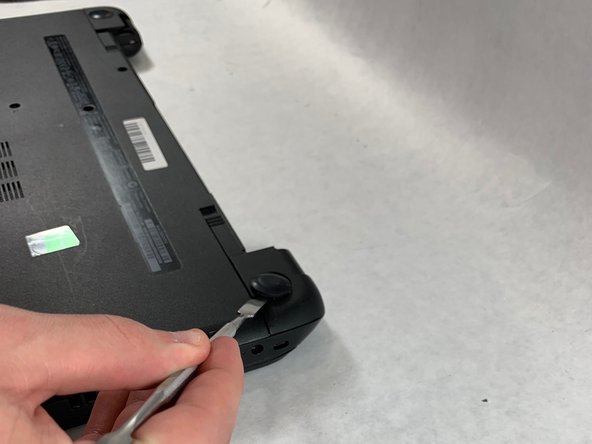
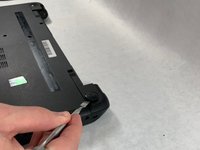
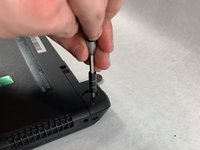
Use a metal spudger to remove the two rear rubber feet. There are screws hidden underneath them.
-
-
-
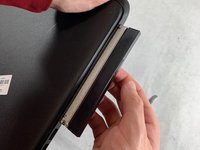
Remove the DVD drive from the laptop.
-
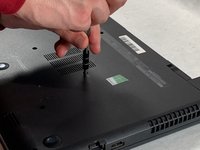
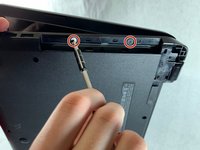
Remove the two 3 mm Phillips #1 screws underneath the DVD drive.
-
-
-
Flip the laptop and open.
-
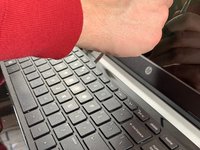
Detach the keyboard by prying it free from the laptop using a spudger.
-
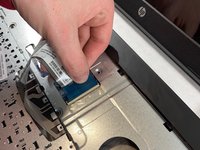
Disconnect the keyboard ribbon cable.
-
-
-
-
Disconnect the two narrow ribbon cables to the left of the keyboard connection.
-
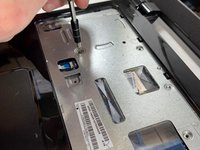
Remove five 4 mm Phillips #1 screws from the metal tray for the keyboard.
-
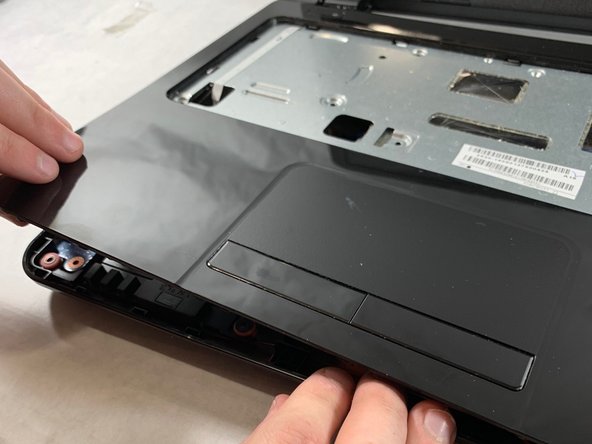
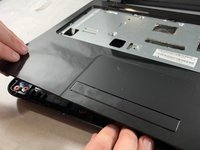
Pry open the plastic casing using a spudger.
-
-
-
Remove two 5 mm Phillips #1 screws located at the base of the hard drive.
-
-
-
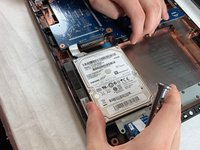
Pull the hard drive upwards and away from the laptop.
-
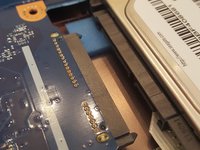
The hard drive should disconnect from its port on the motherboard as shown in the second image.
-
-
-
Flip the hard drive over.
-
Remove the two 4 mm Phillips #1 screws from the base of the hard drive.
-
Remove the mounting brace (silver bracket) from the hard drive.
-
-
-
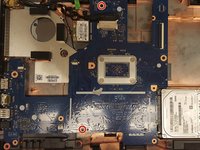
Remove the remaining two 5 mm Philips #1 screws from the motherboard.
-
-
-
Remove the tape from the display connector attached to the motherboard.
-
Disconnect the display connector from the motherboard.
-
-
-
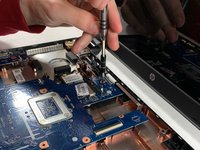
Remove one 4 mm Phillips #1 screw from the wireless chip.
-
Remove the wireless chip from the motherboard.
-
-
-
Remove two 5 mm Phillips #1 screws from the USB component connected to the motherboard.
-
Lift the USB component until the band connecting it to the motherboard lifts off of the laptop.
-
-
-
Slowly lift the motherboard out of the computer.
-
Disconnect the power connector from the motherboard as shown in the image.
-
-
-
Using a Phillips #1 screwdriver, remove the three 5mm screws that secure the cooling fan assembly to the motherboard.
-
-
-
Separate the cooling fan assembly from the motherboard and proceed to use the canned air to clean the inner pieces of the fan.
-















To reassemble your device, follow these instructions in reverse order.
Annuleren: ik heb deze handleiding niet afgemaakt.
Één andere persoon heeft deze handleiding voltooid.

Team

UMass Dartmouth, Team S2-G4, Bailey Spring 2019 Lid van UMass Dartmouth, Team S2-G4, Bailey Spring 2019
UMASSD-BAILEY-S19S2G4
3 Leden
6 handleidingen geschreven
1Gids Commentaar
It appears as though the jfan1 connection on the motherboard doesn’t have a plastic connector. I’ve bought a fan for this laptop to solve some overheating issues, but I can’t find anywhere to plug it in (I’m assuming that on similar models, the jfan1 connection would be the one to use). Is there any way that I can somehow plug my fan into this motherboard?
