Ga door naar hoofdinhoud
Word lid van de reparatiegemeenschap - Account aanmaken

Dell XPS 18 Battery Replacement

Wat je nodig hebt

  1. Dell XPS 18 Battery Replacement, Back Cover: stap 1, afbeelding 1 van 1
    • Turn the device on its screen.

    • Remove the ten 4mm screws using a T8 Torx screwdriver.

    Vraag FixBot

    Voeg opmerking toe

  2. Dell XPS 18 Battery Replacement: stap 2, afbeelding 1 van 1
    • Gently flip out support feet located near the bottom of device.

    Vraag FixBot

    Voeg opmerking toe

  3. Dell XPS 18 Battery Replacement: stap 3, afbeelding 1 van 1
    • Gently lift the back cover off the device. The back cover should come off easily.

    Vraag FixBot

    Voeg opmerking toe

  4. Dell XPS 18 Battery Replacement, Internal Cover: stap 4, afbeelding 1 van 1
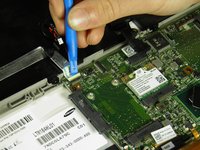
    • Use the opening tool's angled edge to lift the clasps securing the screen and motherboard cables.

    Vraag FixBot

    Voeg opmerking toe

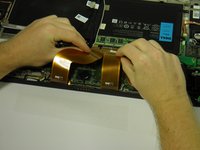
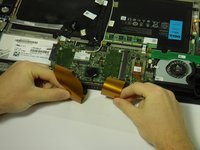
  5. Dell XPS 18 Battery Replacement: stap 5, afbeelding 1 van 2 Dell XPS 18 Battery Replacement: stap 5, afbeelding 2 van 2
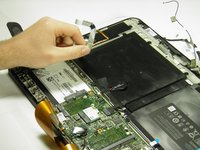
    • Disconnect the screen and copper colored motherboard cables and tuck them under the device to prevent future hassle.

    Vraag FixBot

    Voeg opmerking toe

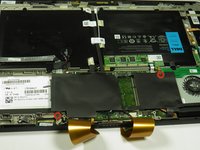
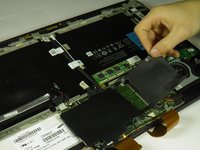
  6. Dell XPS 18 Battery Replacement: stap 6, afbeelding 1 van 2 Dell XPS 18 Battery Replacement: stap 6, afbeelding 2 van 2
    • Remove the two black 3mm screws from the internal cover with a Phillips 00 screwdriver.

    • Remove the internal cover.

    Vraag FixBot

    Voeg opmerking toe

  7. Dell XPS 18 Battery Replacement, Touch Control Board: stap 7, afbeelding 1 van 2 Dell XPS 18 Battery Replacement, Touch Control Board: stap 7, afbeelding 2 van 2
    • Disconnect the black camera cable and pull it back to prevent future hassle.

    Vraag FixBot

    Voeg opmerking toe

  8. Dell XPS 18 Battery Replacement: stap 8, afbeelding 1 van 2 Dell XPS 18 Battery Replacement: stap 8, afbeelding 2 van 2
    • Use the angled edge of the plastic opening tool to lift the clasp securing the touch control board cable.

    • Disconnect the silver and blue touch control board cable.

    Vraag FixBot

    Voeg opmerking toe

  9. Dell XPS 18 Battery Replacement: stap 9, afbeelding 1 van 2 Dell XPS 18 Battery Replacement: stap 9, afbeelding 2 van 2
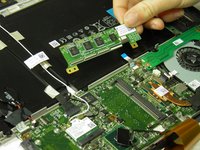
    • Remove the two silver 3mm screws holding the touch control board in place with a Phillips 00 screwdriver.

    • Remove the touch control board.

    Vraag FixBot

    Voeg opmerking toe

  10. Dell XPS 18 Battery Replacement, Wireless WLAN Card Wires: stap 10, afbeelding 1 van 1
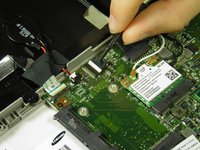
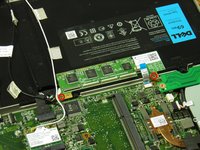
    • Use the plastic opening tool's angled edge to remove the black and white wires connected to the wireless WLAN card.

    Vraag FixBot

    Voeg opmerking toe

  11. Dell XPS 18 Battery Replacement: stap 11, afbeelding 1 van 2 Dell XPS 18 Battery Replacement: stap 11, afbeelding 2 van 2
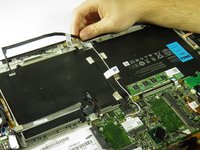
    • Pull back the cables.

    Vraag FixBot

    Voeg opmerking toe

  12. Dell XPS 18 Battery Replacement, Battery: stap 12, afbeelding 1 van 1
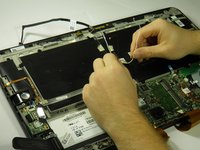
    • Use the plastic opening tool's angled edge to pry the black battery cable loose.

    Vraag FixBot

    Voeg opmerking toe

  13. Dell XPS 18 Battery Replacement: stap 13, afbeelding 1 van 1
    • Use the plastic opening tool's angled edge to remove the red and black CMOS battery cable.

    Vraag FixBot

    Voeg opmerking toe

  14. Dell XPS 18 Battery Replacement: stap 14, afbeelding 1 van 2 Dell XPS 18 Battery Replacement: stap 14, afbeelding 2 van 2
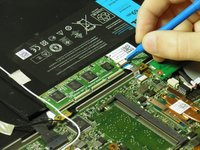
    • Use the plastic opening tool's angled edge to lift the clasp securing the silver circuit board cable.

    • Pull back the circuit board cable to prevent future hassle.

    Vraag FixBot

    Voeg opmerking toe

  15. Dell XPS 18 Battery Replacement: stap 15, afbeelding 1 van 1
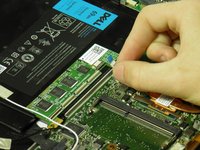
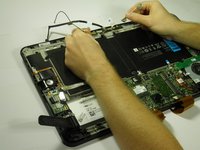
    • Use the opening tool's angled edge to remove the CMOS battery.

    • The CMOS battery is adhered with strong adhesive; you may need to use extra force when removing.

    Vraag FixBot

    Voeg opmerking toe

  16. Dell XPS 18 Battery Replacement: stap 16, afbeelding 1 van 1
    • Remove the eleven black 4mm screws holding the battery in place with a Phillips 00 screwdriver.

    Vraag FixBot

    Voeg opmerking toe

  17. Dell XPS 18 Battery Replacement: stap 17, afbeelding 1 van 1
    • Remove the battery.

    Vraag FixBot

    Voeg opmerking toe

Conclusie

To reassemble your device, follow these instructions in reverse order.

Annuleren: ik heb deze handleiding niet afgemaakt.

14 andere personen hebben deze handleiding voltooid.

Austin Weir

Lid sinds: 01/31/15

1.308 Reputatie

8 handleidingen geschreven

Team

Cal Poly, Team 6-29, Amido Winter 2015 Lid van Cal Poly, Team 6-29, Amido Winter 2015

CPSU-AMIDO-W15S6G29

4 Leden

16 handleidingen geschreven

9Gids Commentaar

needs the help to repair the Dell XPS18

anrew waleta - Antwoord Deel

This is an excellent doc! Pictures are really clear and accurate, steps are concise and best of all they are correct. I was able to solve my issue the first go round with these instructions. Kudos to the author and thanks a million for the assistance!

stacysaw - Antwoord Deel

It all worked good. Thanks.

Kenneth Macdonald - Antwoord Deel

Excellent!

What is the battery type and where to buy, thanks

Mohammad - Antwoord Deel

My unit is missing the right foot stand. Is there anywhere else I can find the model number. Need to purchase a new power supply?

Also might need to replace the touchscreen its cracked. Have to power her up first to find out. Do you have a video for touchscreen replacement?

Frank Schofield - Antwoord Deel

Voeg opmerking toe

Weergavestatistieken:

Afgelopen 24 uren: 4

Afgelopen 7 dagen: 13

Afgelopen 30 dagen: 57

Altijd: 17,014