Inleiding
The Dell Inspiron 3520 has a basic keyboard that is easily accessible from the open surface of the notebook. The 3520 model does not have a keyboard backlight. This makes the keyboard much simpler to remove. Keep in mind that this will require some force on the repairers part.
Wat je nodig hebt
-
-
-
Turn off notebook
-
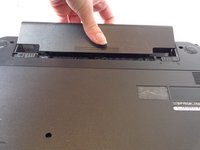
Set the notebook upside down with the battery facing away from you.
-
Locate the unlock and release sliding tabs on the bottom right and left hand corners of the battery respectively.
 Vraag FixBot
-
-
-
Slide the right tab to the right to unlock the battery.
-
Slide and hold the the left tab to the left to release the battery from the unit.
-
Finally, remove the battery by sliding it away from the unit and yourself.
-
-
-
-
-
-
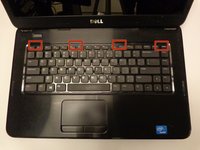
Locate the four tabs along the top edge of the keyboard.
-
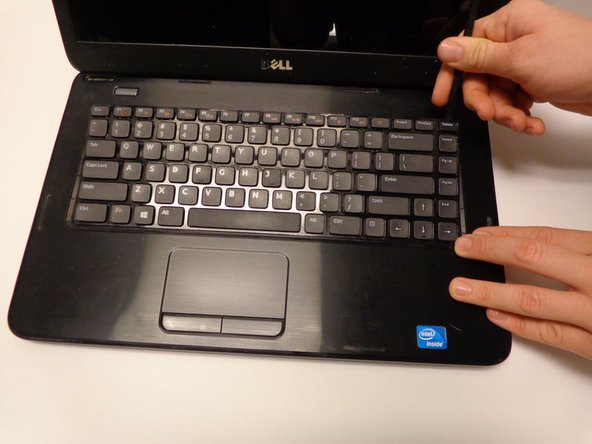
Using the spudger, push the tabs away from the keyboard and pull the keyboard up away from the laptop.
-
-
-
Slide the keyboard forward towards the screen to release the bottom tabs.
-
-
-
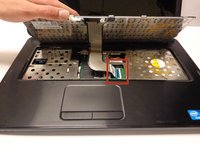
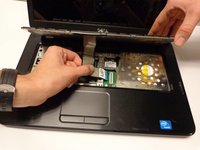
Carefully lift the board up and locate the connecting cable.
-
Gently pull the end of the cable free from the port on the laptop.
-
-





To reassemble your device, follow these instructions in reverse order.
Annuleren: ik heb deze handleiding niet afgemaakt.
7 andere personen hebben deze handleiding voltooid.

Team

USF Tampa, Team 16-2, Watkins Winter 2015 Lid van USF Tampa, Team 16-2, Watkins Winter 2015
USFT-WATKINS-W15S16G2
3 Leden
15 handleidingen geschreven
1Gids Commentaar
Hi, any ideas why a NEW keyboard still wouldn't work after installing it? The ribbon was connected properly, it’s the right keyboard, and I made sure the driver was updated. Any help would be greatly appreciated. Started a new job and my keyboard went to $@$* in the first week. Can’t really afford to buy a new laptop this weekend. It works with an external USB keyboard so it’s probably not a software issue… I think?
Alittle advice would be greatly appreciated. Thanks!
