Ga door naar hoofdinhoud
Word lid van de reparatiegemeenschap - Account aanmaken

Dell Inspiron 15 Ram (Memory Module) Replacement

Wat je nodig hebt

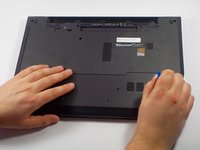
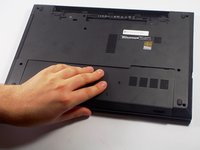
  1. Dell Inspiron 15 Ram (Memory Module) Replacement, Battery: stap 1, afbeelding 1 van 2 Dell Inspiron 15 Ram (Memory Module) Replacement, Battery: stap 1, afbeelding 2 van 2
    • Make sure your laptop is powered off completely and is not connected to the charger.

    • Close the laptop and place it so that the back of the screen is lying flat on your work surface.

    • Slide both of the battery-release latches towards the outer edges of the laptop to unlock the battery flap.

    Vraag FixBot

    Voeg opmerking toe

  2. Dell Inspiron 15 Ram (Memory Module) Replacement: stap 2, afbeelding 1 van 1
    • Lift the battery at an angle using your fingertips and remove it from the laptop.

    • Press and hold the power button for 5 seconds. This ensures that any remaining power will drain out of the computer.

    Vraag FixBot

    Voeg opmerking toe

  3. Dell Inspiron 15 Ram (Memory Module) Replacement, Ram  (Memory Module): stap 3, afbeelding 1 van 3 Dell Inspiron 15 Ram (Memory Module) Replacement, Ram  (Memory Module): stap 3, afbeelding 2 van 3 Dell Inspiron 15 Ram (Memory Module) Replacement, Ram  (Memory Module): stap 3, afbeelding 3 van 3
    • Remove the bottom cover by removing the 4 mm screw using a PH-0 Phillips screwdriver that secures the base cover to the laptop base.

    • Using the plastic opening tool, pry the base cover from the base.

    • Slide the base cover towards you and remove it from the base. Put it aside.

    Vraag FixBot

    Voeg opmerking toe

  4. Dell Inspiron 15 Ram (Memory Module) Replacement: stap 4, afbeelding 1 van 3 Dell Inspiron 15 Ram (Memory Module) Replacement: stap 4, afbeelding 2 van 3 Dell Inspiron 15 Ram (Memory Module) Replacement: stap 4, afbeelding 3 van 3
    • Using your fingertips, pry the vertical sides of the memory module apart until the piece pops out of place.

    • Slide the memory module out of its slot and lift it out of the laptop base.

    Vraag FixBot

    Voeg opmerking toe

Conclusie

To reassemble your device, follow these instructions in reverse order.

Annuleren: ik heb deze handleiding niet afgemaakt.

4 andere personen hebben deze handleiding voltooid.

Edward Pacheco

Lid sinds: 03/06/16

852 Reputatie

3 handleidingen geschreven

Team

UMass Dartmouth, Team 5-8, Landers Spring 2016 Lid van UMass Dartmouth, Team 5-8, Landers Spring 2016

UMASSD-LANDERS-S16S5G8

3 Leden

6 handleidingen geschreven

0Gids Commentaar

Voeg opmerking toe

Weergavestatistieken:

Afgelopen 24 uren: 2

Afgelopen 7 dagen: 8

Afgelopen 30 dagen: 40

Altijd: 7,385