Inleiding
This tutorial shows you how to use a Mac to easily create a bootable macOS USB stick. For this, you need the software ANYmacOS
-
-
To load the macOS installer you can use "ANYmacOS", this is a tool which allows you to create USB sticks for newer Macs on older Macs.
-
Download the program from here: https://www.sl-soft.de/anymacos/ . Requires macOS 10.13 High Sierra or newer.
-
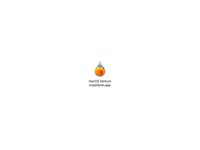
Unarchive the program and copy the program to the Applications folder. If you get an error message when opening the program that it cannot be opened, then simply open it by right-clicking and then "Open".
-
-
-
Under Select OS, choose the macOS you want to download.
-
Select one and then download.
-
-
-
-
The corresponding installation program should now be located in the Programs folder.
-
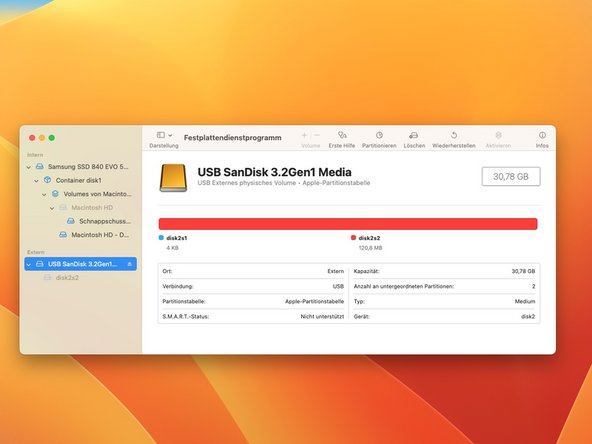
Now you have to format your USB stick with the Disk Utility. Insert a USB stick with at least 16 GB and open the Disk Utility either via Spotlight or via Launchpad.
-
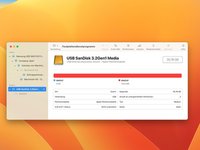
Select under the item Appearance, Show all devices and then select your USB stick on the left.
-
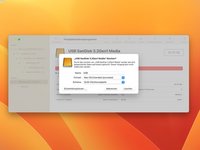
Then select the item Erase. Select the following properties: Name: USB Format: Mac OS Extended (journaled) Scheme: GUID partition table
-
-
-
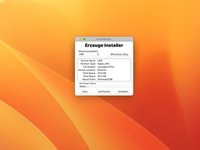
Open ANYmacOS again if you have already closed it. Select the item Create Installer on the right.
-
Select the previously formatted USB-Stick at Select Volume and then select Start
-
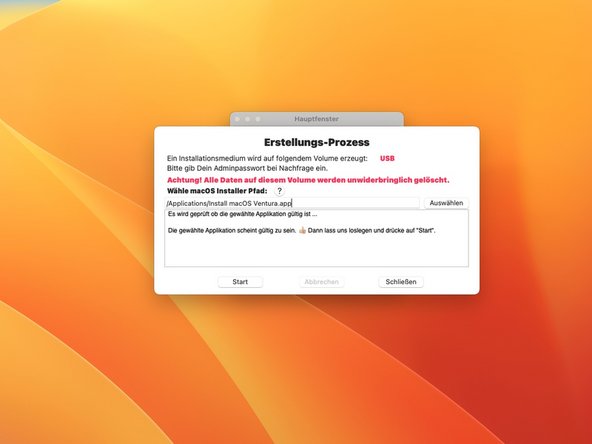
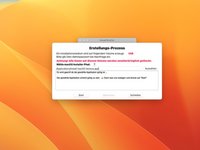
In the next step you only have to select your installer, for this select Select and select your installer.
-
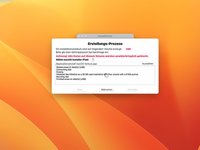
Finally select Start at the bottom. You will be prompted to enter your password so that the program can create the installer USB stick
-
After that the USB stick is created and you are ready to install macOS.
-





Your macOS USB stick has now been created.
Annuleren: ik heb deze handleiding niet afgemaakt.
2 andere personen hebben deze handleiding voltooid.
Met dank aan deze vertalers:
100%

oldturkey03 helpt ons de wereld te repareren! Doe je mee?
Begin met vertalen ›



