Ga door naar hoofdinhoud
Word lid van de reparatiegemeenschap - Account aanmaken

Asus F6A-X2 RAM Replacement

Wat je nodig hebt

  1. Asus F6A-X2 RAM Replacement, Battery: stap 1, afbeelding 1 van 1
    • Remove any power cords and turn the laptop off. Attempting to replace part of the laptop while power is running through it may cause electrocution or damage to the device.

    • Flip laptop face down and rotate so the battery is facing toward you.

    • The battery is not shown in this picture.

    • To remove the battery, place one finger on each of the two black slide tabs. Push each tab toward the center of the laptop to release the lock.

    • Slide the battery toward you and lift it out of the laptop.

    Vraag FixBot

    Voeg opmerking toe

  2. Asus F6A-X2 RAM Replacement, Back Access Panel: stap 2, afbeelding 1 van 2 Asus F6A-X2 RAM Replacement, Back Access Panel: stap 2, afbeelding 2 van 2
    • With the laptop facing down, rotate it so the battery pack is facing away from you.

    • Remove the six 1.5 mm Phillips #1 screws on the back panel of the laptop.

    Vraag FixBot

    Voeg opmerking toe

  3. Asus F6A-X2 RAM Replacement: stap 3, afbeelding 1 van 3 Asus F6A-X2 RAM Replacement: stap 3, afbeelding 2 van 3 Asus F6A-X2 RAM Replacement: stap 3, afbeelding 3 van 3
    • Insert a finger into one of the slots on the bottom panel.

    • Gently lift the upwards, and the back panel of the laptop will come off easily.

    Vraag FixBot

    Voeg opmerking toe

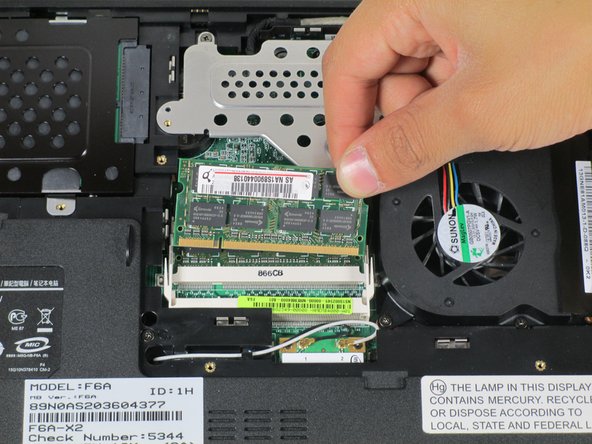
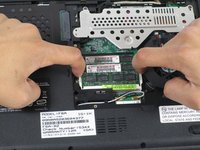
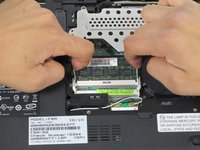
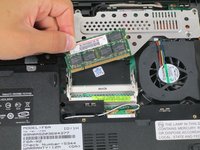
  4. Asus F6A-X2 RAM Replacement, RAM: stap 4, afbeelding 1 van 2 Asus F6A-X2 RAM Replacement, RAM: stap 4, afbeelding 2 van 2
    • Make sure to check the RAM specifications on the device page.

    • There are two white plastic tabs holding the RAM in place. Place two fingers on each of these tabs, and pull outward.

    • You will hear a pop and visibly see the RAM move upwards.

    • Slide the RAM towards the back end of the laptop (the end with the battery), and lift up to remove it.

    Vraag FixBot

    Voeg opmerking toe

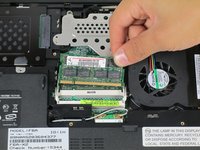
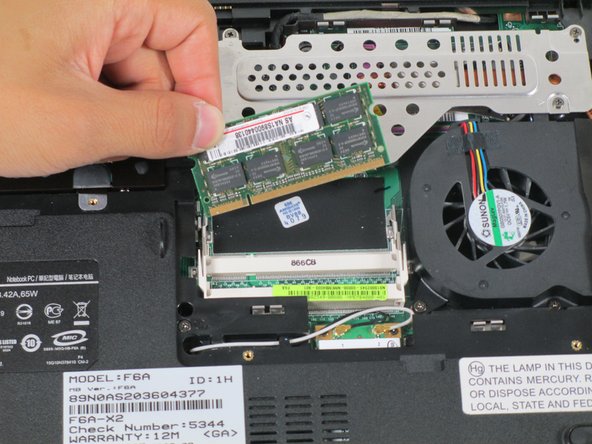
  5. Asus F6A-X2 RAM Replacement: stap 5, afbeelding 1 van 2 Asus F6A-X2 RAM Replacement: stap 5, afbeelding 2 van 2
    • Repeat the process from the previous step to remove the bottom RAM.

    Vraag FixBot

    Voeg opmerking toe

Conclusie

To reassemble your device, follow these instructions in reverse order.

Annuleren: ik heb deze handleiding niet afgemaakt.

Één andere persoon heeft deze handleiding voltooid.

Jonathan

Lid sinds: 04/24/14

1.174 Reputatie

11 handleidingen geschreven

Team

Cal Poly, Team 10-56, Amido Spring 2014 Lid van Cal Poly, Team 10-56, Amido Spring 2014

CPSU-AMIDO-S14S10G56

4 Leden

12 handleidingen geschreven

1Gids Commentaar

Tutorel simple et très clair.

Merci

alainbadinier - Antwoord Deel

Voeg opmerking toe

Weergavestatistieken:

Afgelopen 24 uren: 1

Afgelopen 7 dagen: 9

Afgelopen 30 dagen: 36

Altijd: 903