Ga door naar hoofdinhoud
Word lid van de reparatiegemeenschap - Account aanmaken

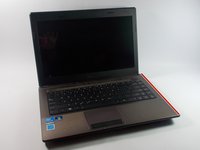
ASUS X44H-BBR4 Screen Replacement

Wat je nodig hebt

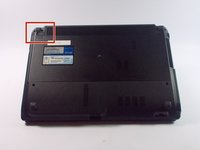
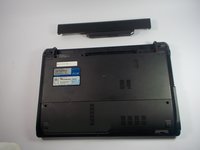
  1. ASUS X44H-BBR4 Screen Replacement, Battery: stap 1, afbeelding 1 van 2 ASUS X44H-BBR4 Screen Replacement, Battery: stap 1, afbeelding 2 van 2
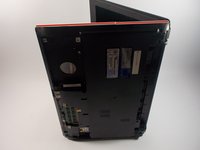
    • Flip the device over.

    Vraag FixBot

    Voeg opmerking toe

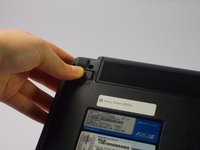
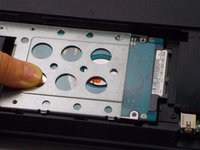
  2. ASUS X44H-BBR4 Screen Replacement: stap 2, afbeelding 1 van 3 ASUS X44H-BBR4 Screen Replacement: stap 2, afbeelding 2 van 3 ASUS X44H-BBR4 Screen Replacement: stap 2, afbeelding 3 van 3
    • Slide the right lock button to the unlock position.

    • After it is unlocked, a red line will be visible.

    Vraag FixBot
    Voeg opmerking toe

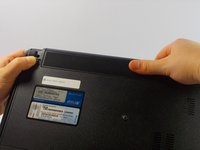
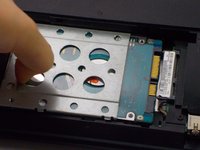
  3. ASUS X44H-BBR4 Screen Replacement: stap 3, afbeelding 1 van 2 ASUS X44H-BBR4 Screen Replacement: stap 3, afbeelding 2 van 2
    • Slide the left lock button into the unlock position and hold.

    Vraag FixBot
    Voeg opmerking toe

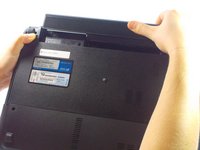
  4. ASUS X44H-BBR4 Screen Replacement: stap 4, afbeelding 1 van 3 ASUS X44H-BBR4 Screen Replacement: stap 4, afbeelding 2 van 3 ASUS X44H-BBR4 Screen Replacement: stap 4, afbeelding 3 van 3
    • While holding the left lock button in the unlock position, push the battery from the center away from you.

    Vraag FixBot

    Voeg opmerking toe

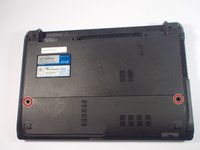
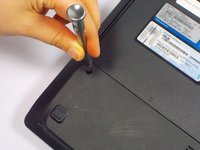
  5. ASUS X44H-BBR4 Screen Replacement, Hard Drive: stap 5, afbeelding 1 van 2 ASUS X44H-BBR4 Screen Replacement, Hard Drive: stap 5, afbeelding 2 van 2
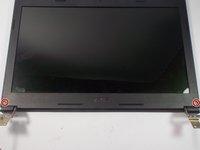
    • Remove the two 9 mm Phillips head screws with the PH0 bit indicated by the red circles in the picture.

    Vraag FixBot

    Voeg opmerking toe

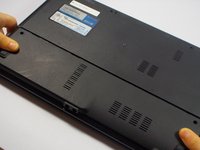
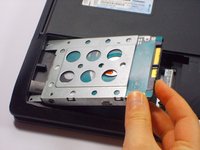
  6. ASUS X44H-BBR4 Screen Replacement: stap 6, afbeelding 1 van 2 ASUS X44H-BBR4 Screen Replacement: stap 6, afbeelding 2 van 2
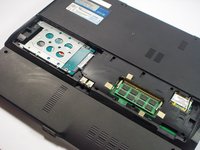
    • Once the screws are removed, slide the back panel away from the computer.

    Vraag FixBot
    Voeg opmerking toe

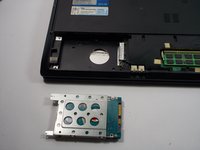
  7. ASUS X44H-BBR4 Screen Replacement: stap 7, afbeelding 1 van 1
    • Remove the 9mm Phillips head screw in the left bottom corner of the hard drive with the PH0 bit.

    Vraag FixBot
    Voeg opmerking toe

  8. ASUS X44H-BBR4 Screen Replacement: stap 8, afbeelding 1 van 2 ASUS X44H-BBR4 Screen Replacement: stap 8, afbeelding 2 van 2
    • Slide the hard drive to the left, unlocking it from its default position.

    Vraag FixBot

    Voeg opmerking toe

  9. ASUS X44H-BBR4 Screen Replacement: stap 9, afbeelding 1 van 2 ASUS X44H-BBR4 Screen Replacement: stap 9, afbeelding 2 van 2
    • Pull the hard drive upwards and take it out of its position.

    Vraag FixBot

    Voeg opmerking toe

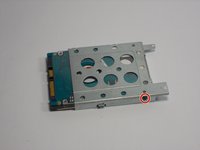
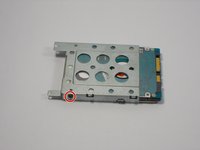
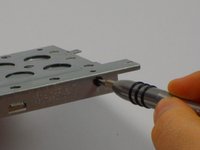
  10. ASUS X44H-BBR4 Screen Replacement: stap 10, afbeelding 1 van 3 ASUS X44H-BBR4 Screen Replacement: stap 10, afbeelding 2 van 3 ASUS X44H-BBR4 Screen Replacement: stap 10, afbeelding 3 van 3
    • Remove two 3mm Phillips head screws, one located on each side of the metal casing holding the hard drive using the PH0 bit.

    Vraag FixBot

    Voeg opmerking toe

  11. ASUS X44H-BBR4 Screen Replacement: stap 11, afbeelding 1 van 1
    • Pull upwards on the metal casing and it will come off.

    Vraag FixBot
    Voeg opmerking toe

  12. ASUS X44H-BBR4 Screen Replacement, Keyboard: stap 12, afbeelding 1 van 2 ASUS X44H-BBR4 Screen Replacement, Keyboard: stap 12, afbeelding 2 van 2
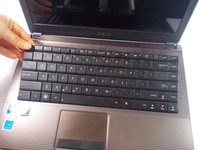
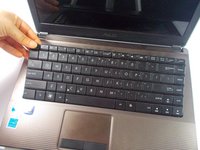
    • Open the laptop to show the keyboard.

    Vraag FixBot
    Voeg opmerking toe

  13. ASUS X44H-BBR4 Screen Replacement: stap 13, afbeelding 1 van 1
    • Look at the top row of the keyboard, you will see a space that has four latches holding the keyboard down.
    • The latches are located above the Esc key, the F5 key, between the F10 and F11 key and the Delete key.

    Vraag FixBot

    Voeg opmerking toe

  14. ASUS X44H-BBR4 Screen Replacement: stap 14, afbeelding 1 van 3 ASUS X44H-BBR4 Screen Replacement: stap 14, afbeelding 2 van 3 ASUS X44H-BBR4 Screen Replacement: stap 14, afbeelding 3 van 3
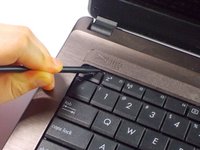
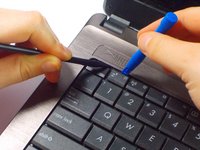
    • Don't pull too hard on the keys otherwise they may fall off.

    • Push the latch away from the keyboard using the spudger point.

    • While pushing the latches use a plastic opening tool and pull up on a key near it.

    • Continue along the rest of the keyboard until it is released at all four latches.

    Vraag FixBot
    Voeg opmerking toe

  15. ASUS X44H-BBR4 Screen Replacement: stap 15, afbeelding 1 van 2 ASUS X44H-BBR4 Screen Replacement: stap 15, afbeelding 2 van 2
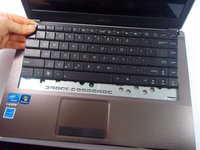
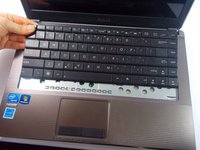
    • Push the keyboard away from the mouse track pad to unlock the bottom from the base.

    • Do not pull too hard because there is a ribbon connecting to keyboard to the motherboard.

    Vraag FixBot
    Voeg opmerking toe

  16. ASUS X44H-BBR4 Screen Replacement: stap 16, afbeelding 1 van 2 ASUS X44H-BBR4 Screen Replacement: stap 16, afbeelding 2 van 2
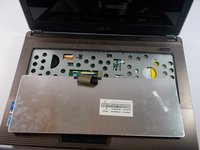
    • Flip the keyboard over to reveal the back of it and what is underneath.

    Vraag FixBot

    Voeg opmerking toe

  17. ASUS X44H-BBR4 Screen Replacement: stap 17, afbeelding 1 van 3 ASUS X44H-BBR4 Screen Replacement: stap 17, afbeelding 2 van 3 ASUS X44H-BBR4 Screen Replacement: stap 17, afbeelding 3 van 3
    • Pull each end of the black ribbon cable piece towards the mouse track pad to unlock the ribbon connector piece.

    • Gently pull out the ribbon cable from the connector piece.

    Vraag FixBot

    Voeg opmerking toe

  18. ASUS X44H-BBR4 Screen Replacement: stap 18, afbeelding 1 van 1
    • Remove the keyboard completely.

    Vraag FixBot

    Voeg opmerking toe

  19. ASUS X44H-BBR4 Screen Replacement, Front Panel: stap 19, afbeelding 1 van 3 ASUS X44H-BBR4 Screen Replacement, Front Panel: stap 19, afbeelding 2 van 3 ASUS X44H-BBR4 Screen Replacement, Front Panel: stap 19, afbeelding 3 van 3
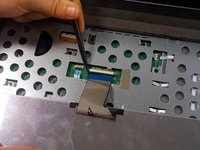
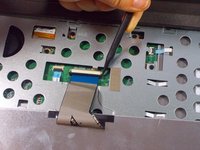
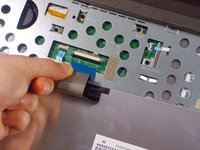
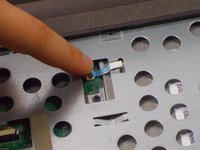
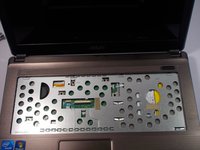
    • Lift up the black lock holding the ribbon.

    • Using the blue tab, pull out the ribbon.

    • Pull gently on the ribbon to remove the risk of damaging the ribbon.

    Vraag FixBot
    Voeg opmerking toe

  20. ASUS X44H-BBR4 Screen Replacement: stap 20, afbeelding 1 van 1
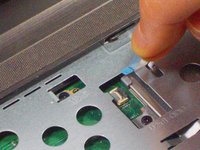
    • Lift up the black lock holding the ribbon.

    • Using the blue tab, pull out the ribbon.

    • Pull gently on the ribbon to remove the risk of damaging the ribbon.

    Vraag FixBot
    Voeg opmerking toe

  21. ASUS X44H-BBR4 Screen Replacement: stap 21, afbeelding 1 van 2 ASUS X44H-BBR4 Screen Replacement: stap 21, afbeelding 2 van 2
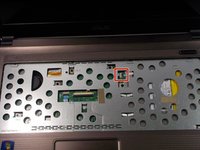
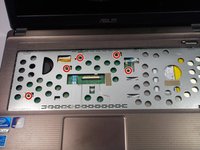
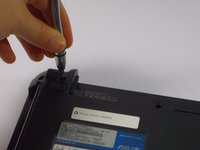
    • Remove the five 9 mm Phillips head screws with the PH0 bit.

    Vraag FixBot
    Voeg opmerking toe

  22. ASUS X44H-BBR4 Screen Replacement: stap 22, afbeelding 1 van 2 ASUS X44H-BBR4 Screen Replacement: stap 22, afbeelding 2 van 2
    • Flip the laptop on its side so that the red line indicated in the pictures is facing upwards.

    Vraag FixBot

    Voeg opmerking toe

  23. ASUS X44H-BBR4 Screen Replacement: stap 23, afbeelding 1 van 2 ASUS X44H-BBR4 Screen Replacement: stap 23, afbeelding 2 van 2
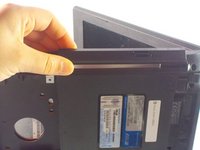
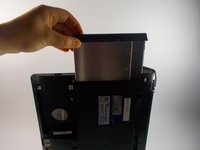
    • Pull up on the disk drive and remove.

    Vraag FixBot

    Voeg opmerking toe

  24. ASUS X44H-BBR4 Screen Replacement: stap 24, afbeelding 1 van 2 ASUS X44H-BBR4 Screen Replacement: stap 24, afbeelding 2 van 2
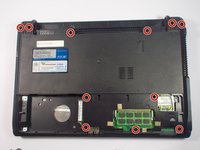
    • Close the laptop and flip it over.

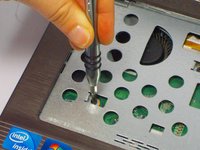
    • Remove the six 12.5 mm screws Phillips head and the five 9 mm screws remaining with the PH0 bit.

    Vraag FixBot

    Voeg opmerking toe

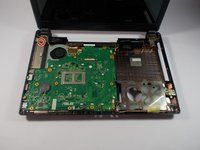
  25. ASUS X44H-BBR4 Screen Replacement: stap 25, afbeelding 1 van 3 ASUS X44H-BBR4 Screen Replacement: stap 25, afbeelding 2 van 3 ASUS X44H-BBR4 Screen Replacement: stap 25, afbeelding 3 van 3
    • Flip the device back over and open the laptop.

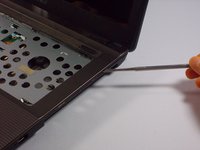
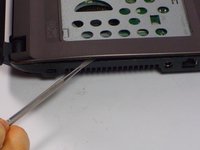
    • Using the nylon or metal spudger, gently pry off the panel by moving the spudger along the seam.

    • You should hear clicking sounds as the front panel is being removed from the base.
    Vraag FixBot

    Voeg opmerking toe

  26. ASUS X44H-BBR4 Screen Replacement: stap 26, afbeelding 1 van 1
    • Remove the panel.

    • The laptop will now become heavier to the front so it will tend to fall on the back side of the screen.

    Vraag FixBot

    Voeg opmerking toe

  27. ASUS X44H-BBR4 Screen Replacement, MotherBoard: stap 27, afbeelding 1 van 2 ASUS X44H-BBR4 Screen Replacement, MotherBoard: stap 27, afbeelding 2 van 2
    • Remove the 5mm Phillips head screw using the PH0 bit.

    Vraag FixBot

    Voeg opmerking toe

  28. ASUS X44H-BBR4 Screen Replacement: stap 28, afbeelding 1 van 3 ASUS X44H-BBR4 Screen Replacement: stap 28, afbeelding 2 van 3 ASUS X44H-BBR4 Screen Replacement: stap 28, afbeelding 3 van 3
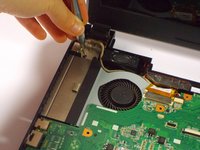
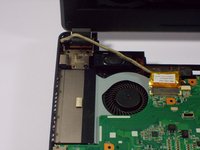
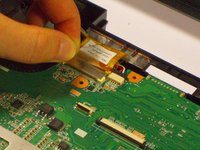
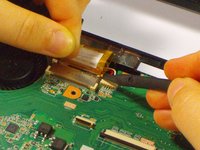
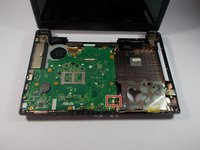
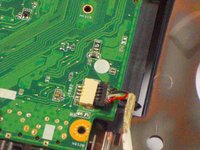
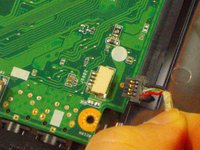
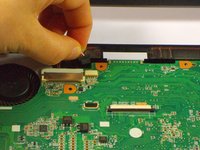
    • Pull up on the tape holding the tan cable in place.

    • While holding the tape push up on each side of the cable connector to disconnect it.

    Vraag FixBot

    Voeg opmerking toe

  29. ASUS X44H-BBR4 Screen Replacement: stap 29, afbeelding 1 van 1
    • Gently pull out the cable connector.

    Vraag FixBot

    Voeg opmerking toe

  30. ASUS X44H-BBR4 Screen Replacement: stap 30, afbeelding 1 van 3 ASUS X44H-BBR4 Screen Replacement: stap 30, afbeelding 2 van 3 ASUS X44H-BBR4 Screen Replacement: stap 30, afbeelding 3 van 3
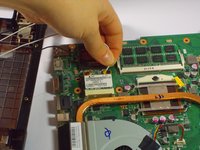
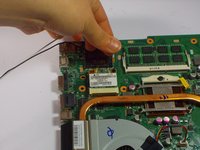
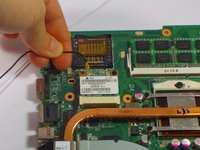
    • Gently pull out the USB connector attached to the motherboard.

    Vraag FixBot

    Voeg opmerking toe

  31. ASUS X44H-BBR4 Screen Replacement: stap 31, afbeelding 1 van 2 ASUS X44H-BBR4 Screen Replacement: stap 31, afbeelding 2 van 2
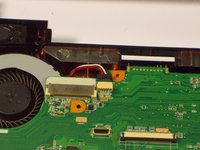
    • Remove the red and white wire connector next to the fan.

    Vraag FixBot

    Voeg opmerking toe

  32. ASUS X44H-BBR4 Screen Replacement: stap 32, afbeelding 1 van 1
    • Take out the motherboard

    • There are still two wires connected to the bottom of the motherboard so remove carefully.

    Vraag FixBot

    Voeg opmerking toe

  33. ASUS X44H-BBR4 Screen Replacement: stap 33, afbeelding 1 van 1
    • Flip the motherboard over next to the laptop base.

    Vraag FixBot

    Voeg opmerking toe

  34. ASUS X44H-BBR4 Screen Replacement: stap 34, afbeelding 1 van 3 ASUS X44H-BBR4 Screen Replacement: stap 34, afbeelding 2 van 3 ASUS X44H-BBR4 Screen Replacement: stap 34, afbeelding 3 van 3
    • Remove the white and black wire.

    • The motherboard is not completely separated from the base of the computer.

    Vraag FixBot

    Voeg opmerking toe

  35. ASUS X44H-BBR4 Screen Replacement, Screen: stap 35, afbeelding 1 van 2 ASUS X44H-BBR4 Screen Replacement, Screen: stap 35, afbeelding 2 van 2
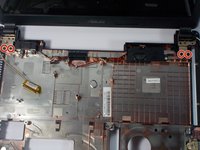
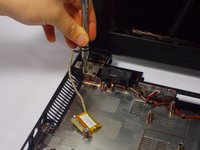
    • Remove the four 9 mm Phillips head screws that hold the screen to the base with the PH0 bit.

    Vraag FixBot

    Voeg opmerking toe

  36. ASUS X44H-BBR4 Screen Replacement: stap 36, afbeelding 1 van 1
    • Lift up the screen from the base.

    Vraag FixBot

    Voeg opmerking toe

  37. ASUS X44H-BBR4 Screen Replacement: stap 37, afbeelding 1 van 2 ASUS X44H-BBR4 Screen Replacement: stap 37, afbeelding 2 van 2
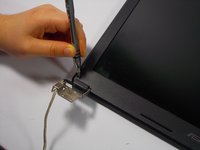
    • Remove the rubber pads with the nylon or metal spudger to reveal two 5mm Phillips head screws.

    Vraag FixBot

    Voeg opmerking toe

  38. ASUS X44H-BBR4 Screen Replacement: stap 38, afbeelding 1 van 2 ASUS X44H-BBR4 Screen Replacement: stap 38, afbeelding 2 van 2
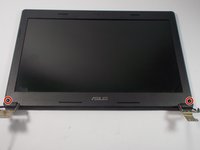
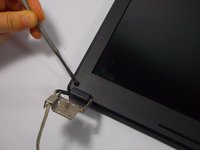
    • Remove the two 5mm Phillips head screws with the PH0 bit.

    Vraag FixBot

    Voeg opmerking toe

  39. ASUS X44H-BBR4 Screen Replacement: stap 39, afbeelding 1 van 2 ASUS X44H-BBR4 Screen Replacement: stap 39, afbeelding 2 van 2
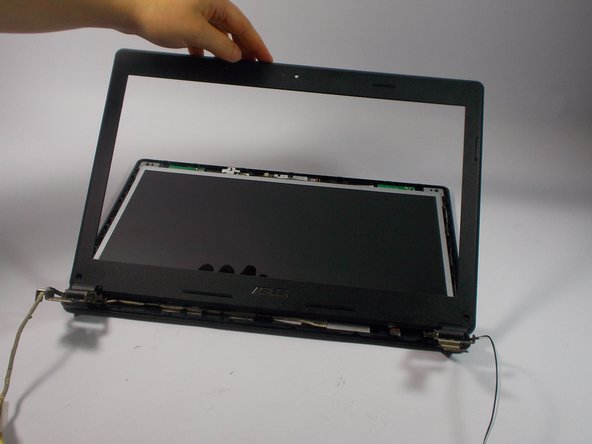
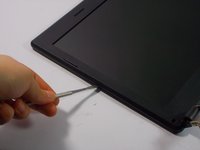
    • Pry open the screen cover by running the nylon or metal spudger in the seams.

    • Remove the cover.

    Vraag FixBot

    Voeg opmerking toe

  40. ASUS X44H-BBR4 Screen Replacement: stap 40, afbeelding 1 van 1
    • Remove the eight 5mm Phillips head screws holding down the screen with the PH0 bit.

    Vraag FixBot

    Voeg opmerking toe

  41. ASUS X44H-BBR4 Screen Replacement: stap 41, afbeelding 1 van 1
    • Lift up the screen.

    • Carefully remove the screen because there are still wires connected to the screen

    Vraag FixBot

    Voeg opmerking toe

  42. ASUS X44H-BBR4 Screen Replacement: stap 42, afbeelding 1 van 3 ASUS X44H-BBR4 Screen Replacement: stap 42, afbeelding 2 van 3 ASUS X44H-BBR4 Screen Replacement: stap 42, afbeelding 3 van 3
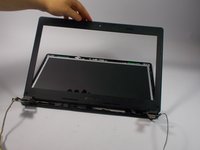
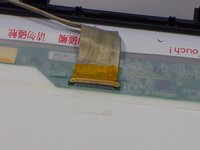
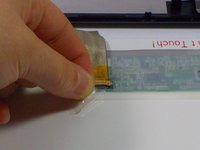
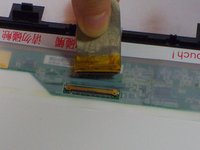
    • Lift up the tape piece securing the ribbon to the screen.

    • Pull out the ribbon.

    • Remove the screen completely from the frame.

    Vraag FixBot

    Voeg opmerking toe

Conclusie

To reassemble your device, follow these instructions in reverse order.

Annuleren: ik heb deze handleiding niet afgemaakt.

3 andere personen hebben deze handleiding voltooid.

Devaj Ramsamooj

Lid sinds: 10/21/15

824 Reputatie

5 handleidingen geschreven

Team

UMass Dartmouth, Team 4-3, Catania Fall 2015 Lid van UMass Dartmouth, Team 4-3, Catania Fall 2015

UMASSD-CATANIA-F15S4G3

4 Leden

8 handleidingen geschreven

0Gids Commentaar

Voeg opmerking toe

Weergavestatistieken:

Afgelopen 24 uren: 2

Afgelopen 7 dagen: 6

Afgelopen 30 dagen: 28

Altijd: 967