Ga door naar hoofdinhoud
Word lid van de reparatiegemeenschap - Account aanmaken

ASUS UX50V-RX05 Hard Drive Replacement

Wat je nodig hebt

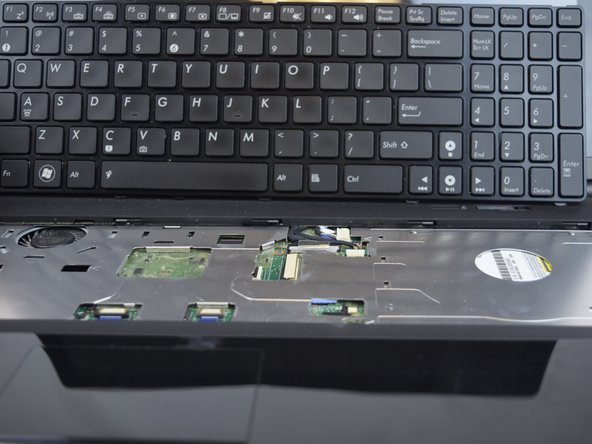
  1. ASUS UX50V-RX05 Hard Drive Replacement, Keyboard: stap 1, afbeelding 1 van 3 ASUS UX50V-RX05 Hard Drive Replacement, Keyboard: stap 1, afbeelding 2 van 3 ASUS UX50V-RX05 Hard Drive Replacement, Keyboard: stap 1, afbeelding 3 van 3
    • Make sure the device is powered off and the battery is removed before beginning.

    • Use the Plastic Opening tool to pry the five slots up at the top of the keyboard.

    Vraag FixBot

    Voeg opmerking toe

  2. ASUS UX50V-RX05 Hard Drive Replacement: stap 2, afbeelding 1 van 2 ASUS UX50V-RX05 Hard Drive Replacement: stap 2, afbeelding 2 van 2
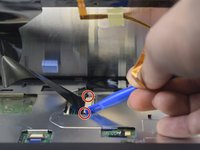
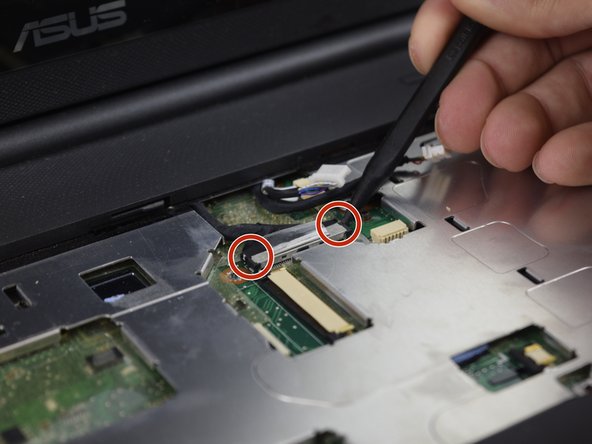
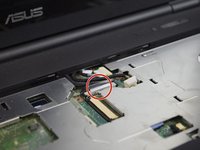
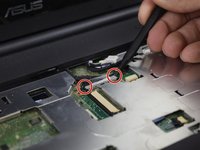
    • Lift the keyboard enough to expose the two ribbon connectors (LCD flex cable and flex band).

    • Use the Plastic Opening tool to push open the two black clips on each side of the connecting cords.

    • Remove the cable after pushing out the two black clips.

    Vraag FixBot

    Voeg opmerking toe

  3. ASUS UX50V-RX05 Hard Drive Replacement: stap 3, afbeelding 1 van 2 ASUS UX50V-RX05 Hard Drive Replacement: stap 3, afbeelding 2 van 2
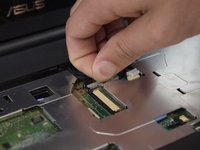
    • Push out each end of the black clip with a plastic opening tool or nylon spudger to remove the ribbon cable.

    • Remove the cable after pushing out both black clips.

    • Remove the keyboard.

    Vraag FixBot

    Voeg opmerking toe

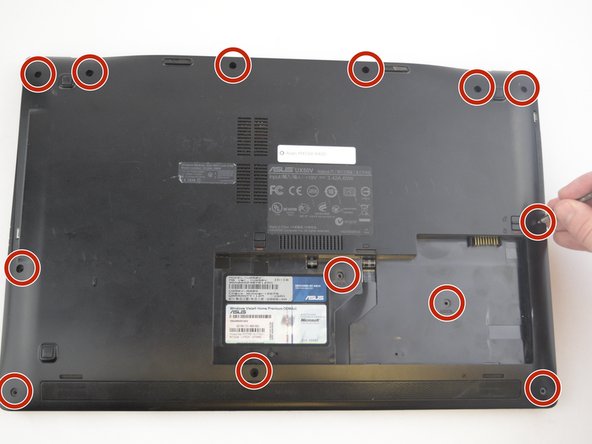
  4. ASUS UX50V-RX05 Hard Drive Replacement, Case Removal: stap 4, afbeelding 1 van 3 ASUS UX50V-RX05 Hard Drive Replacement, Case Removal: stap 4, afbeelding 2 van 3 ASUS UX50V-RX05 Hard Drive Replacement, Case Removal: stap 4, afbeelding 3 van 3
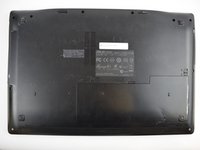
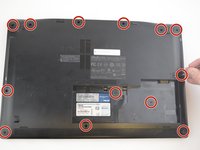
    • Remove the thirteen 5 mm J0 screws from the back of the laptop.

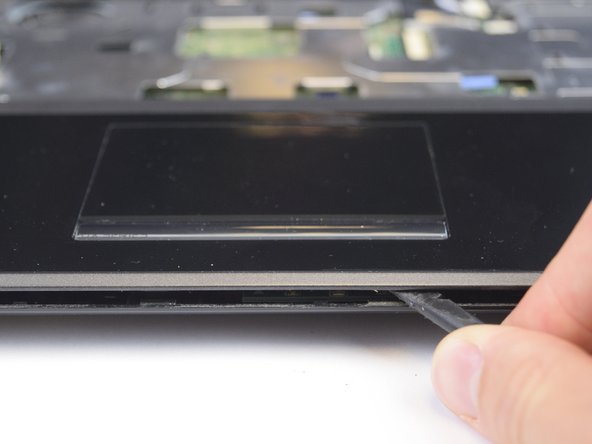
    • With the keyboard removed, use the spudger tool to pry around the edge of the laptop until it is free.

    Vraag FixBot

    Voeg opmerking toe

  5. ASUS UX50V-RX05 Hard Drive Replacement: stap 5, afbeelding 1 van 2 ASUS UX50V-RX05 Hard Drive Replacement: stap 5, afbeelding 2 van 2
    • Use the spudger tool to unplug the two cords from the body by pushing on the tabs on both sides of the plug.

    Vraag FixBot

    Voeg opmerking toe

  6. ASUS UX50V-RX05 Hard Drive Replacement: stap 6, afbeelding 1 van 3 ASUS UX50V-RX05 Hard Drive Replacement: stap 6, afbeelding 2 van 3 ASUS UX50V-RX05 Hard Drive Replacement: stap 6, afbeelding 3 van 3
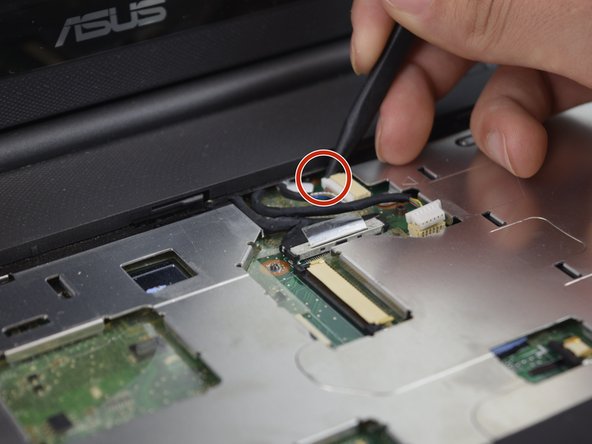
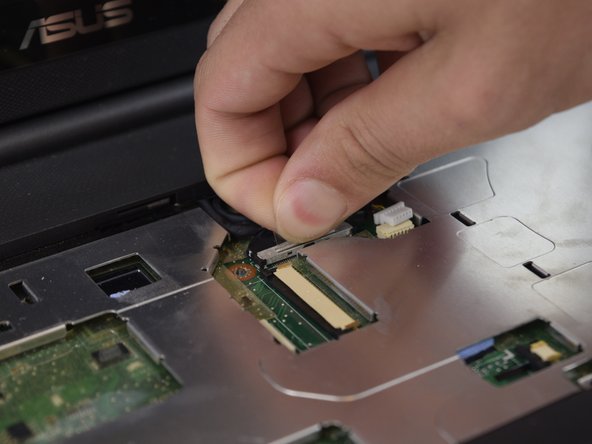
    • With the previous two cords unplugged and out of the way, you can work on unplugging the black cord.

    • Use your fingers to pull up on the clear tab, or use the spudger tool to push out both sides of the connector.

    Vraag FixBot

    Voeg opmerking toe

  7. ASUS UX50V-RX05 Hard Drive Replacement: stap 7, afbeelding 1 van 1
    • Carefully lift and remove the plastic cover to avoid damaging anything.

    Vraag FixBot

    Voeg opmerking toe

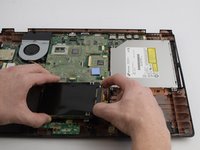
  8. ASUS UX50V-RX05 Hard Drive Replacement, Hard Drive: stap 8, afbeelding 1 van 2 ASUS UX50V-RX05 Hard Drive Replacement, Hard Drive: stap 8, afbeelding 2 van 2
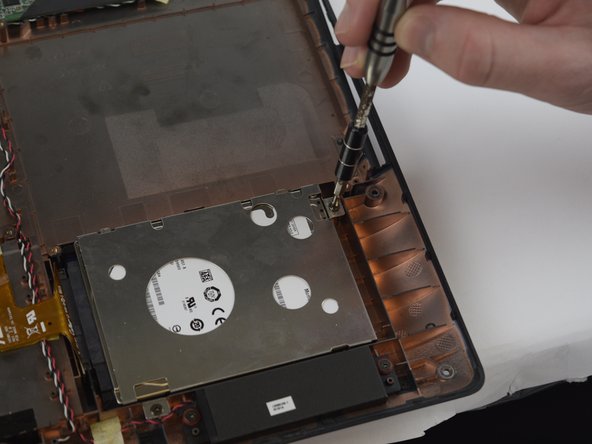
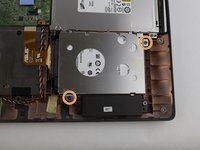
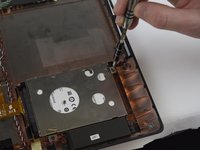
    • Using the screwdriver with the JO bit, remove the two Phillips 4 mm head size 5 mm long screws from the Hard Drive.

    Vraag FixBot

    Voeg opmerking toe

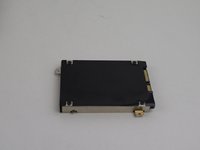
  9. ASUS UX50V-RX05 Hard Drive Replacement: stap 9, afbeelding 1 van 2 ASUS UX50V-RX05 Hard Drive Replacement: stap 9, afbeelding 2 van 2
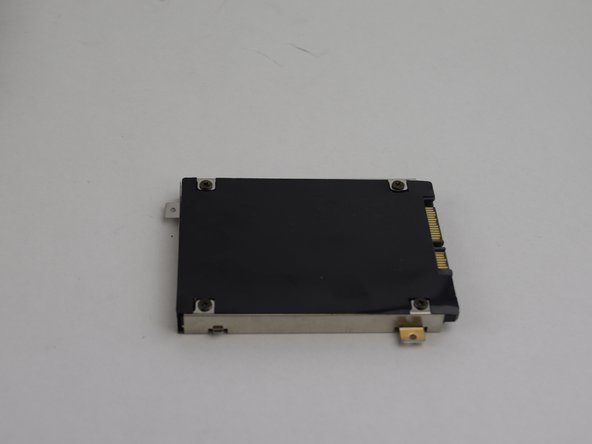
    • Flip the Hard Drive over without lifting.

    • Using your fingers, unplug the cord by pulling it away from the hard drive.

    Vraag FixBot

    Voeg opmerking toe

  10. ASUS UX50V-RX05 Hard Drive Replacement: stap 10, afbeelding 1 van 1
    • Unscrew the four black screws from the Hard Drive and slide it out.

    Vraag FixBot

    Voeg opmerking toe

Conclusie

To reassemble your device, follow these instructions in reverse order.

Annuleren: ik heb deze handleiding niet afgemaakt.

James

Lid sinds: 02/14/17

663 Reputatie

6 handleidingen geschreven

Team

USF Tampa, Team 20-2, Remmell Spring 2017 Lid van USF Tampa, Team 20-2, Remmell Spring 2017

USFT-REMMELL-S17S20G2

4 Leden

6 handleidingen geschreven

0Gids Commentaar

Voeg opmerking toe

Weergavestatistieken:

Afgelopen 24 uren: 0

Afgelopen 7 dagen: 17

Afgelopen 30 dagen: 49

Altijd: 1,047