Inleiding
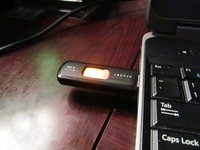
If you are unsure how to write an ISO to a USB flash drive, this guide will show you how to use Rufus. Many modern systems do not include an internal optical drive and require a USB flash drive to boot unless you use a USB optical drive. This is especially common on modern laptops and some desktops where it is an option and not standard. Using a USB drive is often a more practical workaround for these systems. A 16-32GB* USB flash drive is generally easier to set up and use outside of DVD-only applications or situations.
TL;DR: When buying new, purchase a 32GB+ drive (USB3 preferred; USB2 "works" but will be slower).⏎
IF YOUR BUDGET IS THIN, YOU ARE ALWAYS BETTER OFF FORMATTING AN OLD 8-16GB DRIVE THAT CAN BE ERASED IF YOU ARE CHOOSING BETWEEN NO-NAME JUNK OR A KNOWN-NAME BRAND!
*Older low-capacity drives, such as an 8GB USB drive, will "work," but leave limited spare space for files and extras like NF firmware, package files such as .deb installers or device drivers. You may find these drives sold in bulk, but as a general rule, these have been out of production for a decade+, given 16-32GB drives have become common and cheap. IN GENERAL, the current recommendation for buying a new drive is to purchase a 32GB drive (USB3 preferred, USB2 drives work but are slow) at the bare minimum, 64GB+ is optional but not much more expensive at ~$1-2USD more. While 16GB drives can still be found, many are generic or sold under store private labels. These are not recommended as they can have issues being used as bootable drives and aren’t much cheaper. You are generally better off formatting an older, name-brand 8-16GB USB drive that you already have, rather than buying one of these generic drives.
AMAZON WARNING: If you buy the drive for this on Amazon and it has issues out of the box, it is probably counterfeit - get rid of it and buy another one in person.
READ: Important note about legacy operating systems.
Important: OSes without explicit USB boot support are not guaranteed to work. While the risk is low with the right tools, I cannot guarantee anything. You are on your own if there are unforeseen issues with ancient operating systems.
This guide was initially written exclusively for Linux. However, any relatively modern operating system released in the past ~10-15 years can generally be booted from USB.
Guide notes
- Used drives should ideally be erased before formatting in Rufus.
- This guide is currently at Revision 3. If you are using Rufus 2.x, refer to this archive of the previous version.
Wat je nodig hebt
-
-
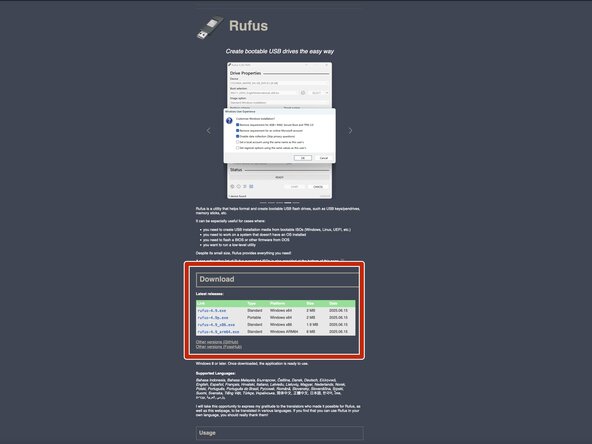
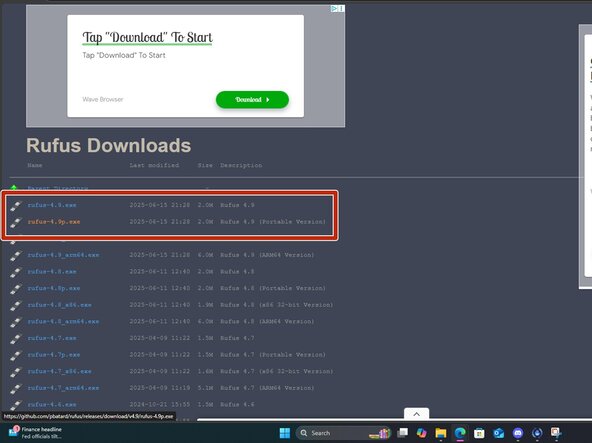
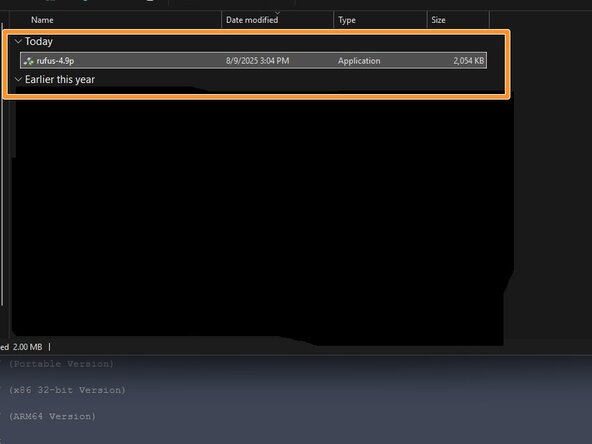
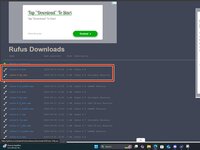
To write the ISO, download Rufus. Place this somewhere it is easily found.
 Vraag FixBot
-
-
-
After downloading Rufus, download the ISO you want to write to the USB drive.
-
-
-
-
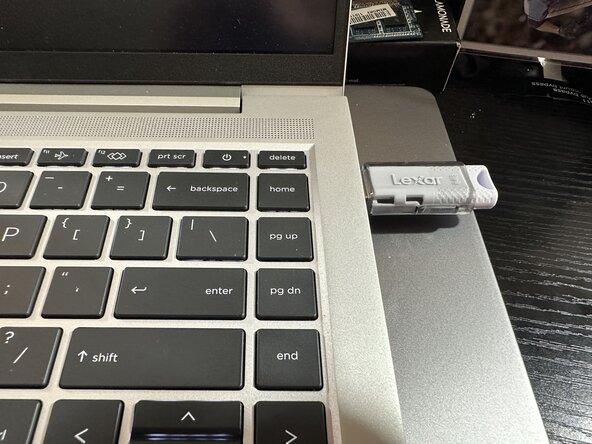
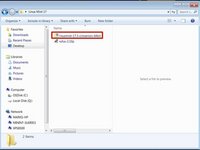
Plug the USB drive in and select the ISO you want to use.
-
-
-
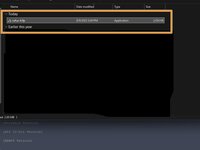
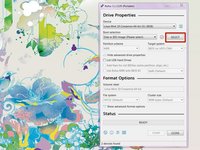
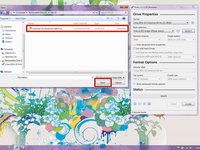
Open Rufus and click SELECT. Find the ISO and click Open.
-
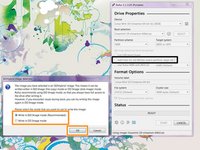
Rufus will ask you to choose ISO or DD mode. If unsure, choose ISO mode.
-
After configuring the writing process, click start. Click OK on the formatting warning.
-






Annuleren: ik heb deze handleiding niet afgemaakt.
15 andere personen hebben deze handleiding voltooid.

2Gids Commentaar
Unetbootin does not work anymore and is considered unstable to use when installing any Linux OS, also 4GB USB drives are more than big enough to get the job done
My reasoning for saying 8GB is because 4GB sticks are all but nonexistent (8GB is more popular now), but if you already own the 4GB stick then it'll work. I even use one from 2006 in the guide, to show that reuse is possible.
Oh really? I always thought it was still a usable option - thanks for letting me know that I was wrong.
