Ga door naar hoofdinhoud
Word lid van de reparatiegemeenschap - Account aanmaken

PowerBook G4 Aluminum 15" 1.67 GHz Keyboard Replacement

Bekeken: 25K

Statistieken weergeven:

Afgelopen 24 uur:
1
Afgelopen 7 dagen:
25
Afgelopen 30 dagen:
118
Altijd:
24.559
Commentaar: 6

6 comments on steps.

Voltooid: 11

11 mensen hebben deze handleiding als "voltooid" gemarkeerd. Ben jij de volgende?

Favorieten: 2

2 mensen hebben deze handleiding als favoriet gemarkeerd en volgen deze. Ben jij de volgende?

Tijd vereist: Geen schatting
Moeilijkheid: Gemiddeld
PowerBook G4 Aluminum 15" 1.67 GHz Keyboard Replacement

Inleiding

Ga naar stap 1 ↓

Keys sticky from spilling that 64 oz. soda all over your PowerBook? This guide will show you how to replace your keyboard and will have you up and typing in no time.

Wat je nodig hebt

Onderdelen

Gereedschap

    1. PowerBook G4 Aluminum 15" 1.67 GHz Keyboard Replacement, Battery: stap 1, afbeelding 1 van 1
      • Use a coin to turn the battery locking screw 90 degrees clockwise.

      • Lift the battery out of the computer.

      Vraag FixBot

      Voeg opmerking toe

    1. PowerBook G4 Aluminum 15" 1.67 GHz Keyboard Replacement, Upper Case: stap 2, afbeelding 1 van 1
      • Remove the following 10 screws:

      • Two 3 mm Phillips in the battery compartment, on either side of the battery contacts.

      • Four 3 mm Phillips around the memory compartment.

      • Four 16 mm Phillips along the hinge.

      Vraag FixBot

      Voeg opmerking toe

    2. PowerBook G4 Aluminum 15" 1.67 GHz Keyboard Replacement: stap 3, afbeelding 1 van 1
      • Remove the memory compartment cover.

      • Remove the two 12 mm Phillips screws on the Aluminum bracket at the top of the memory compartment.

      Vraag FixBot

      Voeg opmerking toe

    3. PowerBook G4 Aluminum 15" 1.67 GHz Keyboard Replacement: stap 4, afbeelding 1 van 1
      • Rotate the computer 90 degrees clockwise so the power receptacle faces you.

      • Remove the three 3 mm Phillips screws along the edge of the lower case.

      • When replacing these screws, you must install them in the correct order. Begin by installing the screw closest to the display hinge, then work your way toward the front of the computer.

      Vraag FixBot

      Voeg opmerking toe

    4. PowerBook G4 Aluminum 15" 1.67 GHz Keyboard Replacement: stap 5, afbeelding 1 van 1
      • Turn the computer 90 degrees clockwise so the hinge faces you.

      • Remove the lower 5 mm Phillips screw on each side of the hinge (two total).

      Vraag FixBot

      Voeg opmerking toe

    5. PowerBook G4 Aluminum 15" 1.67 GHz Keyboard Replacement: stap 6, afbeelding 1 van 1
      • Rotate the computer 90 degrees clockwise so the ports face you.

      • Remove the three 3 mm Phillips screws along the edge of the lower case.

      • When replacing these screws, you must install them in the correct order. Begin by installing the screw closest to the display hinge, then work your way toward the front of the computer. Also, be careful not to put the screws in the two holes on either side of the video out port.

      Vraag FixBot

      Voeg opmerking toe

    6. PowerBook G4 Aluminum 15" 1.67 GHz Keyboard Replacement: stap 7, afbeelding 1 van 1
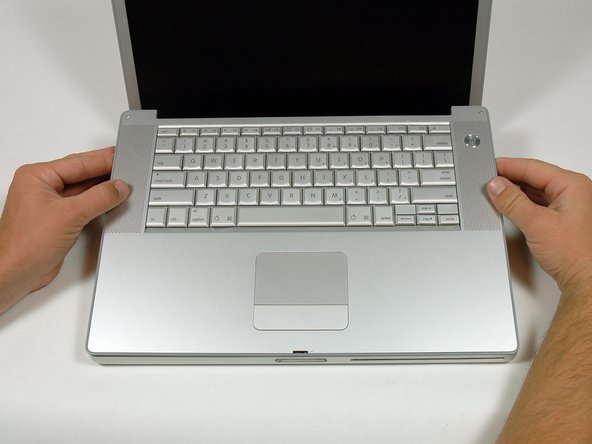
      • Turn the computer over and open the display.

      • Remove the two 4.2 mm long, 1.5 mm hex screws at the top corners of the upper case (two total).

      • A T6 Torx driver will work, but repeated use will strip the screws.

      Vraag FixBot

      Voeg opmerking toe

    7. PowerBook G4 Aluminum 15" 1.67 GHz Keyboard Replacement: stap 8, afbeelding 1 van 1
      • Grasp the back corners of the upper case and pull up.

      • Do not pull the upper case off yet; you still need to disconnect the keyboard and trackpad cable.

      • Lift the back of the case up and work your fingers along the sides, freeing the case as you go. Once you have freed the sides, you may need to rock the case up and down to free the front of the upper case.

      Vraag FixBot

      Voeg opmerking toe

    8. PowerBook G4 Aluminum 15" 1.67 GHz Keyboard Replacement: stap 9, afbeelding 1 van 1
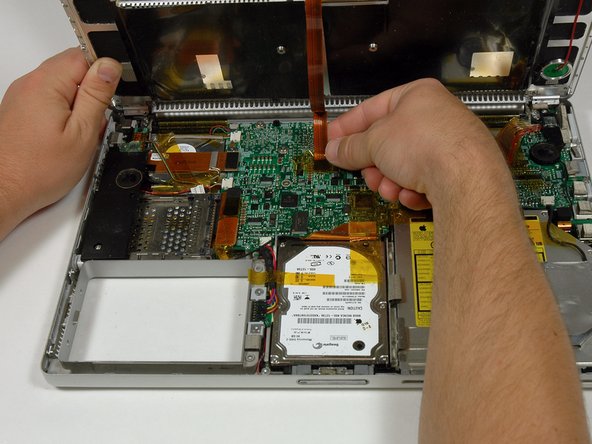
      • Rotate the upper case up and toward the screen, so that the upper case rests against it.

      Vraag FixBot

      Voeg opmerking toe

    9. PowerBook G4 Aluminum 15" 1.67 GHz Keyboard Replacement: stap 10, afbeelding 1 van 1
      • Remove the amber tape securing the trackpad ribbon to the logic board.

      • Disconnect the trackpad ribbon from the logic board by pulling up on the connector.

      • Remove the upper case from the computer.

      Vraag FixBot

      Voeg opmerking toe

    1. PowerBook G4 Aluminum 15" 1.67 GHz Keyboard Replacement, Keyboard: stap 11, afbeelding 1 van 1
      • On the following step, be careful with the tape on the side of the keyboard with the green power button, as the tape may stick and tear.

      • Peel back the black plastic shielding on either side of the keyboard (there are two pieces).

      Vraag FixBot

      Voeg opmerking toe

    2. PowerBook G4 Aluminum 15" 1.67 GHz Keyboard Replacement: stap 12, afbeelding 1 van 1
      • Use your fingernail to flip up the light brown plastic flap locking the keyboard ribbon cable in its socket.

      Vraag FixBot

      Voeg opmerking toe

    3. PowerBook G4 Aluminum 15" 1.67 GHz Keyboard Replacement: stap 13, afbeelding 1 van 1
      • Do the same for the keyboard backlight ribbon cable.

      • Slide the cables from their sockets.

      Vraag FixBot

      Voeg opmerking toe

    4. PowerBook G4 Aluminum 15" 1.67 GHz Keyboard Replacement: stap 14, afbeelding 1 van 1
      • Remove the 10 identical Phillips screws attaching the keyboard to the casing.

      Vraag FixBot

      Voeg opmerking toe

    5. PowerBook G4 Aluminum 15" 1.67 GHz Keyboard Replacement: stap 15, afbeelding 1 van 1
      • There are four locking tabs along the back edge of the keyboard holding it in place. These tabs must be straightened before you can remove the keyboard.

      Vraag FixBot

      Voeg opmerking toe

    6. PowerBook G4 Aluminum 15" 1.67 GHz Keyboard Replacement: stap 16, afbeelding 1 van 1
      • The first frame shows a tab in the "locked" position and the second frame shows the same tab in the "unlocked" position.

      • Use needlenose pliers to bend each of the four tabs from the previous step so that they are all in the "unlocked" position.

      Vraag FixBot

      Voeg opmerking toe

    7. PowerBook G4 Aluminum 15" 1.67 GHz Keyboard Replacement: stap 17, afbeelding 1 van 1
      • Place the upper casing on its edge and use a spudger to push the keyboard away from the casing, poking the spudger through the central keyboard screw hole. Grasp the keyboard as it separates from the casing.

      Vraag FixBot

      Voeg opmerking toe

    8. PowerBook G4 Aluminum 15" 1.67 GHz Keyboard Replacement: stap 18, afbeelding 1 van 1
      • Maintaining your hold on the keyboard, lay the casing flat and gently bow the keyboard until the two tabs on either side of the keyboard come free.

      Vraag FixBot

      Voeg opmerking toe

    9. PowerBook G4 Aluminum 15" 1.67 GHz Keyboard Replacement: stap 19, afbeelding 1 van 1
      • Slide the keyboard away from the trackpad and out of the upper case.

      Vraag FixBot

      Voeg opmerking toe

    10. PowerBook G4 Aluminum 15" 1.67 GHz Keyboard Replacement: stap 20, afbeelding 1 van 1
      • To replace the keyboard, first slide the bottom tabs into the upper case. Then bow the keyboard out and first slide the tabs in on the right side of the keyboard, then slide in the tabs on the left side.

      Vraag FixBot

      Voeg opmerking toe

Conclusie

To reassemble your device, follow these instructions in reverse order.

Annuleren: ik heb deze handleiding niet afgemaakt.

11 andere personen hebben deze handleiding voltooid.

Bijgevoegde documenten

0Gids Commentaar

Voeg opmerking toe

Weergavestatistieken:

Afgelopen 24 uren: 1

Afgelopen 7 dagen: 25

Afgelopen 30 dagen: 118

Altijd: 24,559