Ga door naar hoofdinhoud

HP Folio 13t-1000 RAM Replacement

Wat je nodig hebt

  1. HP Folio 13t-1000 RAM Replacement, Keyboard: stap 1, afbeelding 1 van 2 HP Folio 13t-1000 RAM Replacement, Keyboard: stap 1, afbeelding 2 van 2
    • Use an antistatic wrist wrap, or periodically touch unpainted metal to minimize the risk of damaging the laptop by electrostatic shock.

    • Use a PH1 screw head to remove the 16, 6mm screws from the bottom case housing of the laptop.

  2. HP Folio 13t-1000 RAM Replacement: stap 2, afbeelding 1 van 3 HP Folio 13t-1000 RAM Replacement: stap 2, afbeelding 2 van 3 HP Folio 13t-1000 RAM Replacement: stap 2, afbeelding 3 van 3
    • This step requires unlocking the very fragile plastic clips along the frame; take care not to damage them.

    • Slide the spudger with a twisting motion along the entire perimeter of the laptop until the top cover is separated from the frame of the device.

  3. HP Folio 13t-1000 RAM Replacement: stap 3, afbeelding 1 van 1
    • Using the flat portion of the plastic spudger, push the corner of the black surface until the first clip unlocks.

    • The top right corner of the keyboard should now be sticking out slightly.

    • Repeat the same process for the top left corner.

  4. HP Folio 13t-1000 RAM Replacement: stap 4, afbeelding 1 van 2 HP Folio 13t-1000 RAM Replacement: stap 4, afbeelding 2 van 2
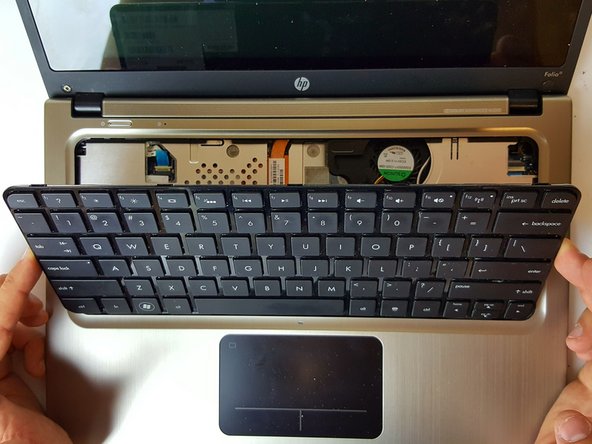
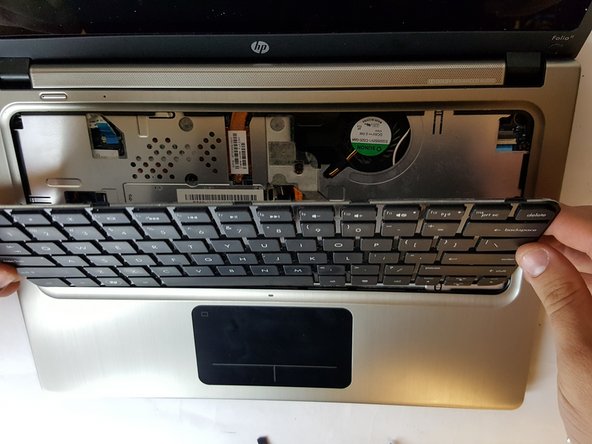
    • Slide the keyboard up and towards the screen just enough to separate the keyboard from the top cover.

  5. HP Folio 13t-1000 RAM Replacement: stap 5, afbeelding 1 van 3 HP Folio 13t-1000 RAM Replacement: stap 5, afbeelding 2 van 3 HP Folio 13t-1000 RAM Replacement: stap 5, afbeelding 3 van 3
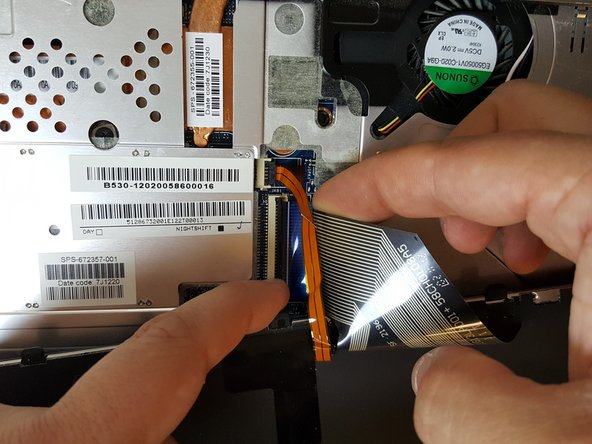
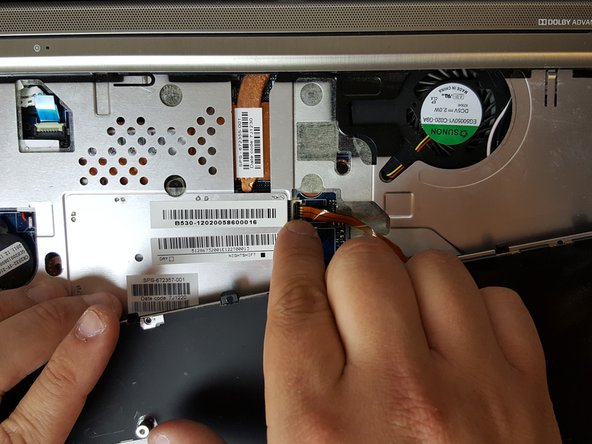
    • To unlock the clamps connected to the motherboard, use your fingers or insert the pointed edge of the spudger between the first clamp and the cable.

    • Repeat the same process for the second clamp.

  6. HP Folio 13t-1000 RAM Replacement: stap 6, afbeelding 1 van 3 HP Folio 13t-1000 RAM Replacement: stap 6, afbeelding 2 van 3 HP Folio 13t-1000 RAM Replacement: stap 6, afbeelding 3 van 3
    • Remove the keyboard from the laptop.

  7. HP Folio 13t-1000 RAM Replacement, Top Hardware Cover: stap 7, afbeelding 1 van 3 HP Folio 13t-1000 RAM Replacement, Top Hardware Cover: stap 7, afbeelding 2 van 3 HP Folio 13t-1000 RAM Replacement, Top Hardware Cover: stap 7, afbeelding 3 van 3
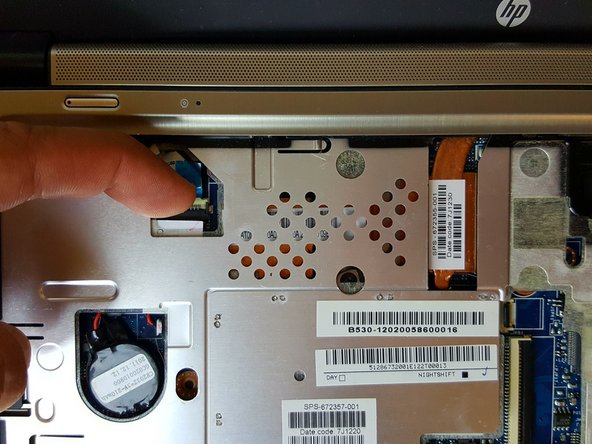
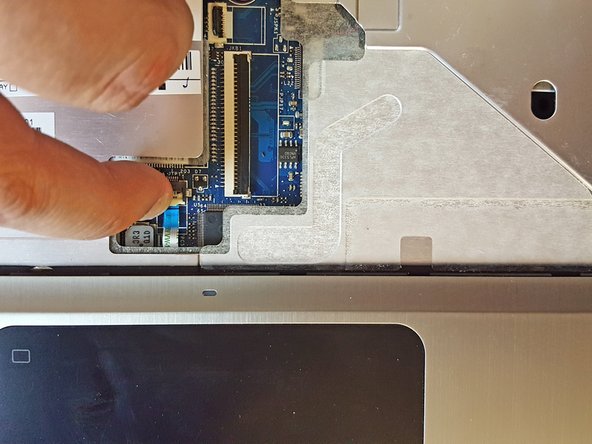
    • Place your finger between one of the plastic clamps and the cable and apply a slight leveraging force until the clamp pops up.

    • Do the same for the second connection.

  8. HP Folio 13t-1000 RAM Replacement: stap 8, afbeelding 1 van 2 HP Folio 13t-1000 RAM Replacement: stap 8, afbeelding 2 van 2
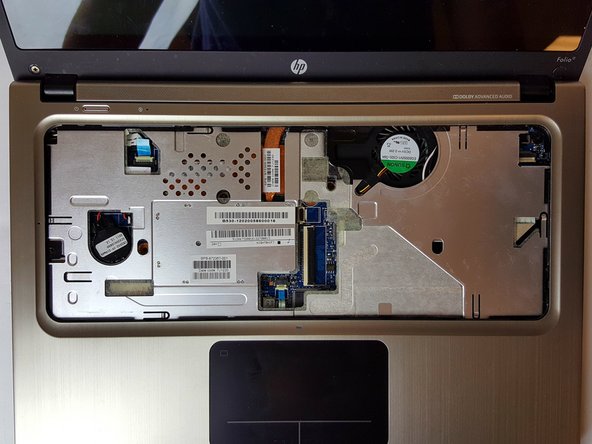
    • Remove the top hardware cover.

  9. HP Folio 13t-1000 RAM Replacement, RAM: stap 9, afbeelding 1 van 1
    • Using the tips of your fingers, gently apply opposite outward force until the two clips are no longer holding the RAM stick.

  10. HP Folio 13t-1000 RAM Replacement: stap 10, afbeelding 1 van 1
    • Carefully remove the old RAM by sliding it towards the screen.

Conclusie

To reassemble your device, follow these instructions in reverse order.

Één andere persoon heeft deze handleiding voltooid.

Cody Badchkam

Lid sinds: 09/28/16

112 Reputatie

4 handleidingen geschreven

Team

USF Tampa, Team 1-2, Cagle Fall 2016 Lid van USF Tampa, Team 1-2, Cagle Fall 2016

USFT-CAGLE-F16S1G2

4 Leden

7 handleidingen geschreven

0Gids Commentaar

Voeg opmerking toe

Weergavestatistieken:

Afgelopen 24 uren: 0

Afgelopen 7 dagen: 3

Afgelopen 30 dagen: 14

Altijd: 574