Ga door naar hoofdinhoud
Word lid van de reparatiegemeenschap - Account aanmaken

Gateway W350I Display Replacement

Wat je nodig hebt

  1. Gateway W350I Display Replacement, Battery Access: stap 1, afbeelding 1 van 1
    • Turn the laptop upside down and position it as shown in the image.

    Vraag FixBot

    Voeg opmerking toe

  2. Gateway W350I Display Replacement, Unlocking the Battery: stap 2, afbeelding 1 van 3 Gateway W350I Display Replacement, Unlocking the Battery: stap 2, afbeelding 2 van 3 Gateway W350I Display Replacement, Unlocking the Battery: stap 2, afbeelding 3 van 3
    • Slide the locking switch towards the open lock picture.

    • Hold the release switch in the unlocked position while simultaneously pushing the battery away from the laptop.

    • Once the laptop is disengaged, completely remove the battery from the laptop.

    Vraag FixBot

    Voeg opmerking toe

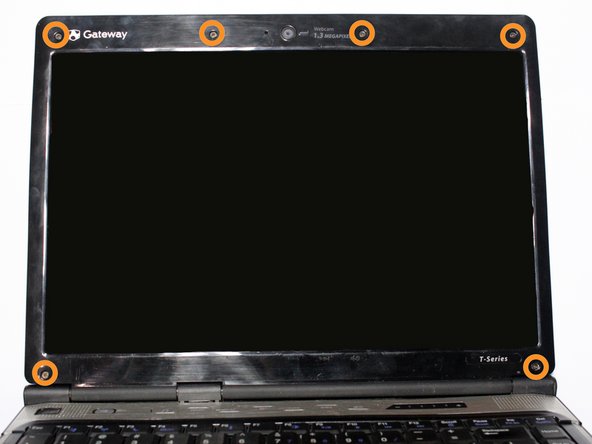
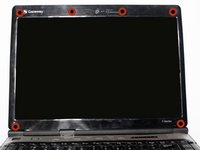
  3. Gateway W350I Display Replacement, Remove Rubber Protectors & Screws: stap 3, afbeelding 1 van 2 Gateway W350I Display Replacement, Remove Rubber Protectors & Screws: stap 3, afbeelding 2 van 2
    • Pry the six black rubber protectors out of the screw holes.

    • Remove all six of the 4mm Phillips #0 screws that were covered by the rubber protectors.

    Vraag FixBot

    Voeg opmerking toe

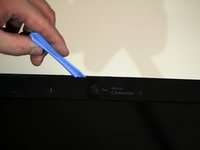
  4. Gateway W350I Display Replacement, Separate Plastic Casing: stap 4, afbeelding 1 van 2 Gateway W350I Display Replacement, Separate Plastic Casing: stap 4, afbeelding 2 van 2
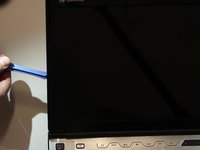
    • Separate the plastic screen casing from the laptop lid by inserting a plastic opening tool. Complete this step around the top and along both sides of the screen.

    Vraag FixBot

    Voeg opmerking toe

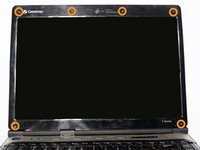
  5. Gateway W350I Display Replacement, Remove Bracket from Laptop Lid: stap 5, afbeelding 1 van 2 Gateway W350I Display Replacement, Remove Bracket from Laptop Lid: stap 5, afbeelding 2 van 2
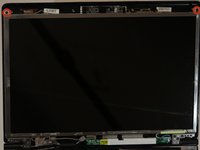
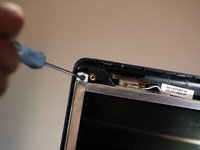
    • Remove the two 4mm Phillips #0 screws located at the top that fasten the screen bracket to the laptop.

    Vraag FixBot

    Voeg opmerking toe

  6. Gateway W350I Display Replacement, Remove LCD Screen from Bracket: stap 6, afbeelding 1 van 1
    • Separate the bracket and the screen from its original position within the lid of the laptop.

    • Remove the four 4mm Phillips #0 screws on the sides of the bracket that hold the LCD screen.

    Vraag FixBot

    Voeg opmerking toe

  7. Gateway W350I Display Replacement, Remove Video Cable: stap 7, afbeelding 1 van 2 Gateway W350I Display Replacement, Remove Video Cable: stap 7, afbeelding 2 van 2
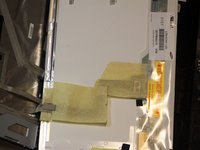
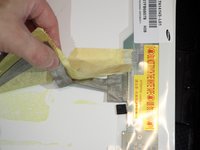
    • Detach the video cable that is attached to the laptop from the back of the screen.

    • Be careful while removing the video cable as it is very delicate.

    Vraag FixBot

    Voeg opmerking toe

  8. Gateway W350I Display Replacement: stap 8, afbeelding 1 van 2 Gateway W350I Display Replacement: stap 8, afbeelding 2 van 2
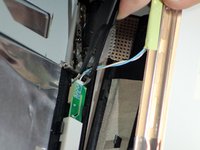
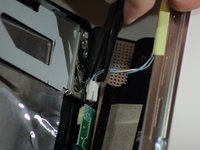
    • Disconnect the camera connector from the circuit board to completely free the screen.

    Vraag FixBot

    Voeg opmerking toe

Conclusie

To reassemble your device, follow these instructions in reverse order.

Annuleren: ik heb deze handleiding niet afgemaakt.

3 andere personen hebben deze handleiding voltooid.

Samuel Newton

Lid sinds: 09/22/14

308 Reputatie

1 Handleiding geschreven

Team

USF Tampa, Team 4-1, Brown Fall 2014 Lid van USF Tampa, Team 4-1, Brown Fall 2014

USFT-BROWN-F14S4G1

3 Leden

10 handleidingen geschreven

1Gids Commentaar

It was very easy to follow.

Very friendly guide.

stewilli - Antwoord Deel

Voeg opmerking toe

Weergavestatistieken:

Afgelopen 24 uren: 0

Afgelopen 7 dagen: 4

Afgelopen 30 dagen: 30

Altijd: 1,709