Ga door naar hoofdinhoud
Word lid van de reparatiegemeenschap - Account aanmaken

ASUS MeMo Pad FHD10 Camera Replacement

Wat je nodig hebt

  1. ASUS MeMo Pad FHD10 Camera Replacement, Battery: stap 1, afbeelding 1 van 2 ASUS MeMo Pad FHD10 Camera Replacement, Battery: stap 1, afbeelding 2 van 2
    • Make sure that the device is turned off as a precaution.

    • Unplug the charger and remove any memory card you may have in the device.

    • Wedge the plastic opening tool between the front and back cover on every side.

    • Slide the plastic opening tool back and forth to make sure that the back cover is disconnected.

    • Once disconnected, remove the back cover from the device screen.

    Vraag FixBot

    Voeg opmerking toe

  2. ASUS MeMo Pad FHD10 Camera Replacement: stap 2, afbeelding 1 van 2 ASUS MeMo Pad FHD10 Camera Replacement: stap 2, afbeelding 2 van 2
    Gereedschap gebruikt in deze stap:
    Tweezers
    $4.99
    • Remove the protective copper sticker and all tape fixed on the device.

    • Using tweezers, remove the ribbon cable from their connections attached to the motherboard.

    • While using the tweezers, make sure to use minimum force and precision to avoid damaging any components.

    Vraag FixBot

    Voeg opmerking toe

  3. ASUS MeMo Pad FHD10 Camera Replacement: stap 3, afbeelding 1 van 2 ASUS MeMo Pad FHD10 Camera Replacement: stap 3, afbeelding 2 van 2
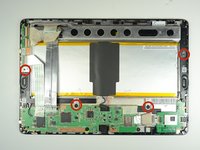
    • Remove the four 2 mm Phillips #00 screws holding the battery tray in place.

    Vraag FixBot

    Voeg opmerking toe

  4. ASUS MeMo Pad FHD10 Camera Replacement: stap 4, afbeelding 1 van 3 ASUS MeMo Pad FHD10 Camera Replacement: stap 4, afbeelding 2 van 3 ASUS MeMo Pad FHD10 Camera Replacement: stap 4, afbeelding 3 van 3
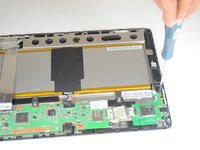
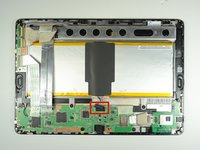
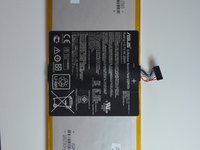
    • Locate the battery cable attached to the motherboard. Using the same technique used on the ribbons, do the same with the battery.

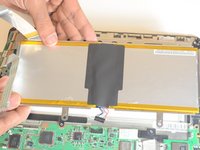
    • Remove the battery from the device. Once removed, use the plastic tool to separate the metal frame from the battery.

    • When separating the metal frame, be sure to hold on in the center as the battery is two separate cells.

    Vraag FixBot

    Voeg opmerking toe

  5. ASUS MeMo Pad FHD10 Camera Replacement, Speakers: stap 5, afbeelding 1 van 1
    • Remove three screws using a Phillips #00 screwdriver.

    Vraag FixBot

    Voeg opmerking toe

  6. ASUS MeMo Pad FHD10 Camera Replacement: stap 6, afbeelding 1 van 1
    Gereedschap gebruikt in deze stap:
    Tweezers
    $4.99
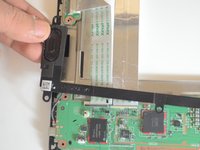
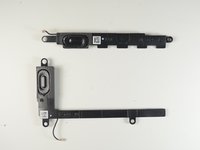
    • The two speakers are located on opposite sides of the device. Both are long black pieces with connections to the motherboard.

    • Unplug the speaker cables from their connections on the motherboard gently by using tweezers.

    Vraag FixBot

    Voeg opmerking toe

  7. ASUS MeMo Pad FHD10 Camera Replacement: stap 7, afbeelding 1 van 3 ASUS MeMo Pad FHD10 Camera Replacement: stap 7, afbeelding 2 van 3 ASUS MeMo Pad FHD10 Camera Replacement: stap 7, afbeelding 3 van 3
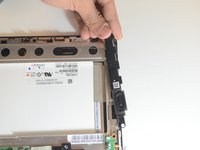
    • Gently use your hands to remove the speakers.

    Vraag FixBot

    Voeg opmerking toe

  8. ASUS MeMo Pad FHD10 Camera Replacement, Motherboard: stap 8, afbeelding 1 van 1
    • Remove the five screws using a Phillips #00 screwdriver.

    Vraag FixBot

    Voeg opmerking toe

  9. ASUS MeMo Pad FHD10 Camera Replacement: stap 9, afbeelding 1 van 3 ASUS MeMo Pad FHD10 Camera Replacement: stap 9, afbeelding 2 van 3 ASUS MeMo Pad FHD10 Camera Replacement: stap 9, afbeelding 3 van 3
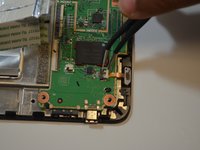
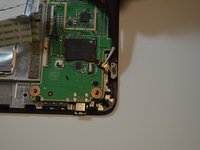
    • Carefully disconnect the cord that connects the on/off button to the motherboard

    • Peel back the electrical tape holding the connections of the motherboard down to the frame of the device.

    Vraag FixBot

    Voeg opmerking toe

  10. ASUS MeMo Pad FHD10 Camera Replacement: stap 10, afbeelding 1 van 1
    • Use your hands to remove the motherboard from the device.

    Vraag FixBot

    Voeg opmerking toe

  11. ASUS MeMo Pad FHD10 Camera Replacement, Front and Rear cameras: stap 11, afbeelding 1 van 3 ASUS MeMo Pad FHD10 Camera Replacement, Front and Rear cameras: stap 11, afbeelding 2 van 3 ASUS MeMo Pad FHD10 Camera Replacement, Front and Rear cameras: stap 11, afbeelding 3 van 3
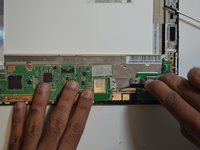
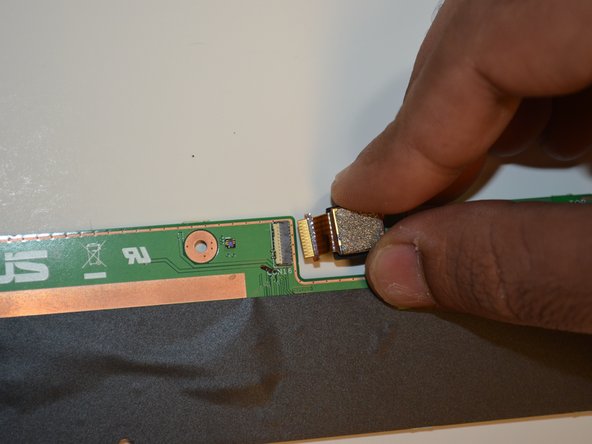
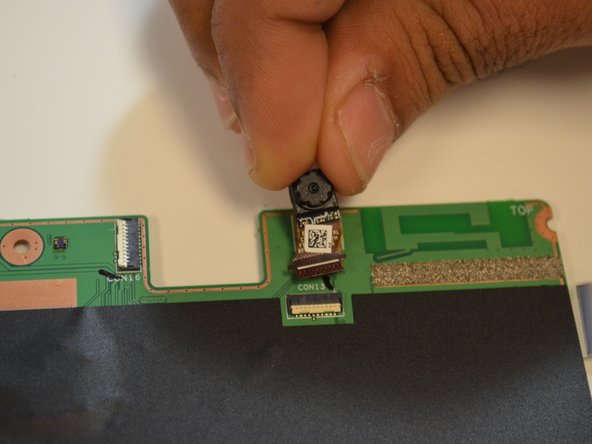
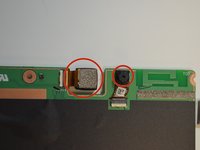
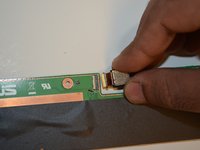
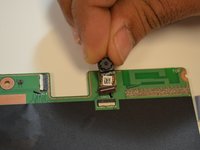
    • Identify the location of front and rear cameras on the motherboard.

    • The front and rear cameras can be removed by pulling them out gently using hands.

    Vraag FixBot

    Voeg opmerking toe

Conclusie

To reassemble your device, follow these instructions in reverse order.

Annuleren: ik heb deze handleiding niet afgemaakt.

Dmitry

Lid sinds: 01/21/15

391 Reputatie

3 handleidingen geschreven

Team

USF Tampa, Team 9-5, Blackwell Winter 2015 Lid van USF Tampa, Team 9-5, Blackwell Winter 2015

USFT-BLACKWELL-W15S9G5

4 Leden

10 handleidingen geschreven

0Gids Commentaar

Voeg opmerking toe

Weergavestatistieken:

Afgelopen 24 uren: 3

Afgelopen 7 dagen: 9

Afgelopen 30 dagen: 30

Altijd: 853